Kupu Whakataki
Welcome to the user manual for your White Shark Shinobi 60% Mechanical Keyboard. This guide provides essential information for setting up, operating, maintaining, and troubleshooting your new gaming keyboard. Please read this manual thoroughly to ensure optimal performance and longevity of your device.
Ihirangi mokete
Before proceeding, please verify that all items are present in your package:
- White Shark Shinobi 60% Mechanical Keyboard
- USB-C ki USB-A Cable
- Pukapuka Kaiwhakamahi (tenei tuhinga)
Tatūnga
Follow these steps to set up your White Shark Shinobi 60% Mechanical Keyboard:
- Honoa te Papapātuhi: Locate the USB-C port on the back or side of the keyboard. Insert the smaller end of the provided USB-C to USB-A cable into this port.
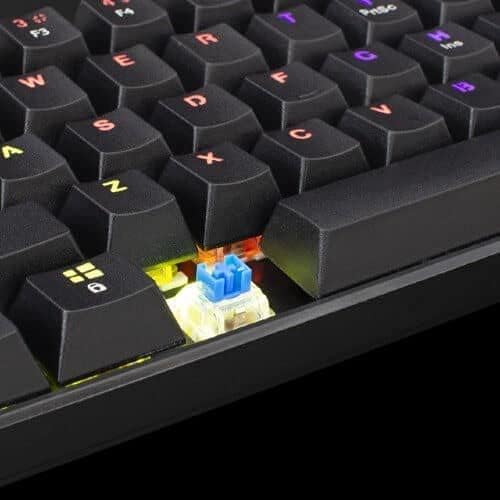
Image: Connecting the USB-C cable to the keyboard's port.
- Hono ki Rorohiko: Insert the larger USB-A end of the cable into an available USB port on your computer.
- Tāuta Atekōkiri: The keyboard is plug-and-play. Your operating system (Windows, macOS, Linux) should automatically detect and install the necessary drivers. No manual driver installation is typically required.
- Hiko-Tuatahi: Once connected, the keyboard's backlight should illuminate, indicating it is powered on and ready for use.
Nga Tohutohu Whakahaere
The White Shark Shinobi 60% Mechanical Keyboard features a compact layout. Many functions are accessed via function (Fn) key combinations.
Tahora Matua me nga Mahi

Whakaahua: Ka mutuview of the Shinobi 60% keyboard layout.
The 60% layout means some standard keys are accessed through a secondary function layer, typically by holding the Fn kī.
Mana Whakamuri
The keyboard features customizable RGB backlighting.
- Huri Aratau Rama: Whakamahi Fn + \ | to cycle through various lighting effects.
- Whakaritea te Tirohanga: Whakamahi Fn + ] } (whakanui) me Fn + [ { (decrease) to adjust backlight brightness.
- Whakarite Tere: Whakamahi Fn + ; : (whakanui) me Fn + '" (decrease) to adjust the speed of dynamic lighting effects.
- Huri Tae: Whakamahi Fn + Whakauru to change the color of static lighting modes.
Rongorau me nga Kī Mahi
Access multimedia controls and other functions using the Fn key in combination with other keys. Refer to the keycaps for secondary legends.
| Whakakotahitanga Matua | Mahi |
|---|---|
| fn + A | Purei/Tatari |
| Fn + S | Tuhinga o mua |
| Fn + D | Riro Panuku |
| Fn + F | Rōrahi Whakararo |
| Fn + G | Rōrahi Whakarunga |
| Fn + H | Wahangu |
| Fn + J | Taku Rorohiko |
| Fn + K | Pūtirotiro |
| Fn + L | Īmēra |
| Fn + W | Swap WASD and Arrow Keys |
| Fn + Pae Mokowā | Lock/Unlock Fn key (for continuous access to secondary functions) |
Te tiaki
Proper maintenance ensures the longevity and performance of your mechanical keyboard.
Te horoi i te papapātuhi
- Tango Puehu: Whakamahia te hau kōpeke hei pupuhi atu i te puehu me ngā paru i waenganui i ngā taupoki kī.
- Whakapai Mata: Mā te āta horoi i ngā taupoki kī me te mata o te papapātuhi ki te kakahu ngohengohe, kore-miro, kia paku mākūkū.ampka whakakikoruatia ki te wai, ki te wairewa horoi ngawari ranei. A ape i te makuku nui.
- Te Horoi Hōhonu (Ngā Taupoki Kī): For a deeper clean, keycaps can be carefully removed using a keycap puller (not included). Wash them with mild soap and water, rinse thoroughly, and ensure they are completely dry before reattaching.

Image: Detail of a mechanical switch under a keycap.
Rokiroki
Ki te kore e whakamahia mō te wā roa, rongoatia te papapātuhi ki te wāhi hauhautanga, maroke, kia matara atu i te rā tika me te pāmahana tino kino.
Raparongoā
If you encounter issues with your White Shark Shinobi keyboard, refer to the following common solutions:
Papapātuhi Kaore i te Whakautu
- Tirohia te Hononga Taura: Ensure the USB-C cable is securely plugged into both the keyboard and the computer. Try unplugging and re-plugging it.
- Whakamātauria Tauranga USB rereke: Honoa te papapātuhi ki tētahi atu tauranga USB i tō rorohiko.
- Tīmata anō Rorohiko: A simple computer restart can often resolve connectivity issues.
- Whakamātautau ki tētahi atu Rorohiko: If possible, test the keyboard on another computer to determine if the issue is with the keyboard or your original computer's setup.
Backlight Not Working or Incorrect
- Taki Tirohanga: Ensure the brightness is not set to the lowest level using Fn + ] }.
- Aratau Porohita: Whakamātauria te huri haere i roto i ngā aratau rama mā te whakamahi i Fn + \ |.
- Tautuhi wheketere: Some keyboards have a factory reset combination (e.g., Fn + Esc for 3-5 seconds). Refer to specific product documentation if available, or try this common combination.
Kī Kāore i te Rēhita, i te pato-rua ranei
- Horoia ngā taupoki kī i raro i: Dust or debris under the keycap or switch can cause issues. Refer to the "Maintenance" section for cleaning instructions.
- Porearea Pūmanawa: Ensure no conflicting software (e.g., macro programs, other keyboard drivers) is running.
Whakatakotoranga
Key technical specifications for the White Shark Shinobi 60% Mechanical Keyboard:
| Āhuahira | Taipitopito |
|---|---|
| Ingoa Tauira | Shinobi 60% |
| Waitohu | Mango ma |
| Hangarau Hononga | USB Waea |
| Whakaahuatanga Papapātuhi | Gaming, Mechanical |
| Āhuahira Motuhake | Backlit (RGB) |
| Te maha o nga Kī | 61 |
| Momo Whakawhiti | Tactile (Blue Switches) |
| Pūrere Hototahi | Pona, Rorohiko Papamahi |
| ASIN | B093C63NSG |

Image: Product packaging indicating blue switches.
Nga korero Whakaputanga
Specific warranty terms and conditions for the White Shark Shinobi 60% Mechanical Keyboard may vary by region and retailer. Please retain your proof of purchase for warranty claims. For detailed warranty information, refer to the official White Shark webpae, whakapā atu ranei ki to waahi hoko.
Tautoko
For further assistance, technical support, or frequently asked questions, please visit the official White Shark support webpae.
Whaimana Webpae: While a direct link is not provided, search for "White Shark Gaming" to find their official support page.


