1. Kupu Whakataki
This manual provides detailed instructions for the Seagate One Touch Hub 10TB External Hard Drive, model STLC10000400. It covers essential information for setting up, operating, maintaining, and troubleshooting your device to ensure optimal performance and data security. The Seagate One Touch Hub offers password-protected storage with convenient front-facing USB-C and USB 3.0 ports, enabling quick file backups and simultaneous device charging. It is compatible with both Windows and Mac operating systems and includes Seagate Toolkit backup software for efficient data management.
2. He aha kei roto i te Pouaka
Manatokona kei roto katoa nga waahanga kei roto i to kete:
- ONE TOUCH HUB 10TB USB3.0
- USB 3.0 taura
- Pūurutau hiko
- Aratohu Timata Tere
3. Nga waahanga matua
- Pū USB Whakauru: Features a front-facing USB-C and USB 3.0 port for connecting and recharging devices, even when your computer is off.
- Parenga Kupuhipa: Secure your digital life with password-protected external storage.
- Hototahi-whakawhitiwhiti: Out-of-the-box compatibility with Windows and Mac computers.
- Seagate Toolkit Software: Includes backup software for one-click and scheduled backups, as well as file whakaata.
- Ngā Ratonga Whakaora Raraunga Whakaora: Enjoy long-term peace of mind with included data recovery services.
- Mylio Photos Subscription: Control your content with a 6-month Mylio Photos subscription.
4. Tatūnga
4.1 Te Hononga i te Puku
- Place the Seagate One Touch Hub on a stable, flat surface near your computer.
- Connect the power adapter to the drive's power port and then plug it into a power outlet.
- Connect the included USB 3.0 cable to the USB 3.0 port on the back of the One Touch Hub and to an available USB port on your computer. For optimal performance, use a USB 3.0 or USB-C port on your computer.
- Ka whakakā aunoa te puku, ā, ka kitea e tō pūnaha whakahaere.

Image: The Seagate One Touch Hub, a black external hard drive with silver accents and front-facing USB ports, ready for connection.

Whakaahua: He taipitopito view of the front panel of the Seagate One Touch Hub, clearly showing the USB-C and USB 3.0 ports for convenient device connectivity and charging.
4.2 Initializing the Drive (if necessary)
For new drives or if the drive is not immediately recognized, you may need to initialize and format it. Follow your operating system's instructions for disk management. The drive is pre-formatted for both Windows and Mac for ease of use.

Image: A visual representation of the Seagate One Touch Hub's compatibility with both Windows and Mac operating systems, indicated by their respective logos.
5. Whakahaere i te Pūrere
5.1 Whakawhiti Raraunga
Once connected, the Seagate One Touch Hub appears as an external drive on your computer. You can transfer files by dragging and dropping them into the drive's folder, or by using your operating system's copy/paste functions.

Image: The Seagate One Touch Hub positioned on a desktop, connected to a computer, symbolizing the ease of drag-and-drop file whakahaere.
5.2 Using Seagate Toolkit
The Seagate Toolkit software provides tools for backup, restore, and mirroring. Install the software from the drive or download it from the Seagate website. Follow the on-screen instructions to set up one-click backups or schedule regular backups of your important data.
5.3 Parenga Kupuhipa
Utilize the Seagate Toolkit to enable password protection for your drive. This feature encrypts your data, providing an additional layer of security against unauthorized access.
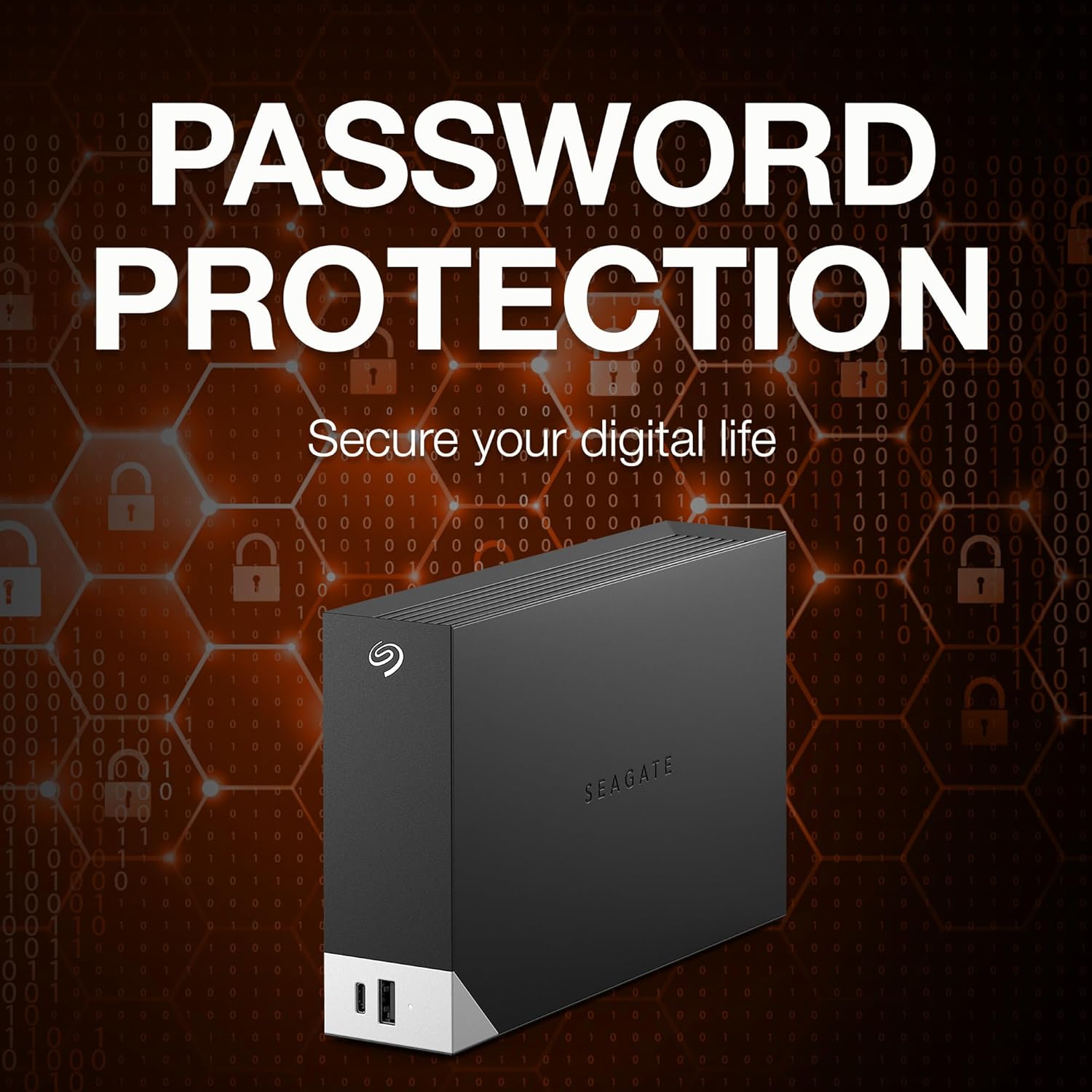
Image: The Seagate One Touch Hub displayed with various digital lock icons, visually emphasizing its robust password protection capabilities for securing data.
5.4 Mylio Photos
Your purchase includes a 6-month subscription to Mylio Photos. This software helps you organize, protect, and sync your photos across all your devices. Refer to the included documentation or the Mylio Photos website for installation and usage instructions.

Image: A collage of screens from various devices (laptop, tablet, smartphone) displaying the Mylio Photos application, highlighting its cross-device photo organization and management features.
6. Tiaki
- Te Peke Haumaru: Me pana marie te puku i tō rorohiko i mua i te momotu hei ārai i te pirau o ngā raraunga.
- Tiaki Tinana: Avoid dropping or subjecting the drive to physical shock, as this can damage the internal components.
- Whakahau: Ensure the drive is placed in a well-ventilated area to prevent overheating. Do not block the ventilation slots.
- Pūrua auau: While the drive itself is for storage, regularly back up critical data to multiple locations for maximum security.
7. Te Raru
- Kaore i kitea te Puku: Check all cable connections (USB and power). Try a different USB port on your computer. Ensure the power adapter is securely plugged into a working outlet.
- Mahinga Puturi: Ensure you are using a USB 3.0 or USB-C port on your computer. Close any unnecessary applications running in the background.
- Ngā Take Whakauru Raraunga: If you have enabled password protection, ensure you are entering the correct password. Run a disk check utility from your operating system.
- Nga Take Pūmanawa: Reinstall the Seagate Toolkit software if you experience problems with backup or mirroring functions.
8. Whakatakotoranga
| Te Kaha Puku Maama | Kōpae Mārō Mīhini 10 TB |
| Waitohu | Seagate |
| Rangatū | Kotahi Pa |
| Tau tauira | STLC10000400 |
| Pūmārō Pūmārō | Mac, PC |
| Taumaha Tūemi | 2.73 pauna |
| Rahi Hua (LxWxH) | 9.17 x 8.74 x 3.07 inihi |
| Tae | Pango |
| Atanga Puku Maama | USB 3.0 |
| Te Tere Hurihuri Puku Maama | 7200 RPM |
| Hangarau Hononga | USB |
| Pūrere Hototahi | Papamahi, Pona |
9. Pūtāhui me te Tautoko
The Seagate One Touch Hub 10TB External Hard Drive comes with a two-year limited warranty. Additionally, it includes Rescue Data Recovery Services, providing extra protection for your data against unexpected data loss due to human error, technical faults, viruses, or natural disasters.

Image: A graphic illustrating the benefits of Seagate's Rescue Data Recovery Services, highlighting data protection and recovery options.
For further assistance, technical support, or to learn more about your warranty and data recovery services, please visit the official Seagate support website or your product's dedicated support page.
Ka kitea e koe etahi atu korero me nga rauemi tautoko i te Seagate Store.


