1. Kupu Whakataki
Mauruuru koe mo te hokoasing the Rapoo N300 Optical Wired Gaming Mouse. This manual provides detailed instructions for setting up, operating, and maintaining your new mouse. Please read this manual thoroughly before use to ensure optimal performance and longevity of the product.
2. Hua Neke Atuview
2.1 Nga waahanga matua
- Aroturuki Arotau Tino-Pono: Equipped with a 2000 DPI tracking engine for accurate and responsive cursor control.
- 6 Pātene: Includes left, right, scroll wheel, DPI switch, and two side buttons for enhanced functionality.
- 2D Anti-Slip Scroll Wheel: Provides precise scrolling and tactile feedback.
- Hoahoa Ambidextrous: Ergonomically designed for comfortable use by both left and right-handed users.
- Hononga USB Waea: Ensures a stable and lag-free connection.
2.2 Ihirangi mokete
- Rapoo N300 Optical Wired Gaming Mouse
- Pukapuka Kaiwhakamahi (tenei tuhinga)
2.3 Hoahoa Hua

Whakaahua 1: Runga view of the Rapoo N300 mouse, showing the left and right click buttons, scroll wheel, and DPI switch button. The Rapoo logo is visible at the base.

Whakaahua 2: Te taha view of the Rapoo N300 mouse, highlighting the two side buttons and the textured grip area for improved handling.
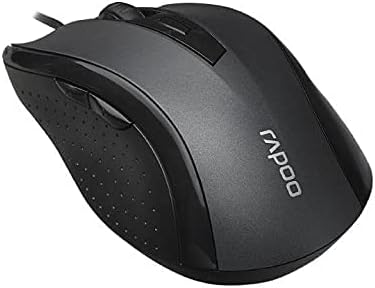
Whakaahua 3: Koki view of the Rapoo N300 mouse, showcasing its ergonomic contour and the placement of the scroll wheel and side buttons.

Whakaahua 4: Raro view of the Rapoo N300 mouse, displaying the optical sensor, product model number (N300), interface type (USB), and regulatory compliance markings.
3. Tohutohu Tatūnga
- Honoa te Kiore: Locate an available USB port on your computer (desktop or laptop). Insert the USB connector of the Rapoo N300 mouse firmly into the USB port.
- Tāuta Atekōkiri: The Rapoo N300 mouse is a plug-and-play device. Your operating system (Windows XP, Windows 7, Linux, or newer versions) will automatically detect and install the necessary drivers. This process may take a few moments.
- Manatoko: Once the drivers are installed, the mouse cursor should become responsive. Move the mouse to confirm functionality.
Kāore e hiahiatia he tāutanga pūmanawa tāpiri mō ngā mahi taketake.
4. Nga Tohutohu Whakahaere
4.1 Nga Mahi Taketake
- Pāwhiri Mauī: Te mahi matua, te kōwhiringa, te whakatuwhera i ngā tūemi.
- Pāwhiri Matau: Ka whakatuwhera i nga tahua horopaki.
- Panuku Wira: Panuku tuhinga me web pages vertically. Can also be pressed for middle-click functionality (application-dependent).
4.2 Whakatikatika DPI
The Rapoo N300 features a dedicated DPI switch button, usually located behind the scroll wheel. Press this button to cycle through different DPI (Dots Per Inch) sensitivity settings. Each press will change the cursor speed, allowing you to adjust it to your preference for various tasks, from precise editing to fast-paced gaming.
4.3 Pihi Taha
The two side buttons typically function as "Forward" and "Backward" in web kaitirotiro me file explorers. Their functionality may be customizable through operating system settings or third-party software, if available.
5. Tiaki
- Te horoi: Whakamahia he kakahu ngohengohe, maroke hei muru i te mata o te kiore. Mo te paru maro, paku dampen te kakahu ki te wai, ki te otinga horoi ngawari ranei. A ape i te whakamahi i nga matū kino, i nga taonga abrasive ranei.
- Pūoko Optical: Ensure the optical sensor on the bottom of the mouse remains clean and free of dust or debris for optimal tracking performance. Do not attempt to disassemble the mouse.
- Tiaki taura: A ape i nga piko koi, te toha nui ranei i te taura USB kia kore ai e pakaru.
6. Te Raru
| Raruraru | Rongoa pea |
|---|---|
| Kaore te kiore e whakautu |
|
| He pohehe, he pekepeke ranei te neke o te pehu |
|
| Kāore te pātene DPI e huri i te aro |
|
7. Whakatakotoranga
| Āhuahira | Taipitopito |
|---|---|
| Tauira | N300 |
| Tracking Engine | Optical |
| DPI | Tae atu ki te 2000 DPI |
| Te maha o nga Patene | 6 (Left, Right, Scroll Wheel, DPI, Side Button 1, Side Button 2) |
| Panuku Wira | 2D Anti-Slip |
| Takotoranga-ringa | Ambidextrous |
| Momo Atanga | USB Waea |
| Hototahitanga Pūnaha Whakahaere | Windows XP, Windows 7, Linux, and newer versions |
| Tae | Pango |
| Taumaha Tūemi | Tata ki te 100g |
| Ahu (Pake) | 15.4 x 8.4 x 4.2 cm |
8. Pūtāhui me te Tautoko
Rapoo products are designed for reliability and performance. For specific warranty information and support details, please refer to the warranty card included with your product or visit the official Rapoo webpae. Puritia to riirii hoko hei tohu mo te hoko mo nga kereme whakamana.
For technical assistance or further inquiries, please contact Rapoo customer support through their official channels.


