Kupu Whakataki
This manual provides detailed instructions for the setup, operation, and maintenance of your Edifier G1000 USB Computer Speakers. Please read this manual thoroughly before using the product to ensure proper function and longevity.
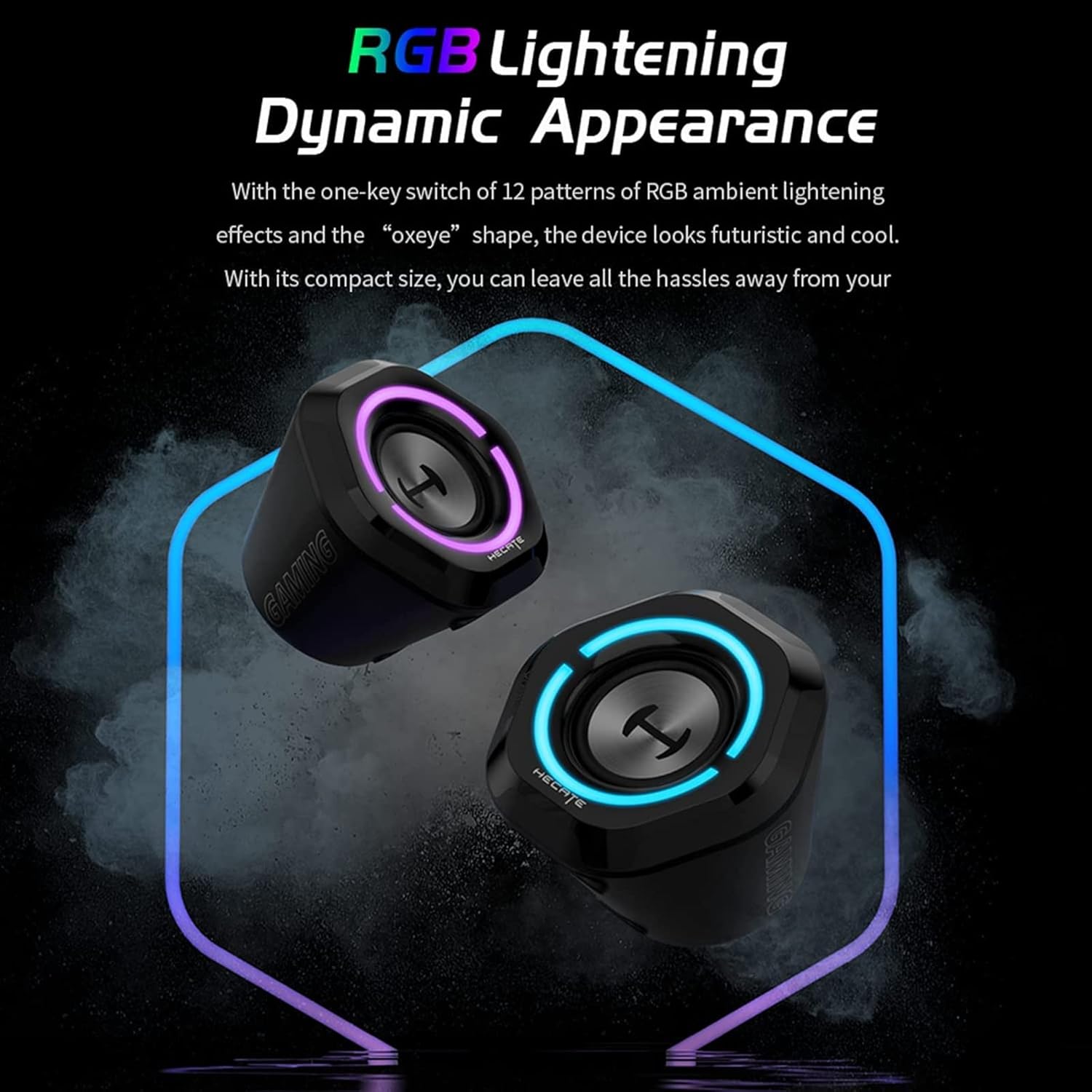
Whakaahua: Mua view of the Edifier G1000 USB Computer Speakers, showcasing their compact design and integrated lighting.
Tatūnga
Follow these steps to set up your Edifier G1000 speakers:
- Wewete ana: Carefully remove all components from the packaging. Ensure you have both speakers and the wired control module.
- Turanga: Position the speakers on your desktop, ensuring they are stable and facing towards your listening area. The compact design allows for flexible placement.
- Hononga Hiko: Connect the USB cable from the speakers to an available USB port on your computer or a USB power adapter (not included). The speakers are USB-powered.
- Audio Connection Options:
- Ororongo USB: If your computer supports USB audio, connect the USB cable directly to your computer. The speakers will function as a USB sound card.
- 3.5mm AUX Whakauru: For devices with a 3.5mm audio output, connect the included 3.5mm AUX cable from your device to the AUX input on the wired control module.
- Tauira Nihokikorangi: For wireless audio, ensure the speakers are powered on. Press the input selection button on the wired control module until the indicator light turns blue. On your device, search for "Edifier G1000" in the Bluetooth settings and pair.

Image: Diagram illustrating the various connectivity options for the Edifier G1000 speakers, including USB and 3.5mm AUX cables connected to a laptop.

Image: Close-up of the Edifier G1000 wired control module, showing the volume knob, input mode button, and RGB light switch.
Mahi
The Edifier G1000 speakers are controlled via the wired control module:
- Hiko Whakaka/Weto: Long press the Lightening Effect Switch Button on the wired control module to turn the speakers on or off.
- Mana Rōrahi: Rotate the Vol. Knob on the wired control module clockwise to increase volume and counter-clockwise to decrease volume.
- Kōwhiringa Tāuru: Short press the Input Mode button to cycle through available input sources:
- Blue Indicator: Bluetooth Mode
- Green Indicator: AUX Mode
- Red Indicator: USB Sound Adapter Mode
- Aratau oro: Long press the Mode/Sound Effect Switch button to toggle between Music Mode and Gaming Mode. These modes optimize audio output for different content types.
- Painga Rarama RGB: Short press the Lightening Effect Switch Button to cycle through 12 different RGB ambient lighting effects.

Image: The Edifier G1000 speakers displaying dynamic RGB lighting effects, highlighting their aesthetic appeal.
Tuhipoka: While the product specifications mention "App" as a control method, the primary control is through the wired module as described above.
Te tiaki
To ensure the longevity and optimal performance of your Edifier G1000 speakers, follow these maintenance guidelines:
- Te horoi: Use a soft, dry cloth to wipe the speaker surfaces. Avoid using abrasive cleaners, solvents, or sprays directly on the speakers.
- Tango Puehu: Regularly dust the speaker grilles and vents to prevent accumulation, which can affect sound quality and internal components.
- Rokiroki: Ki te kore e whakamahia mo te wa roa, penapena nga kaikorero ki te waahi whakamatao, maroke kia matara atu i te ra me te wera nui.
- A ape i te Wai: Do not expose the speakers to water or other liquids. The product is not waterproof.
Raparongoā
If you encounter issues with your Edifier G1000 speakers, refer to the following common problems and solutions:
| Raruraru | Take pea | Rongoā |
|---|---|---|
| Kaore he tangi mai i nga kaikorero |
|
|
| Ka rahua te takirua Nihokikorangi |
|
|
| RGB lights not working or blinking unexpectedly |
|
|
| Putanga rōrahi iti |
|
|
Whakatakotoranga
Key technical specifications for the Edifier G1000 speakers:
| Āhuahira | Taipitopito |
|---|---|
| Ingoa Tauira | G1000 |
| Momo Kaikorero | Kaikōrero Rorohiko |
| Rauemi | Kirihou |
| Hangarau Hononga | Nihokikorangi 5.3, USB, 3.5mm AUX |
| Kaikorero Te Mana Putanga Morahi | 10 Watts |
| Aratau Putanga Ororongo | Tirooro |
| Whirihoranga Hongere oro a tawhio noa | 2.0 (Note: Product description states 2.1, but these are 2.0 stereo speakers.) |
| Tikanga Mana | Wired Control Module (App also mentioned in specifications) |
| Pūrere Hototahi | Laptop, Personal Computer, Phones, Television |
| Rahi Hua (L x W x H) | 9.8"W x 5.9"W x 6.1"H (tata ki te 24.9cm W x 15cm W x 15.5cm Teitei) |
| Taumaha Tūemi | 0.97 Kirokaramu (2.14 pauna) |
| Puna Mana | Waea Hiko (Whakahiko USB) |
| Rarama RGB | 12 different light effects |
| Aratau oro | Gaming and Music optimized |

Image: Diagram showing the dimensions of a single Edifier G1000 speaker.
Nga korero Whakaputanga
The Edifier G1000 speakers come with a Rarangi Whakaiti. Specific terms and duration may vary by region and retailer. Please retain your proof of purchase for warranty claims.
For detailed warranty information, please refer to the official Edifier webpae, whakapā atu ranei ki te tautoko a te kaihoko.
Optional extended protection plans may be available for purchase from retailers:
- Mahere Tiaki 2-Tau
- Mahere Tiaki 3-Tau
- Tiaki Whakaoti (mahere marama)
These protection plans are separate from the manufacturer's limited warranty and offer additional coverage as specified by the plan provider.
Tautoko Kiritaki
For further assistance, technical support, or warranty inquiries, please contact Edifier customer service:
- Webpae: Visit the official Edifier webpae tukutuku mō ngā FAQs, ngā rauemi tautoko, me ngā taipitopito whakapā.
- Īmēra/Waea: Refer to the contact details provided on the Edifier webte pae, to putunga hua ranei.
Ina whakapā atu koe ki te tautoko, me tuku mai to tauira hua (G1000) me te tohu mo te hoko.


