1. Kupu Whakataki
Ka mutu te huaview
The EXVIST 4G LTE USB Dongle EC25-EUX is an industrial-grade module designed for IoT/M2M applications, providing reliable 4G LTE connectivity. It features a Quectel EC25-EUX module, offering data rates up to 150Mbps downlink and 50Mbps uplink. This dongle allows devices running Windows, Linux, or Android to connect to a 4G network directly after driver installation and SIM card insertion.
- Mahinga Nui: Equipped with Quectel EC25-EUX IoT/M2M-optimized LTE Cat 4 module, delivering maximum data rates up to 150Mbps downlink and 50Mbps uplink.
- Taupānga Whānui: Suitable for quick network connection for devices like Windows, Linux, and Android systems.
- Industrial Reliability: Features an industrial electric circuit design and DC-DC power chip for stable operation in various environments.
- Atanga Maha: Includes 1x Micro SIM card slot, 1x TTL (3.3V for RX, TX), 1x 4G main antenna (IPEX), 1x 4G aux antenna (IPEX), and 1x GPS antenna (IPEX).

Figure 1: EXVIST 4G LTE USB Dongle EC25-EUX, showing the USB connector and the Quectel module with band information.
2. Aratohu Tatūnga
2.1. Tāuta Atekōkiri
Before connecting the dongle to your computer, it is crucial to install the appropriate drivers. Failure to install drivers will prevent the device from being recognized and receiving a 4G signal.
- Obtain the correct drivers for your operating system (Windows, Linux, Android) from the manufacturer's support resources.
- Run the driver setup file ka whai i nga tohutohu i runga-mata hei whakaoti i te whakaurunga.
2.2. Kōkuhu Kāri Sim
The dongle requires a Micro SIM card for 4G network access. Ensure the SIM card is active and has a data plan.
- Locate the Micro SIM card slot on the dongle.
- Insert the Micro SIM card with the chip facing down and the corner notch facing outwards, as illustrated in Figure 2.
- Pēhia mārire te kāri SIM kia pāwhiritia rā anō ki tōna wāhi tika.

Figure 2: Diagram showing the correct orientation for inserting a Micro SIM card into the dongle, with the chip facing down and the corner out.
2.3. Hononga Antenna
For optimal signal reception, connect the required antennas to the dongle.
- Identify the IPEX connectors for the 4G main antenna, 4G auxiliary antenna, and GPS antenna (if applicable).
- Connect the 4G main antenna to the designated IPEX port. This connection is mandatory for 4G functionality.
- Connect the 4G auxiliary antenna and GPS/GNSS antenna (if used) to their respective IPEX ports.
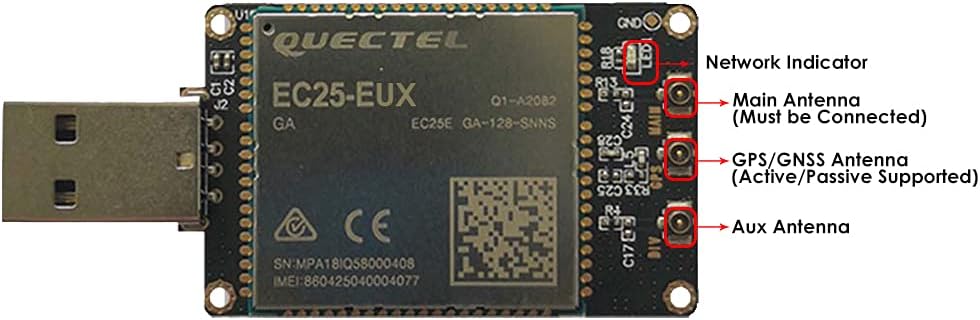
Figure 3: Labeled diagram of the dongle's interfaces, including the Network Indicator, Main Antenna, GPS/GNSS Antenna, and Aux Antenna ports.
2.4. Device Detection and APN Configuration
After driver installation and hardware setup, connect the dongle to your PC's USB port. Verify device detection and configure the Access Point Name (APN) if necessary.
- Monohia te dongle USB ki tētahi tauranga USB e wātea ana i tō rorohiko.
- Go to Device Manager (on Windows: Right-click 'This PC' -> 'Manage' -> 'Device Manager').
- Expand 'USB Controller' or 'Ports (COM & LPT)' to check if the dongle is detected, typically appearing as Quectel USB devices or COM ports.
- If the device is detected, you may need to configure the APN using a serial communication tool like QCOM.
- Run QCOM, select the correct COM Port and Baud Rate, then open the port.
- Tukuna te whakahau AT+CGDCONT=? to read the current PDP context.
- To define a new PDP context with your local ISP's APN, send the command AT+CGDCONT=<cid>,"<PDP_type>","<APN>", replacing <cid>, <PDP_type>, and <APN> with your specific settings.
Video 1: Quick Start Guide for EXVIST 4G LTE USB Dongle EC25-EUX LCC, demonstrating driver installation, device detection, and APN configuration using AT commands.
3. Mahi
Connecting to the 4G Network
Once the drivers are installed and the SIM card and antennas are connected, your device should be able to establish a 4G connection.
- After successful driver installation and APN configuration, the dongle will attempt to connect to the 4G network.
- On Windows, click the network icon (often resembling a Wi-Fi symbol) in the system tray (bottom right of your screen).
- Look for a new network connection, typically labeled with the module's identifier (e.g., "CMCC LTE"), and verify its connection status.
- If connected, your device will have internet access via the 4G network.
4. Tiaki
To ensure the longevity and optimal performance of your EXVIST 4G LTE USB Dongle, follow these maintenance guidelines:
- Kia maroke: Avoid exposing the dongle to moisture or liquids, which can damage internal components.
- Horoi Ataahua: Use a soft, dry cloth to clean the exterior of the dongle. Do not use harsh chemicals or abrasive materials.
- Rokiroki Tika: When not in use, store the dongle in a cool, dry place away from direct sunlight and extreme temperatures.
- Te hapai me te tiaki: Avoid dropping or subjecting the dongle to strong impacts.
5. Te Raru
If you encounter issues with your EXVIST 4G LTE USB Dongle, refer to the following common troubleshooting steps:
- No 4G Signal / Device Not Working: Ensure that the corresponding drivers are correctly installed. Without proper drivers, the dongle will not be able to receive a 4G signal or function. Refer to Section 2.1 for driver installation.
- Kaore i kitea te taputapu: Verify that the dongle is securely plugged into a functional USB port. Check Device Manager to confirm the device is recognized. If not, reinstall drivers.
- Kaore he Hononga Ipurangi: Confirm that the SIM card is correctly inserted and active with a data plan. Check the APN settings (refer to Section 2.4) to ensure they match your local ISP's requirements.
- Waitohu ngoikore: Ensure all antennas are securely connected to their respective ports. Try repositioning the dongle for better signal reception.
- Hononga Mokowhiti: This could be due to poor signal strength or network congestion. Check the network indicator on the dongle (if available) or your operating system's network status.
6. Whakatakotoranga
| Āhuahira | Taipitopito |
|---|---|
| Hunga Hua | 2.59 x 1.22 x 0.31 inihi |
| Taumaha Tūemi | 0.48 hekere (13.61 g) |
| Tauira Tuemi | 4UDEC25EUX |
| Waitohu | WHAKAARO |
| Atanga Pūmārō | USB 2.0 Momo A. |
| Kawa Hononga Raraunga | USB |
| Rere Whakawhiti Raraunga | 150 Megabits ia Hekona |
| Pūrere Hototahi | Papamahi |
| Whānau Pūnaha Whakahaere Hototahi | Linux, Windows |
| UPC | 707025443255 |
