1. Kupu Whakataki
This manual provides comprehensive instructions for the setup, operation, and maintenance of your DIGITUS 2D Barcode Scanner (Model: DA-81002). This device is designed for efficient and accurate scanning of 1D and 2D barcodes, including QR codes, supporting bi-directional scanning at 200 scans/sec. Please read this manual thoroughly before using the scanner to ensure proper functionality and longevity.
2. He aha kei roto i te Pouaka
I te whakatuwheratanga o te kete, tirohia koa kei te noho nga waahanga katoa me te kore e pakaru:
- 1 x 2D barcode hand scanner, QR code compatible
- 1 x scanner holder
- 1 x cable, USB - RJ45, 2 m
- 1 x Aratohu Tāutanga Tere (QIG)
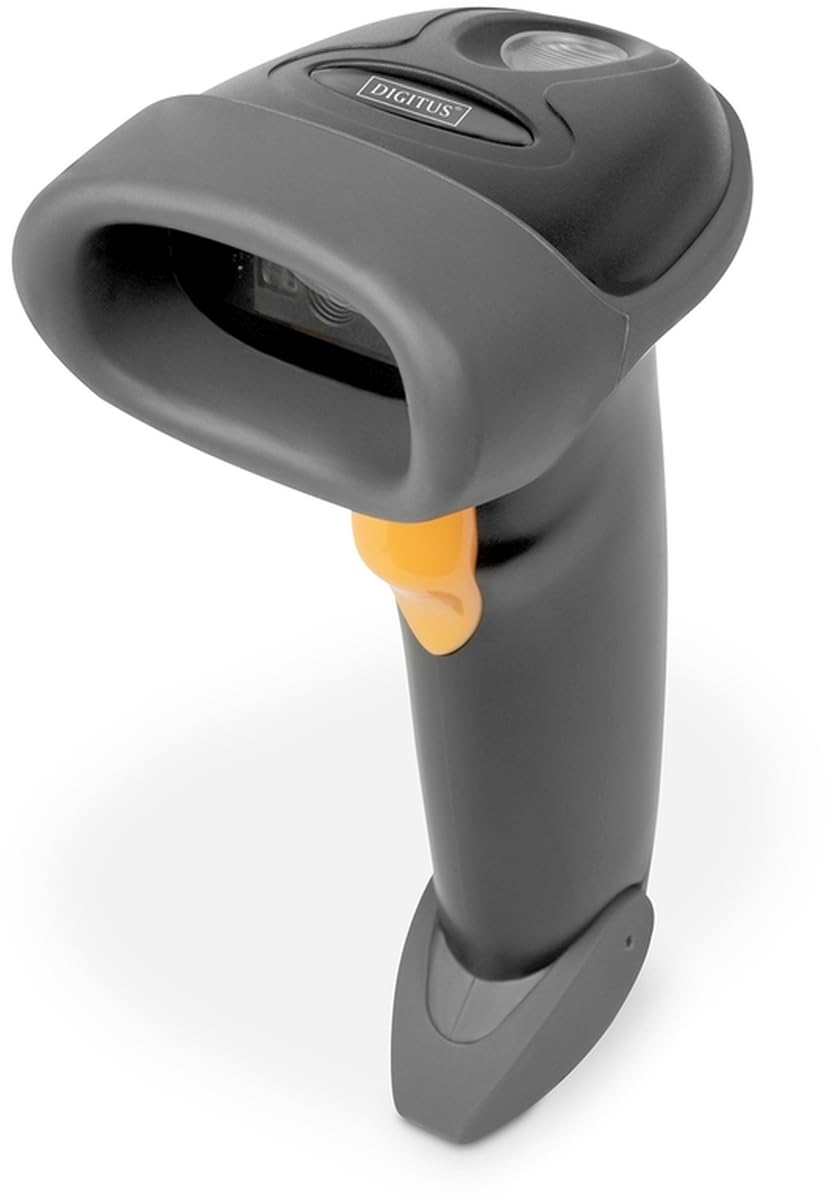
Image: The DIGITUS 2D Barcode Scanner, shown with its included stand and USB-RJ45 cable. The scanner is dark grey with an orange trigger button.
3. Tatūnga
- Honoa te Taura: Insert the RJ45 end of the provided cable into the port at the base of the barcode scanner. Ensure it clicks securely into place.
- Tūhono ki te Pūrere Kaihautū: Plug the USB end of the cable into an available USB port on your computer or point-of-sale (POS) system.
- Tāutanga Atekōkiri (Mono & Tākaro): The scanner is typically plug-and-play and should be recognized automatically by most operating systems (Windows, macOS, Linux). No specific driver installation is usually required. If prompted, allow the system to install necessary drivers.
- Tautuhi i te Matawai: Place the scanner in its holder for hands-free operation, or hold it comfortably for handheld scanning.
- Matawai Whakamatau: Open a text editor (e.g., Notepad, Word) or a compatible application. Scan a known barcode. The data should appear in the open application.
4. Nga Tohutohu Whakahaere
The DIGITUS 2D Barcode Scanner is designed for ease of use. Follow these steps for effective scanning:
- Whakahiko: The scanner powers on automatically when connected to a powered USB port. A successful power-on is usually indicated by a short beep and/or a light indicator.
- Whāinga: Point the scanning window towards the barcode you wish to scan. Ensure the entire barcode is within the scanner's field of view.
- Matawai: Press and hold the trigger button (orange button on the handle). A red aiming beam or illumination light will appear. Position the scanner so the aiming beam crosses the center of the barcode.
- Successful Scan: Upon a successful scan, the scanner will emit a short beep and/or the indicator light will flash. The scanned data will be transmitted to your connected device as if typed via a keyboard.
- Bi-Directional Scanning: The scanner supports bi-directional scanning, meaning it can read barcodes regardless of their orientation, improving scanning efficiency.
- QR Code Compatibility: This scanner is fully compatible with QR codes, allowing for versatile data capture.
5. Tiaki
Proper maintenance ensures the longevity and optimal performance of your barcode scanner:
- Te horoi i te Matapihi Matawai: Regularly clean the scanning window with a soft, lint-free cloth. For stubborn smudges, slightly dampen the cloth with water or a mild, non-abrasive cleaner. Avoid harsh chemicals or abrasive materials that could scratch the window.
- Whakapai Whānui: Wipe the exterior of the scanner with a soft, dry cloth to remove dust and dirt.
- Tiaki taura: Avoid bending or twisting the USB cable excessively, as this can damage the internal wires.
- Rokiroki: When not in use, store the scanner in a clean, dry environment, away from extreme temperatures and direct sunlight.
- Aukati i nga Whakataka: While designed for durability, avoid dropping the scanner, as impact can damage internal components.
6. Te Raru
If you encounter issues with your DIGITUS 2D Barcode Scanner, refer to the following common problems and solutions:
| Raruraru | Take pea | Rongoā |
|---|---|---|
| Karekau te Matawai i te hiko. | No power from USB port; loose cable connection. | Ensure USB cable is securely connected to both scanner and host device. Try a different USB port or host device. |
| Karekau a Scanner e panui i nga tohupaepae. | Barcode damaged/unreadable; incorrect aiming; scanner not configured for barcode type. | Ensure barcode is clear and undamaged. Aim the scanner correctly. Refer to the QIG for advanced configuration options if specific barcode types are not recognized. |
| Ko nga raraunga karapahia he he, he kore oti ranei. | Partial scan; software/application issue. | Ensure the entire barcode is within the scanning area. Test with a simple text editor to rule out application-specific issues. |
| Ka tangi te matawai engari kāore he raraunga e puta mai ana. | Host device not receiving data; application not in focus. | Ensure the cursor is active in the target input field. Restart the application or host device. |
7. Whakatakotoranga
Key technical specifications for the DIGITUS 2D Barcode Scanner (Model: DA-81002):
- Rahi Hua: 1.1 x 9.7 x 6.5 inihi
- Taumaha Tūemi: 3.88 hekere
- Tauira Tūemi: DA-81002
- Kaihanga: DIGITU
- Ngā Pūrere Hototahi: Scanner (general purpose)
- Puna Hiko: Hiko Waea (ma te USB)
- Hangarau Hononga: Tauira USB
- Reiti Matawai: 200 fps (papa mo ia hekona)
- Hototahi Waehere Pae: 1D and 2D barcodes, including QR Code
- Roa taura: 2 meters (USB - RJ45)
8. Pūtāhui me te Tautoko
For warranty information and technical support, please refer to the Quick Installation Guide (QIG) included in your product package or visit the official Digitus webpae. Puritia to riirii hoko hei tohu mo te hoko mo nga kereme whakamana.
For further assistance, you may contact Digitus customer support through their official channels. Details are typically provided in the product documentation or on the manufacturer's webpae.


