1. Kupu Whakataki
This manual provides essential instructions for the setup, operation, and maintenance of your SUBSONIC Superdrive GS550 Racing Wheel. Please read this guide thoroughly before use to ensure proper functionality and longevity of the product.
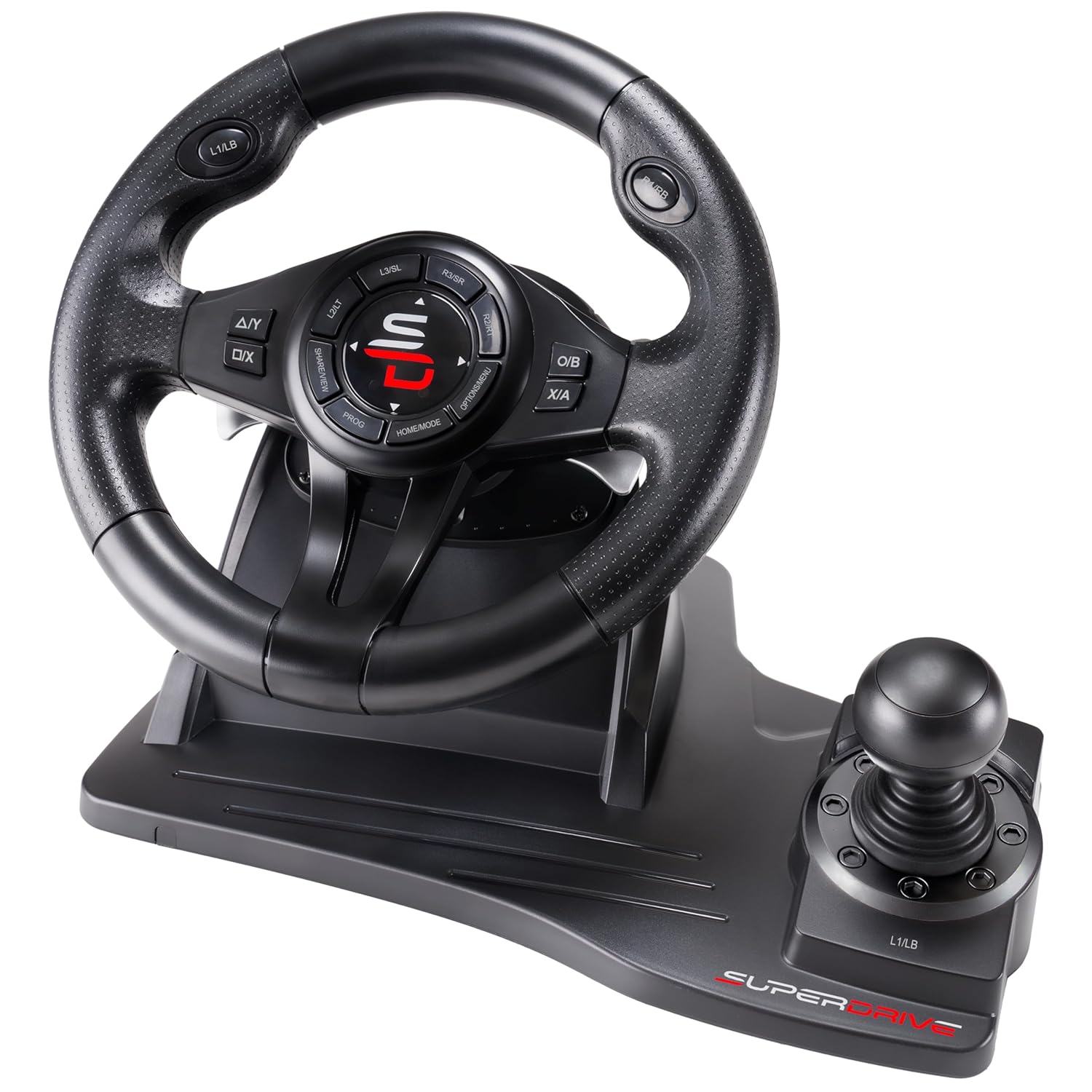
Image 1.1: The SUBSONIC Superdrive GS550 Racing Wheel, featuring the steering wheel, integrated shifter, and base unit.
2. Waenga Hua
The SUBSONIC Superdrive GS550 Racing Wheel package includes the following main components:
- Racing Steering Wheel with integrated shifter and control buttons.
- Pedal Unit (Accelerator and Brake).
- Tauira Hononga.
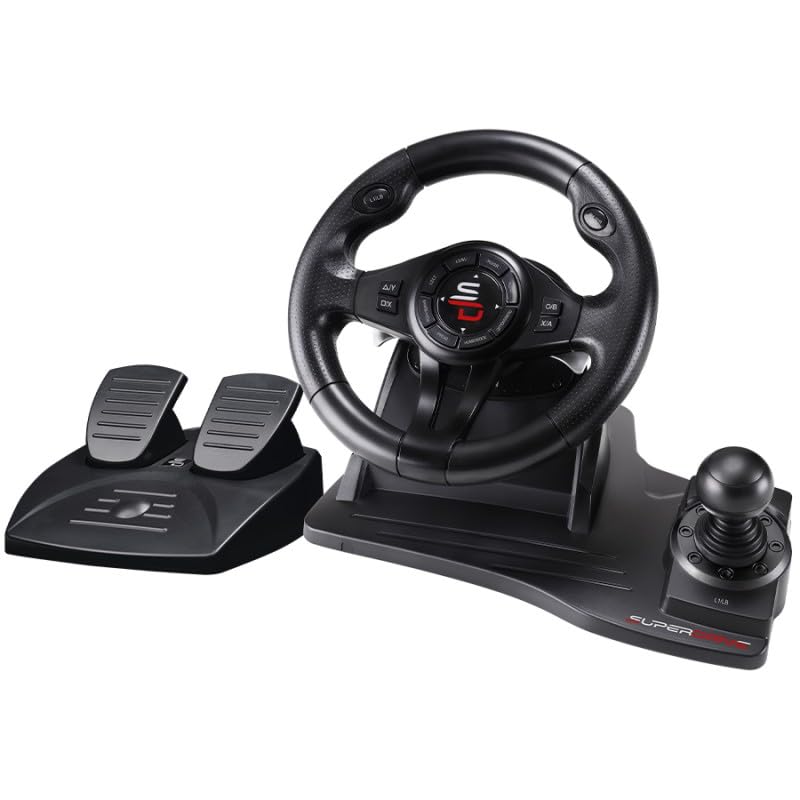
Image 2.1: The complete SUBSONIC Superdrive GS550 Racing Wheel set, including the steering wheel unit and separate pedal unit.
3. Tohutohu Tatūnga
Follow these steps to connect your racing wheel to your gaming console or PC.
3.1 Hononga Whānui
- Connect the pedal unit cable to the designated port on the back of the steering wheel unit.
- Connect the USB cable from the steering wheel unit to an available USB port on your console or PC.
- Me whakarite kia mau nga hononga katoa.
3.2 Console Specific Setup

Image 3.1: Detailed connection steps for Xbox Series X/S, Xbox One, PS4, and Nintendo Switch consoles.
For Xbox Series X/S, Xbox One, PS4:
- Ensure your console is powered OFF.
- Connect the racing wheel's USB cable to the console.
- Connect an official console controller to the racing wheel's USB port (if available, or directly to the console if the wheel acts as a passthrough).
- Power ON your console. The racing wheel should be recognized automatically.
Mo Nintendo Whakawhiti:
- Before connecting, navigate to the console's System Settings.
- Select 'Controllers and Sensors'.
- Enable the option 'Pro Controller Wired Communication'.
- Connect the racing wheel's USB cable to the Nintendo Switch dock.
- Power ON your console. The racing wheel should now function.
Mo PC:
- Honoa te taura USB o te wira reihi ki tētahi tauranga USB e wātea ana i runga i tō PC.
- The operating system should automatically detect and install the necessary drivers. If not, check the manufacturer's webpae mo te tango taraiwa.
- The wheel supports X-Input and Direct Input protocols.
3.3 Te Whakaeke i te Wiira Reihi
The racing wheel can be securely fixed to a desk or flat surface using its integrated suction cups.
- Place the racing wheel on a clean, smooth, flat surface.
- Press down firmly on the wheel's base to engage the suction cups.
- Ensure the wheel is stable before use.
4. Nga Tohutohu Whakahaere
Familiarize yourself with the controls and features of your Superdrive GS550 Racing Wheel.
4.1 Mana Whakahaereview
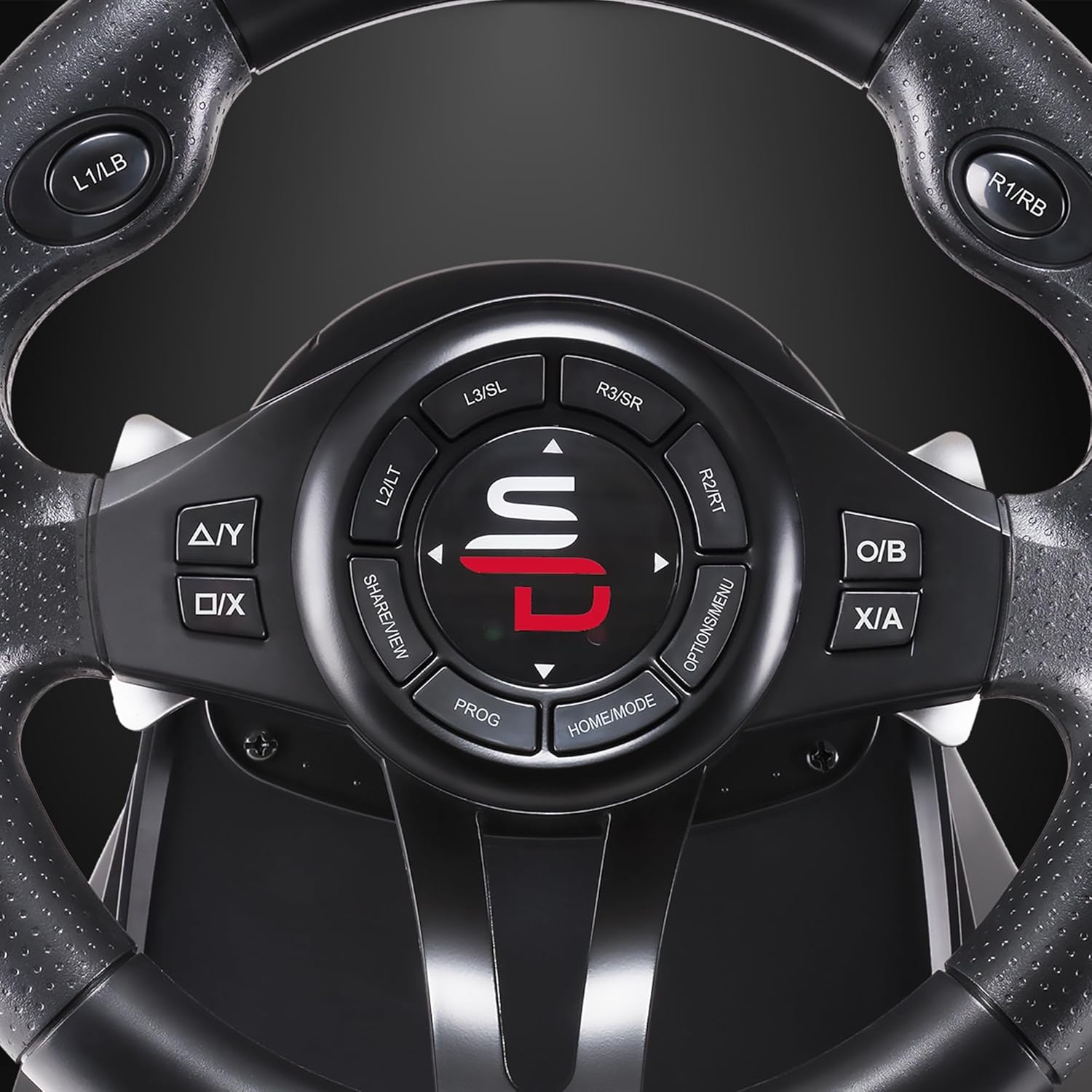
Whakaahua 4.1: Taipitopito view of the steering wheel's central control panel and buttons.
- Rere Tere: Offers a 270-degree rotation angle for precise control.
- Taera Includes an accelerator and brake pedal for realistic driving simulation.
- Hurihuri: An integrated gear shifter (+/-) for manual gear changes.
- Kaihuri hoe: Located behind the wheel for quick gear changes.
- Patene Mana: Standard console buttons (A/Y, B/O, X/A, D-pad, Home/Mode, Options/Menu, Share/View, L1/LB, R1/RB, L2/LT, R2/RT, L3/SL, R3/SR) are present on the wheel for full game control.

Image 4.2: Illustration of the 270-degree rotation angle of the steering wheel.
4.2 Urupare Wiri
The racing wheel features a double vibration motor to enhance immersion during gameplay. Vibration effects are automatically activated by compatible games.
4.3 Whakaritenga Taapiri
The steering wheel offers 3 levels of sensitivity adjustment to suit different driving styles and game types. Refer to your game's control settings for optimal configuration or use the wheel's built-in sensitivity adjustment feature (consult the included quick start guide for specific button combinations).
4.4 Patene Papatono
Certain buttons on the racing wheel are programmable, allowing you to customize your control layout for various racing games. Consult the quick start guide for instructions on how to program specific keys.
4.5 Hototahi
The SUBSONIC Superdrive GS550 is compatible with a wide range of platforms:
- Nintendo Whakawhiti 2
- Nintendo Whakawhiti
- Xbox Series X/S
- PlayStation 4 (PS4)
- Xbox One
- PlayStation 3 (PS3)
- PC (Windows 7 and later)
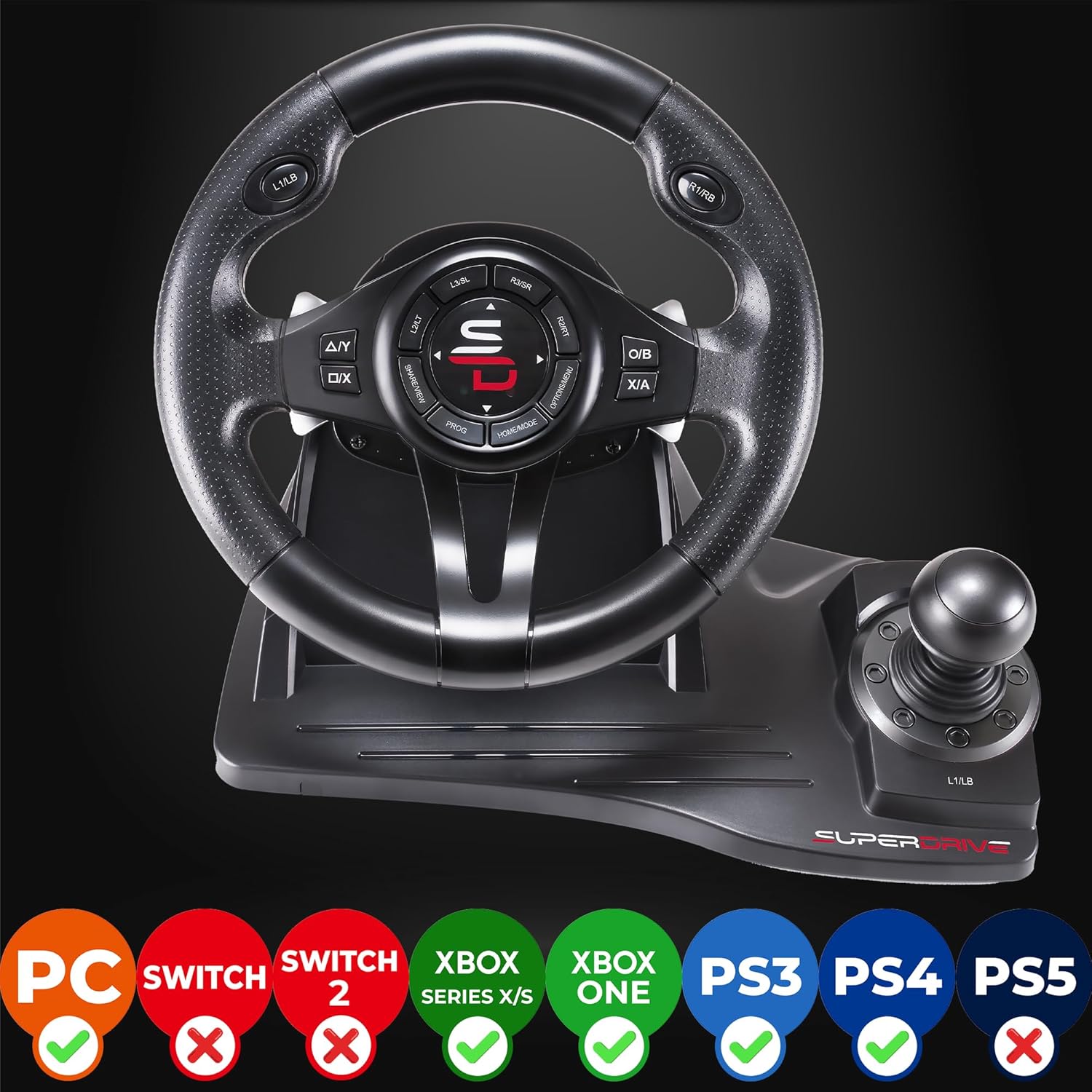
Image 4.3: Visual representation of the racing wheel's compatibility across various gaming platforms.
5. Tiaki
Proper care will ensure the longevity and performance of your racing wheel.
- Te horoi: Use a soft, dry cloth to clean the surfaces of the steering wheel and pedals. Avoid abrasive cleaners or solvents.
- Rokiroki: Whakaorangia te taputapu ki te waahi makariri, maroke atu i te ra tika me te wera nui.
- Tiaki taura: Avoid sharp bends or kinks in the cables. Do not pull on the cables to disconnect.
6. Te Raru
If you encounter issues with your racing wheel, refer to the following common solutions:
| Raruraru | Rongoa pea |
|---|---|
| Kāore te wira i te mōhiotia e te papatohu/PC |
|
| Karekau he urupare wiri |
|
| Controls are unresponsive or erratic |
|
7. Whakatakotoranga
- Tau tauira: SA5596-NG
- Rahi Hua: 11.02 x 13.58 x 11.81 inihi
- Taumaha Tūemi: 4.85 pauna
- Koki Hurihuri: 270 nga nekehanga
- Wiri: Double vibration motor
- Tairongo: 3 nga taumata whakarite
- Hototahi: Nintendo Switch 2, Switch, Xbox Series X/S, PS4, Xbox One, PS3, PC (Windows 7+)
- Kaihanga: Subsonic
- Te Ra Tuatahi Wātea: Pipiri 21, 2021
8. Pūtāhui me te Tautoko
This product is covered by a manufacturer's warranty. For specific warranty terms and conditions, please refer to the documentation included with your purchase or visit the official SUBSONIC website. For technical support or further assistance, please contact SUBSONIC customer service.
Kei runga i te paetukutuku ngā mōhiohio whakapā me ētahi atu rauemi SUBSONIC Brand Store on Amazon.


