1. Kupu Whakataki
The Sonos Beam (Gen 2) is a compact smart soundbar designed to enhance your entertainment experience with rich audio for TV, music, and more. It features advanced sound technology, including Dolby Atmos, and integrates seamlessly with the Sonos ecosystem for multiroom listening and expandable surround sound.
This manual provides essential information for setting up, operating, and maintaining your Sonos Beam (Gen 2).
2. He aha kei roto i te Pouaka
Upon unboxing your Sonos Beam (Gen 2), you should find the following items:
- Sonos Beam (Gen 2) Soundbar
- Arahi HDMI
- Optical Adaptor
- Ara Matua (Taura Hiko)

3. Tatūnga
Setting up your Sonos Beam (Gen 2) is designed to be straightforward. Follow these steps for initial installation:
- Turanga: Position the soundbar in front of your TV, ensuring it has clear line of sight and is not obstructed.
- Hononga Hiko: Connect the provided Mains Lead to the soundbar and then to a power outlet.
- TV Connection (HDMI eARC/ARC):
- Ensure your TV is powered ON.
- Locate your TV's HDMI eARC port (or ARC port). This is commonly found on the back or side of your TV.
- Use the included HDMI cable to connect your Sonos Beam to your TV's HDMI eARC/ARC port.
- If your TV does not have an eARC/ARC port, use the included optical audio adapter to connect to your TV's optical digital audio output.
- Sonos App Setup:
- Download the Sonos app on your smartphone or tablet.
- Open the app and follow the on-screen instructions to set up your new Sonos Beam. The app will guide you through connecting to your Wi-Fi network and configuring sound settings.
- Whakamahi Te whakatangi pono via the Sonos app (iOS devices recommended) to adapt the sound of your Beam to the unique acoustics of your room for optimal audio performance.


Video 1: A user demonstrating the Sonos Beam (Gen 2) and its features, including the touch controls and connectivity options. This video highlights the ease of setup and the soundbar's sleek design.
4. Mahi
The Sonos Beam (Gen 2) offers multiple ways to control your audio experience:
- Taupānga Sonos: The primary control interface. Use the app to adjust volume, group speakers, stream music, and access advanced settings like Trueplay tuning.
- Mana Reo: With built-in Alexa and Google Assistant compatibility, you can control your soundbar and other smart home devices using voice commands. The microphone can be toggled on/off for privacy.
- TV Remote: The Beam can be programmed to respond to your existing TV remote for basic functions like volume control.
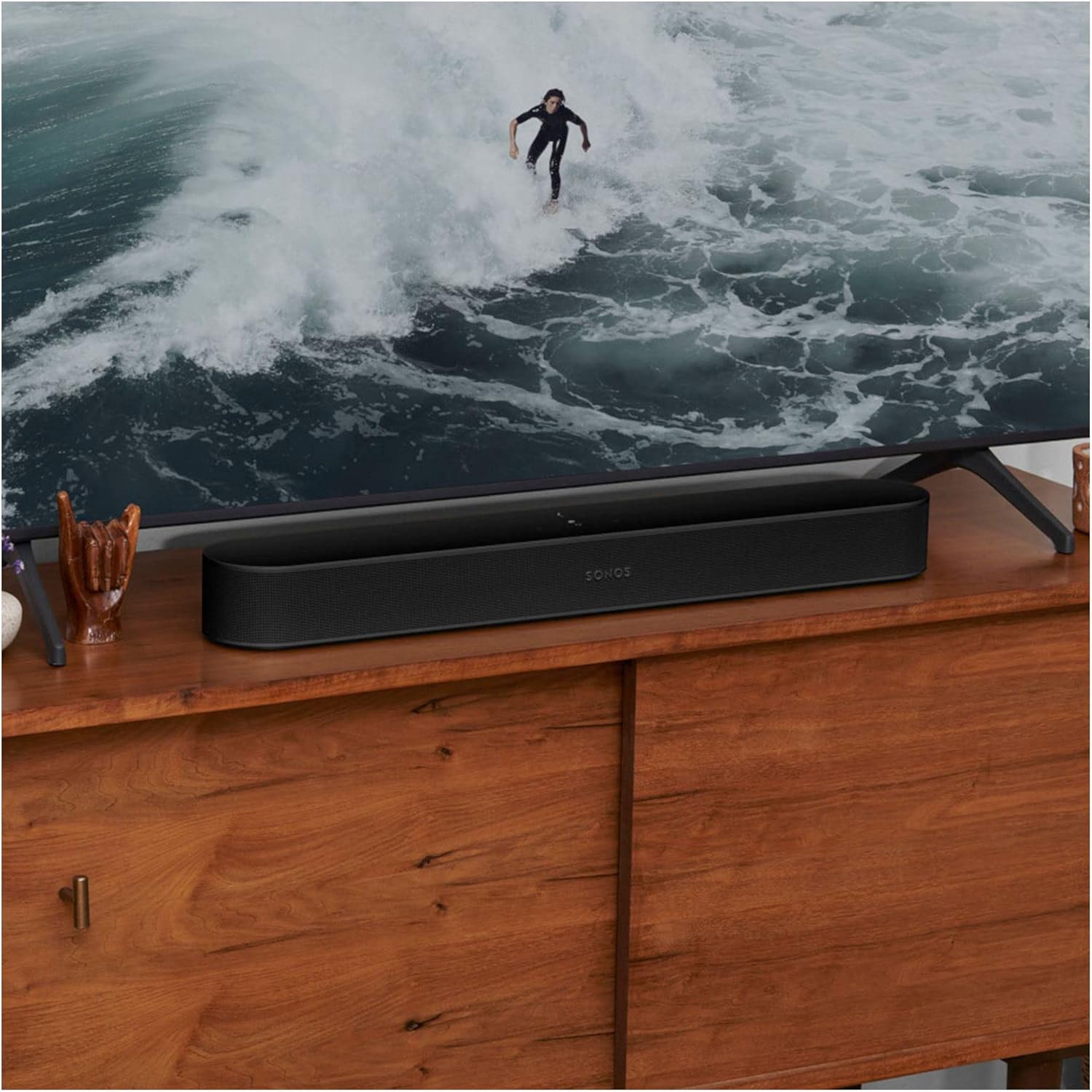
- Mana Pa: The top surface of the Beam features touch-sensitive controls for play/pause, volume up/down, and track skipping.
Video 2: A user demonstrating the sound quality and voice control features of the Sonos Beam (Gen 2) while playing music.
5. Nga waahanga matua
- Dolby Atmos: Experience immersive 3D surround sound effects.
- Whakaata Trueplay: Adapts the sound to the unique acoustics of your room for optimal audio.
- Mana Reo: Integrated with Amazon Alexa and Google Assistant for hands-free control.
- Apple AirPlay 2: Rere oro tika mai i ō pūrere Apple.
- Hononga Wi-Fi: Stream music, radio, podcasts, and audiobooks over Wi-Fi.
- Pūnaha Whakaroha: Easily expand your Sonos system over time with additional Sonos speakers for true surround sound and multiroom listening.
- Huri Ororongo TV: Instantly swap TV audio from Sonos Beam to Sonos Ace Headphones (sold separately) for private listening.

6. Tiaki
To ensure the longevity and optimal performance of your Sonos Beam (Gen 2), follow these general maintenance guidelines:
- Te horoi: Use a soft, dry cloth to gently wipe the surface of the soundbar. Avoid using harsh chemicals or abrasive cleaners.
- Turanga: Keep the soundbar away from direct sunlight, heat sources, and moisture. Ensure adequate ventilation around the device.
- Whakahōu Pūmanawa: Regularly check for and install software updates via the Sonos app to ensure your device has the latest features and performance enhancements.
7. Te Raru
If you encounter issues with your Sonos Beam (Gen 2), consider the following common solutions:
- Kore Oro: Check all cable connections (power, HDMI). Ensure the correct input is selected on your TV. Verify volume levels on both the soundbar and TV.
- Nga Take Hononga Taupānga: Ensure your smartphone/tablet and Sonos Beam are connected to the same Wi-Fi network. Restart your router, then the Sonos Beam, and finally the Sonos app.
- Kaawhina Reo Kaore i te Whakautu: Check if the microphone is enabled on the soundbar (indicated by a light). Ensure your voice assistant account is correctly linked in the Sonos app.
- Kounga oro kino: Run Trueplay tuning again through the Sonos app. Check for any obstructions around the soundbar.
For more detailed troubleshooting or persistent issues, refer to the Sonos support webpae, whakapā atu ranei ki te ratonga kiritaki.
8. Whakatakotoranga
| Āhuahira | Taipitopito |
|---|---|
| Waitohu | Sonos |
| Ingoa Tauira | Sonos Beam (Whakatipuranga 2) |
| Tau tauira | BEAM2UK1BLK |
| Tae | Pango |
| Hangarau Hononga | HDMI, Wi-Fi |
| Aratau Putanga Ororongo | Karapoti |
| Momo Kaikorero | 3D, Paeoro, Oro Taiao |
| Nga waahanga motuhake | Dolby Atmos, Alexa/Google Voice Control, Trueplay Tuning, Apple AirPlay 2 |
| Tikanga Mana | App, Voice, TV Remote, Touch Controls |
| Rahi Tūemi (D x W x H) | 2.72"D x 25.63"W x 3.94"H |
| Taumaha Tūemi | 2 Kirokaramu |
| Puna Mana | Hiko Hiko |
| Rauemi | Kirihou |
9. Pūtāhui me te Tautoko
This product is an International Version and comes with Karekau he Rarangi as specified in the product details. For support, troubleshooting, and additional resources, please visit the official Sonos webpaetukutuku, whakapā atu ranei ki ta raatau ratonga kaihoko.
Ka kitea e koe etahi atu korero me te tautoko i te Sonos Store on Amazon.


