1. Kupu Whakataki
This manual provides essential information for the safe and effective use of your Amazon Echo Dot (5th Gen) smart speaker. Please read these instructions thoroughly before operating the device and retain them for future reference.

Image: Amazon Echo Dot (5th Gen) in Glacier White on a wooden surface, highlighting its compact size and capabilities.
2. He aha kei roto i te Pouaka
Manatokona kei roto katoa nga taonga kei roto i te kete:
- Echo Dot (5th Gen) Device
- Glacier White Power Adapter (15W)
- Aratohu Timata Tere
3. Hua Neke Atuview
The Amazon Echo Dot (5th Gen) is a compact smart speaker designed to deliver an enhanced audio experience and integrate seamlessly with your smart home ecosystem. It features a spherical design with a fabric finish and an LED light ring at the base.

Image: Amazon Echo Dot (5th Gen) in Glacier White, front view with glowing light ring.
Āhuatanga matua:
- Improved Audio: Features a 1.73” (44 mm) front-firing speaker for clearer vocals, deeper bass, and vibrant sound.
- Alexa Voice Assistant: Provides hands-free control for music, information, timers, and smart home devices.
- Mana Tūmataitinga: Includes a microphone off button and the ability to view me te whakakore i nga rekoata reo.
- Pokapū Kāinga Atamai: Supports WiFi, Bluetooth Low Energy Mesh, and Matter for compatible smart home device control.
- Pūoko pāmahana: Built-in sensor for triggering smart home routines.
- Tap Controls: Tap the top of the device to snooze alarms or pause music.
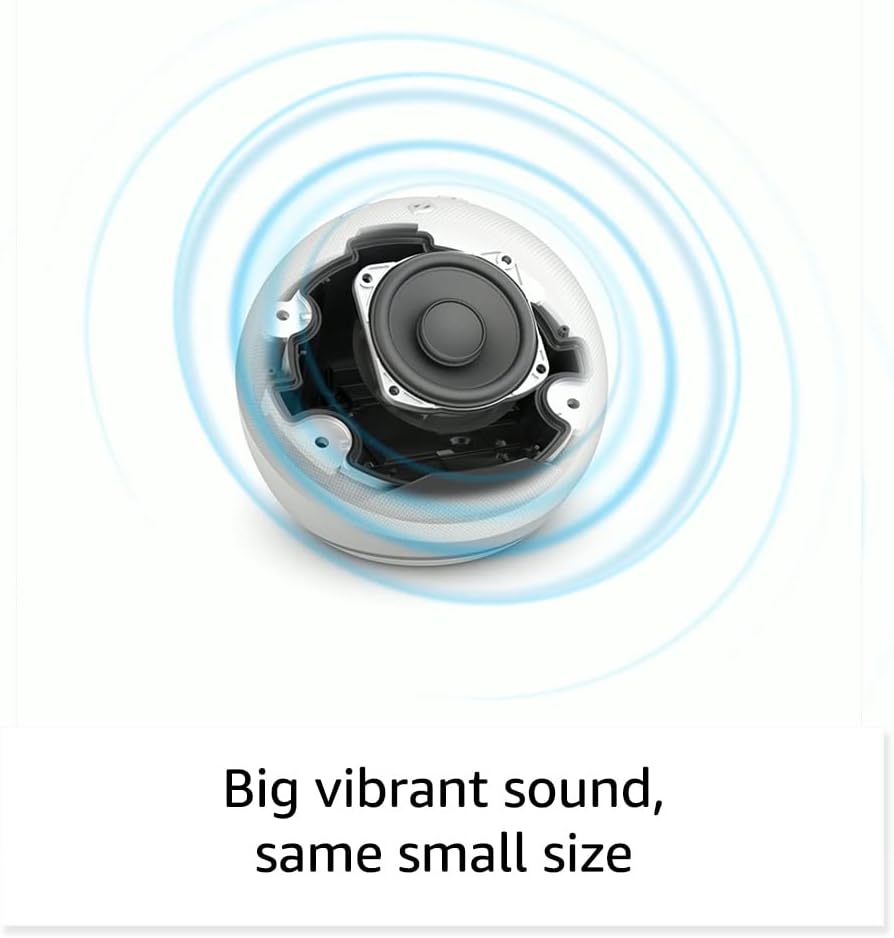
Whakaahua: Roto view of the Amazon Echo Dot (5th Gen) speaker components, illustrating its audio design.
4. Tatūnga
Whāia ēnei mahi hei whakarite i tō Echo Dot (5th Gen):
- Monohia tō Echo Dot: Connect the included power adapter to your Echo Dot and then to a power outlet. The light ring will turn blue, then orange, indicating it's ready for setup.
- Tikiake i te Alexa App: On your mobile device, download and install the Amazon Alexa app from your device's app store (compatible with Fire OS, Android, and iOS devices).
- Tāpirihia tō Pūrere: Open the Alexa app. If prompted, sign in with your Amazon account. Tap the 'Devices' icon at the bottom, then the '+' icon in the top right corner. Select 'Add Device', then 'Amazon Echo', and choose 'Echo Dot'.
- Whaia nga Tohutohu I-Mata: The app will guide you through connecting your Echo Dot to your Wi-Fi network. Ensure your Wi-Fi network supports 802.11a/b/g/n/ac (2.4 and 5 GHz). Ad-hoc networks are not supported.
- Turanga: Place your Echo Dot in a central location within your room, away from walls or other objects that might obstruct sound.
5. Te Whakahaere i tō Echo Dot
Voice Commands with Alexa:
To interact with your Echo Dot, simply say the wake word "Alexa," followed by your command or question. The light ring will turn blue to indicate Alexa is listening.
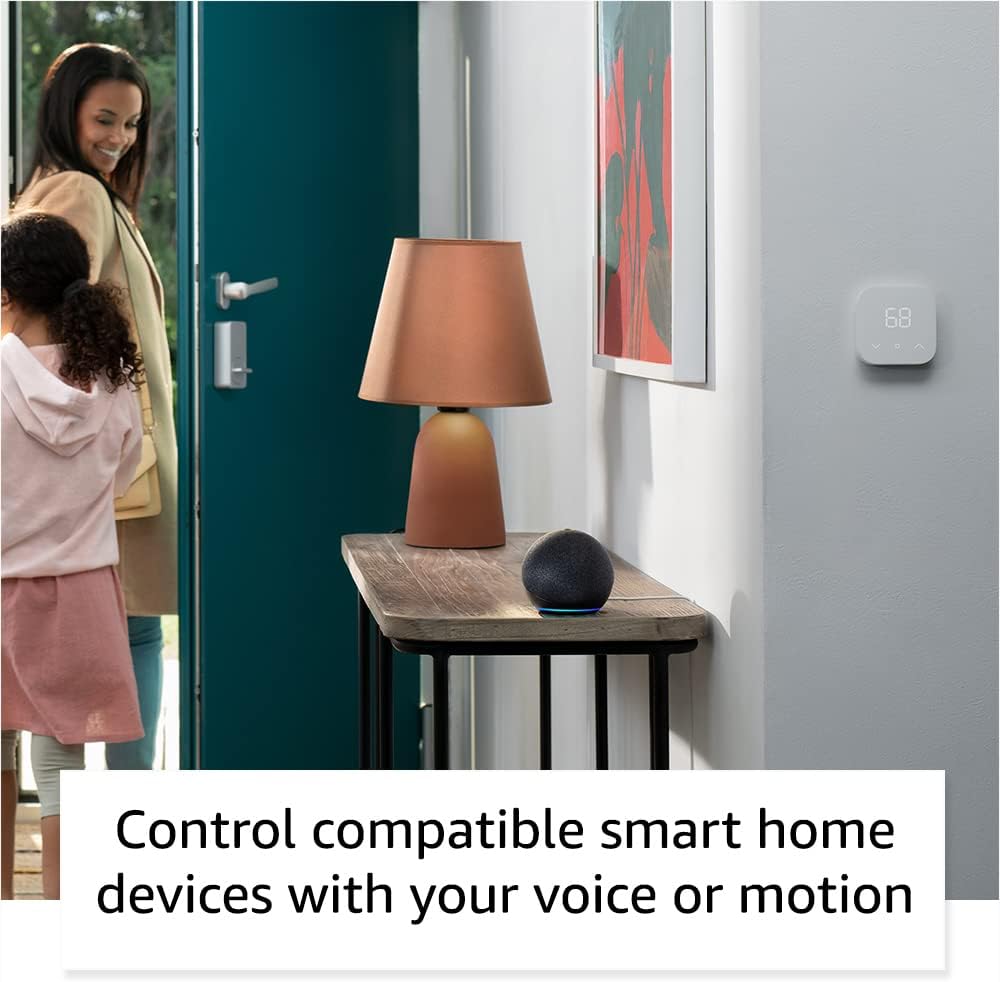
Image: Amazon Echo Dot (5th Gen) in Deep Sea Blue on a kitchen counter, demonstrating a user asking Alexa for the weather.
Nga Tono Taunoa:
- "Alexa, purei puoro."
- "Alexa, he aha te rangi?"
- "Alexa, whakatakotoria he taima mō ngā meneti 10."
- "Alexa, kōrerotia mai tētahi kōrero whakakatakata."
- "Alexa, turn up the volume."
Tap Controls:
The top surface of your Echo Dot is touch-sensitive for quick actions:
- Tap to Snooze: When an alarm sounds, tap the top of the device to snooze it.
- Tap to Pause/Resume: Tap to pause or resume music playback.

Image: A hand tapping the top of the Amazon Echo Dot (5th Gen) in Glacier White, demonstrating the tap-to-snooze or pause music function.
6. Smart Home Integration
Your Echo Dot can control compatible smart home devices using voice commands or routines. It supports WiFi, Bluetooth Low Energy Mesh, and Matter protocols.
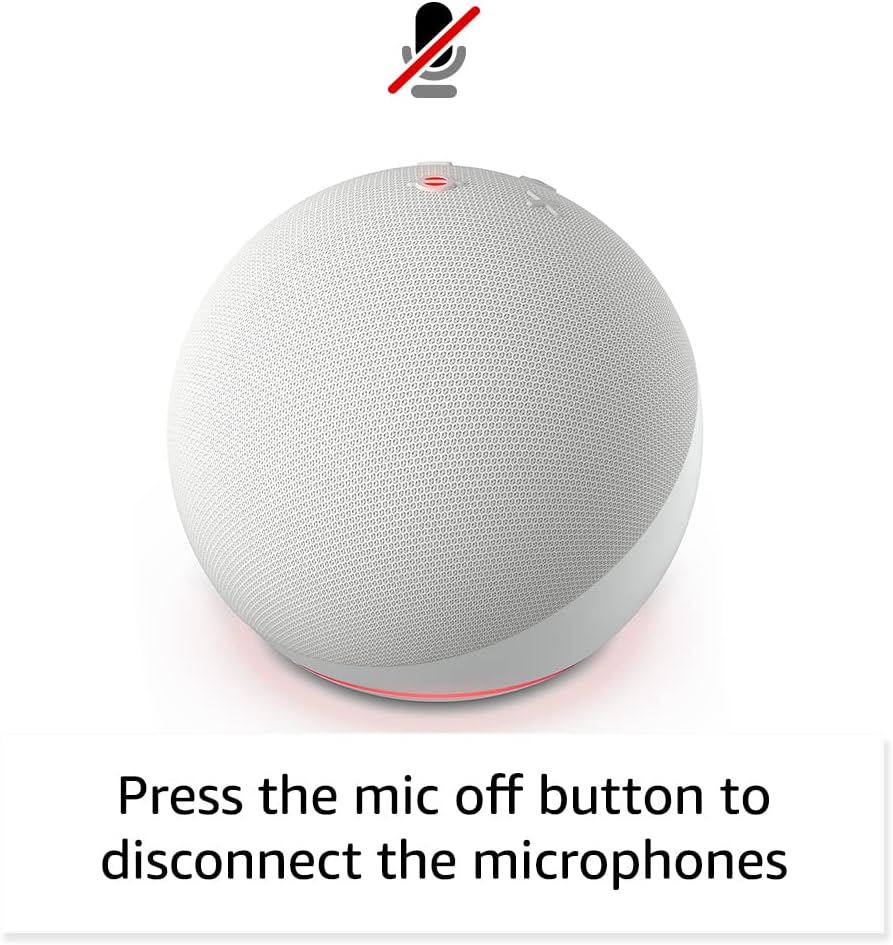
Image: Amazon Echo Dot (5th Gen) in a living space, illustrating its use for controlling compatible smart home devices.
Using the Temperature Sensor:
The built-in temperature sensor allows you to create routines in the Alexa app. For example, you can set a routine to automatically turn on a fan if the room temperature exceeds a specified comfort zone.
Te Ara Hīkoi o Amazon:
Amazon Sidewalk uses Echo and Ring devices to securely keep other devices connected and help find lost items. It can enable supported devices to remain connected even when Wi-Fi is lost or they are outside the range of their home Wi-Fi. Sidewalk uses a small portion of your internet bandwidth. You can manage Sidewalk settings in the Alexa app.
eero Kua whakauruhia:
If you have a compatible eero router, your Echo Dot can extend Wi-Fi coverage. This feature requires linking your eero and Amazon accounts and managing it through the eero mobile application. eero Built-in compatible Echo devices support up to 1,000 sq. ft. of additional coverage, speeds up to 100 Mbps, and 10 or fewer connected devices in the 5 GHz band.
7. Ngā Āhuatanga Tūmataitinga
He maha ngā paparanga o ngā mana whakahaere tūmataiti kua hangaia mō ngā taputapu Amazon Echo:
- Patene Whakaweto hopuoro: Press the microphone off button on the top of your Echo Dot to electronically disconnect the microphones. The light ring will turn red to indicate the microphones are off.
- Rekoata reo: Kei a koe te kaha ki te view, listen to, and delete your voice recordings through the Alexa app or your Amazon account settings.
- Hangarau Wake Word: The device only begins recording and sending audio to the cloud after it detects the wake word (e.g., "Alexa").
Image: Amazon Echo Dot (5th Gen) with a red light indicating the microphone is off, showing the privacy control feature.
8. Āhuatanga Urunga
The Alexa app provides various accessibility features to personalize your experience. Access these settings by navigating to 'Settings' → 'Accessibility' in the Alexa App.
- Whakarongo Urutau: Ka nui ake te wa ki te whakaoti korero i mua i te whakautu a Alexa.
- Rereke Korero Manakohia: Control how fast or slow Alexa speaks by saying "Alexa, speak slower" or "Alexa, speak faster."
- Tono Oro: Plays an audible tone in addition to the visual indicator when you speak to Alexa. Enable by saying "Alexa, turn on Start of Request Sound."
- Kindle Panui Nui: Ka taea e Alexa te pānui i ō pukapuka Kindle.
- Whakamōhio Ina Tata: Ka whakatangihia ngā oro whakamōhiotanga ina kitea koe e tata ana ki tō pūrere Echo.
9. Tiaki
Hei whakarite i te roa o te ora me te mahi tino pai o tō Echo Dot:
- Te horoi: Use a soft, dry, lint-free cloth to clean the device. Do not use abrasive cleaners or sprays.
- Turanga: Kaua e waiho te taputapu ki te rā tika, ki te taha o ngā pūtake wera, ki ngā taiao makuku rawa rānei.
- Whakahōu Pūmanawa: Your Echo Dot automatically receives software security updates. Ensure it remains connected to Wi-Fi for these updates.
10. Te Raru
Nga take me nga otinga noa:
- Kaore te Pūrere i te whakautu:
- Me whakarite kia kore te hopuoro e wahangu (he tohu wahangu te mowhiti rama whero).
- Check if the device is plugged in and powered on.
- Restart the device by unplugging it from the power outlet for 30 seconds and then plugging it back in.
- Kāore e taea te Tūhono ki Wi-Fi:
- Tirohia kei te tika to kupuhipa Wi-Fi.
- Ensure your router is working and other devices can connect.
- Move the Echo Dot closer to your Wi-Fi router.
- Tīmataria anō tō pouara me te pouwhanga.
- Kounga Ororongo Kino:
- Adjust the volume using voice commands or the Alexa app.
- Me whakarite kia kaua te taputapu e tuu ki roto i te mokowhiti ka pa te tangi.
- Check for any physical obstructions around the speaker.
- Alexa Not Understanding Commands:
- Speak clearly and at a normal pace.
- Whakaitihia te haruru papamuri.
- Ensure you are within hearing range of the device.
11. Whakatakotoranga
| Āhuahira | Taipitopito |
|---|---|
| Rahi | 3.9” x 3.9” x 3.5” (100mm x 100mm x 89 mm) |
| Taumaha | 10.7 hāora (304g) |
| Ororongo | Pūoro mura-mua 1.73” (44 mm), Whakamāramatanga Teitei Kore-Ngaro |
| Hononga Wi-Fi | Ka tautokohia e te Wi-Fi takirua-rohe ngā whatunga 802.11a/b/g/n/ac (2.4 me te 5 GHz). Kāore e tautokohia ngā whatunga ad-hoc. |
| Hononga Nihokikorangi | A2DP support for audio streaming, AVRCP for voice control of connected mobile devices. Bluetooth speakers requiring PIN codes are not supported. |
| Hototahitanga Pūrere Kaainga Ataata | WiFi, Nihokikorangi Pūngao Iti, me te Matter |
| Nga Whakaritenga Pūnaha | Alexa app compatible with Fire OS, Android, and iOS devices. Web browser access also available. |
| Whakatupuranga | Echo Dot (5 o ngā whakatipuranga) - tukunga 2022 |
| Reo | Ka korero a Alexa i te reo Ingarihi me te Paniora |
12. Pūtāhui me te Tautoko
Mōhiohio Pūtāhui:
Your Echo Dot (5th Gen) comes with a 90-day limited warranty and service. Optional 1-year, 2-year, and 3-year extended warranties are available for U.S. customers and are sold separately. Use of the Echo Dot is subject to specific terms and conditions.
Whakahōu Pūmanawa Haumarutanga:
Kua oatitia ka whiwhi tēnei taputapu i ngā whakahōunga haumarutanga pūmanawa mō te iti rawa e whā tau i muri i tōna wātea whakamutunga hei hoko hei waeine hou i runga i a Amazon. websites. For more information on software security updates or to manage your device, visit the Amazon webpae.
Tautoko Kiritaki:
For further assistance, please refer to the Amazon Alexa app or visit the Amazon support website. You can also find information specific to your device by visiting 'Manage Your Content and Devices' on Amazon.


