Kupu Whakataki
This manual provides comprehensive instructions for the setup, operation, maintenance, and troubleshooting of your Poly Voyager 4310 UC Wireless Headset with Charge Stand. Designed for seamless connectivity across various devices, this single-ear headset offers clear audio and extended wireless freedom for both home and office environments.
He aha kei roto i te Pouaka
Manatokona kei roto katoa nga mea kei roto i to kete:
- Poly Voyager 4310 UC Headphone Ahokore
- Utu Utu
- Pūurutau Nihokikorangi USB-A (BT700)
- Tauira Whakatau USB
- Pukoro Kawe

Image: The Poly Voyager 4310 UC Wireless Headset resting on its dedicated charge stand, showcasintōna hoahoa me ngā wāhanga matua.
Tatūnga
1. Te Whakataki i te Paneoro
Before initial use, fully charge your headset. Connect the charge stand to a power source using the provided USB charging cable. Place the headset onto the charge stand. The headset's LED indicator will show charging status.
- Wā Whakataki: Tata ki te 1.5 haora mo te utu katoa.
- Ora Pūhiko: Up to 24 hours of talk time on a full charge.
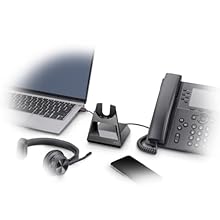
Image: An illustration showing the headset on its charge stand, connected to a laptop and a mobile phone, demonstrating connectivity options.
2. Connecting to PC/Mac via USB-A Bluetooth Adapter (BT700)
- Insert the BT700 USB-A Bluetooth adapter into an available USB port on your computer.
- The adapter's LED will flash red and blue, indicating pairing mode.
- Power on your headset. The headset will automatically attempt to pair with the adapter.
- Once paired, the adapter's LED will turn solid blue. A voice prompt will confirm "PC connected."
- Ensure the Poly Voyager 4310 UC is selected as the default audio device in your computer's sound settings and communication applications (e.g., Microsoft Teams, Zoom).
3. Connecting to Mobile Phone via Bluetooth
- With the headset powered off, press and hold the Power button until the headset's LED flashes red and blue, indicating pairing mode.
- On your mobile phone, navigate to Bluetooth settings and enable Bluetooth.
- Select "Poly V4310 Series" from the list of available devices.
- Once paired, the headset's LED will turn solid blue, and a voice prompt will confirm "Phone connected."
Te whakahaere i te Pane
1. Te mau i te Paneoro
Position the headset with the ear cup comfortably over one ear. Adjust the headband for a secure fit. The microphone boom is flexible; position it approximately two finger-widths from the corner of your mouth for optimal voice pickup.

Image: A man wearing the Poly Voyager 4310 UC headset, demonstrating proper wearing style and microphone positioning.
2. Whakahaere Waea
- Whakautu/Whakamutu Waea: Press the Call Control button (usually located on the ear cup).
- Wahangu/Wahangu: Press the dedicated Mute button on the microphone boom. A voice prompt will confirm "Mute on" or "Mute off."
- Mana Rōrahi: Use the Volume Up (+) and Volume Down (-) buttons on the ear cup.
3. Audio Quality and Noise Cancellation
The headset features dual-mic Acoustic Fence technology, designed to minimize background noise for your callers. This technology focuses on your voice, reducing distractions from your surroundings.
4. Awhe Ahokore
When connected via the BT700 USB adapter, the headset offers a wireless range of up to 50 meters (164 feet), allowing for mobility during calls. Range may vary based on environment and obstacles.
Te tiaki
- Te horoi: Use a soft, dry cloth to clean the headset and charge stand. Avoid using abrasive cleaners or solvents.
- Rokiroki: When not in use, store the headset on its charge stand or in the provided carrying pouch to protect it from dust and damage.
- Tiaki Pūhiko: For optimal battery longevity, avoid fully discharging the battery frequently. Charge the headset regularly.
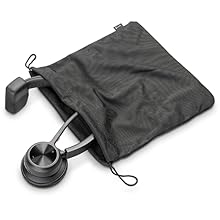
Image: The Poly Voyager 4310 UC headset neatly folded and placed inside its mesh carrying pouch for protection and portability.
Raparongoā
| Raruraru | Rongoa pea |
|---|---|
| Headset not pairing with PC/Mac |
|
| Headset not pairing with mobile phone |
|
| Kaore he ororongo, he ngoikore ranei te kounga ororongo |
|
| Kaore e mahi ana te hopuoro |
|
| He poto te ora o te pākahiko |
|
Whakatakotoranga
| Āhuahira | Taipitopito |
|---|---|
| Ingoa Tauira | VOYAGER 4310 UC |
| Hangarau Hononga | Nihokikorangi 5.2, USB |
| Whakawhitiwhiti Ahokore | Nihokikorangi |
| Pooro Jack | USB |
| Kāhua mau | Single-ear (On Ear) |
| hopuoro | Dual-mic with Acoustic Fence technology |
| Mokowoko Korekore | Up to 50 meters (164 feet) with BT700 adapter |
| Ora Pūhiko (Wā Korero) | Tae atu ki te 24 haora |
| Waa Whakatau | Tata ki te 1.5 haora mo te utu katoa |
| Pūrere Hototahi | Laptops, Computers, Mobile Devices |
| Momo Mana | Mana Pāpāho, Pātene Pēhi |
| Taumaha Tūemi | 122 Karamu (4.3 hekere) |
| Hunga Hua | 4.6 x 7.4 x 8.3 inihi |
| Nga Waahanga kei roto | Headset, Charge Stand, USB-A Bluetooth Adapter (BT700), USB Cable |
Pūtāhui me te Tautoko
Your Poly Voyager 4310 UC Wireless Headset is covered by a manufacturer's warranty. For specific warranty details, registration, and technical support, please refer to the official Poly webpaetukutuku, whakapā atu ranei ki ta raatau ratonga kaihoko. Puritia to tohu hoko mo nga kereme whakamana.
Tautoko Aipurangi: Visit the official Poly support page for FAQs, software downloads, and contact information.


