StarTech.com 2 Port Dual Monitor HDMI KVM Switch
Model: SV231DHU34K6
1. Kupu Whakataki
This instruction manual provides detailed information on the installation, operation, and maintenance of your StarTech.com 2 Port Dual Monitor HDMI KVM Switch. This device allows you to control two computers from a single set of peripherals, including two HDMI monitors, a keyboard, a mouse, and other USB devices, supporting resolutions up to 4K at 60Hz.
2. Nga korero haumaru
Pānuihia, kia mārama hoki ngā tohutohu katoa i mua i te whakamahinga o tēnei hua. Ki te kore e whai i ēnei tohutohu, ka pāngia pea koe e te ru hiko, te ahi, te whara kino rānei.
- Pūmate Hiko: Do not use damaged or frayed cables. Exposed wires can lead to electric shocks. Ensure all cables are properly connected and secured to prevent accidental disconnection.
- Te Whakapūtanga o te Wera: Overloaded or tightly bundled cables can overheat and pose a fire hazard. Ensure adequate ventilation and avoid bundling power cables.
- Tukino: Momotuhia ngā hononga mā te pupuri i te mono, kaua te taura. Mā te kukume i te taura ka kitea ngā waea ora, ka hua ake pea he ru hiko, he wera rānei.
3. Hua Neke Atuview
The StarTech.com SV231DHU34K6 KVM switch is designed to streamline your workspace by enabling control of two computers with dual 4K HDMI displays and shared USB peripherals. Its robust steel housing ensures durability.
3.1. Nga waahanga matua
- Supports dual 4K (3840 x 2160) resolution at 60Hz per monitor.
- HDMI 2.0, HDCP 2.2, and HDR10 support.
- Integrated 2-port USB 3.0 Hub (5Gbps) for sharing peripherals.
- Four USB 2.0 HID ports for keyboard and mouse.
- Hotkey and front-panel push-button switching.
- EDID and HDCP signal emulation for fast, seamless switching.
- Supports stereo analog and 7.1 digital audio.
- OS Independent compatibility (Windows, Mac, Linux).
3.2. Paewhiri Mua

Whakaahua 1: Tahora Panui o Mua
- HID USB Port: For connecting a keyboard or mouse.
- 5G USB Port: Hei hono i ngā taputapu USB 3.0 tere-teitei.
- Computer Selection Buttons (1, 2): Press to switch to the corresponding computer.
- PONO PAIA: Used for various functions, including auto-scan activation.
3.3. Paewhiri Whakamuri
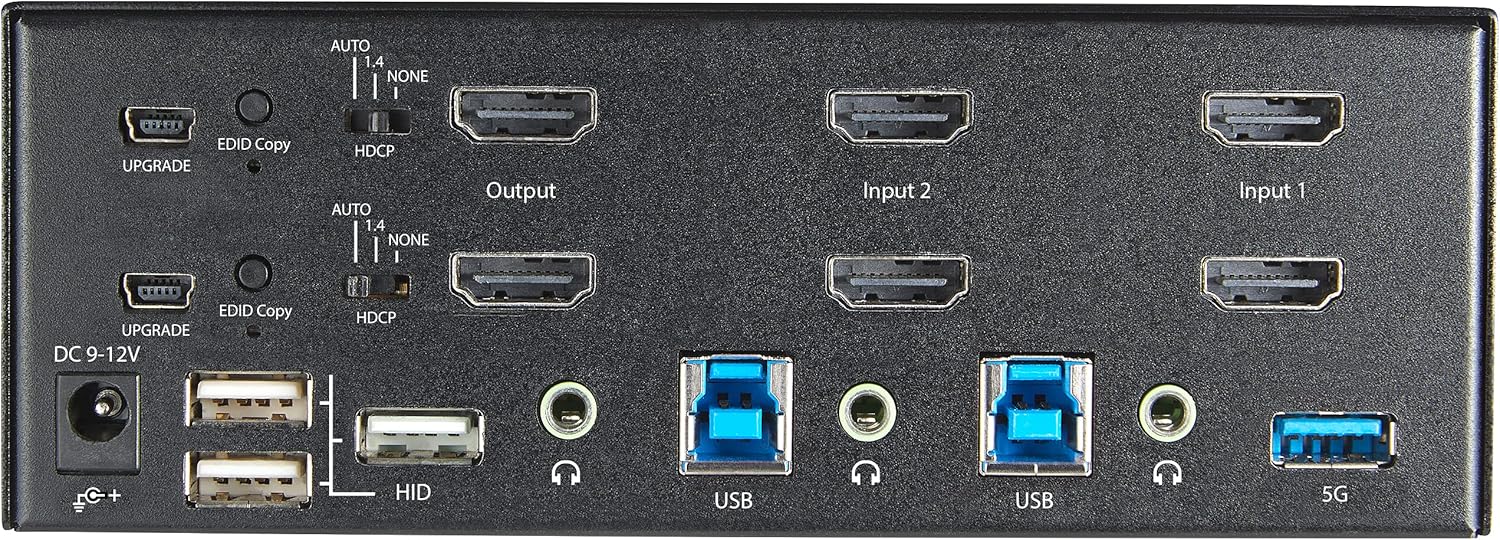
Whakaahua 2: Tahora Panui Whakamuri
- DC 9-12V Power Input: Honoa te urutau hiko whakauru.
- UPGRADE Port: Mo nga whakahou firmware.
- EDID Copy Button/Switch: Manages Extended Display Identification Data.
- Whakawhiti HDCP: Manages High-bandwidth Digital Content Protection.
- Output (HDMI): Connect to your monitors.
- Input 1/Input 2 (HDMI): Connect to the HDMI outputs of your computers.
- USB (Momo-B): Connect to the USB 3.0 ports of your computers.
- HID USB Ports (Type-A): For additional keyboard/mouse connections or other low-power USB devices.
- Audio Jacks (3.5mm): For connecting speakers/headphones and microphones.
- 5G USB Port (Type-A): Hei hono i ngā taputapu USB 3.0 tere-teitei.
4. Tatūnga
4.1. He aha kei roto i te Pouaka
- 1 x KVM Switch (SV231DHU34K6)
- 1 x Whurutauira Katoa o te Ao (NA / JP, EU, UK, ANZ)
- 4 x Tapahi Peene Taputapuini
- 1 x He Aratohu Haataki Tere
Note: HDMI cables, USB 3.0 Type-A to Type-B cables, and audio cables are not included and must be purchased separately.
4.2. Tohutohu Hononga
A pee i enei taahiraa hei hono i to whakawhiti KVM:
- Honoa nga Kaupane: Connect your two HDMI monitors to the 'Output' HDMI ports on the rear panel of the KVM switch.
- Connect Computers (HDMI): Connect the HDMI outputs from Computer 1 to the 'Input 1' HDMI ports on the KVM switch. Repeat for Computer 2 and 'Input 2'. Ensure both HDMI outputs from each computer are connected for dual monitor support.
- Connect Computers (USB): Connect the USB 3.0 Type-B ports on the KVM switch to the USB 3.0 Type-A ports on Computer 1 and Computer 2 using appropriate USB 3.0 cables. These connections enable keyboard, mouse, and USB hub functionality.
- Tūhono Pikitia:
- Connect your keyboard and mouse to the 'HID' USB ports on the front or rear panel.
- Connect other USB devices (e.g., printer, scanner, webcam) to the '5G' USB 3.0 ports on the front or rear panel.
- Tūhono Ororongo (Kōwhiringa): If desired, connect your speakers/headphones and microphone to the 3.5mm audio jacks on the rear panel.
- Hono Hono: Connect the included universal power adapter to the 'DC 9-12V' power input on the rear panel, then plug it into a power outlet. The KVM switch will power on automatically.

Figure 3: KVM Switch with Ports for Connection
5. Operating the KVM Switch
5.1. Te Hurihuri I waenga Rorohiko
You can switch between connected computers using either the front-panel push buttons or hotkey commands.
- Front-Panel Buttons: Press the '1' or '2' button on the front panel to directly switch to Computer 1 or Computer 2, respectively.
- Whakawhiti Pātene Wera: Use keyboard hotkey combinations to switch computers. The default hotkey sequence is typically Scroll Lock, Scroll Lock, [1 or 2]. Refer to the Quick-Start Guide for a complete list of hotkey commands and customization options. A buzzer sound confirms the switch.
5.2. EDID and HDCP Emulation
The KVM switch includes EDID (Extended Display Identification Data) and HDCP (High-bandwidth Digital Content Protection) signal emulation. This feature ensures that your monitors remain synced and desktop settings are maintained when switching between computers, preventing display resolution changes or window rearrangement.
5.3. USB Hub Functionality
The integrated USB 3.0 hub allows you to share two USB 3.0 peripherals (connected to the 5G ports) and four USB 2.0 HID peripherals (connected to the HID ports) between the connected computers. Devices connected to these ports will function as if directly connected to the currently selected host computer.
5.4. Tautoko Ororongo
The KVM switch supports both digital audio (via HDMI, 7.1 Channel Audio) and separate 3.5mm stereo analog audio (2 Channel Audio). Ensure your displays and sources support the desired audio format for full compatibility.
6. Tiaki
Hei whakarite i te roa me te tino pai o te mahi o to huringa KVM, whai i enei aratohu tiaki:
- Te horoi: Whakamahia he kakahu ngohengohe, maroke hei horoi i te taha waho o te taputapu. Kaua e whakamahi i ngā kaihoroi wai, wai rānei.
- Whakahau: Ensure the KVM switch is placed in a well-ventilated area. Do not block any ventilation openings.
- Whakaha Uepu: Keep cables organized and untangled to prevent damage and ensure proper airflow. Avoid excessive bending or crimping of cables.
- Rokiroki: Ki te kore e whakamahia mo te wa roa, penapenahia te taputapu ki te waahi makariri, maroke kia matara atu i te ra tika me te wera nui.
7. Te Raru
Mena ka pāngia koe e ngā raruraru me tō pana KVM, tirohia ngā raruraru me ngā otinga noa e whai ake nei:
- No Display or Incorrect Resolution:
- Ensure all HDMI cables are securely connected to both the KVM switch and your computers/monitors.
- Verify that your HDMI cables are rated for 4K 60Hz if you are using 4K displays. Longer cables (e.g., over 3m/10ft) may require higher quality or active cables.
- Check the display settings on your computers to ensure they are configured for the correct resolution and refresh rate.
- Try power cycling the KVM switch and monitors.
- Papapātuhi/Kiore Kaore i te whakautu:
- Ensure the USB Type-B cables are securely connected from the KVM switch to your computers.
- Verify that your keyboard and mouse are connected to the designated HID USB ports.
- Try connecting the keyboard/mouse directly to the computer to confirm they are functional.
- Some specialized keyboards/mice with advanced features may require direct connection or specific drivers.
- Kāore i Kitea ngā Pūrere USB:
- Ensure the USB Type-B cables are connected from the KVM switch to your computers.
- Verify that the USB device is connected to the appropriate 5G USB 3.0 port.
- Some high-power USB devices may require an external power source or a powered USB hub connected to the KVM's 5G port.
- Nga Take Ororongo:
- Check all 3.5mm audio cable connections.
- Verify audio output settings on your computers.
- Ensure your monitors or audio devices support the HDMI audio format being sent.
- Slow Switching Time:
- The KVM switch is designed for fast switching. If experiencing delays, ensure EDID and HDCP emulation are functioning correctly.
- Ensure all cables are of good quality and properly seated.
If the problem persists after attempting these solutions, please contact StarTech.com technical support.
8. Whakatakotoranga
| Kāwai | Whakatakotoranga |
|---|---|
| Tau tauira | SV231DHU34K6 |
| Tauranga KVM | 2 |
| Monitors Supported | 2 |
| Momo Ataata | HDMI 2.0 |
| Nga Whakatau Tautoko | Tae atu ki te 3840 x 2160 @ 60Hz |
| Tautoko HDCP | HDCP 2.2 |
| Tautoko HDR | HDR10 |
| Puka USB | 2-Tauranga USB 3.0 (5Gbps) |
| Tauranga HID USB | 4x USB 2.0 |
| Tautoko Ororongo | HDMI (7.1 Channel), Analog Stereo (3.5mm) |
| Whiringa Tauranga | Push Button, Hotkeys |
| Rauemi | Te maitai |
| Tae | Pango |
| Rahi Hua (L x W x H) | 6.3 x 3.9 x 2.3 inihi (16.0 x 10.0 x 5.8 cm) |
| Taumaha Hua | 1.8 lb (0.8 kg) |
| Puna Mana | Pūurutau AC (Kei roto) |
| Whakauru Voltage | 100 - 240 AC |
| Whakamahi Hiko | 36W |
| Te Waahi Mahi | 0 ℃ ki te 40 ℃ (32℉ ki te 104℉) |
| Paemahana Rokiroki | -10 ℃ ki te 60 ℃ (14℉ ki te 140℉) |
| Te haumākū | 0% ki te 80% RH (kare-condensing) |
9. Pūtāhui me te Tautoko
This StarTech.com KVM Switch (Model: SV231DHU34K6) is backed by a 2-tau pūtāhui. StarTech.com also provides tautoko hangarau ora noa. For technical assistance or warranty claims, please visit the official StarTech.com webpaetukutuku, whakapā atu ranei ki ta raatau roopu tautoko kaihoko.
Mo etahi atu korero, tirohia: www.startech.com


