Kupu Whakataki
This manual provides comprehensive instructions for the OWC 5 Port Thunderbolt Hub. It covers setup, operation, maintenance, and troubleshooting to ensure optimal performance and longevity of your device. The OWC Thunderbolt Hub expands the connectivity of your computer, offering multiple Thunderbolt 4 ports and a USB 3.2 Gen 2 Type-A port, along with power delivery capabilities.
Nga korero haumaru
- Kaua e tukuna te taputapu ki te makuku, ki te wera nui ranei.
- Use only the power adapter supplied with the hub.
- A ape i te arai i nga whakatuwheratanga hau kia kore e wera rawa.
- Kaua e ngana ki te wetewete, ki te whakatika ranei i te taputapu. Tukuna atu nga ratonga katoa ki nga kaimahi whai tohu.
- Tiakina te taputapu mai i nga papa autō kaha.
Ihirangi mokete
Manatokona kei roto katoa nga mea kei roto i to kete:
- OWC 5 Port Thunderbolt Hub
- Pūurutau Hiko
- Whatitiri 4 taura
- Aratohu Timata Tere (kaore i roto i tenei pukapuka matihiko)
Ka mutu te huaview
The OWC 5 Port Thunderbolt Hub is designed to expand your computer's connectivity, providing additional Thunderbolt 4 and USB 3.2 Gen 2 Type-A ports. It features a compact design suitable for various setups.

Whakaahua 1: Mua view of the OWC 5 Port Thunderbolt Hub, showing the OWC logo and the USB 3.2 10Gb/s port.
Tahora Tauranga
The hub features a variety of ports to connect your devices:
- Tauranga Kaihautū: One Thunderbolt 4 port (up to 40 Gb/s) for connecting to your computer.
- Tauranga Pūrere: Three Thunderbolt 4 ports for connecting external drives, displays, and other Thunderbolt devices.
- Tauranga USB-A: One USB 3.2 Gen 2 Type-A port (up to 10 Gb/s) for connecting USB peripherals. This port is backwards compatible with USB 2.0/3.0.
- Whakauru Hiko: DC IN 20V 5.5A for connecting the power adapter.

Whakaahua 2: Runga me raro views of the hub, illustrating the arrangement of the DC power input, host Thunderbolt port, three device Thunderbolt ports, and the USB 3.2 port.
Tatūnga
- Hono Hono: Plug the provided power adapter into the DC IN port on the OWC Thunderbolt Hub, then connect the adapter to a power outlet.
- Tūhono ki te Rorohiko Kaihautū: Use the included Thunderbolt 4 cable to connect the host Thunderbolt 4 port on the hub to an available Thunderbolt 3 or Thunderbolt 4 port on your computer. For USB-C equipped devices, connect to a USB-C port.
- Tāuta Atekōkiri (mehemea e tika ana): For most modern operating systems (macOS 11.1 Big Sur or later, Windows 10/11 with Thunderbolt 4), drivers are automatically installed. If prompted, follow on-screen instructions.
- Tūhono Pikitia: Connect your Thunderbolt devices, USB devices, and displays to the available ports on the hub.

Figure 3: The hub in use, demonstrating multiple devices connected for full performance.
Nga Tohutohu Whakahaere
Tukunga Mana
- The Thunderbolt 4 host port provides up to 60W of power to charge your connected host computer.
- Each Thunderbolt 4 device port provides 15W of power for external drives and other devices.
- The USB 3.2 Gen 2 Type-A port provides up to 1.5A of power for bus-powered drives and device charging.

Figure 4: The hub actively charging a laptop and providing power to connected peripherals.
Whakaatu Tautoko
The OWC Thunderbolt Hub supports various display configurations:
- Up to one 8K display at 60Hz.
- Up to one 4K display at 120Hz.
- Up to two 4K displays at 60Hz.
- Up to two 5K displays at 60Hz.
- Display support via Thunderbolt 4: Up to 8K @ 60Hz or 4K @ 120Hz via a native Thunderbolt 4 display or other display that supports USB-C connections and DisplayPort 1.4.
- Note: Actual display support may vary based on your computer's specifications. Intel-based Apple Mac models and Thunderbolt 4 PCs typically support two displays.
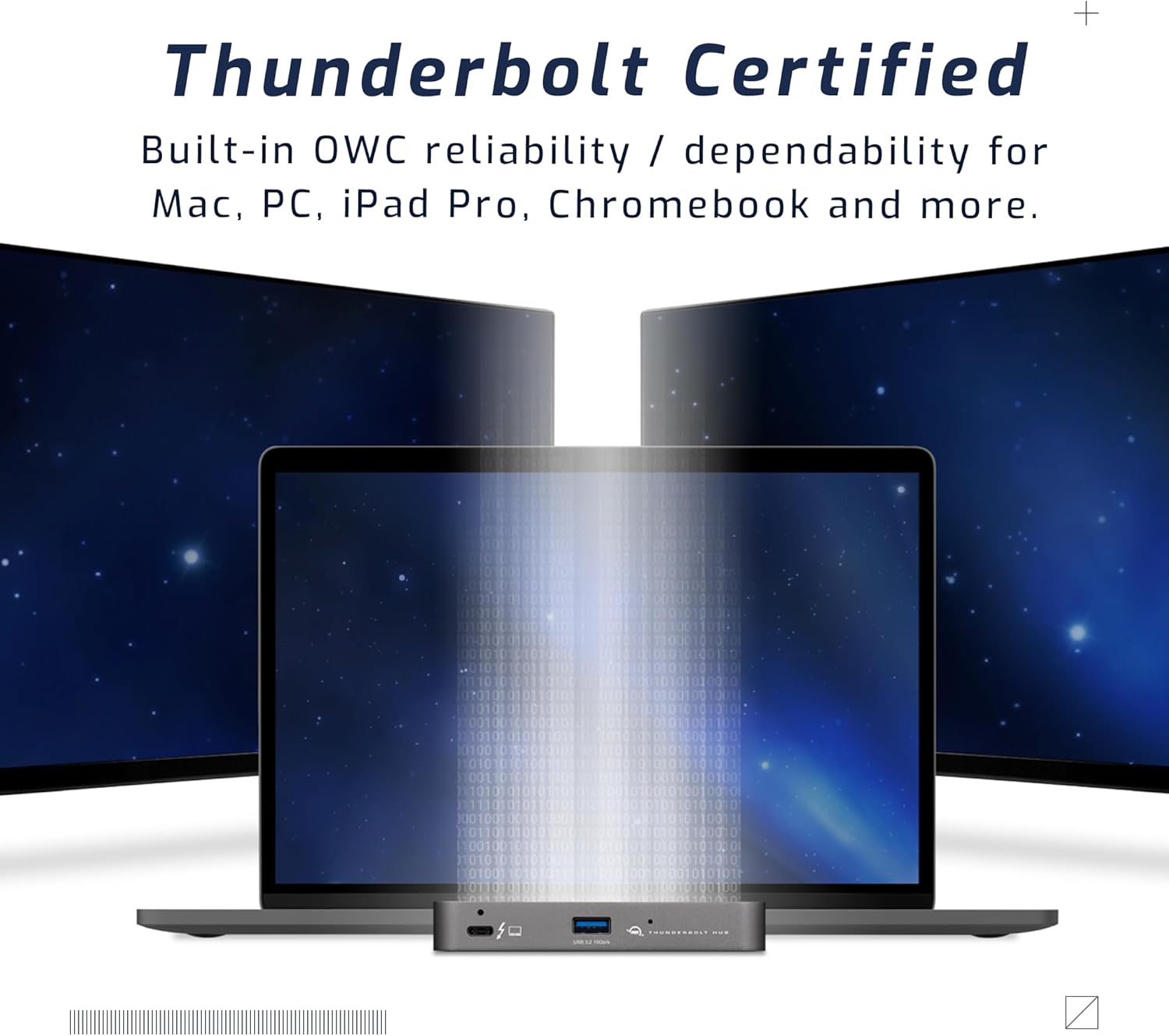
Figure 5: A setup demonstrating the hub's capability to connect a laptop to multiple external displays.
Hototahi
The hub is compatible with a wide range of devices:
- Macs with an available Thunderbolt 3 or later port running macOS 11.1 Big Sur or later.
- Windows PCs with an available Thunderbolt 4 port.
- Non-Thunderbolt USB-C machines like Chromebooks and iPads.
- USB-C equipped MacBooks, iPads, Chromebooks, and Android devices.
- Note: Thunderbolt/Thunderbolt 2 Mac models are supported via USB-A host connection, but Thunderbolt/Thunderbolt 2 host connection is not directly supported. USB connection may limit some functionality.
Te tiaki
- Te horoi: Use a soft, dry, lint-free cloth to clean the exterior of the hub. Do not use liquid cleaners or aerosols.
- Rokiroki: When not in use for extended periods, store the hub in a cool, dry place away from direct sunlight.
- Whakaha Uepu: Ensure cables are not excessively bent or strained to prevent damage to the ports or cables.
Raparongoā
Nga take me nga otinga noa
- Kāore i te Mōhiotia te Mana/Pūrere:
- Ensure the power adapter is securely connected to the hub and a working power outlet.
- Verify the Thunderbolt cable is firmly connected to both the hub and your computer.
- Try a different Thunderbolt port on your computer, if available.
- Tīmataria anō tō rorohiko.
- Display Issues (No Signal, Flickering):
- Check all display cables (HDMI, DisplayPort, USB-C to display) are securely connected.
- Me whakarite kua whakatakotoria tō whakaaturanga ki te pūtake tāuru tika.
- Verify your computer's display settings (resolution, refresh rate) are compatible with the connected display and hub capabilities.
- Whakahōuhia ngā taraiwa whakairoiro o tō rorohiko.
- Nga Tere Whakawhiti Raraunga Puturi:
- Ensure you are using high-quality Thunderbolt or USB 3.2 cables.
- Confirm the connected device supports the speeds advertised by the hub (e.g., a USB 2.0 device will not achieve USB 3.2 speeds).
- Avoid connecting too many high-bandwidth devices simultaneously if experiencing slowdowns.
Whakatakotoranga
| Āhuahira | Taipitopito |
|---|---|
| Tau tauira | OWCTB4HUB5P |
| Waitohu | OWC |
| Hunga Hua | 19.69 x 19.69 x 11.02 inihi |
| Taumaha Tūemi | 7 hekere |
| Tae | Also Black/Gray |
| Atanga Pūmārō | Te whatitiri |
| Āhuahira Motuhake | Whakamana |
| Tauranga Tauranga | 1x Thunderbolt 4 (up to 40 Gb/s) |
| Tauranga Pūrere | 3x Thunderbolt 4, 1x USB 3.2 Gen 2 Type-A (10 Gb/s) |
| Host Power Delivery | Tae atu ki te 60W |
| Device Power Delivery | 15W per Thunderbolt 4 port, 1.5A for USB-A port |
| Whakaatu Tautoko | Up to 8K @ 60Hz or 4K @ 120Hz (single display); Up to two 4K @ 60Hz or two 5K @ 60Hz (dual displays) |
| Pūrere Hototahi | Macs with Thunderbolt 3+, Windows PCs with Thunderbolt 4, USB-C equipped MacBooks, iPads, Chromebooks, Android devices |
Nga korero Whakaputanga
The OWC 5 Port Thunderbolt Hub comes with a 2 Tau OWC Rarangi Rarangi. For detailed terms and conditions, please refer to the official OWC webpae, whakapā atu ranei ki te tautoko a te kaihoko.
Tautoko
For further assistance, technical support, or warranty claims, please visit the official OWC support webpaetukutuku, whakapā atu ranei ki ta raatau tari ratonga kaihoko.
- Tautoko OWC Webpae: www.owcdigital.com/support
- Rauemi ipurangi: FAQs, drivers, and additional documentation may be available online.


