Kupu Whakataki
This manual provides instructions for the Microsoft Surface Pro Signature Keyboard, designed for use with Surface Pro 8 and Surface Pro X devices. This keyboard offers a full mechanical keyset, backlit keys, a large glass trackpad, and integrated storage and charging for the Surface Slim Pen 2 (sold separately). Its design allows for versatile use, functioning as a traditional keyboard, a protective cover, and a stable base for your Surface device.
Tatūnga
- Te taapiri i te papapātuhi: Align the magnetic connector on the keyboard with the corresponding port on your Surface Pro 8 or Surface Pro X. The keyboard will click into place and securely attach. No separate power connection is required for the keyboard as it draws power directly from the Surface device.
- Whakaaetanga tuatahi: Upon first attachment, your Surface device should automatically recognize the keyboard. If prompted, follow any on-screen instructions to complete the setup.
- Pen Storage and Charging: The keyboard features a dedicated storage bay for the Surface Slim Pen 2 (sold separately). Insert the pen into this bay to store it securely and ensure it remains charged.
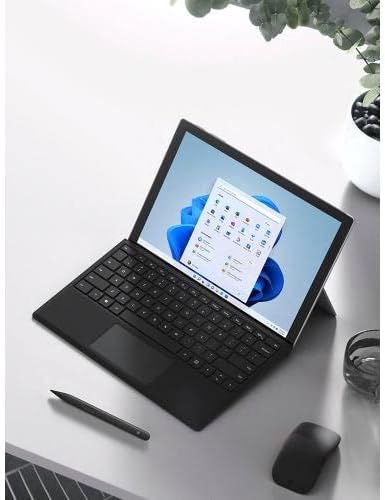
Image: Microsoft Surface Pro device with the Signature Keyboard attached, showcasintōna whirihoranga rite ki te pona.
Nga Tohutohu Whakahaere
Typing and Trackpad Use
The Surface Pro Signature Keyboard provides a full mechanical keyset for a responsive typing experience. The large glass trackpad allows for precise navigation and multi-touch gestures within the Windows operating system.

Whakaahua: He tata view of a key on the Surface Pro Signature Keyboard, illustrating its mechanical design.
Pātuhi Whakamuri
The keyboard features backlit keys for improved visibility in low-light conditions. The backlight intensity can typically be adjusted using dedicated function keys (e.g., F1 or F2, depending on your Surface model and software configuration).
Pātuhi Mahi
Dedicated function keys (F1-F12) provide quick access to system controls such as screen brightness, volume adjustment, and media playback. Refer to your Surface device's documentation for specific function key assignments.
Turanga Waahanga
- Aratau Pona: Attach the keyboard and use the Surface Pro's integrated kickstand to position the screen for a traditional laptop experience.
- Aratau Papa: Fold the keyboard completely back behind the screen to use your Surface Pro as a tablet. The keyboard automatically deactivates in this position.
- Uhi Tiaki: Close the keyboard over the screen to protect it from scratches and conserve battery life when not in use.

Image: A Surface Pro device with the Signature Keyboard attached and propped up, ready for typing in laptop mode.

Image: A Surface Pro device with the Signature Keyboard folded back, demonstrating its use in tablet mode.
Te tiaki
- Te horoi i te rauemi Alcantara: The keyboard's Alcantara covering can attract dust and debris. To clean, gently wipe the surface with a soft, lint-free cloth dampened with water. For stubborn spots, a mild soap solution can be used sparingly, followed by wiping with a clean, damp kakahu. A ape i nga matū kino, i nga taonga abrasive ranei.
- Cleaning Keys and Trackpad: Use a soft, dry cloth to wipe the keys and trackpad. For dust or debris between keys, a can of compressed air can be used.
- Tiaki Whānui: Avoid exposing the keyboard to excessive moisture, extreme temperatures, or direct sunlight. Do not attempt to disassemble the keyboard.
Raparongoā
- Papapātuhi Kaore i te whakautu:
- Ensure the keyboard is securely attached to your Surface Pro. Detach and reattach it to confirm the connection.
- Restart your Surface Pro device.
- Check for any pending Windows updates that might affect peripheral functionality.
- If the issue persists, try connecting the keyboard to another compatible Surface Pro device to determine if the issue is with the keyboard or the Surface device.
- Kare e Mahi te Rarama Whakamuri:
- Verify that the backlight function keys are being pressed correctly.
- Check your Surface Pro's display settings or keyboard settings within Windows to ensure the backlight is enabled and adjusted.
- Trackpad Issues:
- Me whakarite kia ma te mata o te papa ara, ā, kia kore he paru.
- Check trackpad settings in Windows for sensitivity or gesture configurations.
- If the trackpad is unresponsive, detach and reattach the keyboard.
- Difficulty Removing Surface Slim Pen 2:
- The pen is held securely by magnets. Apply firm, steady pressure when pulling the pen from its storage bay. Avoid twisting or prying.
Whakatakotoranga
| Waitohu | Microsoft |
| Tau tauira | 8XA-00001 |
| Pūrere Hototahi | Surface Pro 8, Surface Pro X |
| Hononga | Magnetic physical connection to Surface Pro |
| Whakaahuatanga Papapātuhi | Hangaia |
| Nga waahanga motuhake | Large Glass Touchpad, Backlit Keys, Magnetic Attachment, Surface Slim Pen 2 Storage & Charging |
| Tae | Pango |
| Taumaha Tūemi | 9.6 hekere (tata ki te 272 karamu) |
| Rahi Hua (LxWxH) | 10.01 x 12.53 x 0.7 inihi (tata ki te 25.4 x 31.8 x 1.8 cm) |
| Rauemi | Alcantara covering |

Whakaahua: He katoa view of the Microsoft Surface Pro Signature Keyboard in Black, showing the keys and trackpad.
Pūtāhui me te Tautoko
Nga korero Whakaputanga
The Microsoft Surface Pro Signature Keyboard is covered by Microsoft's Limited Warranty. This warranty is provided in addition to any consumer law rights you may have. For detailed terms and conditions of the warranty, please refer to the official Microsoft warranty documentation or visit the Microsoft support webpae.
Tautoko Kiritaki
For further assistance, technical support, or warranty claims, please visit the official Microsoft Support website. You can find resources, FAQs, and contact options for your Surface accessories there.
Official Microsoft Support: tautoko.microsoft.com


