Kupu Whakataki
This manual provides detailed instructions for the setup, operation, maintenance, and troubleshooting of your ECHTPower Wireless Bluetooth Ergonomic Vertical Mouse. Please read this manual thoroughly before using the device to ensure proper functionality and longevity.

Image: The ECHTPower Wireless Bluetooth Ergonomic Vertical Mouse, showing its vertical design and the included USB receiver.
Nga waahanga hua
- Hoahoa Poutū Ergonomic: Designed to reduce wrist and forearm strain, promoting a natural hand posture.
- Tūhononga Aratau Toru: Supports dual Bluetooth 5.0 connections and a 2.4GHz wireless USB connection, allowing control of up to three devices.
- DPI taea te whakarite: Switch between 1000, 1600, and 2400 DPI settings for precise cursor control.
- Pūhiko Rechargeable: Built-in 700mAh battery provides up to 150 hours of continuous use on a 2-hour charge via Type-C port.
- Silent Click Buttons: Main left and right click buttons are designed for quiet operation, reducing noise by 90% compared to traditional mice.
- 7 Pātene: Includes left click, right click, scroll wheel, DPI switch, forward, back, and device switch buttons.

Image: Comparison showing the natural wrist posture with the ergonomic vertical mouse versus the bent wrist posture with a traditional mouse.

Image: The mouse demonstrating its ability to connect to three different devices simultaneously via 2.4G and dual Bluetooth modes.
Ihirangi mokete
- ECHTPower Wireless Bluetooth Ergonomic Vertical Mouse
- USB Receiver (stored in the mouse's bottom compartment)
- USB-C Uira Whakatau
- Pukapuka Kaiwhakamahi (tenei tuhinga)
Aratohu Tatūnga
1. Te Whakataki i te Kiore
Before first use, it is recommended to fully charge the mouse. Connect the provided USB-C charging cable to the Type-C port on the front of the mouse and the other end to a USB power source (e.g., computer USB port, USB wall adapter).
- The LED light will indicate charging status.
- Tata ki te 2 haora te utunga katoa.
- The mouse can be used for up to 150 hours on a full charge (with lights off state).
- If the battery is low, the indicator light will blink.

Image: The mouse being charged via its Type-C port, highlighting the 700mAh battery capacity and 2-hour charging time.
2. Te hono i te Kiore
The ECHTPower mouse supports three connection modes: 2.4GHz Wireless USB and two Bluetooth 5.0 channels (BT1 and BT2).
- Whakahiko: Kimihia te pana mana kei raro i te kiore ka nekehia ki te tūranga "ON".
- Select Connection Mode: Press the "Device Switch Button" on the bottom of the mouse to cycle through the modes:
- Aratau 2.4GHz: The indicator light will show a specific color (refer to troubleshooting if not). Insert the USB receiver into an available USB port on your computer. The mouse should connect automatically.
- Bluetooth 1 (BT1) Mode: The indicator light will show a specific color. Press and hold the device switch button for 3-5 seconds until the indicator light flashes rapidly, indicating pairing mode.
- Bluetooth 2 (BT2) Mode: The indicator light will show a specific color. Press and hold the device switch button for 3-5 seconds until the indicator light flashes rapidly, indicating pairing mode.
- Pairing via Bluetooth (for BT1/BT2 modes):
- On your device (PC, Laptop, Mac, Tablet), go to Bluetooth settings.
- Rapua taputapu hou.
- Select "ECHTPower Mouse" (or similar name) from the list of available devices.
- Confirm pairing. The indicator light on the mouse will stop flashing and remain solid once connected.
To switch between connected devices, simply press the "Device Switch Button" on the bottom of the mouse.

Whakaahua: Taipitopito view of the mouse's underside, indicating the location of the power switch, device switch button, optical lens, and the compartment for the USB receiver.
Nga Tohutohu Whakahaere
Nga Mahi Patene
| Pātene | Mahi |
|---|---|
| Pātene Pātene Mauī | Standard left mouse click. Silent operation. |
| Pātene Pāwhiri Matau | Standard right mouse click. Silent operation. |
| Panuku Wira | Panuku ki runga/ki raro, pāwhiritia te waenganui. |
| Patene Whakawhiti DPI | Cycles through DPI settings: 1000, 1600, 2400. |
| Patene Whakamua | Ka whakatere whakamua ki roto web kaitirotiro ranei file kaihōpara. |
| Patene Whakamuri | Whakatere hoki ki roto web kaitirotiro ranei file kaihōpara. |
| Device Switch Button (bottom) | Switches between 2.4GHz, Bluetooth 1, and Bluetooth 2 modes. Long press to enter Bluetooth pairing mode. |

Whakaahua: Mua me te taha views of the mouse with labels for the DPI switch button, roller, left button, right button, forward button, back button, and LED light.
Te whakatikatika DPI
Press the DPI switch button located on the top of the mouse, behind the scroll wheel, to cycle through the available DPI settings: 1000, 1600, and 2400. Each press will change the cursor sensitivity, allowing you to select the speed that best suits your needs.

Image: A visual representation of the DPI adjustment feature, indicating the three selectable DPI levels.
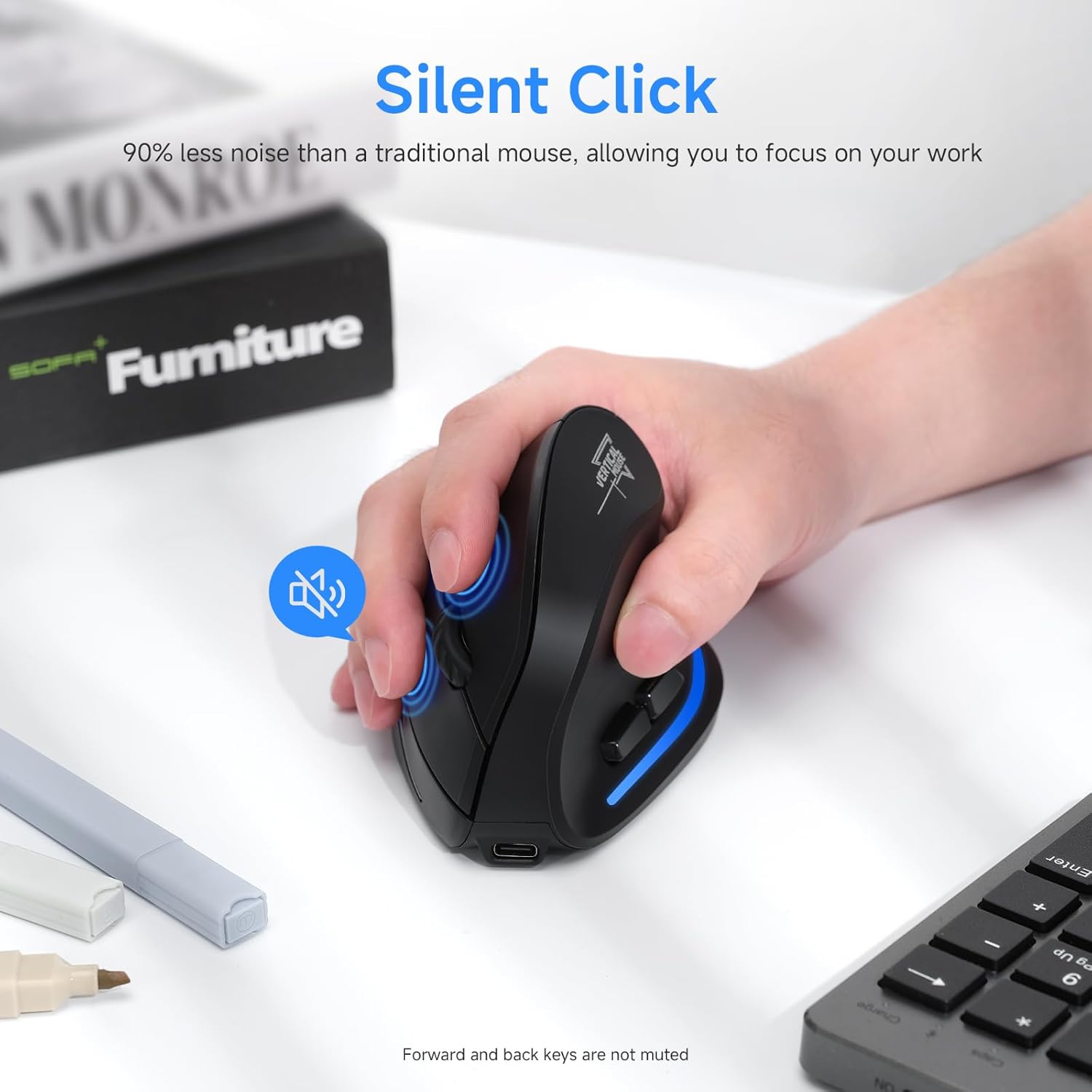
Image: A user's hand on the mouse, highlighting the silent click functionality of the main buttons. Note that forward and back keys are not muted.
Te tiaki
- Te horoi: Whakamahia he kakahu ngohengohe, maroke hei horoi i te kiore. Mo te paru maro, he paku damp Ka taea te whakamahi i te kakahu, engari kia kore te makuku e uru ki roto i te taputapu. Kaua e whakamahi i nga matū kino, i nga horoi horoi ranei.
- Rokiroki: When not in use for extended periods, store the mouse in a cool, dry place. It is recommended to turn off the mouse to conserve battery life.
- Tiaki Pūhiko: To prolong battery life, avoid fully discharging the mouse frequently. Charge it when the low battery indicator blinks.
- Kaiwhiwhi USB: When transporting the mouse, store the USB receiver in its designated compartment on the bottom of the mouse to prevent loss.
Raparongoā
| Raruraru | Take pea | Rongoā |
|---|---|---|
| Kaore te kiore e whakautu | Low battery; Mouse is off; Incorrect connection mode; USB receiver not properly inserted (2.4GHz mode); Bluetooth not paired (BT mode). | Charge the mouse; Turn on the mouse; Switch to the correct connection mode (2.4GHz, BT1, BT2); Re-insert USB receiver; Re-pair Bluetooth. |
| He pōturi, he pōturi rānei te nekehanga o te kiore | Low battery; Dirty optical sensor; Surface not suitable for optical mouse; DPI setting too low. | Charge the mouse; Clean the optical sensor with a soft cloth; Use a mouse pad or a non-reflective, opaque surface; Increase DPI setting. |
| Kaore e taea te hono ma te Nihokikorangi | Mouse not in pairing mode; Bluetooth on device is off; Interference; Already connected to another device. | Ensure mouse is in BT pairing mode (flashing light); Turn on Bluetooth on your device; Move closer to the device; Disconnect from other devices. |
| Nga Patene kaore e mahi | Software conflict; Mouse malfunction. | Restart your computer; Try the mouse on another device; If problem persists, contact customer support. |
Whakatakotoranga
- Tauira: SB-F35B
- Hononga: 2.4GHz Wireless, Bluetooth 5.0 (BT1, BT2)
- Tautuhinga DPI: 1000 / 1600 / 2400
- Raukaha Pūhiko: 700mAh Pūhiko Lithium Rechargeable
- Wā Whakataki: Tata ki te 2 haora
- Wā Mahi: Up to 150 hours (with lights off)
- Te maha o nga Patene: 7 (Left, Right, Scroll Wheel, DPI, Forward, Back, Device Switch)
- Takotoranga ringa: Left (Note: Product images depict a right-handed mouse design.)
- Taumaha Tūemi: 6.2 hekere
- Ahu (LxWxH): Approximately 4.33 x 2.83 x 2.95 inches (110mm x 72mm x 75mm)
- Hototahi: PC, Laptop, Mac, Windows (and other Bluetooth-enabled devices)
Whakaahua: Taipitopito view of the mouse's underside, indicating the location of the power switch, device switch button, optical lens, and the compartment for the USB receiver.
Whakaahua: Mua me te taha views of the mouse with labels for the DPI switch button, roller, left button, right button, forward button, back button, and LED light, along with dimensions.
Pūtāhui me te Tautoko
ECHTPower products are designed for reliability and performance. For warranty information and technical support, please refer to the official ECHTPower webpaetukutuku, whakapā atu ranei ki ta raatau ratonga kaihoko.
Mōhiohio Whakapā:
- Webpae: Visit the ECHTPower Store on Amazon
- For further assistance, please consult the product listing page or contact the seller directly through Amazon's messaging system.


