1. Kupu Whakataki
This manual provides essential information for setting up, operating, and maintaining your Razer Huntsman V2 Optical Gaming Keyboard. Designed for high-performance gaming, this keyboard features advanced optical switches, a high polling rate, and durable construction to enhance your gaming experience.
2. Ihirangi mokete
- Razer Huntsman V2 Optical Gaming Keyboard
- Ergonomic Wrist Rest
- Important Product Information Guide (may vary with renewed products)
3. Hua Neke Atuview
Familiarize yourself with the key components and features of your Razer Huntsman V2 keyboard.
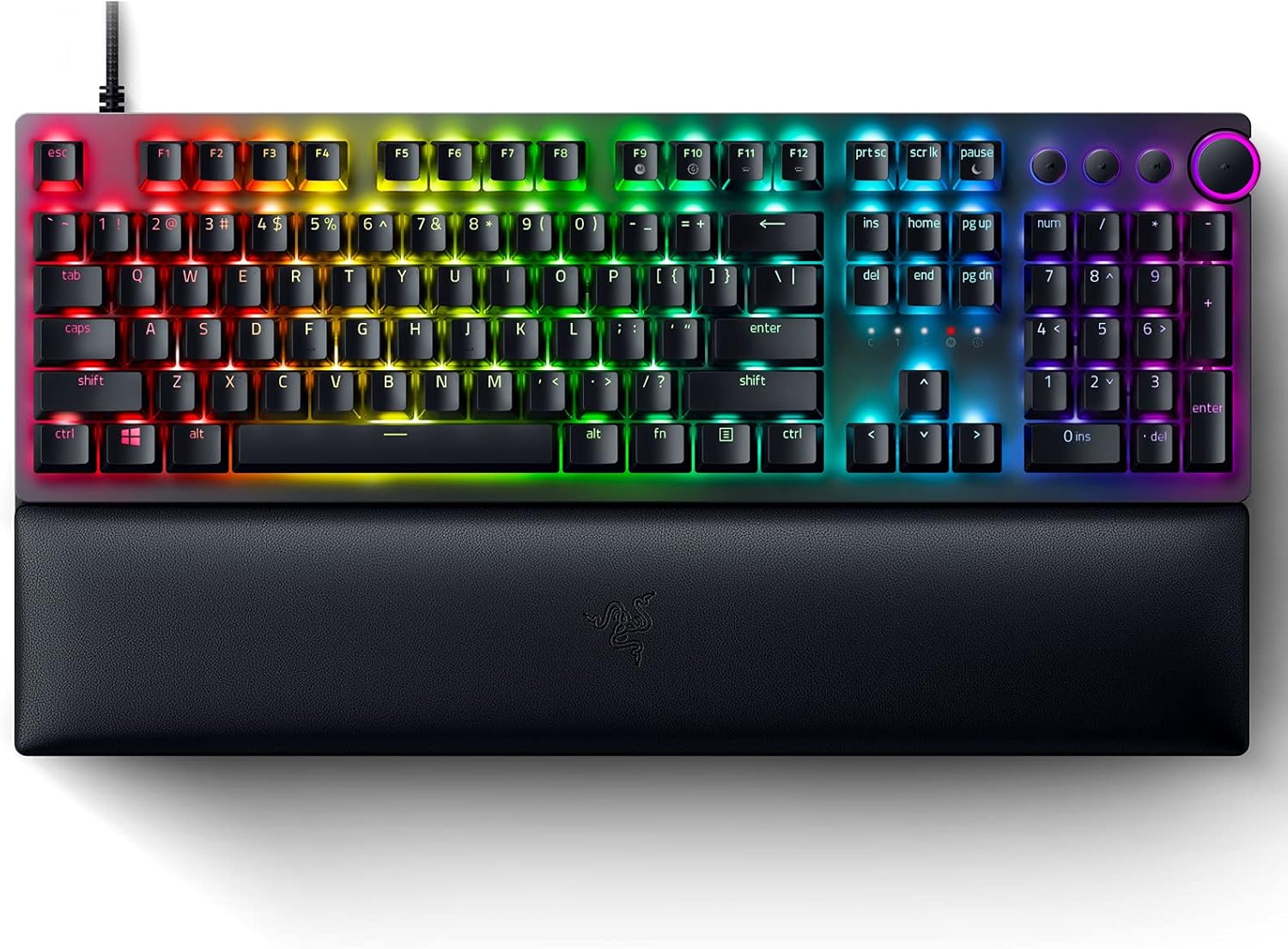
Whakaahua 3.1: Razer Huntsman V2 Optical Gaming Keyboard. This image displays the full-sized keyboard with its integrated RGB lighting and the detachable ergonomic wrist rest.
3.1 Razer Linear Optical Switches Gen-2
The Huntsman V2 features Razer's second-generation Linear Optical Switches, designed for rapid actuation and durability. These switches incorporate sound dampeners for a quieter typing experience and offer a smooth, consistent keypress. They are also highly responsive, supporting up to a true 8000Hz polling rate for minimal input latency.

Whakaahua 3.2: Razer Optical Switches. A detailed view of the optical switch mechanism, highlighting the speed and reliability of the design.
3.2 Tere Pōti 8000Hz
Experience near-zero input latency with the keyboard's 8000Hz polling rate. This feature allows the keyboard to report key presses to your computer up to 8000 times per second, ensuring every command is registered almost instantaneously.

Whakaahua 3.3: True 8000Hz Polling Rate. This image visually represents the benefit of an 8000Hz polling rate for reduced latency.
3.3 Doubleshot PBT Keycaps
The keycaps are made from doubleshot PBT material, which is known for its durability and resistance to wear. The legends are molded into the keycap, preventing them from fading over time, and the textured finish provides a secure feel.

Whakaahua 3.4: Doubleshot PBT Keycaps. A close-up view demonstrating the robust and textured surface of the keycaps.
3.4 Multi-function Digital Dial and Media Keys
Located on the upper right side of the keyboard, the multi-function digital dial and four dedicated media keys provide convenient control over your entertainment. These can be configured to adjust volume, skip tracks, pause/play media, and more.

Whakaahua 3.5: Multi-function Digital Dial and Media Keys. This image highlights the dedicated controls for media management.
3.5 Ergonomic Wrist Rest
The included ergonomic wrist rest attaches magnetically to the keyboard, providing comfortable support for your wrists during extended use. It helps alleviate pressure and reduce fatigue.

Whakaahua 3.6: Ergonomic Wrist Rest. The keyboard is shown with its comfortable wrist rest, designed for extended gaming sessions.
3.6 Sound Dampening Huka
The keyboard incorporates a layer of special foam inside its casing. This foam absorbs any pinging noises that might occur when keys are bottomed out, contributing to improved acoustics and a quieter typing experience.
4. Tatūnga
- Honoa te Papapātuhi: Plug the USB cable from the Razer Huntsman V2 keyboard into an available USB port on your computer.
- Āpiti Wrist Rest: Align the ergonomic wrist rest with the front edge of the keyboard. It will magnetically snap into place.
- Tāutahia te Pūmanawa Razer Synapse: For full functionality, including customization of RGB lighting, key assignments, and macros, download and install the Razer Synapse software from the official Razer webpae (www.razer.com/synapseWhāia ngā tohutohu kei te mata mō te tāutanga.
- Tāuta Atekōkiri: Your operating system will automatically install the necessary drivers upon connection. Allow a few moments for this process to complete.
5. Nga Tohutohu Whakahaere
5.1 Basic Keyboard Functionality
The Razer Huntsman V2 functions as a standard keyboard immediately upon connection. All alphanumeric keys, function keys (F1-F12), and navigation keys operate as expected.
5.2 Using the Multi-function Digital Dial and Media Keys
- Digital Dial: By default, rotate the dial to adjust system volume. Pressing the dial typically mutes/unmutes audio.
- Pāpāho Kī: The dedicated media keys (Play/Pause, Previous Track, Next Track) control media playback in compatible applications.
- Whakaritenga: These controls can be reconfigured using Razer Synapse software to perform other functions, such as brightness adjustment or macro execution.
5.3 On-board Memory and Cloud Storage
The keyboard supports up to 5 on-board memory profiles, allowing you to save and activate custom settings without the need for software. Additionally, Razer Synapse enables cloud storage for a larger library of macros and settings, accessible from any computer with Synapse installed.
6. Customization with Razer Synapse
Razer Synapse is the unified configuration software that unlocks advanced features for your Huntsman V2 keyboard. With Synapse, you can:
- Whakaritehia ngā pānga me ngā tae rama RGB.
- Remap keys and assign macros.
- Waihangahia me te whakahaere i ngā mahi ngaio mahafilemō ngā kēmu, ngā taupānga rānei rerekē.
- Adjust the 8000Hz polling rate settings.
Ensure Razer Synapse is updated to the latest version for optimal performance and access to all features.
7. Tiaki
7.1 Te horoi i te papapātuhi
- Momotuhia te papapātuhi mai i to rorohiko i mua i te horoi.
- Kia ngawari te whakamahi i te kakahu ngohengohe, karekau he ngongo dampka whakakiia ki te wai, ki te otinga horoi ngawari ranei hei muru i nga kapene me te tahuhu.
- Mo te puehu me te para i waenga i nga taviri, whakamahia te hau kōpeke.
- Avoid using harsh chemicals, abrasive cleaners, or solvents, as these can damage the keyboard's finish or components.
7.2 Cleaning the Wrist Rest
- Wipe the surface of the wrist rest with a soft, damp kakahu.
- For stubborn stains, a small amount of mild soap can be used, followed by wiping with a clean, damp kakahu.
- Allow the wrist rest to air dry completely before reattaching it to the keyboard.
8. Te Raru
- Papapātuhi Kaore i te whakautu:
- Me mohio kei te hono pai te taura USB ki te papapātuhi me te rorohiko.
- Ngana ki te hono i te papapātuhi ki tetahi tauranga USB rereke.
- Tīmataria anō tō rorohiko.
- Check if Razer Synapse is running and updated.
- Rarama RGB Kaore i te Mahi/Heke:
- Verify that Razer Synapse is installed and running.
- Tirohia ngā tautuhinga rama i roto i te Razer Synapse.
- Ensure no other lighting software is conflicting with Synapse.
- Kī Kāore i te Rēhita:
- Clean the affected key area with compressed air to remove any debris.
- Test the key in a different application or on another computer to rule out software issues.
- If using a renewed product, refer to the seller's return/exchange policy if a key is consistently unresponsive.
- Multi-function Dial or Media Keys Not Working:
- Ensure Razer Synapse is running and check the key assignments for these controls.
- Verify that no other software is overriding media key functions.
For further assistance, visit the official Razer Support webpaetukutuku, whakapā atu ranei ki ta raatau ratonga kaihoko.
9. Whakatakotoranga
| Waitohu | Razer |
| Tauira | Kaiwhaiwhai V2 |
| Momo Whakawhiti | Razer Linear Optical Switches Gen-2 |
| Reiti Pooti | Tae atu ki te 8000Hz |
| Hipanga papanga | PBT Whakaahuarua |
| Hononga | USB |
| Nga waahanga motuhake | Ergonomic Wrist Rest, Multi-function Digital Dial, Dedicated Media Keys, Sound Dampening Foam, Hybrid On-board Memory |
| Whakamuri | RGB (Razer Chroma RGB) |
| Hunga Hua | 17.53 x 5.52 x 1.71 inches (Keyboard only) |
| Taumaha Tūemi | 2.88 pauna |
10. Pūtāhui me te Tautoko
For information regarding warranty coverage, technical support, and frequently asked questions, please visit the official Razer Support webpae:
If your product was purchased as "renewed," please also refer to the specific warranty and return policies provided by the seller or platform from which it was acquired.


