Kupu Whakataki
This manual provides essential information for setting up, operating, maintaining, and troubleshooting your Apple iPhone 12 Mini (PRODUCT)RED 64GB. This device is a renewed premium product, ensuring full functionality and a high standard of quality.
Key features of your iPhone 12 Mini include:
- Unlocked for compatibility with any GSM and CDMA network carrier (e.g., AT&T, T-Mobile, Sprint, Verizon).
- Guaranteed battery health exceeding 90% of original capacity.
- Minimal cosmetic damage, not noticeable at arm's length.
- Includes a certified MFi charging cable and a UL certified wall plug.
- Backed by a one-year satisfaction guarantee.
1. Tatūnga me te Whakamahi Tuatahi
1.1 He aha kei roto i te Pouaka
Your renewed iPhone 12 Mini package includes the following items:
- Apple iPhone 12 Mini (PRODUCT)RED 64GB
- USB-C to Lightning Cable (generic, MFi certified)
- Wall Plug (generic, UL certified)
- SIM Tray Removal Tool
Tuhipoka: Kaore i te whakauruhia nga waea me te kaari SIM.

Image: The iPhone 12 Mini and its included USB-C to Lightning charging cable.
1.2 Te whakauru i te Kaari SIM
- Locate the SIM tray on the side of your iPhone.
- Insert the SIM tray removal tool into the small hole next to the tray and press firmly until the tray ejects.
- Tuhia to kaari Nano-SIM ki roto i te paepae ka anga whakararo nga hononga koura.
- Carefully reinsert the SIM tray into the iPhone.
1.3 Te Whakakaha me te Tatūnga Tuatahi
- Patohia me te pupuri i te paatene Taha kia puta ra ano te tohu Apple.
- Whaia nga tohutohu i runga mata hei whiriwhiri i to reo me to rohe.
- Tūhono ki te whatunga Wi-Fi.
- Whakaritea te ID Kanohi mo te motuhēhēnga haumaru.
- Waihangahia he kupuhipa.
- Whakahokia nga raraunga mai i te taapiri (iCloud, rorohiko ranei) ka whakaturia hei iPhone hou.
- Waitohu me to Apple ID, hangahia he mea hou.
- Complete the remaining setup steps, including location services and Siri.
2. Operating Your iPhone 12 Mini
2.1 Whakaterenga Taketake
Your iPhone 12 Mini operates on iOS 16, providing an intuitive touchscreen interface.
- Mata Kāinga: Swipe ake i te taha o raro hei haere ki te mata Kāinga.
- Whakawhiti Taupānga: Swipe ki runga mai i te taha o raro ka okioki ki waenganui o te mata ki te view tuwhera taupānga.
- Pokapū Mana: Swipe ki raro mai i te kokonga matau-runga kia uru ki nga tautuhinga tere.
- Whakamōhiotanga: Swipe whakararo mai i te kokonga mauī-runga ki te view whakamohiotanga.
2.2 Hiko / Whakaweto
- Hei Whakahiko: Patohia me te pupuri i te paatene Taha kia puta ra ano te tohu Apple.
- Hei Whakaweto: Patohia me te pupuri i te paatene Taha me te paatene Rōrahi i te wa kotahi kia puta ra ano te reiti hiko. Tōia te rēreti kia whakaweto.
2.3 ID Kanohi
Face ID uses facial recognition for secure unlocking, purchases, and app authentication. Ensure your face is clear and directly facing the screen for optimal performance.

Image: Detail of the iPhone 12 Mini's front display and notch, housing the Face ID system.
2.4 Whakamahinga Kaamera
Your iPhone 12 Mini features a dual-camera system on the rear and a single front camera. Open the Camera app to capture photos and videos. Tap on the screen to focus, and use the zoom options for different perspectives.

Image: Detail of the iPhone 12 Mini's dual rear camera system.
3. Tiaki me te Tiaki
3.1 Tiaki Pūhiko
Your renewed iPhone 12 Mini is guaranteed to have a battery capacity exceeding 90% of its original. To maximize battery lifespan:
- Avoid extreme ambient temperatures (below 0°C/32°F or above 35°C/95°F).
- Charge your iPhone using the provided MFi certified cable and UL certified wall plug.
- Enable Optimized Battery Charging in Settings > Battery > Battery Health.
- A ape i te tino tuku i te pākahiko i nga wa katoa.
3.2 Te horoi i to iPhone
To clean your iPhone, use a soft, lint-free cloth. Avoid abrasive materials, aerosols, solvents, or ammonia-based cleaners. Do not submerge your iPhone in water.
3.3 Whakahōu Pūmanawa
Regularly update your iPhone's software to the latest iOS version to ensure optimal performance, security, and access to new features. Go to Settings > General > Software Update.
4. Raparongoā Nga take noa
4.1 Pūrere Kaore i te Whakautu
If your iPhone becomes unresponsive, perform a force restart:
- Pēhi me te tuku tere i te paatene Volume Up.
- Pēhi me te tuku tere i te paatene Rōrahi Raro.
- Patohia me te pupuri i te paatene Taha kia puta ra ano te tohu Apple.
4.2 Nga Take Hononga Whatunga
- No Service/Poor Signal: Check your SIM card insertion. Go to Settings > Cellular and ensure Cellular Data is enabled. Try toggling Airplane Mode on and off.
- Raruraru Hononga Wi-Fi: Go to Settings > Wi-Fi. Ensure Wi-Fi is on and you are connected to the correct network. Try forgetting the network and rejoining.
4.3 Ka tere te whakaheke i te pākahiko
While your renewed iPhone has a healthy battery, usage patterns can affect battery life. If you experience rapid battery drain:
- Check Battery Usage in Settings > Battery to identify apps consuming the most power.
- Whakaitihia te kanapa o te mata.
- Disable Background App Refresh for non-essential apps (Settings > General > Background App Refresh).
- Limit location services for apps (Settings > Privacy > Location Services).
5. Whakatakotoranga Hua
| Āhuahira | Whakatakotoranga |
|---|---|
| Waitohu | Aporo |
| Ingoa Tauira | iPhone 12 mini |
| Pūnaha Mahi | iOS 16 |
| Te Rokiroki Mahara | 64 GB |
| Tauira PTM | Apple A14 Bionic |
| Tere PTM | 3 GHz |
| Rahi Mata | 6.1 Inihi |
| Momo Whakaatu | OLED |
| Whakatau | 2340 x 1080 |
| Rere tāmata | 60 Hz |
| Tae | (PRODUCT) RED |
| Kaiwhakarato Ahokore | Kua Wewete mo nga Kaihoko Katoa |
| Hangarau Pūkoro | 5G, 4G LTE |
| Hangarau Hononga | Wi-Fi |
| Āhuahira Haumarutanga Biometric | Ahurangi Mata |
| Momo Tuhono | Uira |
| Whakaahuatanga Pūhiko | Lithium-Ion |
| Pūhiko Wawaenga Te Ora | 14 haora |
| Taumaha Tūemi | 1.5 Karamu |
| Tau tauira | 2020 |
6. Nga Korero Whakaputanga
Your Apple iPhone 12 Mini (Renewed Premium) is backed by a one-year satisfaction guarantee. This warranty covers any functional defects and ensures the device meets the described renewed premium condition.
For specific details regarding coverage and claims, please refer to the documentation provided with your purchase or contact the seller directly.
7. Tautoko Kiritaki
If you encounter any issues or have questions not covered in this manual, please contact the seller, Hybrid IT, through your Amazon order details. For general Apple support resources, visit support.apple.com/iphone.
For information regarding Amazon Renewed Premium products and their conditions, please refer to the Amazon Renewed program details.
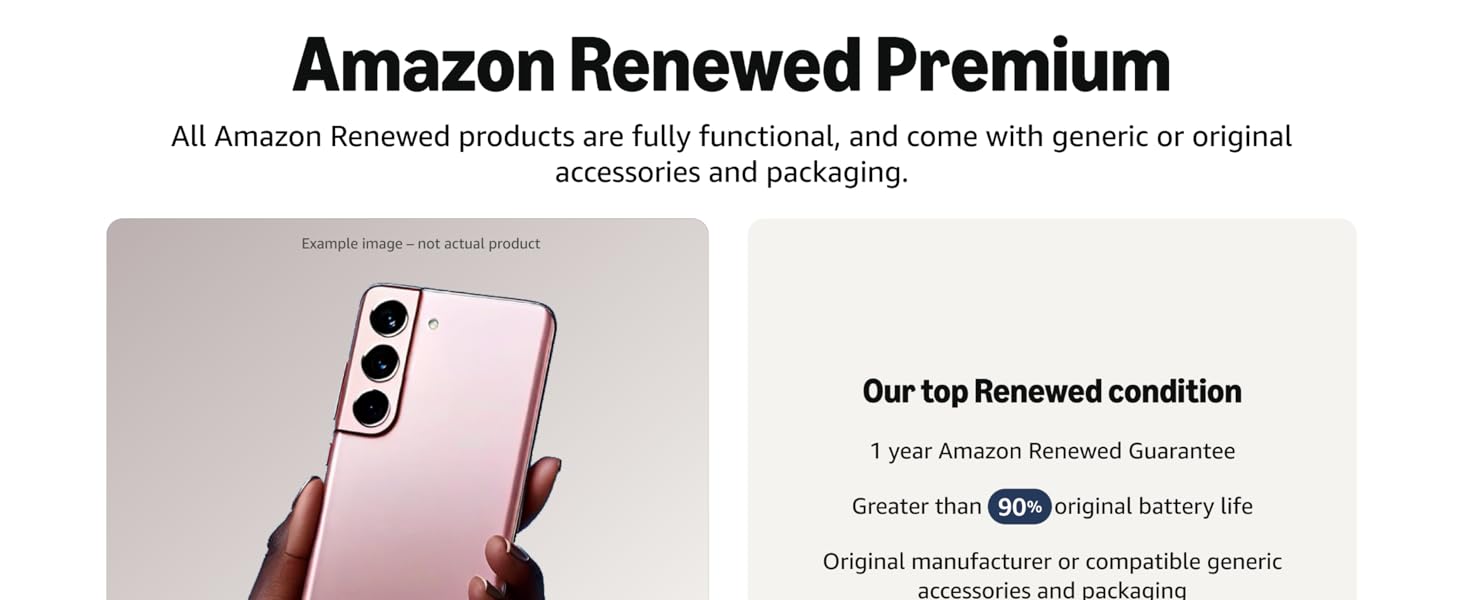
Whakaahua: Ka mutuview of Amazon Renewed Premium standards.
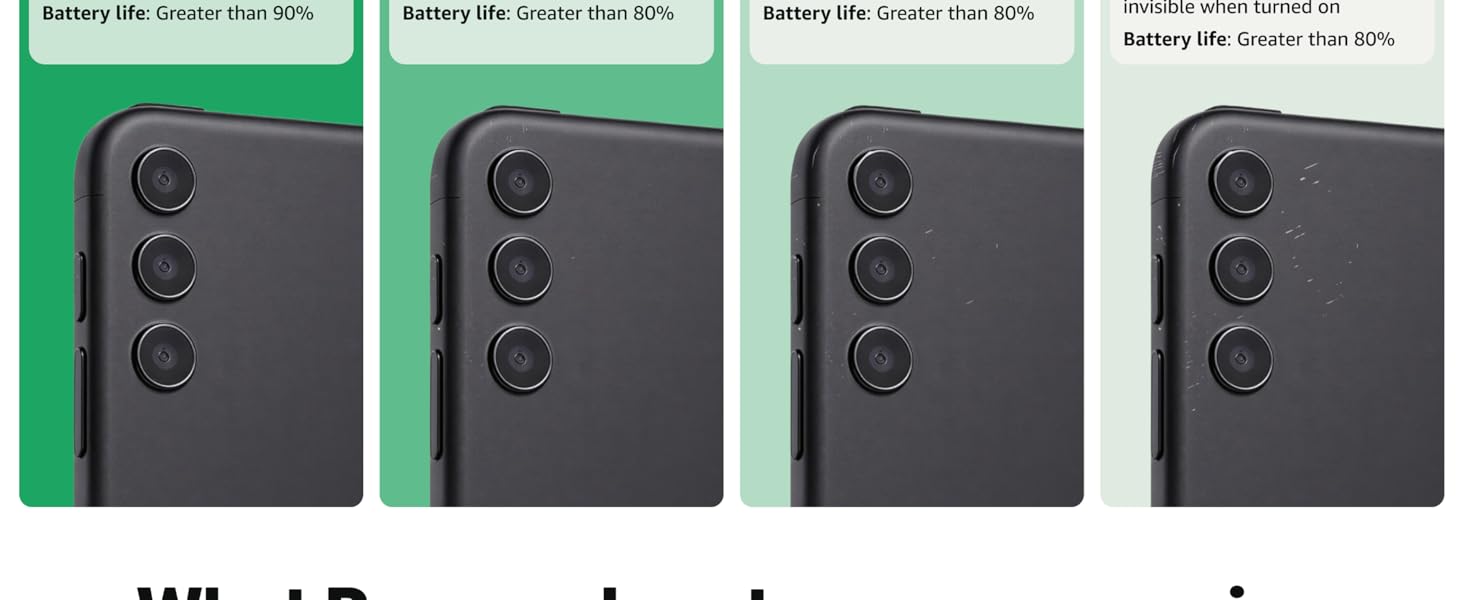
Image: Detailed comparison of Amazon Renewed product conditions.


