1. Kupu Whakataki
This manual provides instructions for the Akko ACR61 61-Key 60% RGB Hot-swappable Wired Mechanical Gaming Keyboard. It covers setup, operation, maintenance, and troubleshooting to ensure optimal performance and longevity of your device.
The Akko ACR61 keyboard features a 60% layout, RGB backlighting, and hot-swappable switches, allowing for customization and enhanced typing experiences. It utilizes PBT double-shot keycaps for durability and N-key rollover for precise input.
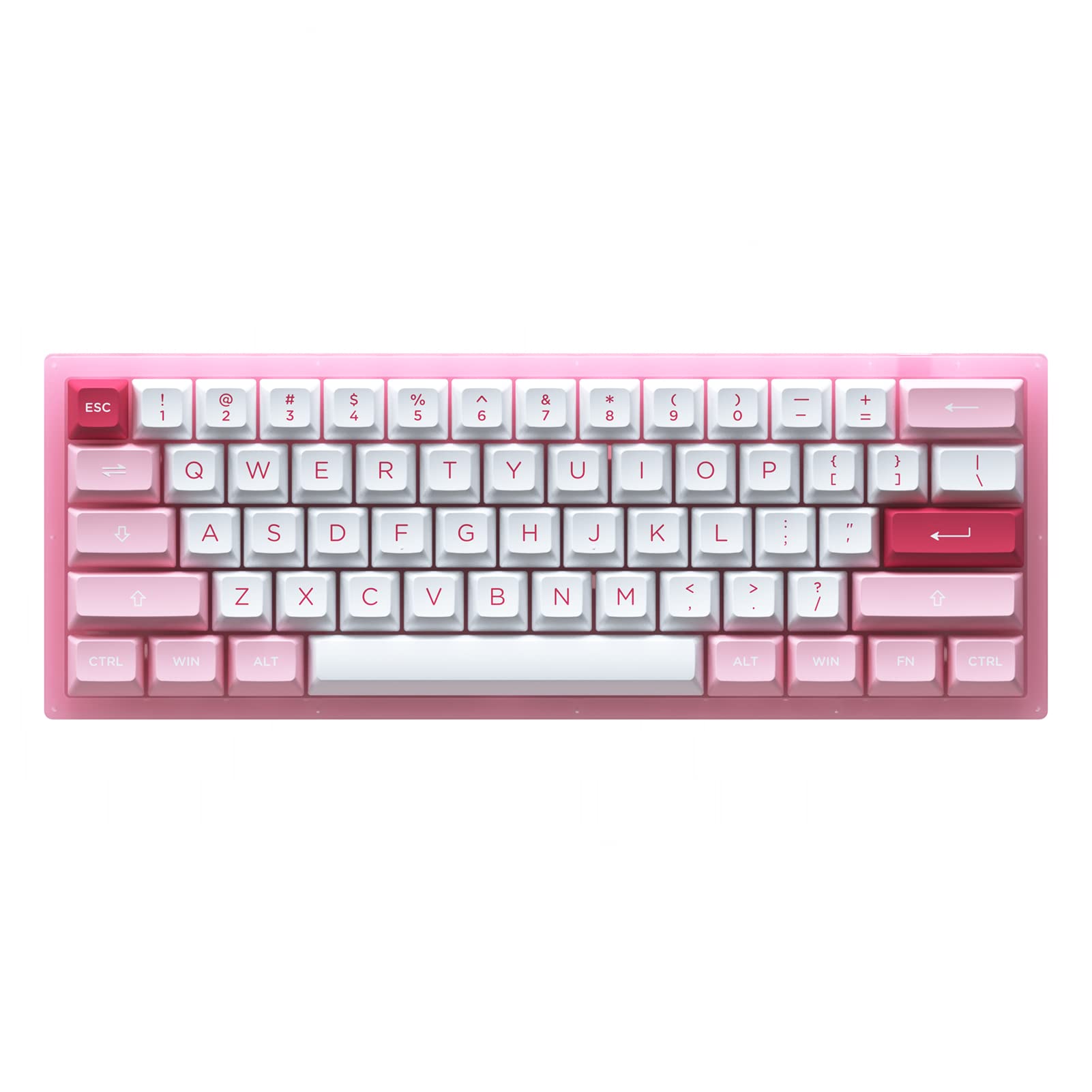
Image 1.1: Akko ACR61 keyboard showcasing the Prunus Lannesiana design and Jelly Pink switches.
2. Tatūnga
2.1 Ihirangi mokete
- Akko ACR61 Mechanical Keyboard
- USB-C ki USB-A Cable
- Paetukutuku Puller
- Whakawhiti Puller
- Additional Keycaps (if included)
2.2 Te hono i te Papapātuhi
- Locate the USB-C port on the back or side of the Akko ACR61 keyboard.
- Connect the USB-C end of the provided cable to the keyboard.
- Honoa te pito USB-A o te taura ki tētahi tauranga USB e wātea ana i runga i tō rorohiko, i tō pūrere rānei.
- The keyboard will be automatically recognized by most operating systems. No additional drivers are typically required for basic functionality.
3. Nga Tohutohu Whakahaere
3.1 Nga Mahi Matua Matua
The Akko ACR61 is a 60% keyboard, meaning some functions are accessed via the 'Fn' key combined with other keys. Refer to the keycap legends for specific Fn combinations.
- Fn + [Kī]: Accesses secondary functions printed on the front or side of keycaps (e.g., arrow keys, F-row keys, multimedia controls).
- Huri Patuhi-N (NKRO): The keyboard supports simultaneous key presses without conflicts, which is beneficial for fast typing and gaming.
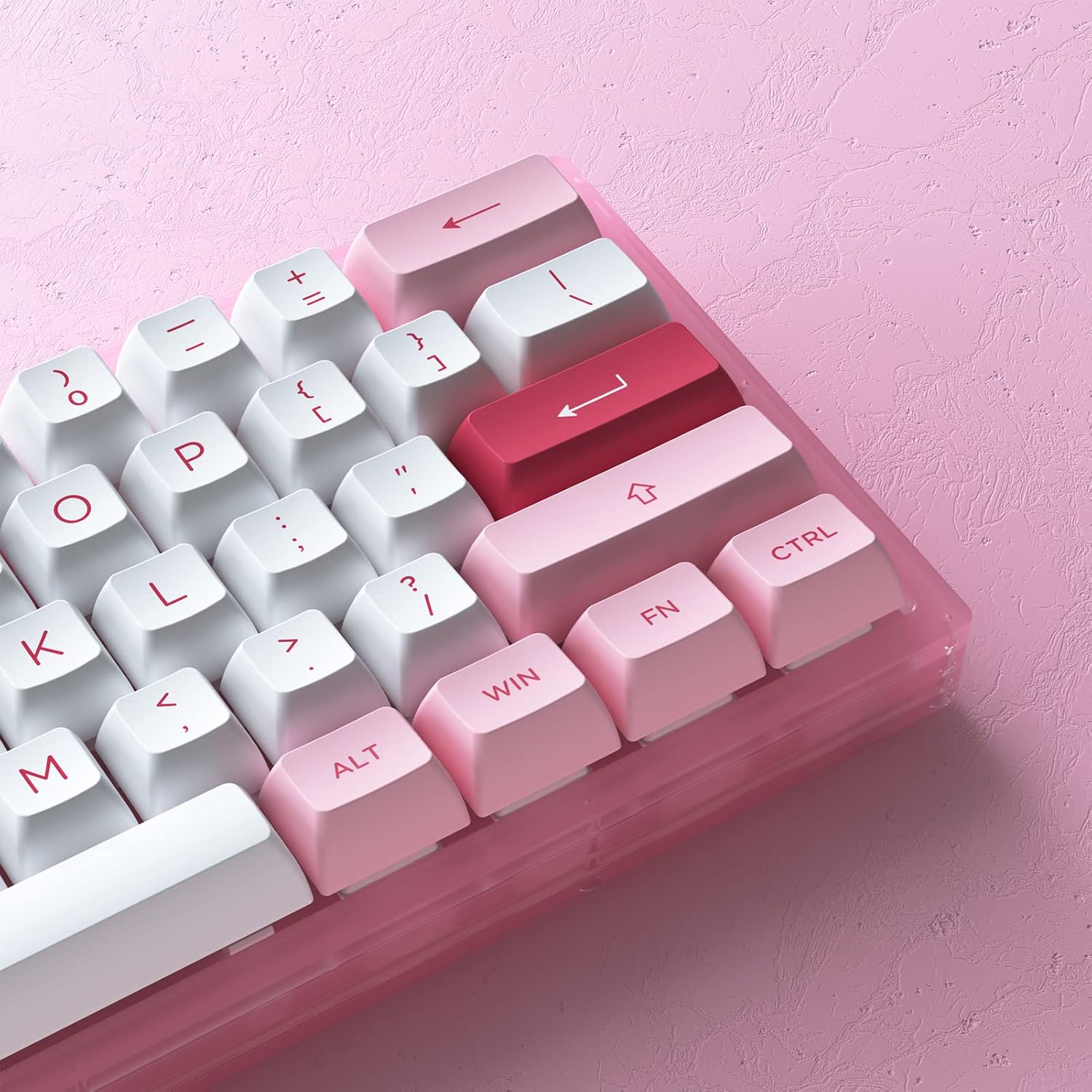
Atahanga 3.1: Whakatata view of the Akko ACR61 keycaps, illustrating primary and secondary functions.
3.2 Mana Whakamuri RGB
The keyboard features built-in RGB backlighting with customizable light animation effects. Specific key combinations, often involving the 'Fn' key, are used to cycle through lighting modes, adjust brightness, and change colors.
- Fn + [Kī]: Typically used to change RGB effects, speed, or direction. Consult the keyboard's specific keycap legends or software for exact combinations.
- Te rama rama: The keyboard also features underglow LED lighting, which can be controlled independently or in conjunction with the main RGB backlighting.
3.3 Programmability
The Akko ACR61 keyboard is programmable, allowing users to remap keys and create macro sequences. This functionality is typically managed through dedicated software provided by Akko. Keys used for controlling Macro mode (Esc/Win/Fn) cannot be remapped.
- Mahere Anō Matua: Assign different functions to individual keys.
- Hopu Tonotono: Record a sequence of keystrokes and assign it to a single key for quick execution.
4. Tiaki
4.1 Te horoi i te papapātuhi
Ka awhina te horoi i nga wa katoa ki te pupuri i te ahua me te mahi o te papapātuhi.
- Momotuhia te papapātuhi mai i to rorohiko.
- Whakamahia he paraihe ngohengohe, he hau kōpeke ranei hei tango i te puehu me te para i waenganui i nga kapene.
- For keycap cleaning, gently remove keycaps using a keycap puller. Wash them with mild soap and water, then ensure they are completely dry before reattaching.
- Wipe the keyboard surface with a slightly damp, he kakahu karekau. A ape i te makuku nui.
4.2 Whakawhiti Hot-Swappable
The Akko ACR61 features premium TTC gaming 5-pin hot-swappable sockets, allowing you to change switches without soldering.

Image 4.1: A Jelly Pink mechanical switch, illustrating the hot-swappable design.
- Te tango i te Whakawhiti: Use the provided switch puller to carefully grip the top and bottom clips of the switch. Gently pull the switch straight up and out of the socket. Avoid bending the pins.
- Installing a Switch: Align the pins of the new switch with the holes in the PCB socket. Ensure the pins are straight. Gently push the switch straight down until it clicks into place. Do not force the switch; if resistance is met, check pin alignment.
5. Te Raru
5.1 Papapātuhi Kaore i te Whakautu
- Me mohio kei te hono pai te taura USB ki te papapātuhi me te rorohiko.
- Ngana ki te hono i te papapātuhi ki tetahi tauranga USB rereke i runga i to rorohiko.
- Whakamatauhia te papapātuhi ki tetahi atu rorohiko hei whakakore i nga take e pa ana ki te punaha.
- Mena kei te whakamahi i te puku USB, ngana ki te hono tika ki te rorohiko.
5.2 Kāore e Mahi ana, e Hē rānei te Rama RGB
- Me whakarite kei te hono tika te papapātuhi, ā, kei te whakakahangia hoki.
- Use the designated Fn key combinations to cycle through lighting modes or adjust brightness.
- If using Akko software, ensure it is running and configured correctly.
5.3 Specific Keys Not Working
- For hot-swappable switches, carefully remove the keycap and then the switch for the affected key. Reinstall the switch, ensuring the pins are straight and fully seated.
- Test with a known working switch in the problematic socket to determine if the issue is with the switch or the socket.
- Ensure no debris is obstructing the switch mechanism.
6. Whakatakotoranga
| Āhuahira | Taipitopito |
|---|---|
| Tauira | ACR61 |
| Tahora | 61-Key (60%) |
| Hononga | Waea (USB-C) |
| Whakawhiti | Hot-swappable TTC Gaming 5-pin sockets (Jelly Pink Switches included) |
| Hipanga papanga | PBT Double Shot ASA Profile |
| Whakamuri | RGB with Underglow LED |
| Anti-Ghosting | Huri Patuhi-N (NKRO) |
| Te whakahoatanga | Yes (via software, excluding Esc/Win/Fn) |
| Rauemi | Polybutylene Terephthalate (Keycaps) |
| Taumaha Tūemi | 15.5 hekere |
| Ahu mōkihi | 13.7 x 8.78 x 1.93 inihi |
7. Pūtāhui me te Tautoko
For warranty information and technical support, please refer to the official Akko webpaetukutuku, whakapā atu ranei ki ta raatau ratonga kaihoko. Puritia to tohu hoko mo etahi kereme whakamana.
Toa Akko Whaimana: Toa Akko i runga i a Amazon


