1. Kupu Whakataki
The TP-Link UB5A is a compact Bluetooth 5.0 Nano USB Adapter designed to provide Bluetooth connectivity to your desktop or laptop computer. This adapter allows you to connect various Bluetooth-enabled devices such as headphones, speakers, keyboards, mice, and game controllers wirelessly. Its nano size ensures a low-profile fit, making it ideal for permanent installation in a USB port.
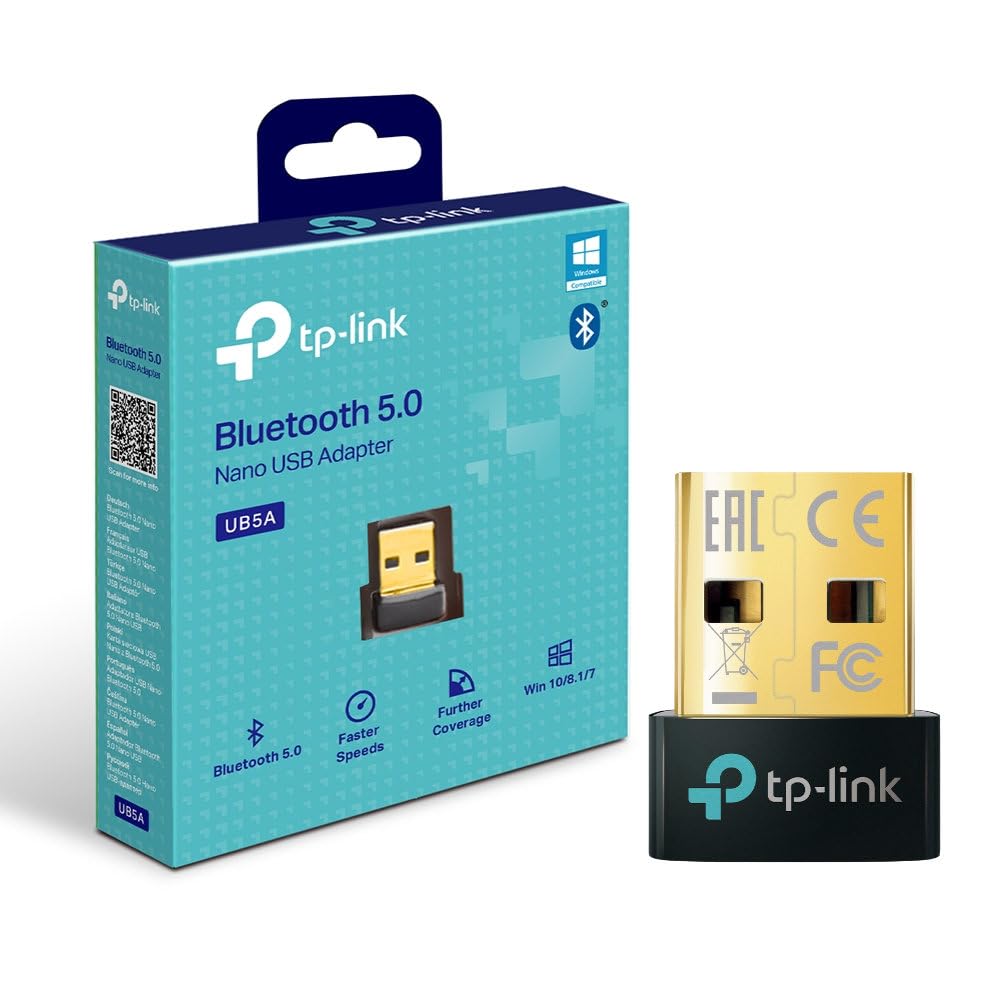
Mua view of the TP-Link UB5A Bluetooth 5.0 Nano USB Adapter, showcasing its compact design and TP-Link branding.
2. Tatūnga me te Tāuta
Follow these steps to install your TP-Link UB5A Bluetooth 5.0 Nano USB Adapter:
- Kōkuhu te Pūurutau: Plug the UB5A adapter into an available USB 2.0 port on your desktop or laptop computer.
- Tāuta Atekōkiri: For most modern operating systems (Windows 10/8.1/7), the necessary drivers should install automatically upon connection. If the adapter is not recognized or Bluetooth functionality is not available, you may need to manually install drivers.
- Tāutanga Ā-ringa o te Atekōkiri (mēnā e hiahiatia ana):
- Tirohia te tautoko mana TP-Link webpae: www.tp-link.com/support.
- Rapua 'UB5A' and download the latest drivers compatible with your operating system.
- Whakahaerehia te tāutanga taraiwa kua tikiakehia, ka whai i ngā tohutohu kei runga i te mata.

The TP-Link UB5A adapter discreetly plugged into a laptop's USB port, demonstrating its nano size and low-profile pai.
3. Nga Tohutohu Whakahaere
Once the adapter is installed and recognized by your system, you can begin pairing Bluetooth devices:
- Whakahohe Nihokikorangi: Ensure Bluetooth is enabled on your computer. This can usually be done through the Windows Settings (Settings > Devices > Bluetooth & other devices) or the system tray icon.
- Whakanohoia te Pūrere ki te Aratau Tauhoa: Place your Bluetooth device (e.g., headphones, speaker, mouse) into pairing mode. Refer to your device's manual for specific instructions on how to do this. Typically, this involves holding down a power or Bluetooth button until an indicator light flashes.
- Tāpiri Pūrere: On your computer, click "Add Bluetooth or other device" and select "Bluetooth." Your computer will scan for nearby Bluetooth devices.
- Tīpakohia ka Tūhono: From the list of discovered devices, select your device and follow any on-screen prompts to complete the pairing process. You may be asked to enter a PIN or confirm a code.
- Manatokohia te Hononga: Once paired, your device should appear as "Connected" in your computer's Bluetooth settings.

The retail packaging for the TP-Link UB5A adapter, highlighting key features like Bluetooth 5.0 and Windows compatibility.
4. Tiaki
The TP-Link UB5A adapter requires minimal maintenance. To ensure optimal performance and longevity:
- Keep the adapter plugged into a USB port to avoid misplacement, as its small size can make it easy to lose.
- A ape i te tuku i te urutau ki te wera nui, te makuku, te ra tika ranei.
- Clean the adapter gently with a dry, soft cloth if necessary. Do not use liquid cleaners.
5. Te Raru
If you encounter issues with your TP-Link UB5A adapter, try the following troubleshooting steps:
- Kāore i Kitea te Pūurutau:
- Whakamātauria te mono i te urutau ki tētahi atu tauranga USB i tō rorohiko.
- Tīmataria anō tō rorohiko.
- Ensure the drivers are correctly installed (refer to Section 2).
- Kāore e taea te hono i ngā pūrere:
- Me mohio kei te aratau takirua to taputapu Nihokikorangi.
- Ensure the device is within range (typically up to 10 meters or 33 feet).
- Turn off and on Bluetooth on your computer.
- Remove any previously paired instances of the device from your computer's Bluetooth settings and try pairing again.
- Unstable Connection or Poor Audio Quality:
- Ensure there are no physical obstructions or sources of interference (e.g., Wi-Fi routers, microwaves) between the adapter and your Bluetooth device.
- Update your Bluetooth drivers to the latest version from the TP-Link support webpae.
- Try moving the computer or the Bluetooth device to a different location.
6. Whakatakotoranga
| Tau tauira | UB5A |
| Atanga Pūmārō | Nihokikorangi, USB |
| Kawa Hononga Raraunga | Nihokikorangi, USB |
| Rere Whakawhiti Raraunga | 12 Kikabit ia Hekona |
| Hunga Hua | 4.76 x 3.43 x 3.54 inihi (7.87"R x 5.91"W x 5.91"H rānei) |
| Taumaha Tūemi | 0.952 hekere (27 Karamu) |
| Pūrere Hototahi | Papamahi, Pona |
| Pūnaha Whakahaere iti rawa e hiahiatia ana | Windows 10, Mac OS 10.12 Sierra |
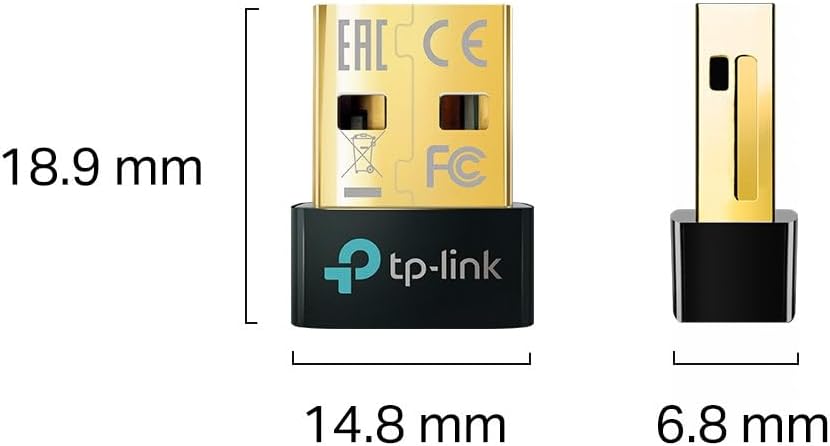
Diagram illustrating the compact dimensions of the TP-Link UB5A adapter: 18.9 mm length, 14.8 mm width, and 6.8 mm height.
7. Pūtāhui me te Tautoko
Mōhiohio Pūtāhui: The TP-Link UB5A Bluetooth 5.0 Nano USB Adapter comes with a pūtāhui toru tau against manufacturing defects, ensuring reliability and peace of mind.
Tautoko Hangarau: For further assistance, technical support, or warranty claims, please visit the official TP-Link support webpae, whakapā atu ranei ki ta raatau ratonga kaihoko:
- Tautoko TP-Link Webpae: www.tp-link.com/support
- Tautoko Īmēra: support.usa@tp-link.com
- Tautoko Waea: 866.225.8139
Please have your product model (UB5A) and purchase information ready when contacting support.