1. Kupu Whakataki
The Thrustmaster T248 is a high-performance racing wheel and pedal set designed for an immersive racing simulation experience. It features a hybrid drive system, dynamic force feedback, and a comprehensive dashboard display. This manual provides essential information for setting up, operating, maintaining, and troubleshooting your T248 racing wheel.
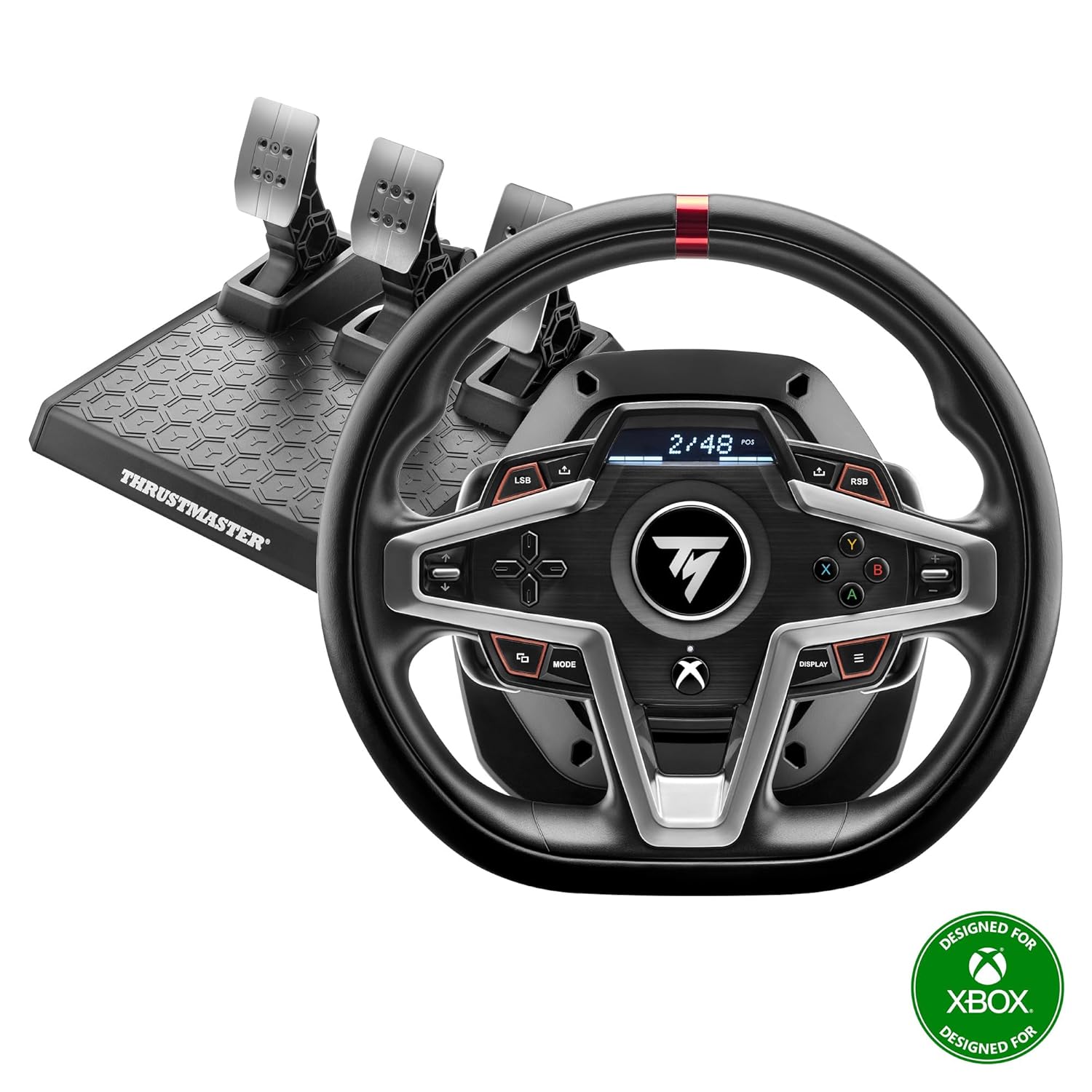
Image 1.1: The Thrustmaster T248 racing wheel and T3PM pedal set. This image displays the complete racing wheel and pedal unit, highlighting its design and components.
2. Ihirangi mokete
Ensure all components are present before proceeding with installation:
- Thrustmaster T248 Racing Wheel
- T3PM Pedal Set
- Pūurutau Hiko me te taura
- Taura Hononga USB
- Mounting System (Clamp)
- Allen Key
- Pukapuka Kaiwhakamahi (tenei tuhinga)
3. Whakaritenga Pūnaha
- Papatohu: Xbox Series X|S, Xbox One
- PC: Windows 10 or later (drivers required)

Image 3.1: The T248 racing wheel indicating compatibility with Xbox and PC platforms. This image confirms the supported gaming systems for the device.
4. Tatūnga me te Tāuta
4.1. Te Whakaeke i te Wiira Reihi
- Place the racing wheel on a stable, flat surface (e.g., a desk or racing cockpit).
- Whakapirihia te clamp to the underside of the racing wheel.
- Whakapikitia te clamp screw until the wheel is securely fastened to the surface. Do not overtighten.
4.2. Te hono i nga Pedals
Connect the T3PM pedal set to the racing wheel using the dedicated RJ12 connector on the back of the wheel base.

Image 4.1: Connection diagram for the Thrustmaster T248 racing wheel with Xbox consoles and PC. This diagram illustrates how to connect the wheel, pedals, and power supply to both Xbox and PC systems.
4.3. Hononga Hiko me te USB
- Connect the power adapter to the racing wheel and then to a wall outlet.
- Connect the USB cable from the racing wheel to an available USB port on your Xbox console or PC.
4.4. PC Driver Installation (for PC users only)
For PC use, it is essential to install the latest drivers and firmware from the official Thrustmaster support webpae. Tirohia www.thrustmaster.com/support, navigate to the T248 product page, and download the appropriate drivers and firmware updates. Follow the on-screen instructions for installation.
5. Operating the T248
5.1. Whakatairanga Tuatahi
Upon connecting the wheel and powering on your system, the T248 will automatically self-calibrate. The wheel will turn fully to one side, then the other, and finally return to the center. Do not touch the wheel during this process.
5.2. Wheel Controls
The T248 features a variety of buttons, a D-pad, and magnetic paddle shifters for comprehensive control during gameplay. Refer to your game's control settings for specific button assignments.

Image 5.1: Close-up of the T248 racing wheel's central dashboard display and control buttons. This image highlights the digital screen and various input buttons available on the wheel.
5.3. Dashboard Display
The integrated dashboard display provides real-time information, including RPM, speed, lap time, and force feedback settings. Use the 'DISPLAY' button to cycle through different display modes and the 'MODE' button to access various settings.

Image 5.2: The T248's race dashboard display showing various metrics. This image illustrates the functionality of the display, providing more than 20 different data points.
5.4. Force Feedback Adjustment
The T248 features adjustable force feedback levels. You can typically adjust these settings directly on the wheel's dashboard display or within your game's control options. Experiment with different levels to find your preferred intensity.
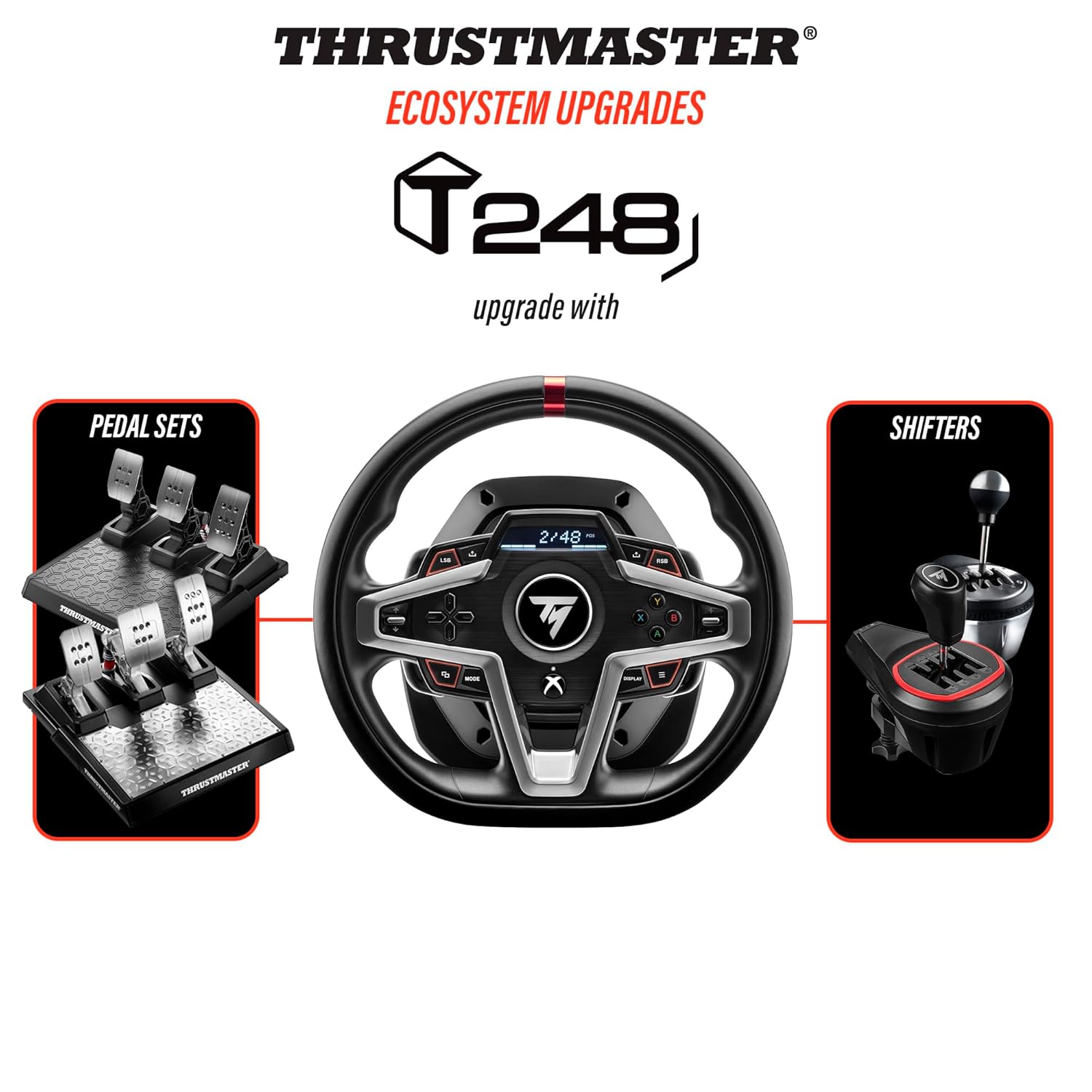
Image 5.3: Close-up of the T248 wheel highlighting its next-generation hybrid drive system. This image emphasizes the advanced force feedback mechanism, which is 70% more powerful than previous models.
5.5. Pedal Set (T3PM)
The T3PM pedal set offers precise acceleration, braking, and clutch control. The brake pedal features adjustable pressure modes by swapping springs, allowing customization for different racing styles. Refer to the separate T3PM manual for detailed instructions on spring replacement.

Image 5.4: A promotional image introducing the Thrustmaster T248. This image provides a close-up view of the wheel's design and branding.
6. Tiaki me te Tiaki
- Te horoi: Use a soft, dry cloth to clean the racing wheel and pedals. Avoid abrasive cleaners or solvents.
- Rokiroki: When not in use, store the racing wheel and pedals in a clean, dry environment, away from direct sunlight and extreme temperatures.
- Whakaha Uepu: Ensure cables are not kinked or pinched to prevent damage.
7. Te Raru
- Kore Mana: Check all power connections. Ensure the power adapter is securely plugged into the wheel and a working wall outlet.
- Kāore he Urupare Āwhina: Verify that force feedback is enabled in your game's settings and that the wheel's force feedback level is not set to zero. Ensure PC drivers are up to date.
- Wheel Not Recognized: For PC, ensure the latest drivers are installed. For both PC and Xbox, try connecting the USB cable to a different port. Restart your console or PC.
- Nga take whakatikatika: Ensure the wheel is not touched during the initial self-calibration sequence. If issues persist, try recalibrating through the Thrustmaster control panel (PC) or by restarting the device.
Mō ētahi atu āwhina, tirohia te tautoko mana a Thrustmaster webpae.
8. Whakatakotoranga Hangarau
| Āhuahira | Whakatakotoranga |
|---|---|
| Tau tauira | 4460182 |
| Hononga | USB |
| Hototahi | Xbox Series X|S, Xbox One, PC (Windows 10+) |
| Force Feedback Type | Hybrid Drive System |
| Tautuhi Pedal | T3PM (3-pedal magnetic set) |
| Hunga Hua | 17.91 x 14.17 x 12.2 inihi |
| Taumaha Tūemi | Approximately 0.04 ounces (Note: This weight seems incorrect based on typical racing wheel weights, refer to manufacturer for accurate weight) |
| Te Ra Whakaputa | Noema 11, 2021 |
9. Pūtāhui me te Tautoko
Thrustmaster products are covered by a manufacturer's warranty. The specific terms and duration of the warranty may vary by region and product. Please retain your proof of purchase for warranty claims.
For detailed warranty information, technical support, driver downloads, and firmware updates, please visit the official Thrustmaster support webpae:
You can also find additional resources and frequently asked questions on their website. When contacting support, please have your product model (T248) and serial number ready.


