1. Kupu Whakataki
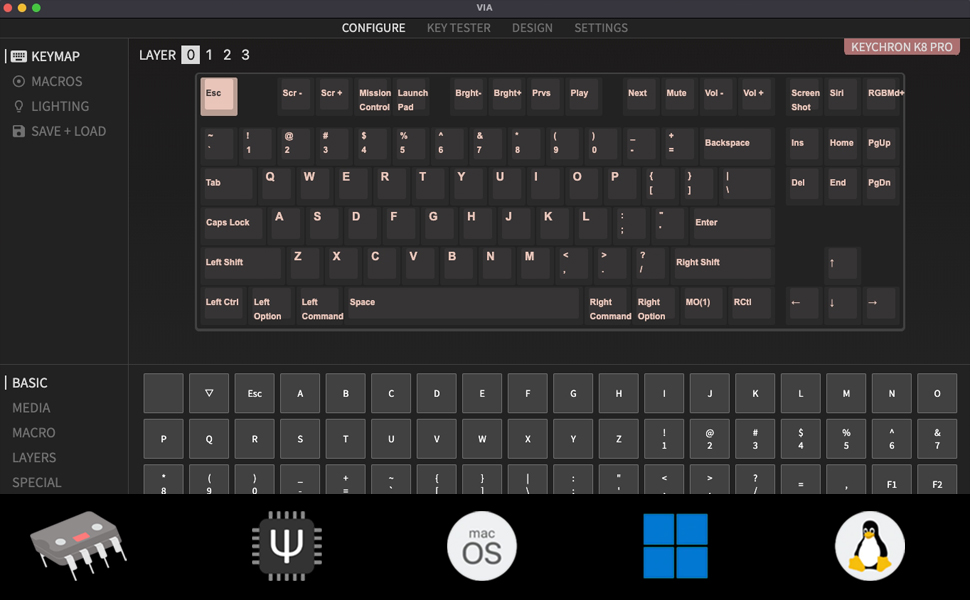
This manual provides detailed instructions for the Keychron K8 Pro Wireless Custom Mechanical Keyboard. The K8 Pro is a QMK/VIA enabled, hot-swappable, tenkeyless mechanical keyboard designed for compatibility with Mac, Windows, and Linux operating systems. It supports both wireless (Bluetooth 5.1) and wired (USB Type-C) connectivity, offering a versatile and customizable typing experience.
2. Ihirangi mokete
Verify that all items are present in your Keychron K8 Pro package:
- 1x Fully Assembled Keyboard (including PCB, Steel Plate, Sound Absorbing Foam)
- 1x Silicone Raro Papa
- 5 Sets of Stabilizers (PCB Screw-In)
- 1 set x Keycaps (Double-Shot PBT)
- 1 set x Switches (Gateron G Pro Red)
- 1x Momo-A ki Momo-C Cable
- 1x Whakawhiti Puller
- 1x Kaipupuri Kapene Matua
- 1x Kaihurihuri
- Keycaps for both Windows and macOS layouts
3. Tatūnga
3.1 Whakataki Tuatahi
Before first use, connect the keyboard to a power source using the provided USB Type-C cable to ensure it is fully charged. The battery indicator will show charging status.
3.2 Ngā Aratau Hononga
The K8 Pro supports both wireless Bluetooth and wired USB-C connections.

3.2.1 Hononga Nihokikorangi
- Locate the mode switch on the side of the keyboard.
- Slide the switch to the 'Bluetooth' position.
- On your device (laptop, phone, tablet), enable Bluetooth and search for available devices.
- Select 'Keychron K8 Pro' from the list to pair.
- The keyboard can connect to up to 3 devices. Use Fn + 1, Fn + 2, or Fn + 3 to switch between paired devices.
3.2.2 Hononga Waea USB-C
- Locate the mode switch on the side of the keyboard.
- Slide the switch to the 'Cable' position.
- Connect the provided USB Type-C cable from the keyboard to your computer's USB port.
3.3 Operating System Layout Switch
The K8 Pro features a switch to toggle between Mac and Windows layouts, ensuring full compatibility with your operating system.

- Locate the OS switch on the side of the keyboard.
- Slide the switch to the appropriate position for your operating system (Mac or Windows).
4. Nga Tohutohu Whakahaere
4.1 Nga Mahi Matua Matua
The K8 Pro is a tenkeyless keyboard with standard alphanumeric keys, function row (F1-F12), and navigation keys. Specific multimedia and function keys can be accessed using the 'Fn' key in combination with other keys.
4.2 Mana Whakamuri
The K8 Pro features a white backlight. Use the dedicated backlight key (often located near the top right) or Fn + specific keys to cycle through backlight effects and adjust brightness levels.
4.3 Te Whakatikatika Koki Ergonomic
The keyboard includes adjustable feet to set your preferred typing angle.

5. Whakaritenga
5.1 QMK/VIA Programmability
The Keychron K8 Pro supports QMK/VIA, allowing users to remap keys, create macros, and customize keyboard layers. This functionality is accessible via the VIA software.
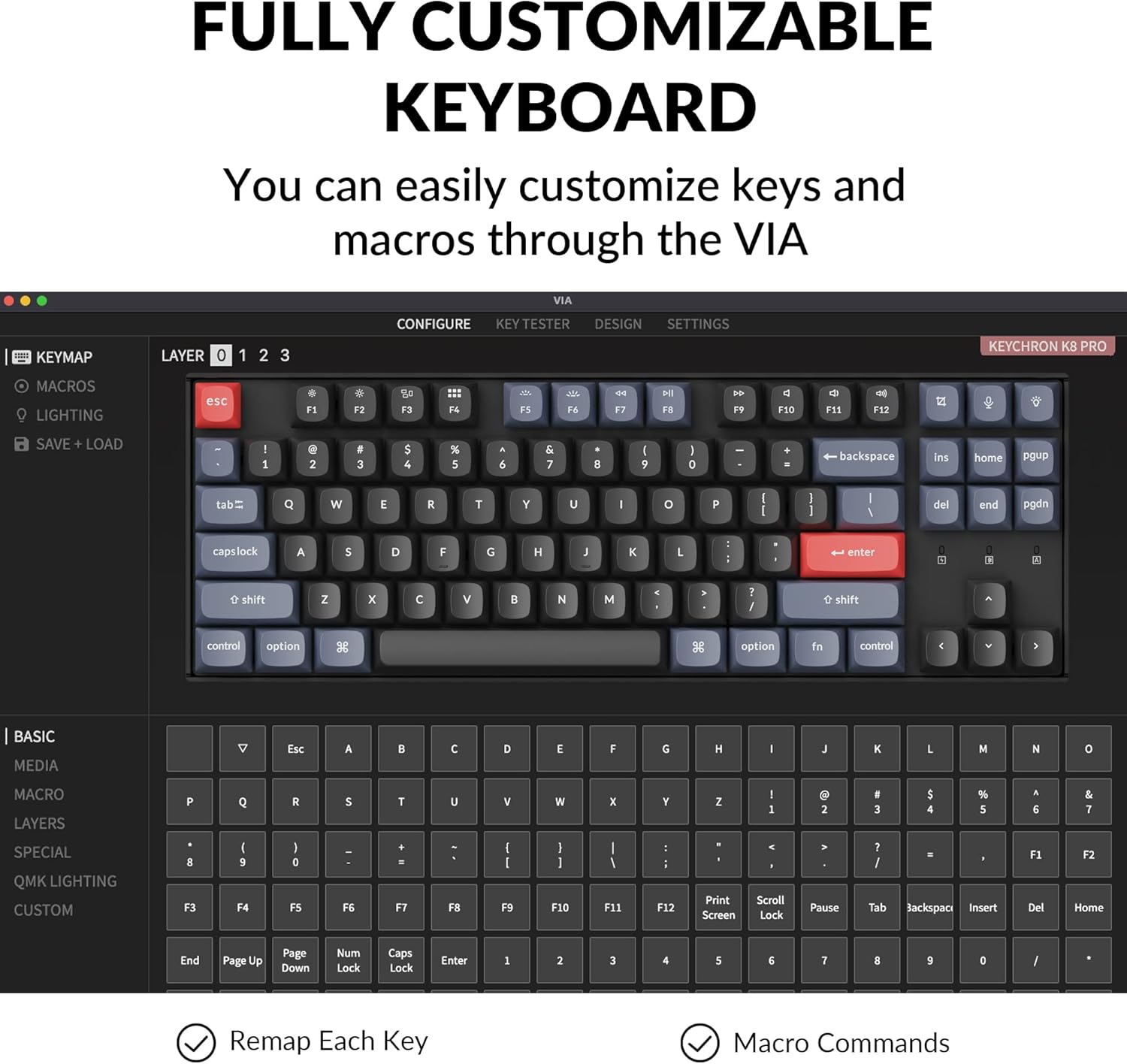
To use VIA:
- Tikiake i te pūmanawa VIA mai i te Keychron mana webpae.
- Connect the K8 Pro to your device using the USB-C cable. Key remapping is performed in wired mode.
- Launch the VIA software. The keyboard should be automatically detected.
- Drag and drop desired keys or macro commands to remap any key. Changes are saved to the keyboard's firmware and will function in both wired and wireless modes.
5.2 Hot-swappable Switches
The K8 Pro features hot-swappable switch sockets, allowing you to change mechanical switches without soldering. It is compatible with most 3-pin and 5-pin MX mechanical switches.
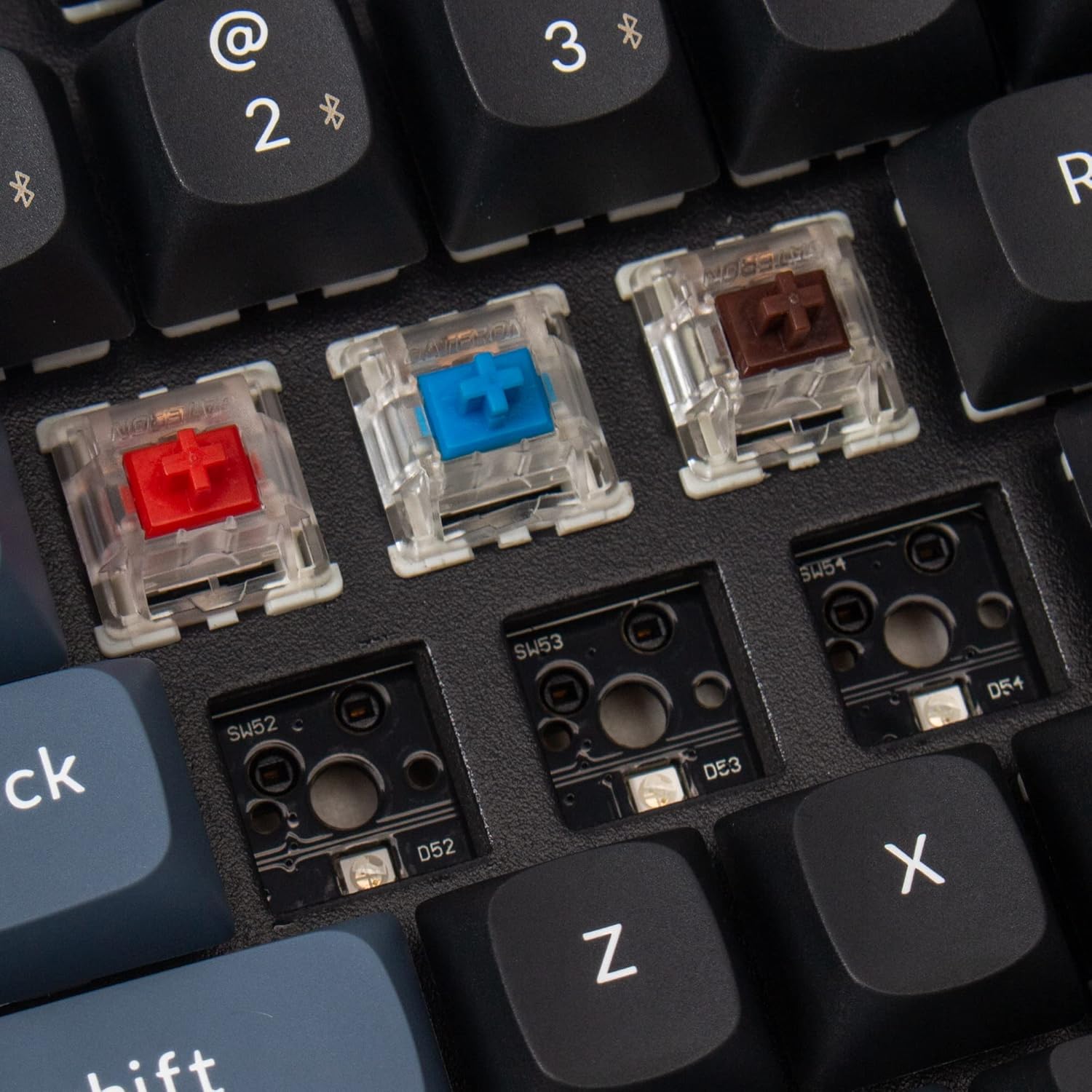
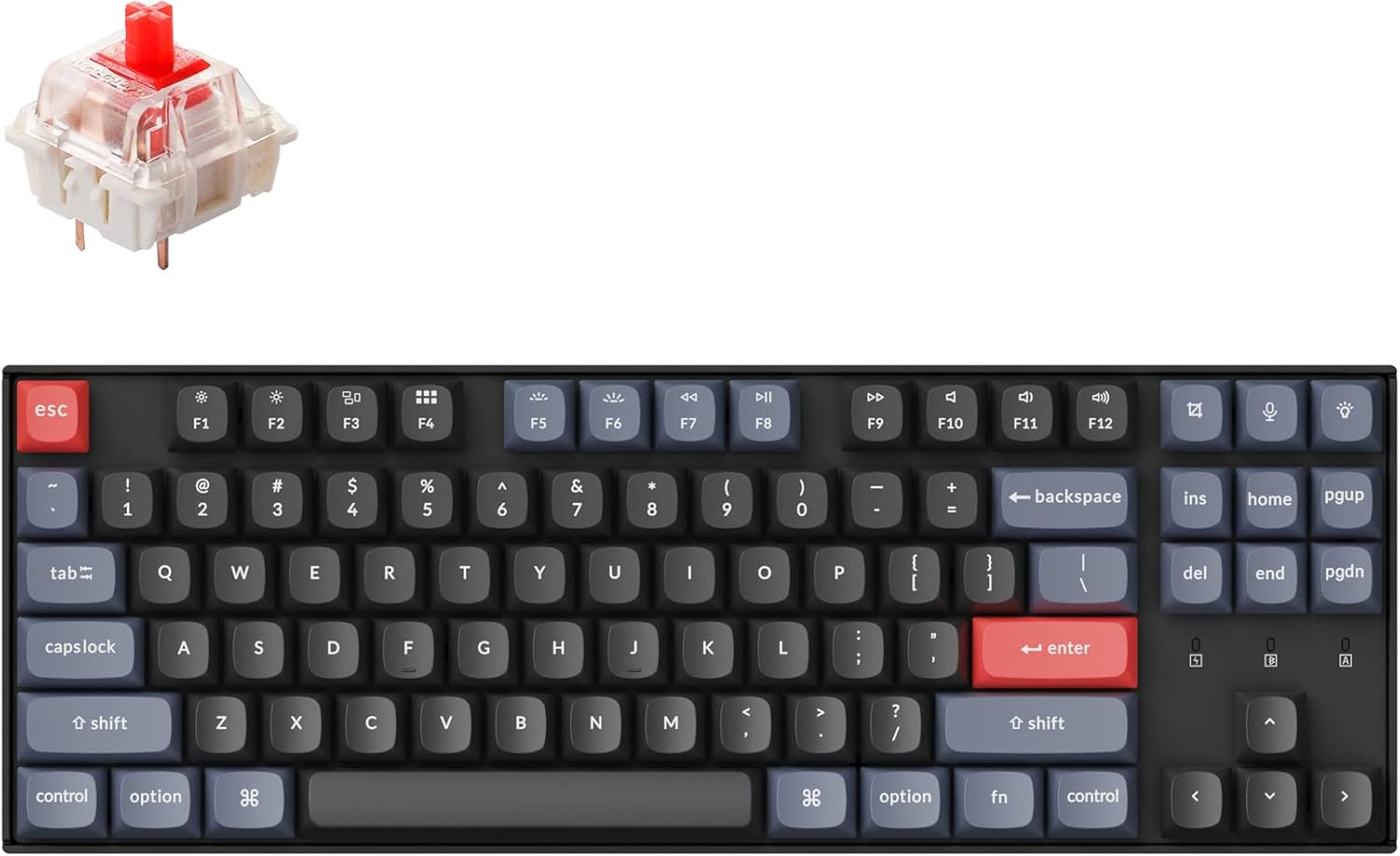
To replace switches:
- Whakamahia te taputapu unu taupoki kī kua whakaratohia hei tango marie i te taupoki kī e hiahiatia ana.
- Use the provided switch puller to gently grasp and pull the switch upwards from its socket.
- Align the pins of the new switch with the holes on the PCB and press down firmly until it clicks into place. Ensure pins are not bent.
- Whakauruhia ano te kaapu matua.
5.3 Double-Shot PBT Keycaps
The K8 Pro comes with durable double-shot PBT keycaps, designed for enhanced feel and oil resistance.

6. Tiaki
6.1 Te horoi
To clean the keyboard, power it off and disconnect it from any devices. Use a soft, dry cloth to wipe the keycaps and chassis. For deeper cleaning, keycaps can be removed using the provided keycap puller and cleaned with a mild solution. Ensure all parts are completely dry before reassembly and use.
6.2 Tiaki Pūhiko
The K8 Pro is equipped with a 4000 mAh lithium-ion battery. To prolong battery life, avoid fully discharging the keyboard frequently and store it in a cool, dry place when not in use for extended periods.
7. Te Raru
7.1 Nga Take Hononga
- Nihokikorangi kaore i te hono: Ensure the keyboard is in Bluetooth mode and discoverable. Remove previous pairings from your device and try pairing again. Ensure the keyboard battery is charged.
- Kāore te hononga waea e mahi ana: Verify the USB-C cable is securely connected to both the keyboard and the computer. Ensure the keyboard is switched to 'Cable' mode. Try a different USB port or cable.
7.2 Key Programming Issues (VIA)
- VIA software not detecting keyboard: Ensure the keyboard is connected via USB-C cable and the OS switch is set correctly. Restart the VIA software and/or your computer.
- Remapped keys not working: Confirm that the changes were successfully saved in VIA. Remember that key remapping must be done in wired mode.
7.3 Backlight Visibility
The K8 Pro features south-facing LEDs. While this design offers compatibility with a wider range of custom keycaps, it may result in less illumination of keycap legends compared to keyboards with north-facing LEDs, especially in low-light conditions. This is a design characteristic and not a defect.
7.4 Physical Fit/Feel
Some users may experience the keyboard's frame being slightly higher than the keycaps, potentially affecting the feel of certain keys like the spacebar. This is part of the keyboard's design and construction.
8. Whakatakotoranga
| Hunga Hua | 13.98 x 4.84 x 1.55 inihi |
| Taumaha Tūemi | 3.41 pauna |
| Kaihanga | Tohupātuhi |
| Tauira Tuemi | K8P-G1 |
| Pūhiko | 1 Lithium Ion battery required (4000 mAh) |
| Pūrere Hototahi | Pona, PC, Waea atamai, Papa |
| Hangarau Hononga | Nihokikorangi 5.1, USB-C |
| Whakaahuatanga Papapātuhi | Mechanical, Tenkeyless |
| Nga Whakamahinga Manakohia | petipeti, Tari |
| Nga waahanga motuhake | Wireless, Bluetooth, Wired, White Backlighting, QMK/VIA, Hot-swappable |
| Momo Whakawhiti | Gateron G Pro Red Switch |
9. Pūtāhui me te Tautoko
Keychron products are covered by a manufacturer's warranty. For specific warranty terms, duration, and to access technical support, please visit the official Keychron webpaetukutuku, whakapā atu ranei ki ta raatau ratonga kaihoko. Puritia to tohu hoko mo nga kereme whakamana.
For further assistance, please refer to the official Keychron support resources:
- Keychron Official Webpae: www.keychron.com
- Whārangi Tautoko: Consult the support section on the Keychron webpae mo nga FAQ, nga whakahou firmware, me nga korero whakapā.


