1. Kupu Whakataki
This manual provides detailed instructions for the setup, operation, and maintenance of your ITECH Fusion 2 S Smartwatch and accompanying Wireless Headphones. The ITECH Fusion 2 S is designed to help you monitor your health and fitness goals, offering features such as heart rate tracking, step counting, sleep monitoring, and multi-sport modes. The included wireless headphones provide an integrated audio experience.
2. Ihirangi mokete
Tena koa tirohia kei roto katoa nga taonga kei roto i to kete:
- ITECH Fusion 2 S Smartwatch
- Nga Waea Ahokore
- USB Charging Cable (for smartwatch)
- USB Charging Cable (for headphones)
- Pukapuka Kaiwhakamahi (tenei tuhinga)

Image: The ITECH Fusion 2 S Smartwatch and Wireless Headphones displayed within their retail packaging.
3. Pūrere Neke Atuview
3.1. ITECH Fusion 2 S Smartwatch

Image: The ITECH Fusion 2 S Smartwatch with a grey camouflage band shown alongside the matching wireless headphones.
The smartwatch features a touch screen display, a side button for navigation, and sensors on the rear for health monitoring. The display shows time, date, activity data, and notifications.

Image: A close-up of the ITECH Fusion 2 S Smartwatch display, highlighting features such as heart rate monitor, apps and notifications, multi-sports modes, water resistance, calorie tracker, music remote, pedometer, sleep monitor, hydration reminder, and extended 14-day battery life.
3.2. Wireless Headphones
The wireless headphones are over-ear style with cushioned earcups and an adjustable headband. Controls for audio playback and calls are located on the earcup.

Whakaahua: He taha view of the ITECH Wireless Headphones, illustrating features like powerful sound quality, convenient controls, comfort for hours, and a go-anywhere design.

Whakaahua: He taipitopito view of the ITECH Wireless Headphones, emphasizing noise isolating fit, built-in microphone, Bluetooth wireless technology, and up to 8 hours of playback.

Image: A diagram of the ITECH Wireless Headphones highlighting the flexible headband, comfortable ear cushion, foldable design, and convenient controls, along with key technical specifications.
4. Tatūnga
4.1. Ka tohutohutia o taputapu
Before first use, fully charge both your smartwatch and wireless headphones.
- Waati atamai: Connect the USB charging cable to the charging port on the back of the smartwatch and to a USB power source. The battery icon on the screen will indicate charging status.
- Pūoro Ahokore: Connect the USB charging cable to the charging port on the headphones and to a USB power source. An indicator light will show charging status and turn off when fully charged.
4.2. Te Hiko / Whakaweto
- Waati atamai: To power on, press and hold the side button until the screen illuminates. To power off, navigate to the 'Settings' menu on the smartwatch, then select 'Power Off'.
- Pūoro Ahokore: To power on, press and hold the power button until the indicator light flashes. To power off, press and hold the power button again until the indicator light turns off.
4.3. Pairing the Smartwatch with Your Smartphone
The ITECH Fusion 2 S Smartwatch is compatible with both iPhone and Android devices.
- Tikiake te iTECH Wearables taupānga mai i te Apple App Store, i te Toa Play Google ranei.
- Me mohio kei te whakahohea te Nihokikorangi i runga i to waea atamai.
- Open the iTECH Wearables app and follow the on-screen instructions to create an account and pair your smartwatch.
- The app will guide you through connecting the smartwatch via Bluetooth. Confirm the pairing request on both your phone and smartwatch.
4.4. Pairing the Wireless Headphones
- Me mohio kua weto nga taringa.
- Pēhia me te pupuri i te pātene mana kia tere te mura o te rama tohu, e tohu ana i te aratau takirua.
- I runga i to waea atamai, i tetahi atu taputapu Bluetooth-whakahohea, haere ki nga tautuhinga Nihokikorangi ka rapu mo nga taputapu e waatea ana.
- Select "ITECH Headphones" (or similar name) from the list to connect. The indicator light will change to a steady blue when successfully paired.
5. Te whakahaere i te Smartwatch
5.1. Whakaterenga
- Mata Pa: Swipe mauī/matau, whakarunga/iho ki te whakatere i roto i nga tahua me nga ahuatanga. Patohia hei kowhiri.
- Pātene taha: Pēhia hei hoki ki te mata kāinga, hei whakaara rānei i te pūrere.
5.2. Mata Mataara
Customize your smartwatch display by changing watch faces. On the home screen, press and hold the display, then swipe left or right to browse available watch faces. Tap to select your preferred design.
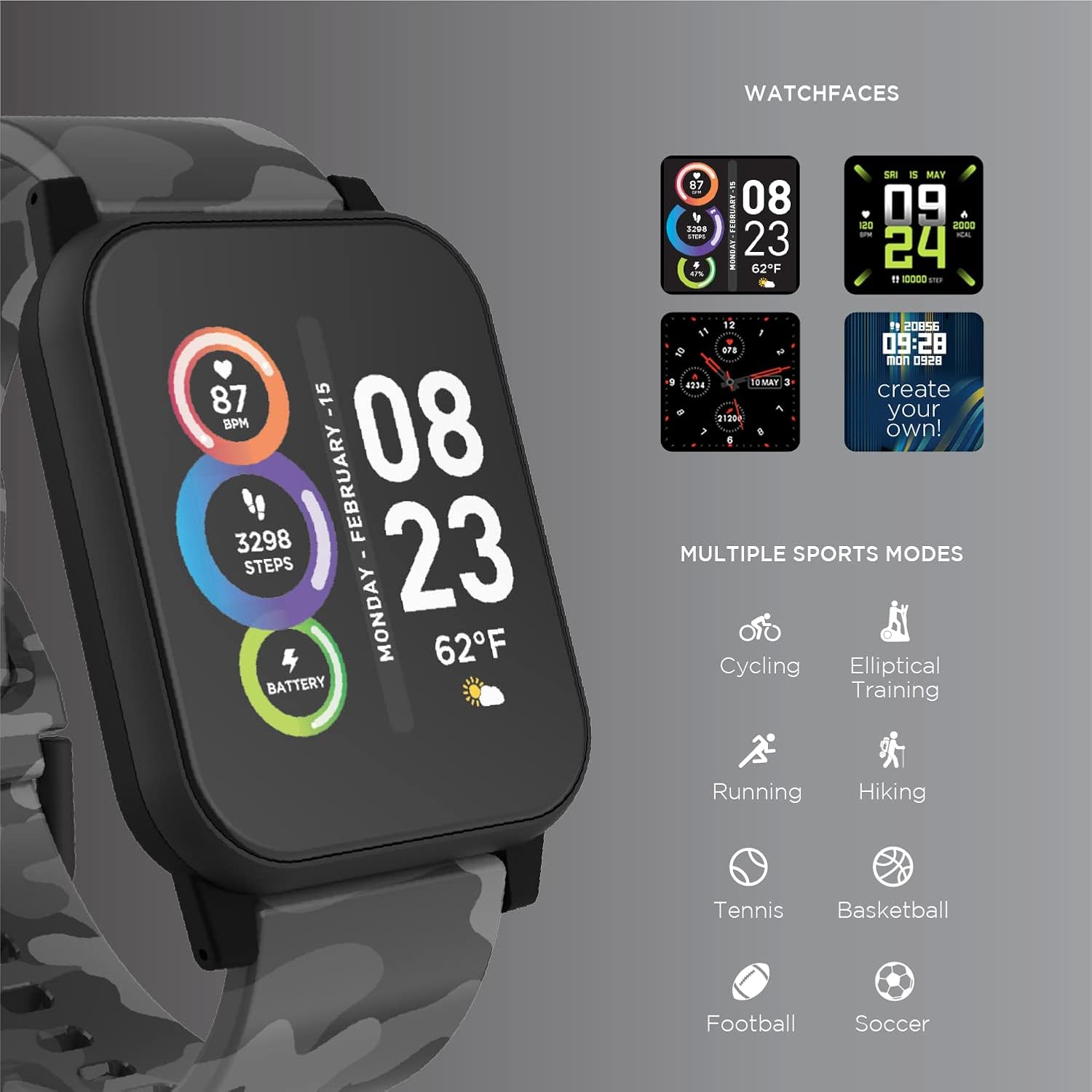
Image: The ITECH Fusion 2 S Smartwatch display showing various customizable watch faces and icons representing multiple sports modes including cycling, elliptical training, running, hiking, tennis, basketball, football, and soccer.
5.3. Core Features
- Aroturuki Reiti Manawa: Access the heart rate feature on your smartwatch to measure your heart rate using the built-in optical sensor. Ensure the watch is snug on your wrist for accurate readings.
- Step Counter (Pedometer): The smartwatch automatically tracks your daily steps, distance, and calories burned. View your progress on the device or in the iTECH Wearables app.
- Kaupane Moe: Wear your smartwatch to bed to track your sleep patterns, including light and deep sleep stages. Data is synchronized with the app for detailed analysis.
- Ngā Aratau Hākinakina Maha: Select from various sports modes (e.g., running, cycling, hiking) to track specific workout data, including duration, distance, and calories.
- Whakamōhiotanga Karere: Receive notifications for calls, texts, and app alerts directly on your smartwatch when connected to your smartphone.
- Aroturuki Calorie: Monitors calories burned throughout the day based on your activity level.
- Whakamaumahara Whakahau: Set reminders to drink water at regular intervals through the app.
- Mamao Puoro: Control music playback on your smartphone directly from your smartwatch (play, pause, skip tracks).
5.4. Taupānga Whakauru
Mo te matawhānui view of your health and fitness data, regularly sync your smartwatch with the iTECH Wearables app. The app allows you to set goals, view historical data, customize settings, and manage notifications.
6. Operating the Wireless Headphones
6.1. Mana whakahaere
The headphones feature intuitive controls for media playback and call management:
- Pātene Hiko: Pēhia, ka pupuri kia whakakā/whakaweto. Pēhia poto hei purei/whakamutu.
- Pātene Rōrahi: Pēhia te '+' hei whakanui i te oro, te '-' hei whakaiti i te oro.
- Mana Riu: Press and hold '+' for next track, '-' for previous track.
- Whakahaere Waea: Short press power button to answer/end calls. Press and hold to reject calls.
6.2. Āhuatanga Ororongo
- Powerful Sound Quality: Designed to deliver clear and rich audio.
- Noise Isolating Fit: The over-ear design helps to reduce external noise for an immersive listening experience.
- Puoro-roto: Whakahohe waea kore-ringa.
6.3. Pūhiko Ora
The wireless headphones provide up to 8 hours of playback on a single charge, depending on usage and volume levels.

Image: A person wearing the ITECH Fusion 2 S Smartwatch on their wrist and the matching wireless headphones, demonstrating typical use.
7. Tiaki
7.1. Te horoi
- Waati atamai: Wipe the screen and band with a soft, damp, kakahu kore-miro. Āta karohia ngā matū kino, ngā rauemi whakakoi rānei.
- Pūoro: Gently wipe earcups and headband with a soft, dry cloth. Do not immerse in water.
7.2. Water Resistance (Smartwatch)
The ITECH Fusion 2 S Smartwatch is IP67 water resistant. This means it is protected against dust and can withstand immersion in water up to 1 meter for up to 30 minutes. It is suitable for daily use and light splashes, but not recommended for swimming, showering, or prolonged water immersion.
7.3. Rokiroki
Store your devices in a cool, dry place away from direct sunlight and extreme temperatures when not in use.
8. Te Raru
If you encounter issues with your ITECH Fusion 2 S devices, please refer to the following common solutions:
- Kaore te taputapu i te hiko: Ensure the device is fully charged. Try connecting it to a different USB power source.
- Smartwatch not pairing with phone: Ensure Bluetooth is enabled on your phone and the smartwatch is within range. Restart both devices and try pairing again through the iTECH Wearables app.
- Karekau nga waea e takirua: Ensure headphones are in pairing mode (rapidly flashing indicator light). Check your device's Bluetooth settings and try reconnecting.
- Inaccurate heart rate/step readings: Kia mau te mātaaratanga atamai ki tō ringaringa, kaua e tino piri rawa, kaua hoki e tino wetekina. Horoia te pūoko kei muri o te mātaaratanga.
- Ko nga whakamohiotanga kaore e puta: Check app permissions on your smartphone to ensure the iTECH Wearables app has access to notifications. Verify notification settings within the app.
- Audio issues with headphones: Ensure headphones are fully charged and properly paired. Check volume levels on both the headphones and the connected device.
If problems persist, consider performing a factory reset (refer to the smartwatch settings menu or contact customer support for headphones). For further assistance, please contact Itech customer support.
9. Whakatakotoranga
| Āhuahira | Taipitopito |
|---|---|
| Hunga Hua | 22.86 x 5.08 x 22.86cm; 621g |
| Tauira Tuemi | 900366B-40-G57 |
| Pūnaha Mahi | Android (Compatible with iPhone and Android) |
| Nga waahanga motuhake | Heart Rate Monitor, Step Counter, Sleep Monitor, Message Notifications, Multi-Sport Modes |
| Hangarau Hononga | USB |
| Paerewa Whakawhitinga Korerokore | Nihokikorangi |
| Hanganga Pūtau Pūhiko | Lithium Ion |
| GPS | Tika |
| Smartwatch Shape | Tapawhā |
| Smartwatch Screen Size | 1.3 Inihi |
| Waitohu | Itech |
| Ingoa Tauira | Fusion 2 Bundle |
| Ātete wai | IP67 |
| Headphones Playback Time | Tae atu ki te 8 haora |
| Headphones Driver Diameter | 40mm |
| Headphones Connection Type | Nihokikorangi 5.0 |
| Te Waea Waea | 32 Ohms ±15% |
| Whakautu Frequency Whakaorooro | 20Hz - 20KHz |
10. Pūtāhui me te Tautoko
Your ITECH Fusion 2 S Smartwatch and Wireless Headphones are covered by a manufacturer's warranty. Please refer to the warranty card included in your package or visit the official Itech webpae mo nga tikanga me nga tikanga whakamana.
For technical support, troubleshooting assistance, or warranty claims, please contact Itech customer service through their official webpae, nga korero whakapā ranei e whakaratohia ana i roto i to tuhinga hua.


