Kupu Whakataki
The AOLION Stereo Headset Adapter is designed to enhance your gaming experience on Xbox One controllers. This adapter allows you to connect most wired stereo gaming headsets with a 3.5mm audio jack (CTIA plug standard) directly to your Xbox controller, providing convenient control over game sound and voice chat.
Ihirangi mokete
- 1 × AOLION Stereo Headset Adapter
- 1 × User's Manual
Ka mutu te huaview
The adapter features intuitive controls for managing your audio experience during gameplay.

Whakaahua 1: Mua view of the headset adapter showing control buttons.
- Game Balance Button: Adjusts the balance towards game audio.
- Chat Balance Button: Adjusts the balance towards voice chat audio.
- Pātene Wahangu hopuoro: Ka takahurihia te hopuoro ki runga/whakaweto.
- Pātene Rōrahi ake: Increases overall volume.
- Pātene Whakararo Rōrahi: Decreases overall volume.
- 3.5mm Jack Ororongo: For connecting your stereo gaming headset.
- Tūhono USB: For connecting to the Xbox controller.
Hototahi
This headset adapter is compatible with a wide range of Xbox One controllers and stereo gaming headsets:
- Xbox Controllers: Xbox One, Xbox One S, Xbox One X, Xbox Elite Wireless Controller Series 1, Xbox Elite Wireless Controller Series 2, Xbox Series S, and Xbox Series X Controllers.
- Pūoro: Most wired stereo gaming headsets featuring a 3.5mm audio jack (using the CTIA plug standard).

Figure 2: The adapter is compatible with multiple Xbox controller models.

Figure 3: The adapter supports standard 3.5mm CTIA headsets.
Tatūnga
Setting up your AOLION Stereo Headset Adapter is a simple plug-and-play process.
- Connect the Adapter to the Controller: Align the USB connector of the headset adapter with the expansion port at the bottom of your Xbox controller. Gently push until it clicks securely into place.
- Tūhonohia tō Pūoro: Plug your wired stereo gaming headset's 3.5mm audio jack into the corresponding port on the bottom of the headset adapter.
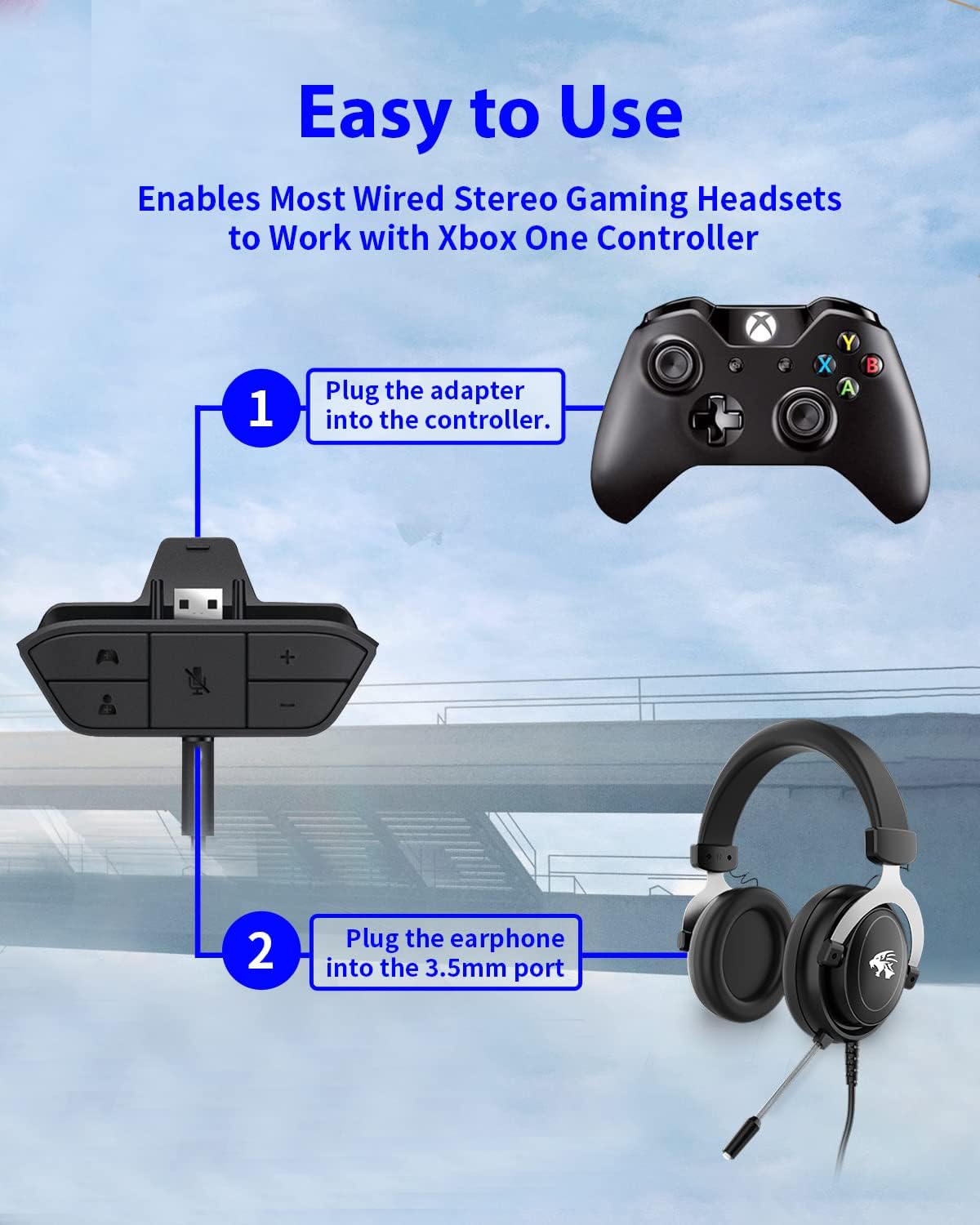
Figure 4: Step-by-step connection guide for the headset adapter.
Video 1: Demonstration of connecting the headset adapter to an Xbox controller.
Tuhipoka Nui: For optimal performance and to resolve potential audio issues, it is recommended to update your Xbox controller's firmware after connecting the adapter. This can typically be done through your Xbox console's settings (Settings > Devices & connections > Accessories > Select your controller > ... > Controller settings > Update firmware).
Nga Tohutohu Whakahaere
Once connected, use the buttons on the adapter to control your audio:
- Rōrahi Whakarunga/Whakararo (+/-): Press the '+' button to increase the overall volume of both game and chat audio. Press the '-' button to decrease it.
- Microphone Mute (Microphone Icon): Press this button to mute or unmute your microphone. An indicator light (if present) or on-screen notification may confirm the mute status.
- Game/Chat Balance (Controller Icon / Person Icon):
- Pehia te Tohu Kaiwhakahaere button to increase game audio volume and decrease chat audio volume.
- Pehia te Ata Tangata button to increase chat audio volume and decrease game audio volume.
Whakaatu 5: Taipitopito view of the adapter's control buttons.
Te tiaki
To ensure the longevity and optimal performance of your headset adapter, follow these simple maintenance guidelines:
- Puritia te urutau kia ma, kia kore hoki he puehu, he paru rānei. Whakamahia he kakahu ngohengohe, maroke hei horoi.
- A ape i te tuku i te urutau ki te tino mahana, te makuku, te ra tika ranei.
- Kaua e ngana ki te wetewete, ki te whakatika rānei i te urutau māu ake, nā te mea ka whakakorea te pūtāhui.
- Rokirokihia te urutau ki tētahi wāhi haumaru ina kore e whakamahia hei ārai i ngā kino ā-tinana.
Raparongoā
If you encounter issues with your AOLION Stereo Headset Adapter, please refer to the following common solutions:
| Raruraru | Te Take Taea / Rongoa |
|---|---|
| No audio or poor audio quality (buzzing, peaking) |
|
| Kaore e mahi ana te hopuoro |
|
| Game/Chat balance not working |
|
Mena kei te haere tonu te raru i muri i te whakamatau i enei mahi, me waea atu ki te tautoko a te kaihoko.
Whakatakotoranga
| Āhuahira | Taipitopito |
|---|---|
| Tau tauira | WGXB004005 |
| Waitohu | AOLION |
| Rahi Hua (L x W x H) | 3.15 x 1.57 x 0.79 inihi (8 x 4 x 2 cm) |
| Tae | Pango |
| Momo Tuhono | Auxiliary (3.5mm CTIA standard) |
| Pūrere Hototahi | Xbox One, One S, One X, Elite 1, Elite 2, Series S, Series X Controllers; 3.5mm CTIA Stereo Headsets |
Pūtāhui me te Tautoko
AOLION stands behind the quality of its products. This Stereo Headset Adapter comes with:
- 60-Ra Whakahoki Moni Moni: If you are not entirely satisfied with your purchase within 60 days, you may be eligible for a full refund.
- 24-Marama Pūtāhui: We provide a 24-month warranty against manufacturing defects from the date of purchase.
For any questions, concerns, or warranty claims, please contact us through Amazon. We are committed to responding to your inquiries within 12 hours to ensure your complete satisfaction.


