1. Hua Neke Atuview
The Trust TKM-250 USB Wired Keyboard and Mouse Deskset provides essential input functionality for your personal computer. This deskset features a full-size keyboard with spill-resistant keys and an ambidextrous mouse, designed for straightforward and reliable use.
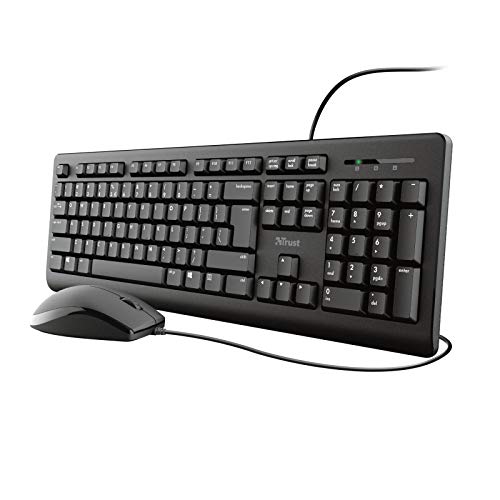
Figure 1: Trust TKM-250 USB Wired Keyboard and Mouse Deskset components.
2. Tohutohu Tatūnga
Follow these steps to connect your Trust TKM-250 Deskset to your computer:
- Unpack the Deskset: Tangohia marietia te papapātuhi me te kiore i roto i te takai.
- Honoa te Papapātuhi: Locate an available USB port on your computer. Plug the USB connector of the keyboard into the USB port.
- Honoa te Kiore: Locate another available USB port on your computer. Plug the USB connector of the mouse into the USB port.
- Āhukahuka Pūnaha: Your operating system should automatically detect and install the necessary drivers for the keyboard and mouse. This process may take a few moments.
- Taumahinga Whakamatau: Once installed, test the keyboard by typing and the mouse by moving the cursor and clicking.
Video 1: Demonstrates the connection process for a wired keyboard and mouse. This video shows how to connect the USB cables for both the keyboard and mouse to a computer, illustrating the simple plug-and-play setup.
3. Nga Tohutohu Whakahaere
3.1 Te Whakamahinga o te Papapātuhi
- Pato: Whakamahia te tahora QWERTY paerewa mō te tāuru tuhinga.
- Pātuhi Taumahi (F1-F12): He maha ngā mahi a ēnei kī i runga i te taupānga, i te pūnaha whakahaere rānei.
- Papapātuhi Tau: The dedicated numeric keypad on the right provides efficient data entry.
- Te Tino Whakatikatika: The keyboard features adjustable feet on the underside to change the typing angle for improved comfort. Gently flip out the feet to raise the keyboard.
3.2 Te Whakamahinga o te Kiore
- Pāwhiri Mauī: Primary action, typically used for selecting items or opening files.
- Pāwhiri Matau: Secondary action, typically used to open context menus.
- Panuku Wira: Whakamahia mō te panuku i ngā tuhinga me web pages. The scroll wheel can also be pressed for a middle-click function in some applications.
- Hoahoa Ambidextrous: The mouse is designed to be comfortable for both left-handed and right-handed users.
4. Tiaki
- Te horoi: Whakamahia he ngohengohe, damp cloth to clean the surfaces of the keyboard and mouse. Avoid harsh chemicals.
- Ātete Ringi: The keyboard is designed with spill-resistant features. In case of accidental spills, immediately disconnect the keyboard from the computer and allow it to dry completely before reconnecting. Do not immerse the keyboard in liquid.
- Rokiroki: Store the deskset in a cool, dry place away from direct sunlight and extreme temperatures.
5. Te Raru
- Kāore te Papapātuhi, te Kiore rānei e Urupare Mai:
- Me whakarite kia mau te hono o ngā taura USB ki ngā tauranga USB o te rorohiko.
- Try plugging the keyboard and mouse into different USB ports.
- Tīmataria anō tō rorohiko.
- Check your computer's device manager to ensure the devices are recognized and drivers are installed correctly.
- Kī kore e mahi:
- If specific keys are not working, check for debris under the keycaps.
- If the keyboard has experienced a spill, ensure it is completely dry.
- Pekepeke, he hē rānei te Pehu Kiore:
- Ensure the mouse sensor is clean and free of dust or debris.
- Whakamahia te kiore i runga i te mata ma, kaore i te whakaata, i te papa kiore ranei.
6. Whakatakotoranga
| Waitohu | Whakawhirinaki |
| Tau tauira | TKM-250 (Item model number: 23979) |
| Hangarau Hononga | Waea USB |
| Tae | Pango |
| Pūrere Hototahi | Rorohiko Whaiaro |
| Hunga Hua | 4.21 x 9.13 x 3.94 inihi |
| Taumaha Tūemi | 15.8 hekere |
| Nga waahanga papapātuhi | Full-size layout, Spill-resistant keys, Height adjustable |
| Ahua Kiore | Hoahoa Ambidextrous |
7. Pūtāhui me te Tautoko
This Trust TKM-250 USB Wired Keyboard and Mouse Deskset comes with a 1-tau pūtāhui mai i te ra o te hokonga.
For technical support, warranty claims, or further assistance, please visit the official Trust webpaetukutuku, whakapā atu ranei ki ta raatau tari ratonga kaihoko. Puritia to tohu hoko mo te whakamana whakamana.
Note: The warranty covers manufacturing defects. Damage due to misuse, accidents, or unauthorized modifications is not covered.


