Laser DVD-HD012

Pukapuka Kaiwhakamahi mō te Pūrere CD DVD Taiaho HD012

Model: DVD-HD012

Ka mutu te huaview

The Laser DVD CD Player HD012 is a versatile multi-region player designed to provide a comprehensive home entertainment experience. It supports a wide array of disc and digital media formats, ensuring compatibility with your existing media library. Equipped with HDMI and AV outputs, it offers flexible connectivity options for various television setups. Its compact design and user-friendly interface make it an ideal addition to any home cinema system.

Laser DVD CD Player HD012 with remote control

Image: The Laser DVD CD Player HD012, a sleek black unit, is shown with its remote control resting on top. The player features a disc tray, USB port, and a digital display.

He aha kei roto

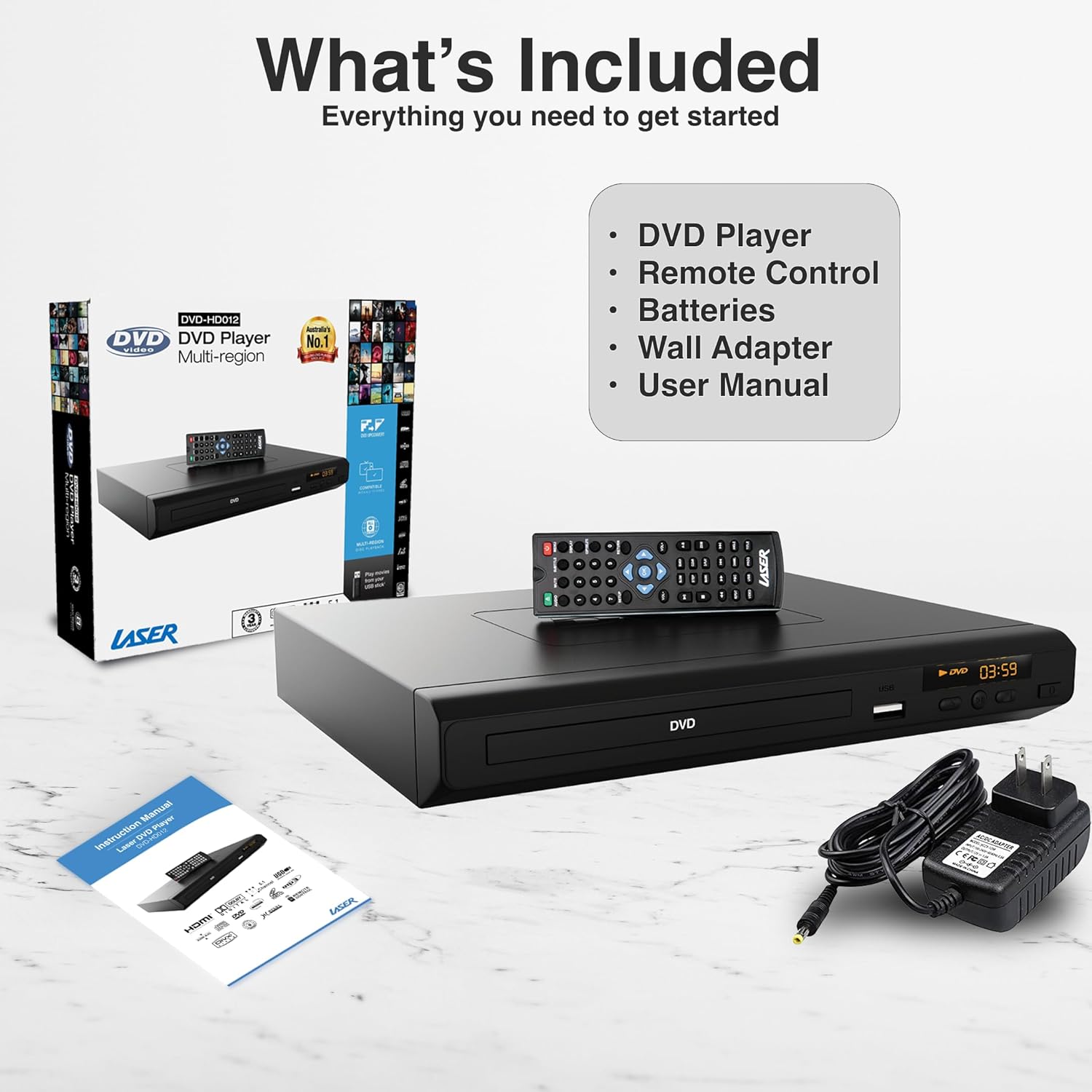
Upon unboxing your Laser DVD CD Player HD012, please verify that all the following components are present:

  • DVD Player (Model: DVD-HD012)
  • Mana Mamao
  • Wall Adapter (Power Supply)
  • Pukapuka Kaiwhakamahi (tenei tuhinga)
  • Tuhipoka: Ko nga pihini mo te mana mamao kaore i te whakauru me te hoko motuhake.
Contents included with the Laser DVD CD Player HD012

Image: A visual representation of the items included in the product package: the DVD player, its remote control, a wall power adapter, and the user manual, alongside the product packaging box.

Aratohu Tatūnga

1. Connecting the Player to Your Television

The Laser DVD CD Player HD012 offers multiple connectivity options to suit your television setup:

  • HDMI Connection (Recommended for High Definition): For the best audio and video quality, connect an HDMI cable (not included) from the HDMI OUT port on the DVD player to an available HDMI IN port on your television. This single cable transmits both digital video and audio signals.
  • RCA Composite Connection (Standard Definition): If your television does not have an HDMI port, or if you prefer an analog connection, use an RCA composite cable (not included). Connect the yellow video cable to the VIDEO OUT port on the DVD player and the yellow VIDEO IN port on your TV. Connect the red and white audio cables to the AUDIO OUT (R/L) ports on the DVD player and the corresponding red and white AUDIO IN (R/L) ports on your TV.
HDMI Output connection diagram for Laser DVD Player

Image: An illustration demonstrating the HDMI output capability of the DVD player, showing a television screen displaying content and the DVD player connected via an HDMI cable, emphasizing high-definition video from a single cable.

2. Powering On the Player

  1. Connect the provided wall adapter to the DC IN port on the back of the DVD player.
  2. Monohia te urutau pakitara ki te putanga hiko paerewa.
  3. Pehia te MANA button on the front of the DVD player or on the remote control to turn the unit on. The display will illuminate.
  4. Select the correct input source (HDMI or AV) on your television using your TV's remote control.

Nga Tohutohu Whakahaere

1. Te Purei Kōpae

  1. Ensure the player is powered on and connected to your TV.
  2. Pehia te TUwhera/KATI te patene i te papa o mua, i te mana mamao ranei hei whakatuwhera i te paepae kōpae.
  3. Carefully place a DVD or CD disc onto the tray with the label side facing up.
  4. Pehia te TUwhera/KATI pēhi anō i te pātene hei kati i te paepae. Ka tīmata aunoa te kaitākaro ki te pānui i te kōpae.
  5. Use the remote control's TAKARO/PAUSE, KATI, WHAKAARO, a KAUPAPA KAUPAPA nga paatene hei whakahaere i te purei ano.
Laser DVD Player supporting multiple media formats

Image: The DVD player and remote are shown with text indicating support for various video and additional media formats, including DVD-RW, VCD, CD-R, DivX, MP3, JPEG, AVI, MPEG, MPEG4, VOB, and FLV.

2. Purei Pāpāho USB

The player supports playback of digital media files from USB memory devices.

  1. Whakauruhia tō puku kohiko USB ki te tauranga USB kei mua o te kaitākaro DVD.
  2. The player should automatically detect the USB device and display a menu for selecting media types (e.g., Photo, Music, Movie).
  3. Whakatere i roto i nga kōpaki me te files using the arrow keys on the remote control and press KAUPAPA ki te whiriwhiri.
  4. Perehi TAKARO to start playback of the selected file.

3. Nga Mahi Whakamao Mamao

The included IR remote control provides full functionality for operating your DVD player. Key buttons include:

  • MANA: Ka whakakā, ka whakaweto rānei i te kaitākaro.
  • TUwhera/KATI: Tuwhera me te kati i te paepae kōpae.
  • TARI/TARI: Ka tiimata ka okioki ranei i te purei ano.
  • KATI: Ka mutu te purei.
  • PREV / NEI: Ka peke ki te upoko/riu o mua, o muri mai ranei.
  • REW/FF: Rewinds or fast forwards through content.
  • VOL +/-: Adjusts the volume (if connected directly to an audio system or TV via analog output).
  • PANUI: Accesses the system settings menu.
  • TITLE/MENU: Accesses the disc title or main menu.
  • USB: Switches input to USB mode.

4. Region-Free Playback

This DVD player is designed to be multi-region (region-free), allowing you to play DVDs from any region worldwide (Region 0-6). This feature ensures broad compatibility with your international DVD collection.

Region-Free Playback feature of Laser DVD Player

Image: The DVD player and remote are depicted against a global map background, highlighting its "Region-Free Playback" capability, allowing users to enjoy DVDs from any part of the world, supporting both PAL and NTSC formats.

5. Ngā Hōputu Pāpāho e Tautokona ana

The Laser DVD CD Player HD012 supports a wide range of disc and digital media formats:

KāwaiHōputu Tautokona
Whakahōputu KōpaeDVD-R/-RW, DVD-Video, DVD+R/+RW, CD, CD-R/RW, VCD, SVCD, HDCD
Video Formats (via USB)AVI, DivX, MPEG, MPEG4, VOB, FLV
Audio Formats (via USB/Disc)MP3, WMA, Dolby Digital, DTS
Image Formats (via USB)JPEG

The player also features built-in Anti-Shock and Error-Correction technologies to ensure uninterrupted viewte pai me te whakarongo.

Full HD 1080p immersive audiovisual experience with Laser DVD Player

Image: A living room setup showing the DVD player connected to a large television displaying a movie in Full HD 1080p, indicating an immersive audiovisual experience with Dolby 7.1 Surround Sound support.

Te tiaki

To ensure the longevity and optimal performance of your Laser DVD CD Player HD012, follow these maintenance guidelines:

  • Te horoi i te Waehe: Use a soft, dry cloth to wipe the exterior of the player. Do not use liquid cleaners, abrasive cleaners, or chemical sprays, as these can damage the finish.
  • Tiaki Kōpae: Handle discs by their edges. Keep discs clean and free of dust, fingerprints, and scratches. Use a soft, lint-free cloth to wipe discs from the center outwards if cleaning is necessary.
  • Whakahau: Ensure the player is placed in a well-ventilated area. Do not block any ventilation openings on the unit. Avoid placing it on soft surfaces like carpets or blankets that could obstruct airflow.
  • Rokiroki: When not in use for extended periods, disconnect the power adapter and store the player in a cool, dry place away from direct sunlight and extreme temperatures.

Raparongoā

If you encounter issues with your DVD player, please refer to the following common problems and their solutions:

RaruraruTe Take Taea / Rongoa
Karekau he kaha
  • Ensure the power adapter is securely connected to the player and the electrical outlet.
  • Tirohia mehemea kei te mahi te putanga hiko ma te hono atu ki tetahi atu taputapu.
  • Pēhia te pātene POWER i runga i te kaitākaro, i te mana mamao rānei.
Karekau he pikitia i runga pouaka whakaata
  • Verify that the HDMI or RCA cables are securely connected to both the player and the TV.
  • Ensure your TV is set to the correct input source (e.g., HDMI 1, AV).
  • Check if the disc is inserted correctly and is not damaged.
Karekau he tangi
  • Check audio cable connections (HDMI or RCA).
  • Increase the volume on your TV or audio receiver.
  • Ensure the player's volume is not muted or set too low.
  • Verify the audio settings in the player's setup menu.
Karekau te kōpae e purei ana / "Kaore he Kōpae" hapa
  • Me mohio kei te ma te kōpae me te kore he karawarawa, he para ranei.
  • Verify the disc is inserted correctly with the label side facing up.
  • Check if the disc format is supported by the player (refer to Supported Media Formats section).
Ko te mana mamao kaore e mahi
  • Ensure fresh batteries are installed correctly (polarity).
  • Point the remote directly at the player's IR sensor.
  • Remove any obstacles between the remote and the player.

Mena ka mau tonu te raru i muri i te whakamatau i enei otinga, tena koa whakapā atu ki te tautoko a te kaihoko.

Whakatakotoranga Hangarau

ĀhuahiraTaipitopito
WaitohuTaiaho
TauiraDVD-HD012
Pūrere HototahiPouaka Whakaata
Momo Pouaka tautokoCD, DVD, VCD (and various digital formats via USB as listed above)
Momo TuhonohonoHDMI, RCA (Composite), USB (1 port)
Ngā Hōputu Ororongo TautokohiaMP3, WMA, Dolby Digital, DTS
Aratau Putanga OrorongoKarapoti
Nga waahanga motuhakeAnti-Shock, Error-Correction, Multi-Region Playback
Resolution (Upscaling)Up to 3840x2160 (4K) via HDMI (for compatible media and display)
Puna ManaHiko Hiko
Rahi Hua (L x W x H)22 x 18 x 4.5 cm
Taumaha Tūemi742 Karamu

Pūtāhui me te Tautoko

Your Laser DVD CD Player HD012 comes with a 3-tau pūtāhui from the date of purchase, providing peace of mind regarding its quality and performance. This warranty covers manufacturing defects and ensures reliable operation under normal use conditions.

For warranty claims, technical assistance, or any inquiries regarding your product, please contact Laser customer support. Keep your proof of purchase (receipt or invoice) readily available as it will be required for any warranty service.

For the most up-to-date support information, including contact details and FAQs, please visit the official Laser webpaetukutuku, tirohia ranei nga korero whakapā e whakaratohia ana me o tuhinga hoko.

Tuhinga e pa ana - DVD-HD012

Preview Aratohu Huri Waehere Rohe BLU-BD1080 - Laser
Akohia me pēhea te whakarerekē i ngā waehere rohe DVD me Blu-ray i runga i tō kaitākaro Laser BLU-BD1080. Kei roto i tēnei aratohu ngā tohutohu taahiraa-i-te-taahiraa mō te whakatakoto waehere rohe mō ngā kōpae mai i ngā whenua rerekē.
Preview Laser DVD Player DVD-HD012 Instruction Manual
Comprehensive instruction manual for the Laser DVD Player model DVD-HD012, covering setup, operation, features, troubleshooting, specifications, and warranty information.
Preview Laser DVD-PT-7D Portable DVD Player User Manual
User manual for the Laser DVD-PT-7D 7-inch portable DVD player, covering setup, playback, system settings, troubleshooting, specifications, and warranty information.
Preview Pukapuka Kaiwhakamahi mō te Pūrere DVD Kawe LASER DVD-PT-7D 7"
He pukapuka kaiwhakamahi whānui mō te Pūrere DVD Kawe LASER DVD-PT-7D 7" e kapi ana i te haumaru, te whakahaere, te tatūnga, te rapurongoā, me ngā whakaritenga. Akohia me pēhea te whakamahi i tō pūrere mō te whakangahau tino pai.
Preview Laser Retro Blaster CDBB-166 Quick Guide - Setup, Features, and Troubleshooting
Comprehensive quick guide for the LASER Laser Retro Blaster CDBB-166 boombox. Learn how to set up power, clock, use CD, USB, Bluetooth, and Radio functions, manage timers, record to USB, and find troubleshooting tips. Includes warranty information.
Preview Pukapuka Kaiwhakamahi mō te LASER MP4-T10: Aratohu Whānui
Kei roto i tēnei pukapuka kaiwhakamahi ngā tohutohu taipitopito mō te whakahaere i te kaitākaro rongorau LASER MP4-T10, e kapi ana i te purei puoro, te purei whakaahua viewte tuhi ataata, te reo irirangi FM, te pānui pukapuka hiko, me ngā tautuhinga pūrere.