Kupu Whakataki
Thank you for choosing the HyperGear Vibe Wireless Headphones. These headphones are designed to provide a premium audio experience with comfort and convenience. This manual will guide you through the setup, operation, and maintenance of your new headphones.
He aha kei roto i te Pouaka
- HyperGear Vibe Wireless Headphones
- USB-C Uira Whakatau
Ka mutu te huaview
Familiarize yourself with the components and controls of your HyperGear Vibe Wireless Headphones.

Whakaahua 1: HyperGear Vibe Wireless Headphones. This image shows the overall design of the red over-ear headphones, highlighting their sleek appearance.

Whakaahua 2: Easy Access Controls. This close-up view details the control buttons and ports on the earcup, including Volume Up/Seek, Power On/Off, Play/Pause, Volume Down/Seek, USB-C Port, and Aux In.

Whakaahua 3: Long-Lasting Power. This image illustrates the 10 hours of playtime and 2 hours of charge time for the headphones.

Whakaahua 4: Innovation in Comfort. A person wearing the headphones demonstrates the snug, comfortable fit that provides noise isolation.
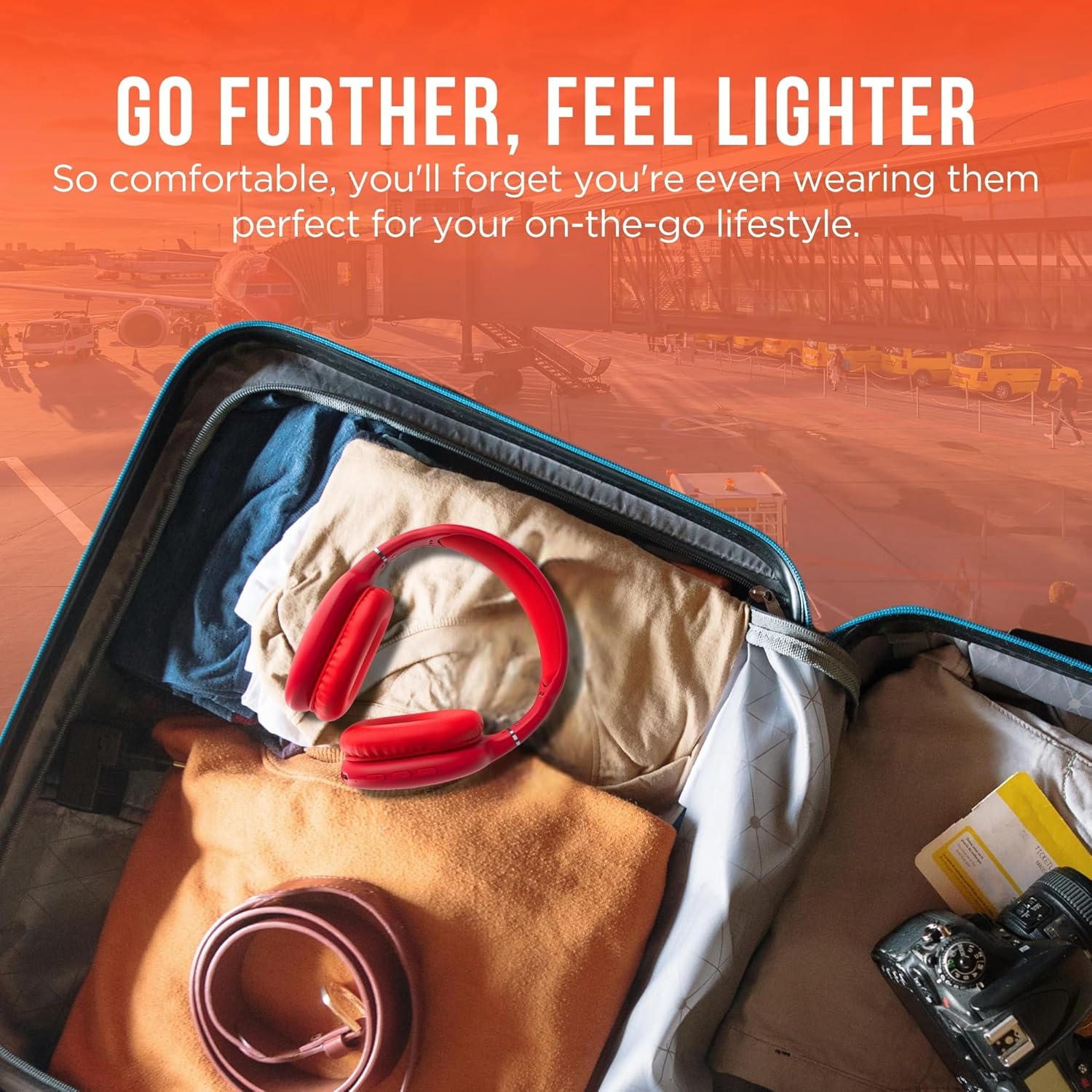
Whakaahua 5: Go Further, Feel Lighter. This image shows the headphones folded and packed in a suitcase, emphasizing their portability.
Ataata 1: HyperGear Vibe Bluetooth Wireless Headphones. This video provides a visual overview of the headphones' features and design.
Tatūnga
Te Whakataki i nga Paneoro
Before first use, fully charge your headphones. Connect the included USB-C charging cable to the USB-C port on the headphone earcup and the other end to a compatible USB power source. The LED indicator will show charging status.
Tauira Nihokikorangi
- Me whakaweto te hiko o ō paneoro.
- Press and hold the Power On/Off button for approximately 3 seconds until the LED indicator flashes red and blue alternately. This indicates the headphones are in pairing mode.
- I runga i to taputapu (smartphone, tablet, pona), whakaahei i te Nihokikorangi me te rapu mo nga taputapu e waatea ana.
- Select "HyperGear Vibe" (or similar name) from the list of devices to connect.
- Kia honoa, ka huri te tohu LED ki te kikorangi mātotoru, ka mura mārire rānei ki te kikorangi.
Ataata 2: Wireless Headphones Pairing Guide. This video demonstrates the process of powering on the headphones and connecting them via Bluetooth to a mobile device.
Nga Tohutohu Whakahaere
Te Hiko / Whakaweto
- Whakahiko: Press and hold the Power On/Off button for 3 seconds.
- Weto Whakakore: Press and hold the Power On/Off button for 3 seconds.
Purei Waiata
- Purei/Tatari: Pēhia te pātene Play/Pause kia kotahi.
- Riu Panuku: Press and hold the Volume Up/Seek button.
- Riu o mua: Press and hold the Volume Down/Seek button.
- Runga Runga: Press the Volume Up/Seek button once.
- Raro Raro: Press the Volume Down/Seek button once.
Whakahaa Piiraa
- Whakautu/Whakamutu Waea: Pēhia te pātene Play/Pause kia kotahi.
- Whakakore Waea: Patohia me te pupuri i te paatene Play/Pause mo te 2 hēkona.
Active Noise Cancellation (ANC) / Transparency Mode
The headphones feature noise isolation. Specific controls for ANC/Transparency mode are integrated with the main control buttons. Refer to the product diagram for exact button location.
Te tiaki
- Horoia nga taringa ki te kakahu ngohengohe, maroke.
- Kaua e whakamahi i nga kai horoi me nga whakarewa.
- A ape i te tuku i nga taringa ki te wera nui, ki te makuku ranei.
- Whakaorangia ki te waahi makariri, maroke ka kore e whakamahia.
Raparongoā
Karekau he Mana
- Me mohio kei te whakakiia nga taringa.
- Tirohia te taura utu me te pūtake hiko.
Kore Oro
- Ensure the headphones are paired correctly with your device.
- Tirohia nga taumata oro i runga i nga taringa me to taputapu hono.
- Ensure the headphones are not connected to another device.
Nga Take Takirua
- Me mohio kei te whakahohea te Nihokikorangi ki to taputapu.
- Place the headphones and your device close to each other.
- Turn off and restart both the headphones and your device, then attempt pairing again.
- Ūkuia ngā hononga Nihokikorangi o mua ki tō pūrere mēnā e tika ana.
Whakatakotoranga
| Ingoa Tauira | Wiri |
| Tauira Tuemi | 15610 |
| Hangarau Hononga | Ahokore (Nihokikorangi) |
| Putanga Nihokikorangi | 5.0 |
| Awhe Nihokikorangi | 10 Mita (33 Puawai) |
| Rahi Atekōkiri Ororongo | 40 Mirimita |
| Ora Pūhiko | 10 haora |
| Waa Whakatau | 2 haora |
| Mana Haruru | Wehenga oro |
| Rauemi | Puka Maharahara |
| Taumaha Tūemi | 10.8 hekere (0.31 Kirokaramu) |
| Hunga Hua | 7.17 x 3.43 x 9.85 inihi |
Pūtāhui me te Tautoko
For warranty information or technical support, please visit the official HyperGear webpaetukutuku, whakapā atu ranei ki ta raatau ratonga kaihoko. Puritia to tohu hoko mo etahi kereme whakamana.
Tirohia te HyperGear Store on Amazon mo etahi atu korero.


