Kupu Whakataki
The Logitech MX Keys Mini is a compact, minimalist wireless illuminated keyboard designed for creators. It offers a superior typing experience with Perfect Stroke keys, smart backlighting, and multi-device, multi-OS compatibility. This manual provides essential information for setting up, operating, maintaining, and troubleshooting your keyboard.
He aha kei roto i te Pouaka
- Logitech MX Keys Mini Papapātuhi
- USB-C Uira Whakatau
- Tuhinga Korero Nui

Image: The Logitech MX Keys Mini keyboard, USB-C charging cable, and documentation as packaged.
Tatūnga
1. Te Whakataki i te Papapātuhi
Before initial use, fully charge your MX Keys Mini keyboard using the provided USB-C charging cable. Connect one end of the cable to the USB-C port on the back of the keyboard and the other end to a USB-C power source (e.g., computer, wall adapter).
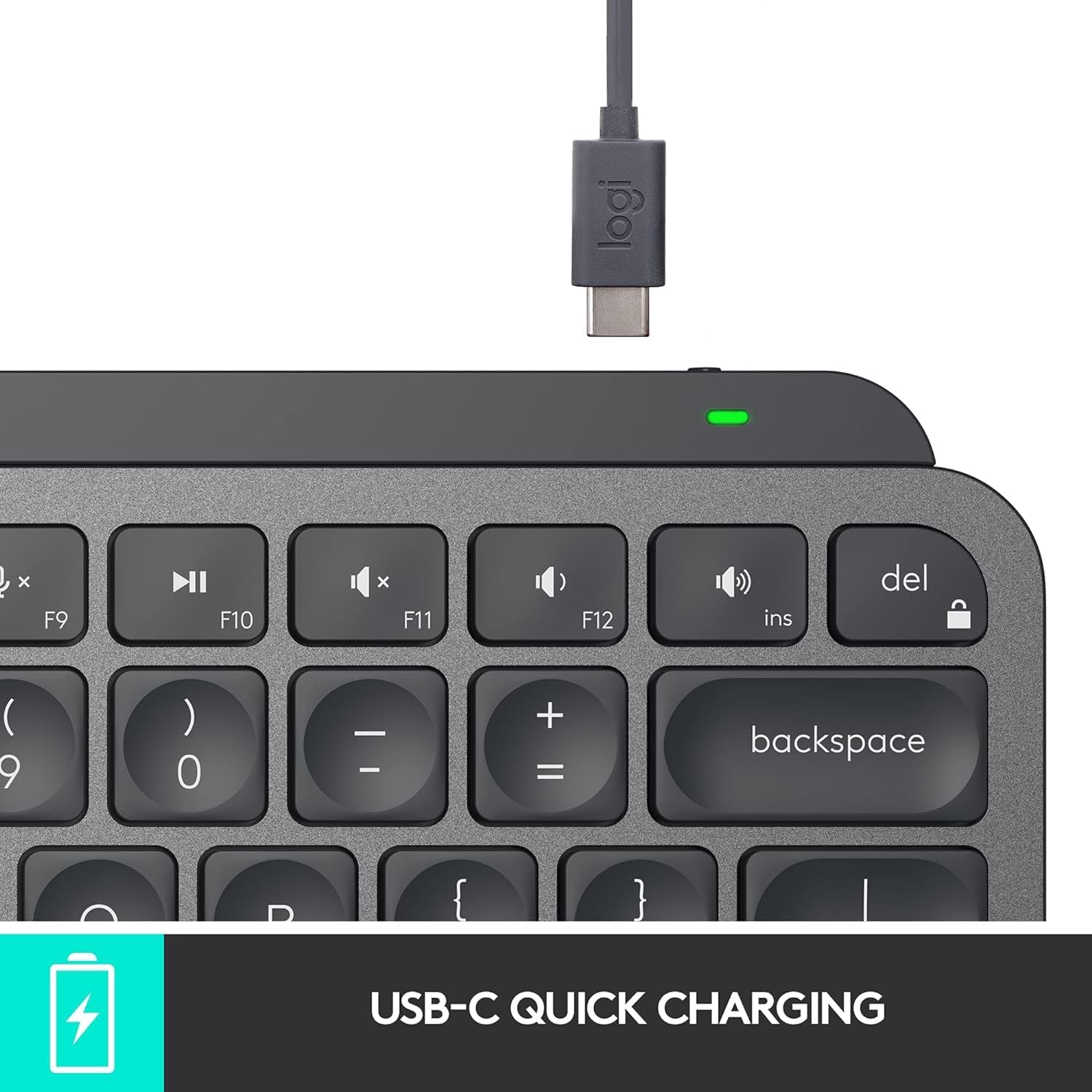
Image: The USB-C charging port on the Logitech MX Keys Mini keyboard with the charging cable inserted.
2. Connecting to Devices (Bluetooth)
- Whakakāhia te papapātuhi ma te whakamahi i te pana hiko kei te tuara.
- Press and hold one of the Easy-Switch keys (F1, F2, or F3) for three seconds until the LED indicator above the key starts blinking rapidly. This indicates pairing mode.
- On your device (computer, tablet, smartphone), open Bluetooth settings and select "MX Keys Mini" from the list of available devices.
- Follow any on-screen prompts to complete the pairing process. The LED indicator will turn solid for 5 seconds, then turn off, indicating successful pairing.
- Repeat for up to two additional devices using the other Easy-Switch keys.
The MX Keys Mini supports Bluetooth Low Energy and is compatible with Apple macOS, iOS, Windows, Linux, and Android operating systems.

Image: The Logitech MX Keys Mini keyboard demonstrating multi-device connectivity with three different operating systems.
Optional: Logi Bolt USB Receiver
For a secure, high-performance wireless connection, you can use a Logi Bolt USB Receiver (sold separately). Plug the receiver into a USB port on your computer and pair the keyboard using the Logitech Options software.
Ngā āhuatanga
- Nga Kī Paa Tino: Keys are spherically dished to match the shape of your fingertips, providing a satisfying and precise typing experience.
- Kī Ataata: Integrated keys for voice-to-text Dictation, Mic Mute/Unmute, and Emoji access.
- Minimalist Form Factor: A compact design that promotes better posture and allows for a more ergonomic mouse position.
- Whakamarama Ataata: Backlit keys automatically light up when your hands approach and adjust brightness based on ambient lighting conditions.
- Multi-Device & Multi-OS: Seamlessly switch between up to three paired devices across various operating systems.
- Flow Compatibility: Works with Logitech Flow-enabled mice (like MX Master 3 or MX Anywhere 3) to type across multiple computers in one fluid workflow.
- USB-C Ka taea te utu: Long-lasting battery life with convenient USB-C charging.

Whakaahua: He runga view of the Logitech MX Keys Mini keyboard highlighting its key features and layout.
Nga Tohutohu Whakahaere
Te Hurihuri i waenga i nga Pūrere
To switch between your paired devices, simply press the corresponding Easy-Switch key (F1, F2, or F3) once. The keyboard will instantly connect to the selected device.
Smart Illumination Control
The keyboard's backlighting automatically adjusts to ambient light. You can manually adjust the brightness using the dedicated backlight keys (F4 and F5) on the top row. To disable backlighting and conserve battery, you can use the Logitech Options software.

Image: The Logitech MX Keys Mini keyboard demonstrating its smart backlighting feature, illuminating keys in low light.
Using Smart Keys
- Dictation (F6): Press to activate voice-to-text dictation in compatible applications.
- Mic Mute/Unmute (F7): Quickly mute or unmute your microphone during calls or recordings.
- Emoji (F8): Access the emoji menu for quick insertion of emojis.
Pūmanawa Kōwhiringa Logitech
Download and install the Logitech Options software from the official Logitech website to customize your keyboard. This software allows you to:
- Remap function keys to specific actions or keyboard shortcuts.
- Adjust backlighting settings, including disabling it for extended battery life.
- Manage Easy-Switch device connections.
- Enable Flow functionality with compatible mice.
Te tiaki
Te ora o te pākahiko me te utu
The MX Keys Mini offers up to 10 days of battery life on a full charge with backlighting enabled, or up to 5 months with backlighting turned off. Recharge the keyboard using the supplied USB-C cable when the battery indicator shows low power.
Te horoi
To clean your keyboard, gently wipe the keys and surface with a soft, lint-free cloth. Avoid using harsh chemicals or abrasive materials.
Raparongoā
Nga Take Hononga
- Me whakarite kua utua te papapātuhi, ā, kua whakakāhia hoki.
- Manatokona kei te whakahohea a Nihokikorangi ki to taputapu.
- Re-pair the keyboard by holding an Easy-Switch key until it blinks, then selecting it in your device's Bluetooth settings.
- If using a Logi Bolt receiver, ensure it is properly plugged in and the keyboard is paired via Logitech Options.
Backlighting Not Working
- Check battery level; backlighting may be disabled when battery is low.
- Ensure backlighting is not manually turned off or disabled in Logitech Options software.
- Verify ambient light sensor is not obstructed.
Whakatakotoranga
| Waitohu | Logitech |
| Tau tauira | 920-010388 |
| Hangarau Hononga | Nihokikorangi, USB-C |
| Pūrere Hototahi | Laptop (and other Bluetooth-enabled devices) |
| Whakaahuatanga Papapātuhi | Membrane |
| Āhuahira Motuhake | Whakamuri, Ka taea te utu |
| Tae | Kauwhata |
| Hunga Hua | 11.65"L x 5.19"W x 0.83"H (29.59 x 13.18 x 2.11 cm) |
| Taumaha Tūemi | 1.5 pauna (0.68 kg) |
| Pūhiko | 1 te pākahiko Lithium Polymer e hiahiatia ana (kei roto) |
Pūtāhui me te Tautoko
For warranty information, technical support, and additional resources, please refer to the 'Important Information Document' included in your product packaging or visit the official Logitech support website. Logitech provides customer support and resources to ensure optimal product performance.


