1. Kupu Whakataki
This manual provides comprehensive instructions for the setup, operation, and maintenance of your Cherry MW 9100 Wireless Rechargeable Mouse. The MW 9100 is a compact, versatile mouse offering dual connectivity options (Bluetooth or 2.4 GHz USB receiver) and a convenient rechargeable battery.
Ko nga ahuatanga matua ko:
- Compact design with charging functionality.
- Flexible operation: use while charging via USB-C cable.
- Dual connectivity: Bluetooth or 2.4 GHz USB receiver.
- Magnetic storage for the USB receiver, ideal for travel.
- Adjustable DPI settings for varied usage.
2. Ihirangi mokete
Manatokona kei roto katoa nga mea kei roto i te kete:
- Cherry MW 9100 Wireless Rechargeable Mouse
- USB-C Uira Whakatau
- 2.4 GHz Kaiwhiwhi USB
- Pukoro Tiaki
- Pukapuka Tohutohu (tenei tuhinga)
3. Tatūnga
3.1 Te Whakataki i te Kiore
The Cherry MW 9100 mouse features a built-in rechargeable battery. Before initial use, or when the battery is low, connect the included USB-C cable to the mouse and to a USB power source (e.g., computer USB port, USB wall adapter). The mouse can be used normally while charging.

Whakaahua 3.1: Runga view of the Cherry MW 9100 mouse, showing the charging indicator light.
3.2 Te hono i te Kiore
The MW 9100 offers two connection methods: 2.4 GHz wireless via USB receiver or Bluetooth.
3.2.1 Hononga Ahokore 2.4 GHz
- Locate the USB receiver. It is magnetically stored in a compartment on the underside of the mouse.
- Whakauruhia te kaiwhiwhi USB ki tetahi tauranga USB e waatea ana ki to rorohiko.
- On the underside of the mouse, slide the switch to the "RF" position.
- Me hono aunoa te kiore ki to rorohiko.
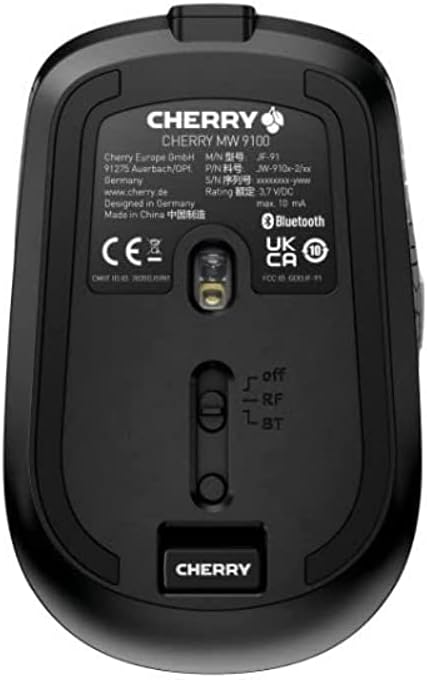
Whakaahua 3.2: Underside of the Cherry MW 9100 mouse, highlighting the USB receiver storage and the connection mode switch.
3.2.2 Hononga Nihokikorangi
- On the underside of the mouse, slide the switch to the "BT" (Bluetooth) position.
- Press and hold the small pairing button located near the connection switch on the underside of the mouse until the LED indicator on the mouse starts blinking, indicating pairing mode.
- I runga i to rorohiko, i to taputapu ranei, whakatuwhera i nga tautuhinga Nihokikorangi ka rapu mo nga taputapu hou.
- Select "Cherry MW 9100" from the list of available devices to complete the pairing process.
4. Nga Tohutohu Whakahaere
4.1 Nga Mahi Taketake
The Cherry MW 9100 mouse features standard left and right click buttons, a scroll wheel (which also functions as a middle click button), and two side buttons for navigation (typically forward/back).
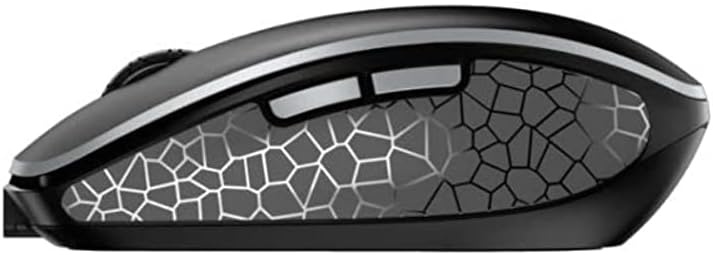
Whakaahua 4.1: Te taha view of the Cherry MW 9100 mouse, illustrating the ergonomic design and side buttons.
4.2 Whakatikatika DPI
The mouse includes a DPI (Dots Per Inch) button, usually located near the scroll wheel, allowing you to adjust the cursor sensitivity. Press this button to cycle through different DPI settings to match your preference or task requirements.

Whakaahua 4.2: A hand demonstrating the comfortable grip on the Cherry MW 9100 mouse during use.
5. Tiaki
To ensure optimal performance and longevity of your Cherry MW 9100 mouse:
- Te horoi: Whakamahia he kakahu ngohengohe, maroke hei horoi i te mata o te kiore. Mō te paru uaua, whakamahia he tauera pakupakuamp Ka taea te whakamahi i te kakahu, engari kia kaua e uru te makuku ki roto i te taputapu. Āta karohia ngā matū kino, ngā rauemi whakakoi rānei.
- Rokiroki: When not in use, especially during travel, store the mouse in the provided protective pouch to prevent scratches and damage.
- Tiaki Pūhiko: Kaua e tukua kia pau katoa te pākahiko i ngā wā katoa. Whakakīia anō te kiore ina puta te tohu pākahiko iti.
6. Te Raru
| Raruraru | Take pea | Rongoā |
|---|---|---|
| Kaore te kiore e whakautu | Low battery, incorrect connection mode, USB receiver not connected, Bluetooth not paired. |
|
| Intermittent connection (Bluetooth) | Interference, device driver issues, distance from device. |
|
| He pōturi, he pōturi rānei te nekehanga o te kiore | Dirty optical sensor, low battery, incorrect DPI setting. |
|
7. Whakatakotoranga
| Āhuahira | Taipitopito |
|---|---|
| Waitohu | Cherry |
| Tau tauira | JW-9100US-2 |
| Hangarau Hononga | Nihokikorangi, Ahokore USB 2.4 GHz |
| Huringa Huringa | Optical |
| Nga waahanga motuhake | Lightweight, Portable, Rechargeable |
| Hunga Hua | 4 x 3 x 2 inihi |
| Taumaha Tūemi | 6.4 hekere |
| Tae | Pango |
8. Pūtāhui me te Tautoko
Mō ngā mōhiohio pūtāhui me te tautoko hangarau, tirohia te paetukutuku mana o Cherry website or contact Cherry customer service directly. Keep your proof of purchase for warranty claims.
Kaihanga: HEREI
Webpae: www.cherry.de


