Kupu Whakataki
This manual provides instructions for the Belkin 5-in-1 Multiport Hub Adapter, Model INC008btBK. This adapter is designed to expand connectivity for Chromebook and Chrome OS devices, offering ports for 4K video output, power delivery, USB peripherals, and a wired internet connection. It supports fast charging up to 86W and video resolutions up to 4K at 60Hz via its HDMI port. The hub includes two USB-A 3.1 Gen 1 ports and a Gigabit Ethernet port. It is Works With Chromebook certified, ensuring compatibility with Chrome OS.

The Belkin 5-in-1 Multiport Hub Adapter, a compact black device with an integrated USB-C cable.
Nga waahanga hua
- Chromebook optimized adapter provides automatic firmware updates directly through Chrome OS.
- Certified to meet Google's compatibility standards for Chrome OS devices.
- Features 2x USB-A 3.1 Gen 1 ports for connecting peripherals.
- Includes a Gigabit Ethernet port for a stable wired internet connection.
- Equipped with a 4K HDMI port supporting resolutions up to 4K at 60Hz.
- USB-C port supports pass-through charging up to 100W (minus 15W for adapter operation), delivering up to 86W to connected devices.
- Tethered USB-C cable for easy connection to your Chromebook.
Ihirangi mokete
- Belkin 5-in-1 Multiport Hub Adapter (Model INC008btBK)
Tohutohu Tatūnga
Follow these steps to set up your Belkin 5-in-1 Multiport Hub Adapter:
- Connect to your Chromebook: Plug the integrated USB-C cable from the hub into an available USB-C port on your Chromebook or compatible device.
- Hononga Mana (Whiringa): For charging your Chromebook and connected devices, connect a USB-C power adapter (minimum 65W recommended) to the USB-C Power Delivery (PD) port on the hub. This port supports up to 100W pass-through charging.
- Connect HDMI Display (Optional): Use an HDMI cable to connect your external monitor or display to the HDMI port on the hub. Ensure your display is set to the correct input source.
- Honoa ngā taputapu USB (Whiringa): Plug your USB-A devices, such as a mouse, keyboard, or external storage, into the two USB-A 3.1 Gen 1 ports on the hub.
- Honoa te Ethernet (Whiringa): Mō te hononga ipurangi waea, honoa he taura Ethernet mai i tō pouara, i tō pouwhanga rānei ki te tauranga Gigabit Ethernet i runga i te pokapū.
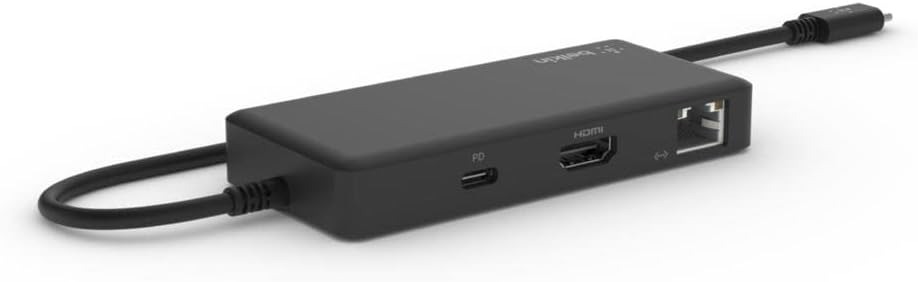
A view of the Belkin Multiport Hub's side, displaying the HDMI, USB-C Power Delivery, and Gigabit Ethernet ports.
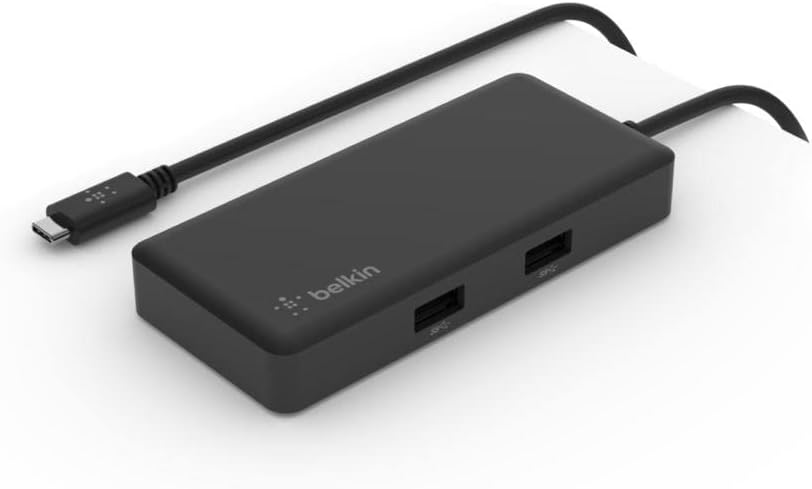
He koki view of the Belkin Multiport Hub, highlighting the two USB-A 3.1 Gen 1 ports on its top surface.
Nga Tohutohu Whakahaere
Once connected, the Belkin 5-in-1 Multiport Hub Adapter operates automatically with your Chromebook. Chrome OS will detect connected devices and displays.
- Whakaatu Putanga: Your Chromebook should automatically extend or mirror its display to the connected HDMI monitor. Adjust display settings in Chrome OS if needed.
- Pūrere USB: USB-A peripherals will function as soon as they are plugged into the hub.
- Hononga Whatunga: The Gigabit Ethernet port provides a stable wired network connection, which will be prioritized over Wi-Fi when connected.
- Tukunga Hiko: Ensure your external USB-C power adapter meets the recommended wattage for optimal charging performance, especially when using multiple hub functions.

The Belkin Multiport Hub connected to a laptop, demonstrating its use with an external monitor (via HDMI) and other USB peripherals.
Te tiaki
To ensure the longevity and optimal performance of your Belkin Multiport Hub:
- Keep the adapter clean by wiping it with a soft, dry cloth. Avoid liquid cleaners.
- Whakaorangia te urutau ki te waahi makariri, maroke atu i te ra tika me te wera nui.
- Avoid bending or stressing the integrated USB-C cable excessively.
Raparongoā
- Kāore he Whakaaturanga i te Aroturuki o Waho:
- Me whakarite kei te hono tika te taura HDMI ki te pūoko me te mata.
- Verify the monitor's input source is set to HDMI.
- Check your Chromebook's display settings to ensure the external display is detected and configured correctly.
- Whakamātauria he taura HDMI rerekē, te aroturuki ranei ki te taea.
- Kāore ngā Pūrere USB e Mahi Ana:
- Ensure the USB-A devices are fully inserted into the hub's ports.
- Test the USB device by connecting it directly to your Chromebook (if possible) to rule out device issues.
- If using high-power USB devices, ensure the hub is connected to a power adapter.
- Kāore he Hononga Ipurangi mā te Ethernet:
- Verify the Ethernet cable is securely connected to both the hub and your router/modem.
- Check the network status on your Chromebook.
- Me whakarite kei te tika te mahi a tō pouara/modem.
- Chromebook Not Charging:
- Ensure a USB-C power adapter is connected to the hub's USB-C PD port.
- Verify the power adapter is functioning and provides sufficient wattage (minimum 65W recommended for optimal pass-through charging).
- Check the charging indicator on your Chromebook.
Whakatakotoranga
| Waitohu | Belkin |
| Tau tauira | INC008btBK |
| Atanga Pūmārō | Ethernet, USB-C, HDMI, USB-A |
| Te maha o nga Tauranga | 5 (2x USB-A, 1x HDMI, 1x USB-C PD, 1x Ethernet) |
| Tauranga USB-A | 2x USB 3.1 Gen 1 |
| Huaputa HDMI | Tae atu ki te 4K @ 60Hz |
| USB-C Tukunga Mana | Up to 86W to host (100W pass-through minus 15W for adapter) |
| Itarangi | Gigabit Ethernet (1 Gbps) |
| Pūrere Hototahi | Laptops (Chromebooks, Chrome OS devices) |
| Pūnaha Mahi | Chrome OS |
| Rauemi | Kirihou |
| Rahi Tūemi (L x W x H) | 5.91" x 0.50" x 30.31" (approximate, based on provided data) |
| Taumaha Tūemi | 0.12 Kirokaramu |
Pūtāhui me te Tautoko
Mō ngā mōhiohio pūtāhui me te tautoko hangarau, tirohia te paetukutuku Belkin mana website or contact Belkin customer service. Product registration may be available for extended warranty benefits.
Ka kitea e koe etahi atu korero me nga rauemi tautoko i te Belkin Store.


