1. Kupu Whakataki
Mauruuru koe mo te hokoasing the Creative Stage Air V2 Portable Bluetooth Sound Bar Speaker. This manual provides essential information for setting up, operating, and maintaining your device. Please read it thoroughly to ensure optimal performance and longevity of your sound bar.
2. Ihirangi mokete
Manatokohia ko nga mea katoa kei raro nei kei roto i to kete:
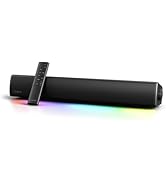
- Auaha Stage Air V2 Compact Under-Monitor USB Soundbar with Bluetooth
- 1 x USB-A ki USB-C Taura (1.2m)
- 1 x 3.5 mm Stereo to Stereo Cable (1.2m)
- 1 x Quick Start Leaflet
- 1 x Worldwide Warranty Leaflet
- 1 x Compliance Leaflet
3. Hua Neke Atuview
3.1 Tuhinga o mua View

3.2 Ngā Mana Taha

- Pātene Hiko: Press and hold to turn the sound bar on or off. Short press to switch input modes.
- Rōrahi Whakarunga (+): Whakanuia te rōrahi.
- Rōrahi Raro (-): Ka whakaheke i te rōrahi.
- Pātene Nihokikorangi: Press and hold to enter Bluetooth pairing mode. Short press to disconnect current Bluetooth device.
3.3 Rear Ports

- Tauranga USB-C: For USB audio playback and charging the sound bar.
- Tauranga AUX-in 3.5mm: For connecting external audio devices via a 3.5mm stereo cable.
3.4 Ahu

The compact design allows for placement under most monitors or in small spaces.
4. Tatūnga
4.1 Charging the Sound Bar
- Connect the supplied USB-A to USB-C cable to the USB-C port on the sound bar.
- Connect the other end of the cable to a USB power adapter (not included) or a powered USB port on your computer.
- Ko te tohu LED ka whakaatu i te mana utu. He 6 haora te roa o te utu katoa.
4.2 Kei te Hiko / Weto
- Press and hold the Power button on the side of the sound bar for 2 seconds to turn it on or off.
4.3 Kōwhiringa Hononga

4.3.1 Takirua Nihokikorangi
- Whakakāhia te pae oro.
- Press and hold the Bluetooth button on the side panel until the LED indicator flashes blue rapidly, indicating pairing mode.
- On your device (smartphone, tablet, computer), search for Bluetooth devices and select "Creative Stage Air V2".
- Once connected, the LED indicator will glow solid blue.
4.3.2 Whakatangi Oro USB
- Connect the sound bar to your computer or gaming console using the supplied USB-A to USB-C cable.
- The sound bar will automatically switch to USB audio mode. If not, short press the Power button to cycle through input modes until USB mode is selected.
- Ensure "Creative Stage Air V2" is selected as the audio output device in your computer's sound settings.
4.3.3 AUX-in Connection
- Connect your audio device (e.g., TV, MP3 player) to the 3.5mm AUX-in port on the sound bar using the supplied 3.5mm stereo cable.
- The sound bar will automatically switch to AUX-in mode. If not, short press the Power button to cycle through input modes until AUX-in mode is selected.
5. Nga Tohutohu Whakahaere
5.1 Mana Rōrahi
- Pehia te Rōrahi Whakarunga (+) button to increase the audio output level.
- Pehia te Raro Whakararo (-) button to decrease the audio output level.
5.2 Switching Input Modes
- Perehi poto te Pātene hiko to cycle through available input modes: Bluetooth, USB Audio, and AUX-in. The LED indicator will change color or pattern to indicate the active mode.
5.3 Te Ora Pūhiko

- Ko te Creative Stage Air V2 provides up to 6 hours of audio playback on a full charge.
- When the battery is low, a voice prompt will indicate "low battery". Connect the sound bar to a power source to recharge.
6. Tiaki
- Clean the sound bar with a soft, dry cloth. Do not use liquid cleaners or aerosols.
- A ape i te tuku i te taputapu ki te wera nui, te makuku, te ra tika ranei.
- Do not attempt to disassemble the sound bar, as this will void the warranty.
7. Te Raru
| Putanga | Rongoā |
|---|---|
| No power / Device does not turn on. | Ensure the sound bar is charged. Connect it to a power source using the USB-C cable and allow it to charge for at least 30 minutes before attempting to power on again. |
| Karekau he tangi. | Check the volume level on both the sound bar and your connected device. Ensure the correct input mode (Bluetooth, USB, AUX) is selected. Verify cables are securely connected. |
| Kua rahua te takirua Nihokikorangi. | Ensure the sound bar is in pairing mode (rapidly flashing blue LED). Turn off and on Bluetooth on your device. Move the sound bar closer to your device. Clear previous Bluetooth connections on your device. |
| He hē te tangi, he kounga iti rānei. | Reduce the volume on both the sound bar and the connected device. Ensure there are no obstructions between the sound bar and the Bluetooth device. Try a different audio source or cable. |
| He poto te ora o te pākahiko. | Ensure the sound bar is fully charged before use. Battery performance can degrade over time with usage. |
8. Whakatakotoranga
| Āhuahira | Taipitopito |
|---|---|
| Ingoa Tauira | Stage Air V2 |
| Momo Kaikorero | Paorooro |
| Hangarau Hononga | Bluetooth, USB-C, 3.5mm AUX-in |
| Whakawhitiwhiti Ahokore | Nihokikorangi |
| Awhe Nihokikorangi | 10 Mita |
| Aratau Putanga Ororongo | Tirotiro (2.0 Channel) |
| Kaikorero Te Mana Putanga Morahi | 10 Wati RMS |
| Whakautu auau | 20000 Hz (Upper limit, typical for soundbars) |
| Puna Mana | Ma te Puhiko (1 te pākahiko Lithium Ion kei roto) |
| Waa Whakatau | 6 haora |
| Product Dimensions (Length x Depth x Height) | 16.1" x 3.7" x 2.9" (410mm x 94mm x 75mm) |
| Taumaha Tūemi | 3.08 Pauna (1.4 kg) |
| Pūrere Hototahi | Desktop, Laptop, Smartphone, Tablet, Gaming Consoles |
| Tau tauira | 51MF8395AA000 |
| UPC | 054651195059 |
9. Pūtāhui me te Tautoko
Ko te Creative Stage Air V2 comes with a Limited Warranty. Please refer to the included "Worldwide Warranty Leaflet" for detailed terms and conditions specific to your region.
For technical support, product registration, and additional information, please visit the official Creative website or contact Creative customer service.
auaha Webpae: www.creative.com


