1. Kupu Whakataki
This manual provides detailed instructions for the installation, operation, and maintenance of your GAMEMAX Master M905 ATX Full Tower Computer Case. Please read this manual thoroughly before beginning assembly to ensure proper setup and safe usage. This computer case is designed to accommodate ATX motherboards and offers ample space for high-performance components and advanced cooling solutions.
2. Nga korero haumaru
- Always disconnect the power supply from the wall outlet before installing or removing any components to prevent electrical shock.
- Handle internal components with care. Avoid touching circuit boards directly; hold them by their edges.
- Wear an anti-static wrist strap when handling sensitive electronic components to prevent electrostatic discharge (ESD) damage.
- Puritia ngā wāhanga iti me ngā tīwiri kia matara atu i ngā tamariki.
- Ensure proper ventilation around the computer case to prevent overheating.
3. Ihirangi mokete
Manatokohia kei roto i to kete nga mea katoa kua whakarārangihia i raro nei:
- GAMEMAX Master M905 ATX Full Tower Computer Case
- Accessory Box (containing screws, standoffs, cable ties, and user manual)
- Pre-installed cooling fans (quantity may vary by model variant)
4. Te Tautuhi Wae
Familiarize yourself with the various parts of the GAMEMAX Master M905 case.

Whakaahua 4.1: Mua-maui view of the GAMEMAX Master M905 case, showcasing the tempered glass side panel and the front mesh panel with two illuminated blue fans. The top panel features front I/O ports.

Whakaahua 4.2: Top-front perspective of the case, showing the top ventilation grille and the front I/O panel which includes USB 2.0 and USB 3.0 ports, audio jacks, and power/reset buttons.
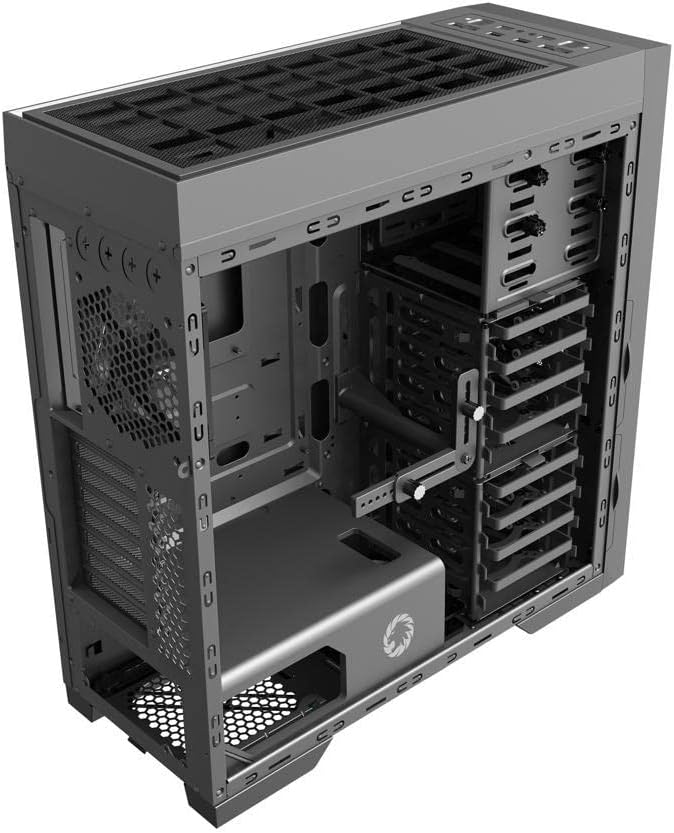
Whakaahua 4.3: Roto view of the case, illustrating the spacious interior with multiple drive bays, the motherboard mounting area, and the dedicated power supply shroud at the bottom.
5. Aratohu Whakauru
5.1. Te whakarite i te keehi
- Tango Paewhiri Taha: Locate the thumbscrews on the rear of the case. Unscrew them and carefully slide off the tempered glass side panel and the solid steel side panel. Set them aside on a soft, non-abrasive surface.
- Pouaka Apatoko: Locate the accessory box inside the case, usually secured in a drive bay. This box contains all necessary screws, standoffs, and cable ties for installation.
5.2. Whakauranga Papa Matua
- Tāutahia ngā tūāpapa: Identify the correct standoff locations for your ATX motherboard. The Master M905 typically has pre-installed standoffs for ATX. If not, install them using the provided tool.
- Tāutahia te Parenga I/O: Snap your motherboard's I/O shield into the opening at the rear of the case from the inside. Ensure it is securely seated.
- Whakamau Papaaho Matua: Carefully align your motherboard with the standoffs and the I/O shield. Gently lower the motherboard into place.
- Papamatua Haumaru: Use the provided motherboard screws to secure the motherboard to the standoffs. Do not overtighten.
5.3. Te Waenga Whakawhiwhi Hiko (PSU).
- Tūnga PSU: The Master M905 supports bottom-mounted PSUs. Slide your PSU into the designated compartment at the bottom rear of the case, ensuring the fan faces downwards (if the case has a bottom vent) or upwards.
- Pūnaha Whakahaere Pūnaha Haumaru: Align the PSU with the screw holes at the rear of the case. Secure it with the provided PSU screws.
5.4. Tāuta Puku Rokiroki (HDD/SSD)
The case supports various drive configurations. Refer to the internal layout for specific bay types.
- Ngā HDD 3.5": Typically installed in tool-less drive cages or trays. Slide the HDD into a tray and secure it with clips or screws.
- Ngā SSD 2.5": Can be mounted on dedicated SSD brackets behind the motherboard tray or in 3.5" drive trays using adapter screws.
5.5. Te Tāutanga Kāri Whakawhanui (PCIe)
- Tangohia ngā Taupoki Mokowā: Unscrew or remove the necessary PCIe slot covers from the rear of the case corresponding to your motherboard's PCIe slots.
- Install Card: Carefully insert your expansion card (e.g., graphics card) into the appropriate PCIe slot on the motherboard until it clicks into place.
- Kāri Haumaru: Secure the expansion card to the case with the provided screws.
5.6. Front Panel Connector Installation
Connect the front panel cables from the case to the corresponding headers on your motherboard. Consult your motherboard manual for exact header locations.
- USB 2.0/3.0: Connect the USB cables to the motherboard's USB headers.
- Ororongo: Connect the HD Audio cable to the motherboard's audio header.
- Hiko/Tautuhi Anō/Ngā LED: Connect the small individual cables (Power SW, Reset SW, HDD LED, Power LED) to the front panel header pins on your motherboard. Pay close attention to polarity for LEDs.
5.7. Whakahaerenga Taura
Whakamahia nga tapahi ararere taura me nga tohu here ki muri i te paepae papahoahoa hei whakarite taura. Ma tenei ka pai ake te rere o te hau me te rerehua.
6. Mahi
6.1. Kei te Hiko Nei
Once all components are installed and cables are connected, replace the side panels. Connect your monitor, keyboard, mouse, and power cable to the PSU. Press the power button on the front panel to start your system.
6.2. Tauranga I/O o mua
Mā te papa o mua ka taea te uru atu ki:
- Tauranga USB 2.0: For connecting peripherals like keyboards, mice, and older USB devices.
- Tauranga USB 3.0: Mō te whakawhiti raraunga tere-teitei me ngā pūrere hototahi.
- Jacks Ororongo: Hei hono i ngā paneoro me ngā hopuoro.
- Pātene Hiko: Hei whakakā/whakaweto i te pūnaha.
- Patene Tautuhi Anō: Hei whakaara ano i te punaha.
7. Tiaki
7.1. Te horoi
Mā te horoi auau ka āwhina i te pupuri i te mahi tino pai, ā, ka roa ake te ora o ō wāhanga.
- Waho: Horoia nga mata o waho ki te ngohengohe, damp kakahu. A ape i nga matū kino.
- roto: Use compressed air to remove dust from fans, heatsinks, and other components. Perform this outdoors or in a well-ventilated area.
7.2. Dust Filter Maintenance
The Master M905 case is equipped with dust filters to prevent dust buildup. Regularly clean these filters:
- Locate and remove the dust filters (e.g., front, top, bottom PSU intake).
- Rinse them under running water or use a soft brush to remove accumulated dust.
- Me whakarite kia maroke rawa ngā tātari i mua i te tāutanga anō.
8. Te Raru
Mena ka tūtaki koe ki ngā raruraru, whakaarohia ēnei mahi rapurongoā taketake e whai ake nei:
- Kāore te pūnaha e whakakā ana: Check all power connections, including the PSU to the wall, the 24-pin ATX connector, and the 8-pin CPU power connector to the motherboard. Ensure the front panel power switch cable is correctly connected to the motherboard.
- Kāore ngā pā e hurihuri ana: Verify that all fan cables are securely connected to the motherboard fan headers or a fan controller.
- Ko nga tauranga USB kaore e mahi: Ensure the front panel USB cables are correctly connected to the motherboard's USB headers.
- Karekau he putanga whakaatu: Confirm that your graphics card is properly seated in its PCIe slot and that all necessary power cables are connected to it. Ensure your monitor cable is connected to the graphics card, not the motherboard's integrated graphics ports (unless you are using integrated graphics).
9. Whakatakotoranga
| Āhuahira | Whakatakotoranga |
|---|---|
| Waitohu | GAMEMAX |
| Tauira | Kaiwhakaako M905 |
| Momo Take | Pourewa katoa |
| Papamatua Hototahi | ATX |
| Rauemi | Rino, Karāhe Whakamarumaru |
| Tae | Pango |
| Rahi Hua (LxWxH) | 23.5 x 22.95 x 11.26 inihi |
| Tuhinga o mua | 2x USB 2.0, 2x USB 3.0, Ororongo Tāuru/Tapui |
| Roha Slots | 8 |
| Tikanga whakamatao | Hau, Wai |
| Momo Whakaeke Hiko Hiko | Tower (Bottom-mounted) |
10. Pūtāhui me te Tautoko
For warranty information and technical support, please refer to the official GAMEMAX webpaetukutuku, whakapā atu ranei ki to kaihokohoko o to rohe. Puritia to tohu hoko mo nga kereme whakamana.


