Kupu Whakataki
This manual provides essential instructions for the safe and efficient use of your iHome IHQI1006W-OD Airpad 10-Watt Qi Ultra Slim Wireless Charging Pad. Please read this manual thoroughly before operating the device and retain it for future reference.
Nga korero haumaru
- Do not expose the charging pad to liquids, moisture, or extreme temperatures.
- Avoid placing metal objects, credit cards, or other foreign materials on the charging pad during operation, as this may interfere with charging or cause damage.
- Do not disassemble, modify, or attempt to repair the device yourself. Contact qualified service personnel for assistance.
- Ensure the power adapter used is compatible with the charging pad's specifications (e.g., 9V input).
- Keep the charging pad away from strong magnetic fields.
- I hangaia tenei hua mo te whakamahi o roto anake.
Ihirangi mokete
Manatokona kei roto katoa nga mea kei roto i to kete:
- iHome IHQI1006W-OD Airpad Wireless Charging Pad
- Pukapuka Kaiwhakamahi
- USB Cable (Power Adapter not included)
Tohutohu Tatūnga
- Tūhonohia te Papa Whakatau: Plug the provided USB cable into the charging pad's input port.
- Tūhono ki te Hiko: Connect the other end of the USB cable to a compatible USB power adapter (not included) and then plug the adapter into a wall outlet. Ensure the power adapter supports 9V input for optimal performance.
- Turanga: Place the charging pad on a flat, stable surface, free from obstructions.
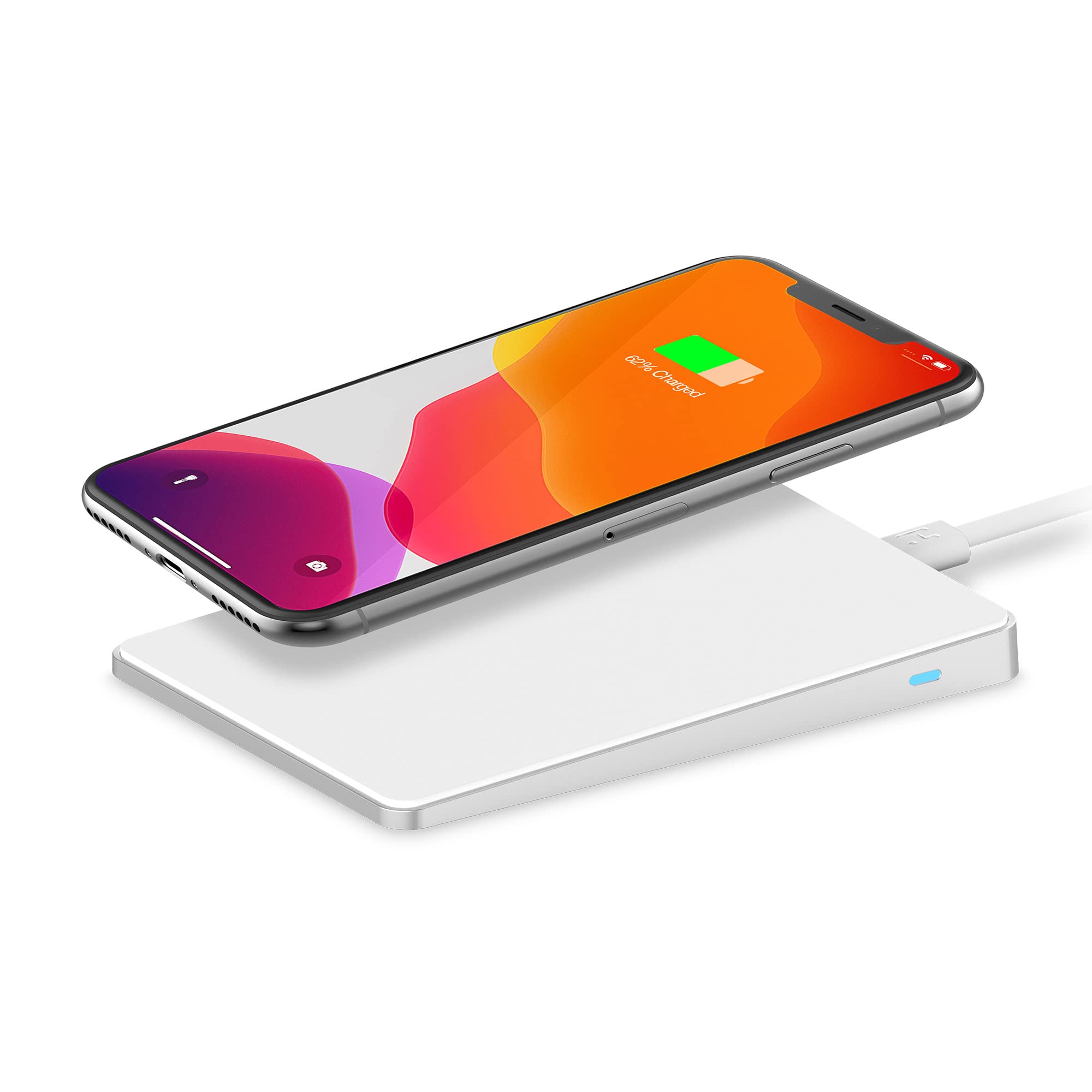
The image above illustrates the iHome Airpad wireless charging pad with a smartphone placed on its surface. The charging pad is connected via a white USB cable to a power source, indicating readiness for operation. The smartphone screen displays a charging icon and "62% Charged," confirming active wireless power transfer. A white keyboard and mouse are visible in the background, suggesting a typical desktop setup.
Nga Tohutohu Whakahaere
- Wahi Pūrere: Carefully place your Qi-compatible smartphone or other device onto the center of the charging pad. The anti-slip surface helps keep your device secure.
- Whakaū i te utu: Your device should indicate that it is charging (e.g., a charging icon on the screen, an LED indicator on the phone). The charging pad may also have an indicator light to confirm active charging.
- Whakataunga Tino Pai: For iPhones, the pad adjusts to 7.5 watts for optimal charging speed without overheating. For other compatible devices, it provides up to 10 watts.
- Tango Pūrere: Once your device is fully charged or you wish to stop charging, simply lift it from the pad.

Ka whakaratohia e tēnei whakaahua he tirohanga tata atu view of a smartphone resting on the iHome Airpad wireless charger. The phone's screen clearly shows "62% Charged" and a battery icon, confirming that the device is receiving power wirelessly. The slim design of the charging pad is evident, and the white charging cable is connected to the pad. This visual demonstrates the product's primary function of wirelessly charging compatible devices.
Te tiaki
- Te horoi: Disconnect the charging pad from the power source before cleaning. Use a soft, dry cloth to wipe the surface. Do not use abrasive cleaners or solvents.
- Rokiroki: When not in use, store the charging pad in a cool, dry place, away from direct sunlight and extreme temperatures.
Raparongoā
| Raruraru | Take pea | Rongoā |
|---|---|---|
| Kaore te taputapu e utu ana. |
|
|
| Puturi te utu. |
|
|
| Te werawera. |
|
|
Whakatakotoranga
| Tau tauira | IHQI1006W-OD |
| Waitohu | iHome |
| Whakauru Voltage | 9 Volts (DC) |
| Wat Putangatage | Up to 10 Watts (7.5W for iPhone) |
| Momo Tuhono | Wireless (Qi standard) |
| Pūrere Hototahi | Qi-compatible smartphones and devices |
| Nga waahanga motuhake | Fast Charging, Anti-slip, Overheat protection, Minimalist design |
| Hunga Hua | 10.52 x 10.52 x 0.36 cm |
| Taumaha Tūemi | 155 g |
| Tae | Mā |
Nga korero Whakaputanga
iHome products are designed and manufactured to the highest quality standards. For specific warranty terms and conditions, please refer to the warranty card included with your purchase or visit the official iHome webpae. Ko te tikanga, ka hipokina e tēnei pūtāhui ngā hapa o ngā rauemi me te mahi toi i raro i te whakamahinga noa.
Tautoko Kiritaki
If you encounter any issues or have questions regarding your iHome IHQI1006W-OD Airpad, please contact iHome customer support:
- Webpae: Visit the official iHome webpae tukutuku mō ngā FAQs, ngā rauemi tautoko, me ngā taipitopito whakapā.
- Īmēra/Waea: Refer to the iHome website or your product packaging for specific email addresses or phone numbers for technical support.


