Kupu Whakataki
Welcome to the Xtrfy M42 Wireless Black user manual. This guide provides detailed instructions for setting up, operating, maintaining, and troubleshooting your new Xtrfy M42 Wireless gaming mouse. Designed for esports, the M42 Wireless offers lag-free 2.4 GHz connectivity, an adjustable symmetrical shape, and ultra-light design with adjustable weight balance.
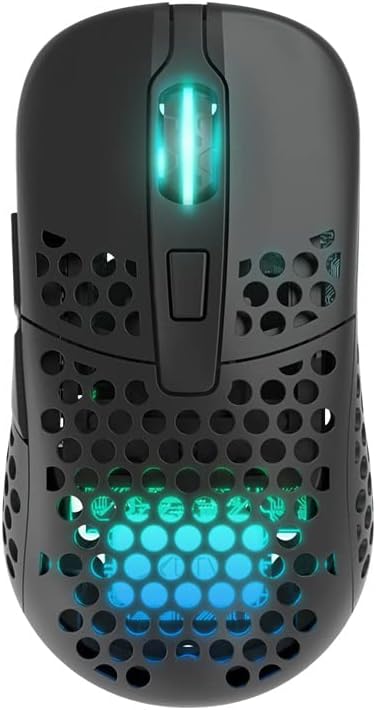
The Xtrfy M42 Wireless Black gaming mouse, showcasing its perforated shell and vibrant RGB lighting.
Tatūnga
Ihirangi mokete
- Xtrfy M42 Wireless Black Gaming Mouse
- USB-C ki USB-A Cable
- Kaiwhiwhi Waeakore USB
- Alternative Shell (for shape adjustment)
- Pukapuka Kaiwhakamahi (tenei tuhinga)
Initial Connection and Charging
- Connect the USB Wireless Receiver to an available USB-A port on your computer.
- Turn on the mouse using the switch located on the bottom.
- For initial charging or wired use, connect the USB-C end of the provided cable to the front port of the mouse and the USB-A end to your computer. The mouse can be used while charging.

The USB-C port located at the front of the mouse for charging and wired connection.
Adjusting the Shape and Weight Balance
The Xtrfy M42 Wireless comes with two interchangeable shells to adjust its symmetrical shape, allowing for optimal comfort based on your grip style. It also features adjustable weight balance.
- To change the shell, gently lift the current shell from the mouse.
- Align the new shell with the mouse body and press down until it clicks into place.
- Refer to the included documentation for specific instructions on adjusting the internal weight balance, if applicable.
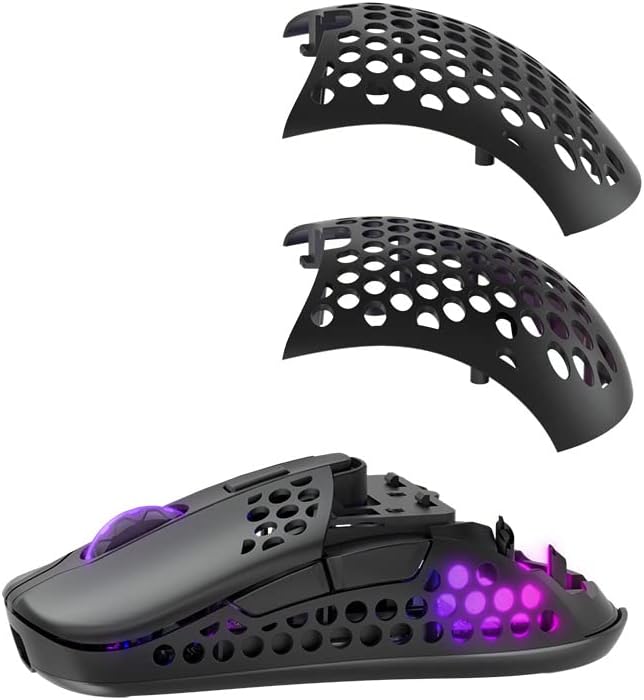
The Xtrfy M42 Wireless with its modular shell design, allowing users to customize the mouse's shape.
Te whakahaere i te Kiore
DPI/CPI Adjustment
The M42 Wireless allows for on-the-fly DPI/CPI adjustment without software. Use the dedicated CPI button on the bottom of the mouse to cycle through preset sensitivity levels. An indicator light will typically change color to show the current DPI setting.

The underside of the mouse, featuring the CPI adjustment button and other control switches.
Mana Rama RGB
The RGB lighting on the Xtrfy M42 Wireless can be controlled directly on the mouse. Use the RGB switch or button (refer to the bottom of your mouse) to cycle through different lighting effects, colors, or to turn the lighting off to conserve battery life.

The mouse illuminated with yellow RGB lighting, showcasing the customizable lighting effects.
Whakatikatika Reiti Pooti
Some Xtrfy mice allow for polling rate adjustment via a switch on the bottom. Ensure the polling rate is set to the maximum (e.g., 1000 Hz) for optimal responsiveness in gaming.
Te tiaki
Te horoi
To maintain optimal performance and hygiene, regularly clean your mouse. Use a soft, dry cloth to wipe down the surface. For dust accumulation in the perforated areas, a can of compressed air can be used. Avoid using harsh chemicals or abrasive materials.
Tiaki Pūhiko
The Xtrfy M42 Wireless uses a Lithium Ion battery. To prolong battery life, avoid fully discharging the mouse frequently. Charge it when the battery indicator suggests low power. Store the mouse in a cool, dry place if not used for extended periods.
Raparongoā
Kaore Te Kiore e Whakautu
- Me whakarite kua whakakā te kiore.
- Tirohia te taumata o te pākahiko me te utu ina tika.
- Verify the USB Wireless Receiver is securely plugged into a working USB port. Try a different USB port.
- Ki te whakamahi koe i te aratau waea, me whakarite kei te hono tika te taura USB-C ki te kiore me te rorohiko.
- Try re-pairing the mouse with the receiver (refer to Xtrfy's official support for specific pairing instructions if needed).
Lag or Disconnects
- Ensure the wireless receiver is close to the mouse and not obstructed by metal objects.
- Avoid placing the receiver near other wireless devices that might cause interference (e.g., Wi-Fi routers, other wireless peripherals).
- Check for any firmware updates for the mouse on the Xtrfy official webpae.
Buttons Not Registering / Double Clicking
- Ensure the mouse is clean and free of debris that might obstruct button mechanisms.
- If the issue persists, it may indicate a hardware fault. Refer to the Warranty and Support section.
Whakatakotoranga
| Waitohu | Xtrfy |
| Tau tauira | M42W-RGB-BLACK |
| Hangarau Hononga | Ahokore (2.4 GHz) |
| Hangarau Hangarau Nekehanga | Optical |
| Tae | Pango |
| Taumaha Tūemi | 9.6 hekere |
| Nga waahanga motuhake | Lightweight, Rechargeable, Wireless, Adjustable Symmetrical Shape, Adjustable Weight Balance |
| Pūhiko | 1 pākahiko Lithium Ion (kei roto) |
Pūtāhui me te Tautoko
Xtrfy products are designed for durability and performance. For information regarding warranty coverage, terms, and conditions, please refer to the warranty card included with your product or visit the official Xtrfy webpae.
Tautoko Kiritaki
If you encounter any issues not covered in this manual or require further assistance, please contact Xtrfy customer support through their official website. Provide your product model number (M42W-RGB-BLACK) and a detailed description of the issue for faster service.
For the latest drivers, firmware updates, and frequently asked questions, please visit the Xtrfy support page:


