1. Kupu Whakataki
Thank you for choosing the Anyeast Wireless Barcode Scanner. This compact and versatile device offers 3-in-1 connectivity (Bluetooth, 2.4G Wireless, and USB Wired) for seamless integration with various systems including smartphones, tablets, laptops, PCs, and POS systems. Designed for efficiency, it features an LED display for real-time information, a hot button for quick mode switching, and advanced decoding capabilities for 1D, 2D, and QR barcodes.

2. Nga Hua o te Hua
- Upgraded Design: LED Display Screen & Hot Button: Check real-time status, power level, and connection method easily. The hot button allows quick switching between Bluetooth and 2.4G wireless modes.
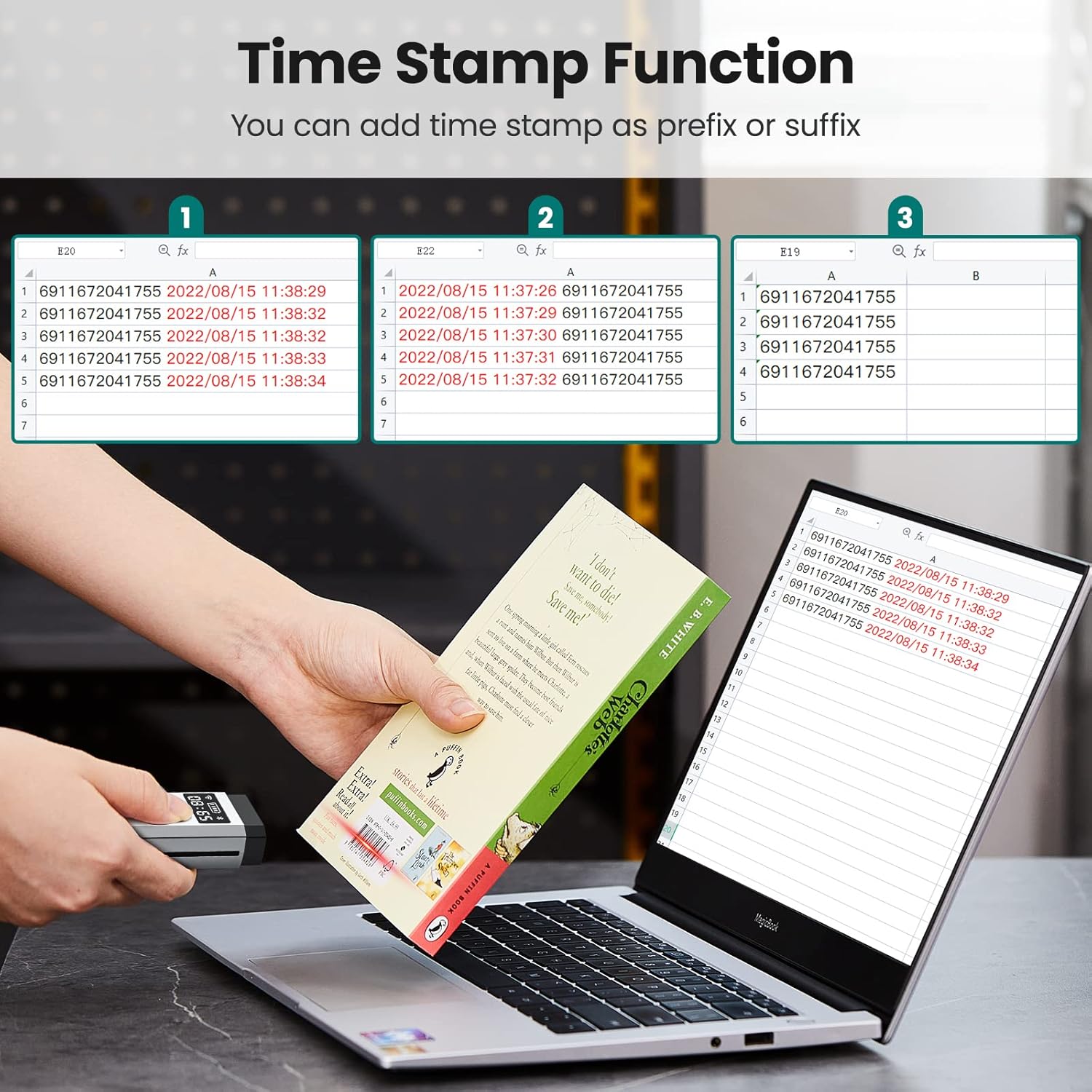
- Time St.amp Taumahi: Equipped with a time chip to record the date and time of barcode scans. Supports adding scanning date and time as a prefix or suffix to the barcode content. (Default: Off; refer to manual for activation).
- 3-in-1 Connection Design: Supports Bluetooth, 2.4G Wireless, and USB Wired connections. Compatible with Android, iOS, Windows XP/7/8/10, and Mac OS.
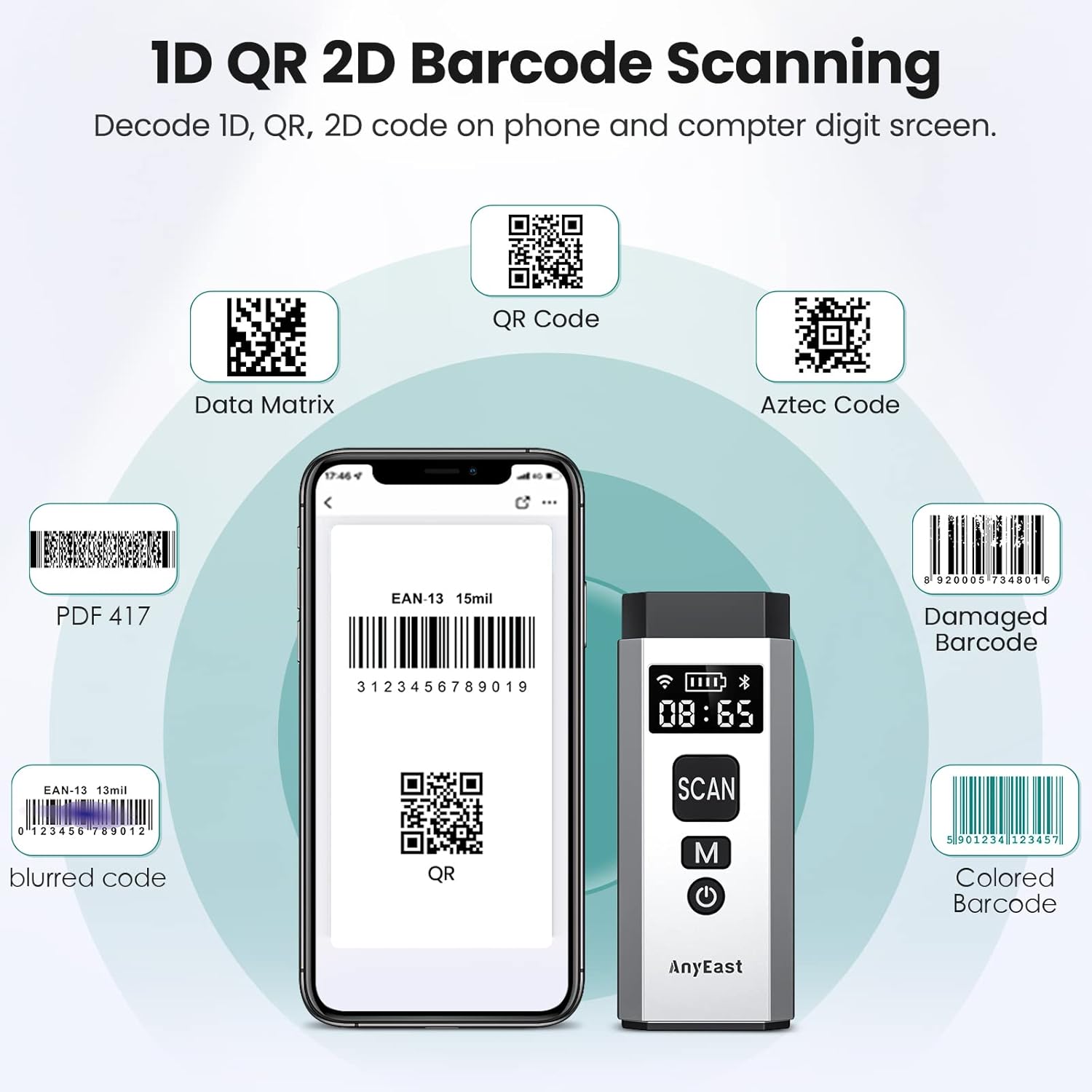
- Te kaha Wetewaehere Super: Advanced CMOS sensor decodes most 1D, 2D, and QR barcodes from labels, paper, and screens, including damaged, blurring, incomplete, fuzzy, and reflective barcodes. Supports 1D (UPC/EAN, Code39, Interleaved 2 of 5, Code93, Code 128, Codabar, etc.) and 2D (QR, Datamatrix, PDF417, Aztec, etc.).
- Mini Size with Strong Battery Endurance: Lightweight and portable design with a built-in 850mAh rechargeable battery, providing up to 5 hours of continuous use on a 2-hour charge. Includes a wrist strap for convenience.


3. Tatūnga me te Hononga
Before first use, ensure the scanner is fully charged. Connect the scanner to a USB power source using the provided charging cable.
3.1. Te Whakautu i te Matawai
The scanner has a built-in 850mAh rechargeable battery. A full charge takes approximately 2 hours and provides up to 5 hours of working time or 90 days of standby time. The LED display indicates the battery level.

3.2. Tikanga Hononga
The scanner supports three connection modes:
- Aratau Nihokikorangi: Ideal for connecting to smartphones, tablets, and laptops wirelessly.
- 2.4G Aratau Ahokore: Uses the included USB dongle for wireless connection to PCs and laptops.
- Aratau Waea USB: Connects directly to a device via USB cable for plug-and-play operation.
To switch between Bluetooth and 2.4G wireless modes, press the 'M' (Mode) hot button on the scanner. Refer to the included user manual for specific pairing barcodes for each mode.


4. Aratau Mahi
The Anyeast barcode scanner offers flexible operating modes to suit different needs:
4.1. Instant Upload Mode
In this mode, scanned barcode data is immediately transmitted to the connected device (e.g., computer, tablet, smartphone). This is suitable for real-time inventory updates or point-of-sale operations.
4.2. Aratau Rokiroki
When out of range or not connected, the scanner can store up to 5,000 barcode entries in its internal memory. Data can be uploaded to a connected device later by scanning a specific barcode from the user manual.
4.3. Time Stamp Mahi
Activate the time stamp function to automatically add the date and time to each scanned barcode. This can be configured to appear before or after the barcode content. Refer to the user manual for activation instructions.

4.4. Aratau Wahangu
The scanner can operate in a mute mode, which is suitable for quiet environments such as libraries, hospitals, or schools. This disables the audible feedback upon successful scans.
Video 4.1: Demonstrates the Anyeast Barcode Scanner's mute mode, continuous scanning capability, and data storage function for various applications.
5. Tiaki
To ensure the longevity and optimal performance of your Anyeast barcode scanner, follow these maintenance guidelines:
- Te horoi: Use a soft, dry cloth to clean the scanner's exterior. For the scanning window, use a lint-free cloth and a mild, non-abrasive cleaner if necessary. Avoid harsh chemicals or abrasive materials.
- Tiaki Pūhiko: To preserve battery life, avoid fully discharging the battery frequently. If storing the scanner for an extended period, charge it to about 50% and store it in a cool, dry place. Recharge every few months to prevent deep discharge.
- Rokiroki: Store the scanner in a clean, dry environment away from extreme temperatures, direct sunlight, and excessive dust.
6. Te Raru
If you encounter issues with your Anyeast barcode scanner, please refer to the following common troubleshooting steps:
- Matawai Kaore e hono ana: Ensure the scanner is charged. Verify the correct connection mode (Bluetooth, 2.4G, or USB Wired) is selected. For wireless modes, ensure the device's Bluetooth is on or the 2.4G dongle is properly inserted. Try re-pairing the scanner by scanning the appropriate pairing barcode from the user manual.
- Kaiwaituhi Kaore e Panui Waehere Pae: Ensure the barcode is clean and not excessively damaged or blurred. Check that the scanner's window is clean. Ensure proper lighting conditions. Try scanning different types of barcodes to isolate the issue.
- Kāore he Putanga Raraunga: Confirm the scanner is successfully connected to your device. Check if the application you are using is ready to receive input (e.g., a text editor or spreadsheet program is open and active).
- He Raraunga Huaputa: If the scanner outputs unexpected characters or incorrect data, you may need to reset the scanner to factory defaults by scanning the corresponding barcode in the user manual.
For more detailed troubleshooting or specific configuration issues, please consult the comprehensive user manual provided with your scanner. It contains specific barcodes for various settings and resets.
7. Whakatakotoranga
| Āhuahira | Whakatakotoranga |
|---|---|
| Hunga Hua | 5.4 x 4.3 x 1.7 inihi |
| Taumaha Tūemi | 5.6 hekere |
| Tauira Tuemi | AT001 |
| Hangarau Hononga | Nihokikorangi, 2.4G Ahokore, Waea USB |
| Pūrere Hototahi | Smartphone, Tablet, Laptop, PC, POS |
| Puna Mana | Battery-Powered or Plug and Play |
| Pūhiko Raukaha | 850mAh |
| Waa Whakatau | Approx. 2 haora |
| Wā Mahi | Tae atu ki te 5 haora |
| Wā tūtatari | Tae atu ki te 90 ra |
| Te Mahana Rokiroki Morahi | 158 Waeine Fahrenheit |

8. Pūtāhui me te Tautoko
Anyeast offers a 30-ra taurangi moni-hoki me a 2-tau pūtāhui for this product. For any questions, technical support, or to request a PDF version of the user manual, please contact Anyeast customer service through the vendor's official channels or the platform where the product was purchased.


