Kupu Whakataki
The Logitech MX Keys Mini for Mac is a minimalist wireless illuminated keyboard designed for enhanced productivity across Apple macOS, iPadOS, and iOS devices. This compact keyboard features backlit keys, USB-C charging, and tactile typing for a comfortable user experience.
Note: This product is a renewed item, professionally inspected and tested to function and appear like new. Renewed products are eligible for replacement or refund under the Amazon Renewed Guarantee if not satisfied with the purchase.

Image: Logitech MX Keys Mini for Mac keyboard in Pale Grey, showcasing tona hoahoa kiato.
He aha kei roto i te Pouaka
Upon unboxing your Logitech MX Keys Mini for Mac, you will find the following items:
- Logitech MX Keys Mini for Mac Wireless Illuminated Keyboard
- USB-C Uira Whakatau

Image: The Logitech MX Keys Mini for Mac keyboard and its included USB-C charging cable, as packaged.
Tatūnga
1. Te Whakataki i te Papapātuhi
Before initial use, ensure your keyboard is fully charged. Connect the included USB-C cable to the USB-C port located on the back of the keyboard and plug the other end into a compatible USB-C power source (e.g., your Mac, a wall adapter). The keyboard can be used while charging.
2. Pairing via Bluetooth Low Energy
The MX Keys Mini for Mac utilizes Bluetooth Low Energy for wireless connectivity. It can be paired with up to three different devices simultaneously.
- Whakakāhia te papapātuhi ma te whakamahi i te pana hiko kei te tuara.
- Press and hold one of the Easy-Switch keys (labeled 1, 2, or 3) on the top row of the keyboard until the LED indicator above the key starts blinking rapidly. This indicates the keyboard is in pairing mode.
- On your Mac, iPad, or iPhone, navigate to Bluetooth settings.
- Select "MX Keys Mini for Mac" from the list of available devices to complete the pairing process.
- Whakahokia tēnei mahi mō ētahi atu pūrere e rua mā te whakamahi i ngā kī Easy-Switch kē atu.
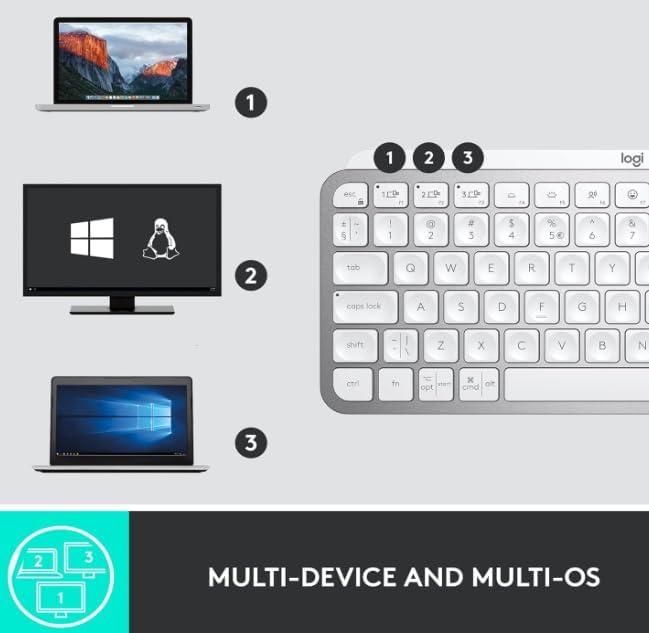
Image: The keyboard demonstrating multi-device connectivity with a MacBook, an iMac, and an iPad, highlighting the Easy-Switch functionality.
Te whakahaere
Nga Mahi Matua
The MX Keys Mini for Mac features a Mac-specific layout with Perfect Stroke keys designed for comfortable and precise typing. The top row includes dedicated multimedia keys and smart keys.
- Ngā Kī Whakawhiti-Ngāwari (1, 2, 3): Whakawhiti tere ki waenga i nga taputapu takirua e toru.
- Kī Ataata: Includes dedicated keys for voice-to-text Dictation, Mic Mute/Unmute, and Emoji access.
- Mana Rongorau: Play/pause, volume up/down, and mute controls.
- Maama Whakamuri: Adjust the illumination level of the keys.

Whakaahua: He taipitopito view of the keyboard highlighting key features such as Easy Switch buttons, Smart Keys, USB-C charging port, compact size, Perfect Stroke keys, and Smart Backlighting.
Whakamaarama Maama
The keyboard features smart backlighting that automatically adjusts to ambient lighting conditions. The keys illuminate when your hands approach and dim when you move away, conserving battery life.
Whakaritenga
Customize your keyboard experience using the Logitech Options+ software (available for download from the Logitech website). This software allows you to:
- Remap function keys to perform specific actions.
- Adjust global settings or create application-specific key assignments.
- Whakahaerehia ngā hononga pūrere Easy-Switch.
- Configure backlighting behavior and battery saving modes.
Te tiaki
Te ora o te pākahiko me te utu
The MX Keys Mini for Mac is equipped with a USB-C rechargeable battery. A full charge provides approximately 10 days of battery life with backlighting enabled, or up to 5 months with backlighting turned off. To maximize battery life, consider disabling backlighting when not needed via the Logitech Options+ software.
Te horoi
Hei horoi i tō papapātuhi, murua mārire ngā kī me te mata ki te kakahu ngohengohe, kore-miro. Kaua e whakamahi i ngā matū kaha, i ngā rauemi whakakoi rānei.
Raparongoā
Nga Take Hononga
- Karekau te papapātuhi e hono ana: Ensure the keyboard is powered on and fully charged. Verify that Bluetooth is enabled on your device and the keyboard is in pairing mode (blinking LED on Easy-Switch key).
- Hononga mokowhiti: Move the keyboard closer to your device to reduce interference. Ensure no other devices are causing Bluetooth interference.
- Nga taputapu whakawhiti: Press the corresponding Easy-Switch key (1, 2, or 3) to connect to a previously paired device.
Kāore te Rama Whakamuri e Mahi
- Check battery level; backlighting may be disabled when the battery is low.
- Ensure backlighting is not disabled in the Logitech Options+ software.
- Adjust backlighting brightness using the dedicated keys on the top row.
Whakatakotoranga
| Āhuahira | Taipitopito |
|---|---|
| Hunga Hua | 5.19 x 7.72 x 0.83 inihi |
| Taumaha Tūemi | 1.48 pauna |
| Pūhiko | 1 pākahiko Lithium Polymer (kei roto) |
| Hangarau Hononga | Nihokikorangi, USB-C |
| Whakaahuatanga Papapātuhi | Membrane |
| Pūrere Hototahi | Laptop, Tablet (macOS, iPadOS, iOS) |
| Nga waahanga motuhake | LED Lights, Portable, Rechargeable, Ten Key Less, Wireless |
| Tae | Koama Kerei |
| Papapātuhi Whakamurirama | Single Color, Smart Illumination |
Pūtāhui me te Tautoko
Mo nga korero mo te whakamana hua, tautoko hangarau, me etahi atu rauemi, tirohia koa te tautoko Logitech mana website. As a renewed product, it is covered by the Amazon Renewed Guarantee, offering replacement or refund if you are not satisfied with your purchase.


