1. Kupu Whakataki
This manual provides detailed instructions for the installation, operation, and maintenance of your VIMAR K40965 Wi-Fi Video Doorbell Kit. Please read this manual thoroughly before use to ensure proper functionality and safety.
The VIMAR K40965 Kit includes a Wi-Fi enabled video doorbell (model 40960) designed for call forwarding to the View Door mobile application. It features a camera with night vision, RGB LED lighting for the call button, an integrated SD card for recording, and an anti-tampering sensor. The kit also comes with a dedicated power supply (model 40103) for DIN rail installation.

Image: The VIMAR K40965 Kit showing the video doorbell unit and the DIN rail power supply.
2. Nga korero haumaru
- Haumaru Hiko: Installation should be performed by a qualified electrician or in accordance with local electrical codes. Ensure power is disconnected before any wiring work.
- Whakamahi o waho: The doorbell unit is designed for outdoor use. Ensure all connections are properly sealed to prevent water ingress.
- Tuku Hiko: Use only the provided VIMAR 40103 power supply or a compatible 24V power source. Do not use battery power for this device.
- Tampering: The device includes an anti-tampering sensor. Avoid unauthorized disassembly or modification.
- Te Waahi Mahi: Ensure the device is operated within its specified temperature range to prevent malfunction.
3. Ihirangi mokete
Verify that all items are present in your VIMAR K40965 Kit:
- 1 x VIMAR 40960 Wi-Fi Video Doorbell Unit
- 1 x VIMAR 40103 DIN Rail Power Supply
- 1 x SD Card (8GB)
- Ko nga taputapu whakamau (tuuuri, punga)
- Aratohu Timata Tere (mehemea kei roto)
4. Tatūnga
4.1. Tāutanga Tinana
- Kōwhiri Tauwāhi: Select a suitable outdoor location for the doorbell, typically at eye level next to your door. Ensure good Wi-Fi signal strength at this location.
- Mount the Doorbell: Use the provided mounting hardware to securely attach the doorbell unit to the wall.
- Tāuta Hiko Hiko: Mount the VIMAR 40103 DIN rail power supply in your electrical panel or a suitable enclosure.
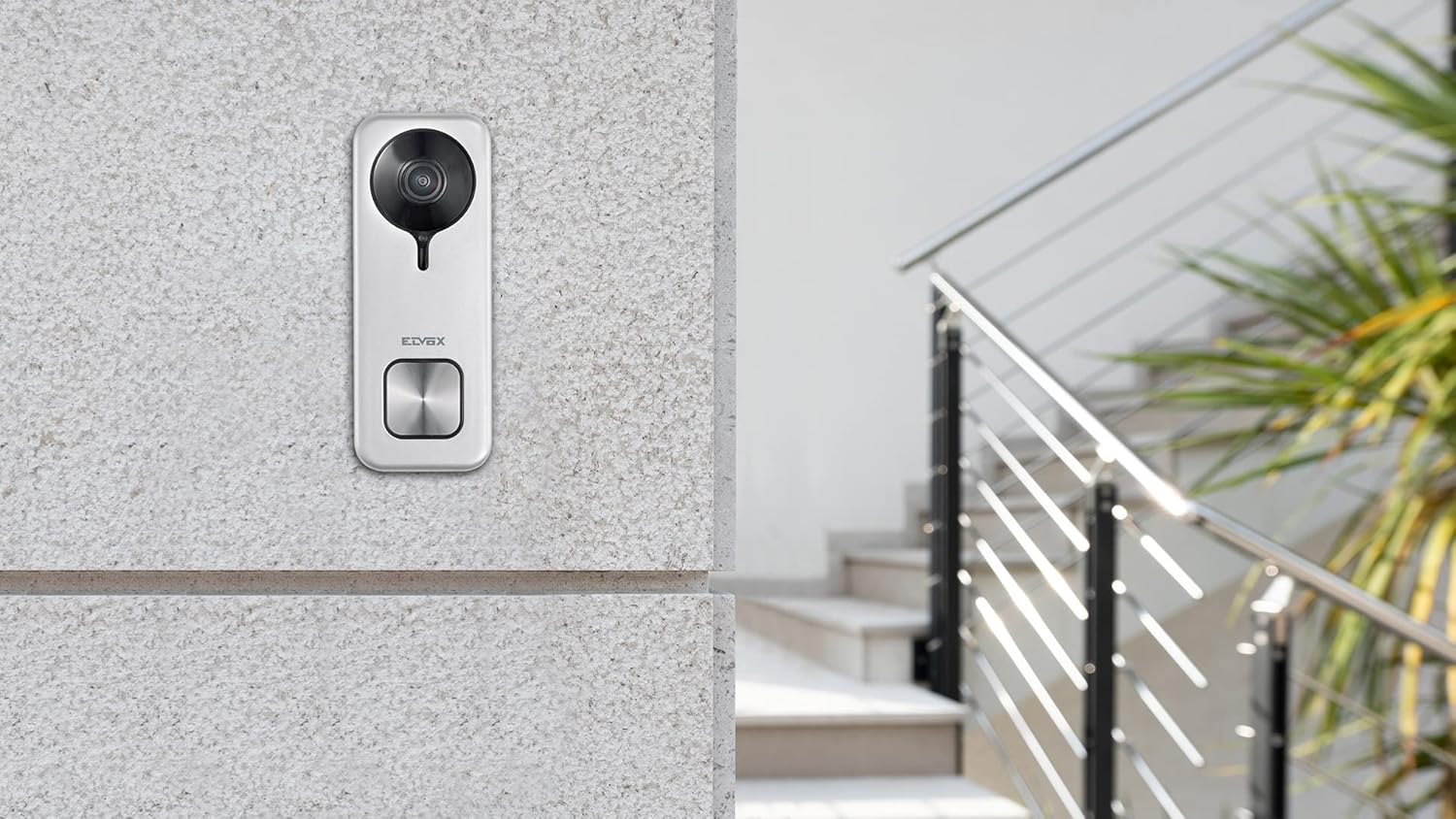
Image: The VIMAR K40965 doorbell unit installed on an exterior wall.
4.2. Waaho
Connect the doorbell unit to the 24V output of the VIMAR 40103 DIN rail power supply. Refer to the wiring diagram provided with the product for specific terminal connections. Ensure all connections are tight and insulated.
4.3. App and Wi-Fi Configuration
- Tikiake App: Download the "View Door" mobile application from your smartphone's app store (iOS or Android).
- Waihanga Pūkete: Whakatuwheratia te taupānga ka whai i nga tohutohu i runga-mata hei hanga i tetahi kaute kaiwhakamahi hou, takiuru ranei mena kei a koe tetahi.
- Tāpiri Pūrere: In the app, select the option to add a new device. Follow the pairing instructions, which typically involve scanning a QR code on the doorbell or entering a device ID.
- Tūhono ki Wi-Fi: During the setup process, you will be prompted to connect the doorbell to your home Wi-Fi network. Ensure your Wi-Fi network is 2.4GHz compatible and has a strong signal.
- Taumahinga Whakamatau: After successful pairing, test the doorbell by pressing the call button and verifying that you receive a notification and live video feed on your smartphone.

Image: Icon indicating device registration and setup.
5. Nga Tohutohu Whakahaere
5.1. Te Whiwhinga Waea
When a visitor presses the doorbell button, your smartphone will receive a notification via the View Door app. You can answer the call from anywhere with an internet connection.

Image: A user interacting with the View Door app on a smartphone from inside their home.
5.2. Whakawhitiwhiti-rua
Once you answer a call through the app, you can engage in two-way audio communication with your visitor. The doorbell's integrated microphone and speaker allow for clear conversation.
5.3. Te Tukunga o te Kūaha/Keti
The doorbell unit provides two commands for opening a gate or door lock. These commands can be activated directly from the View Door app during a call or live view.

Image: Graphic illustrating the ability to open an electric lock via the app.
5.4. Te Motini
The doorbell features a motion detection sensor. When motion is detected within the camera's field of view, you will receive a notification on your smartphone. You can adjust motion sensitivity settings within the View Taupānga tatau.

Image: Icon symbolizing motion detection functionality.
5.5. Matakitenga po
The integrated night vision functionality allows the doorbell camera to capture clear video footage even in low-light conditions or complete darkness.
5.6. Hopu Ataata
The doorbell comes with an 8GB SD card for local storage of video recordings. Recordings can be triggered by doorbell presses or motion detection. You can access and manage these recordings through the View Taupānga tatau.
5.7. Te Whakauru Kaiawhina Reo
The VIMAR K40965 is compatible with Amazon Alexa. Follow the instructions in the View Door app or your Alexa app to link your doorbell for voice control and notifications.

Image: Icon indicating compatibility with smart speakers like Amazon Alexa.
6. Tiaki
- Te horoi: Periodically clean the camera lens and the doorbell surface with a soft, damp kakahu. Kaua e whakamahi i nga matū kino me nga horoi horoi.
- Whakahōu Firmware: Ensure your doorbell's firmware is up to date. Check the View Door app regularly for available updates.
- Whakaha Kaari SD: He rite tonu te review and manage recordings on the SD card to ensure sufficient storage space. Format the SD card periodically if issues arise.
7. Te Raru
7.1. Kāore he Hononga Wi-Fi
- Me whakarite kei te whakakāhia tō pouara Wi-Fi, ā, kei te tika te mahi.
- Verify the doorbell is within range of your Wi-Fi network and has a strong signal. Consider using a Wi-Fi extender if necessary.
- Check that your Wi-Fi network is 2.4GHz. The doorbell may not support 5GHz networks.
- Restart your router and the doorbell unit.
7.2. App Not Responding or Delayed Notifications
- Ensure your smartphone has a stable internet connection (Wi-Fi or mobile data).
- Katia, ka whakatuwheratia anō te View Taupānga tatau.
- Tirohia ngā whakahōutanga taupānga i te toa taupānga o tō waea.
- Verify that app notifications are enabled in your phone's settings.
7.3. No Video or Audio
- Clean the camera lens to ensure it is free from dirt or obstructions.
- Check the power supply to the doorbell unit.
- Ensure your phone's volume is up and microphone permissions are granted to the View Taupānga tatau.
7.4. Door/Gate Release Not Working
- Verify the wiring connections between the doorbell and the gate/door lock mechanism.
- Me whakarite kei te tika te mahi a te pūnaha raka.
- Check settings within the View Door app related to door/gate control.
8. Whakatakotoranga
| Āhuahira | Taipitopito |
|---|---|
| Tau tauira | K40965 |
| Waitohu | VIMAR |
| Tae | Kerei |
| Rauemi | Kirihou |
| Momo Whakaeke | Maunga Taiepa |
| Whakatau Ataata | 1440p (4 Mpx) |
| Viewing Koki | 160 nga nekehanga |
| Hangarau Hononga | Wi-Fi (Waeakore) |
| Puna Mana | External Power Supply (24 Volts, 3 Watts) |
| Nga Waahanga kei roto | Doorbell 40960, DIN Rail Power Supply 40103, 8GB SD Card |
| Nga waahanga motuhake | Night Vision, Motion Detection, Anti-tampering Sensor, RGB LED Call Button |
| Pūrere Hototahi | Waea atamai, Amazon Alexa |
| Ahu (L x W x H) | 5.2 x 2.45 x 13.3 cm |
| Taumaha | 450 karamu |
| Operating App | View kuaha |

Image: Technical drawing showing the dimensions of the doorbell unit in millimeters.
9. Pūtāhui me te Tautoko
VIMAR products are covered by a manufacturer's warranty. For specific warranty terms and conditions, please refer to the documentation included with your product or visit the official VIMAR webpae.
For additional support, tutorials, and frequently asked questions, please visit faidate.vimar.com.


