Kupu Whakataki
This manual provides essential information for the Dell Latitude 5421 Laptop. It covers initial setup, operational guidelines, maintenance procedures, troubleshooting tips, and detailed product specifications. Please read this manual thoroughly to ensure optimal performance and longevity of your device.
Tatūnga
1. Te Wetewete me te Tirotiro Tuatahi
Carefully remove the laptop and all accessories from the packaging. Inspect for any signs of damage. Ensure all components are present: laptop, power adapter, and documentation.
2. Te Hononga i te Pūurutau Hiko
Connect the power adapter to the power connector on the laptop and then plug the power cable into a wall outlet. The battery will begin charging automatically.
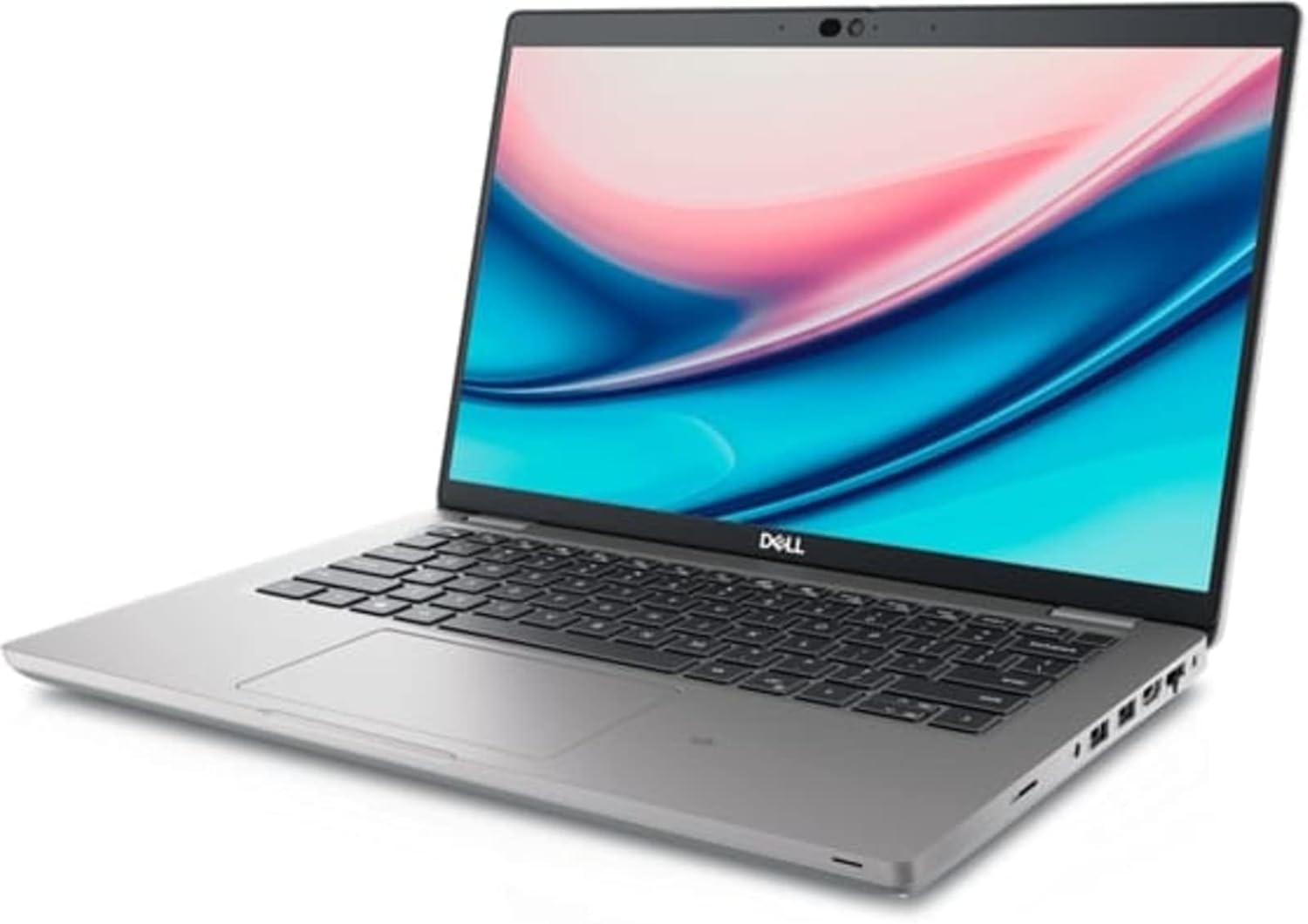
Image: Left side of the Dell Latitude 5421 Laptop, showing the power input, USB ports, HDMI port, and Ethernet port.
3. Te Whakakā Tuatahi me te Tatūnga Pūnaha Whakahaere
Open the laptop lid and press the power button. Follow the on-screen instructions to complete the Windows 11 Pro setup. This includes selecting your region, connecting to a network, and creating a user account.
4. Tuhono Pikitia
Connect external devices such as a mouse, keyboard, or external monitor to the available ports. The Dell Latitude 5421 features various ports for connectivity:
- Ngā Tauranga taha maui: SD card reader, Headset jack, USB 3.2 Gen 1 port, USB 3.2 Gen 1 port with PowerShare, HDMI 2.0 port, RJ45 Ethernet port.
- Ngā Putanga Taha Matau: Wedge-shaped lock slot, USB 3.2 Gen 1 port, USB 3.2 Gen 2 Type-C Thunderbolt 4 port with Power Delivery and DisplayPort, Smart card reader (optional).
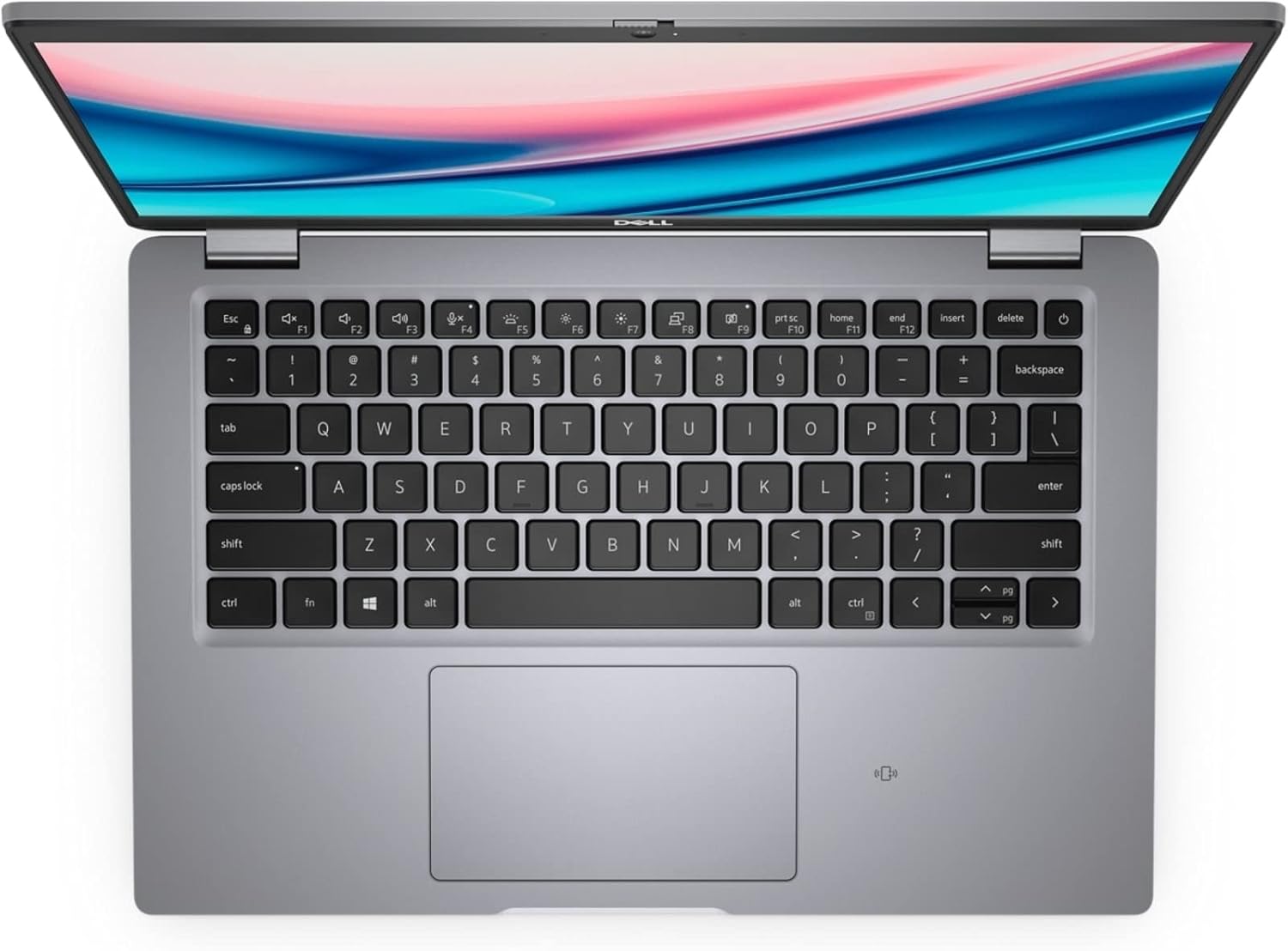
Image: Right side of the Dell Latitude 5421 Laptop, showing the USB-C Thunderbolt 4 port, USB-A port, and lock slot.
Te Whakahaere i tō Pona Rorohiko
1. Te Whakamahinga o te Papapātuhi me te Papa Pa
The laptop features a full-sized keyboard and a precision touchpad. Use the touchpad for navigation and gestures. Refer to Windows 11 settings for customizing touchpad sensitivity and gestures.

Whakaahua: Runga-raro view o te papapātuhi me te papa pa o te Pona Dell Latitude 5421.
2. Hononga Ahokore
- Wi-Fi: Hei hono atu ki tētahi whatunga ahokore, pāwhiritia te ata Wi-Fi i te paetaumahi, tīpakohia te whatunga e hiahiatia ana, ā, tāuruhia te kupuhipa mēnā ka tonoa.
- Nihokikorangi: Hei hono i ngā pūrere Nihokikorangi, haere ki Tautuhinga> Nihokikorangi me nga taputapu, whakakāhia te Nihokikorangi, kātahi ka tīpako "Tāpirihia he pūrere".
3. Display and External Monitors
The laptop features a 14-inch Full HD (1920x1080) display. You can connect an external monitor using the HDMI port or the USB-C Thunderbolt 4 port (with a compatible adapter) for extended or mirrored display modes.

Whakaahua: Mua view of the Dell Latitude 5421 Laptop with the screen displaying content.
Te tiaki
1. Te Horoi i tō Pona
- Whakamahia he kakahu ngohengohe, kore karekau damphoroia ki te wai, ki te wai horoi mata rānei mō te whakaaturanga.
- Mo te papapātuhi me te tahuhu, whakamahia he kakahu ngohengohe. A ape i nga matū kino.
- Whakamahia te hau kōpeke hei tango i te puehu mai i ngā pūhau me ngā kapiti o te papapātuhi.
2. Whakahōu Pūmanawa
Tirohia me te tāuta i ngā whakahōutanga Windows i ia wā mā te Tautuhinga > Windows Update. Also, ensure Dell drivers and firmware are up-to-date using the Dell SupportAssist application or Dell's official webpae.
3. Tiaki Pūhiko
To prolong battery life, avoid extreme temperatures. For long-term storage, charge the battery to about 50% and store the laptop in a cool, dry place.
4. Whakahaere Rokiroki
Horoi i ngā mea kāore e tika ana i ia wā files and applications to maintain optimal performance of the 512GB SSD. Use Windows built-in tools like Disk Cleanup or Storage Sense.
Raparongoā
1. Kāore te Pona e Whakakā
- Me whakarite kei te hono tika te urutau hiko ki te pona me te putanga hiko e mahi ana.
- Manatokohia kei te mahi te putanga hiko ma te hono ki tetahi atu taputapu.
- Whakamātauria te pupuri i te pātene mana mō te 15-20 hēkona hei mahi i te tautuhi anō mārō.
2. Whakaatu Take
- Ki te mea he pātea te mata, ngana ki te hono atu i tētahi mata o waho hei tirotiro mēnā ko te mata o te pona te take.
- Whakatikatikahia te kanapa o te mata mā te whakamahi i ngā kī mahi (Fn + F11/F12).
- Whakahōu i ngā taraiwa whakairoiro.
3. Wi-Fi or Bluetooth Connectivity Problems
- Me whakarite kua whakahohea te Wi-Fi/Nihokikorangi i ngā tautuhinga Windows.
- Tīmata anō i tō pouara/modem mō ngā raruraru Wi-Fi.
- Whakahaerehia te Rapu Rapanga Whatunga Windows.
- Whakahōu i ngā taraiwa ahokore.
4. Mahinga Puturi
- Katia nga tono koretake e rere ana i te papamuri.
- Tirohia mēnā he pūmanawa kino, he huaketo rānei mā te whakamahi i te pūmanawa ārai huaketo.
- Me whakarite kia nui te wāhi wātea i runga i te SSD.
- Mahihia he whakaara ano i te punaha.
Whakatakotoranga
Below are the detailed technical specifications for the Dell Latitude 5421 Laptop:
| Āhuahira | Whakatakotoranga |
|---|---|
| Ingoa Tauira | Latitude 5421 Pona |
| Tukatuka | Intel Core i7-11850H (8 Cores, 2.5 GHz base, up to 4.8 GHz Turbo) |
| RAM | 64 GB DDR4 |
| Rokiroki | 512 GB SSD |
| Whakaatu | 14-inch FHD (1920 x 1080) Non-Touch |
| Whakairoiro | Intel Integrated Graphics |
| Pūnaha Mahi | Windows 11 Pro |
| Hononga Ahokore | Wi-Fi, Nihokikorangi |
| Tauranga | USB 3.2 Gen 1, USB 3.2 Gen 1 with PowerShare, USB 3.2 Gen 2 Type-C Thunderbolt 4, HDMI 2.0, RJ45 Ethernet, Headset jack, SD card reader, Wedge-shaped lock slot |
| Ahu (LxWxH) | 8.35 x 12.65 x 0.82 inihi |
| Tae | Pango |
Pūtāhui me te Tautoko
This Dell Latitude 5421 Laptop is a renewed product. Please refer to the specific warranty terms provided by the seller at the time of purchase. For technical assistance, driver downloads, or further support, visit the official Dell Support website or contact your seller directly.
Tautoko Dell Webpae: www.dell.com/support


