1. Kupu Whakataki
This manual provides detailed instructions for the Akko 5087S TKL Mechanical Keyboard. The 5087S is an 87-key tenkeyless mechanical gaming keyboard designed for a comfortable and versatile typing experience, saving space by omitting the number pad. It features PBT shine-through keycaps, RGB backlighting, hot-swappable switches, and compatibility with both Windows and Mac operating systems.
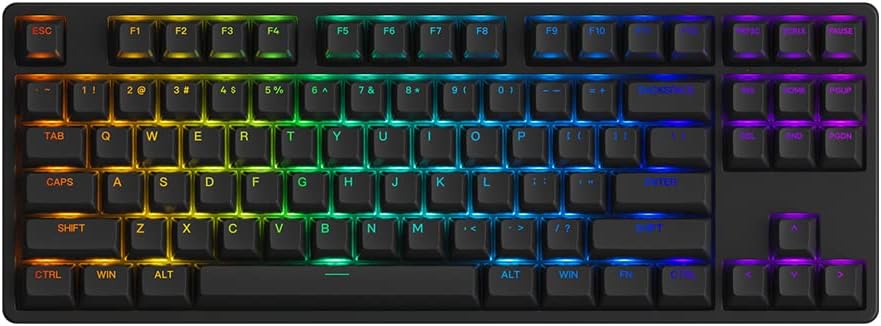
Image 1.1: The Akko 5087S TKL Mechanical Keyboard, showcasing its 87-key layout and vibrant RGB backlighting.
2. Ihirangi mokete
Tena koa tirohia kei roto katoa nga taonga kei roto i to kete:
- Akko 5087S TKL Mechanical Keyboard
- Taura Wetewete USB-A ki USB-C
- Paetukutuku Puller
- Whakawhiti Puller
- Additional Switches (if included with your specific model)
3. Tatūnga
3.1 Te hono i te Papapātuhi
- Locate the USB-C port on the back of the Akko 5087S keyboard.
- Connect the USB-C end of the provided cable to the keyboard.
- Honoa te pito USB-A o te taura ki tetahi tauranga USB e waatea ana i runga i to rorohiko.
- Ka mōhiotia aunoatia te papapātuhi e tō pūnaha whakahaere.
3.2 Hototahitanga Pūnaha
The Akko 5087S supports both Windows and Mac operating systems. To switch between modes:
- Mo Matapihi mode: Press and hold Fn + Q.
- Mo Mac mode: Press and hold Fn + O.
4. Nga Tohutohu Whakahaere
4.1 Key Functions and Remapping
All keys on the Akko 5087S can be re-mapped. For advanced customization and key function re-setting, utilize the Akko Cloud Driver software. This software also supports per-key RGB customization and music rhythm effects.
4.2 Whakaara Whakamarama RGB
The keyboard features multiple built-in RGB backlit effects. You can cycle through different backlight modes using simple keyboard shortcuts. Refer to the keyboard's function layer markings or the Akko Cloud Driver software for specific key combinations to adjust RGB settings.

Image 4.1: Icons representing key features of the Akko 5087S: RGB lighting, hot-swappable switches, USB Type-C connectivity, and N-Key Rollover.
5. Whakawhiti Hot-Swappable
The 5087S is equipped with premium 5-pin hot-swappable sockets and a plate foam, allowing users to easily change 3-pin and 5-pin mechanical switches without soldering. The keyboard comes pre-installed with Akko CS Jelly Pink linear switches, known for their smooth feel and a lifespan of up to 60 million keystrokes.
To replace switches:
- Use the included keycap puller to carefully remove the desired keycap.
- Use the included switch puller to gently grip and pull the switch upwards until it detaches from the socket.
- Align the pins of the new switch with the holes in the hot-swappable socket.
- Press the new switch firmly into place until it clicks. Ensure the pins are not bent.
- Whakauruhia ano te kaapu matua.
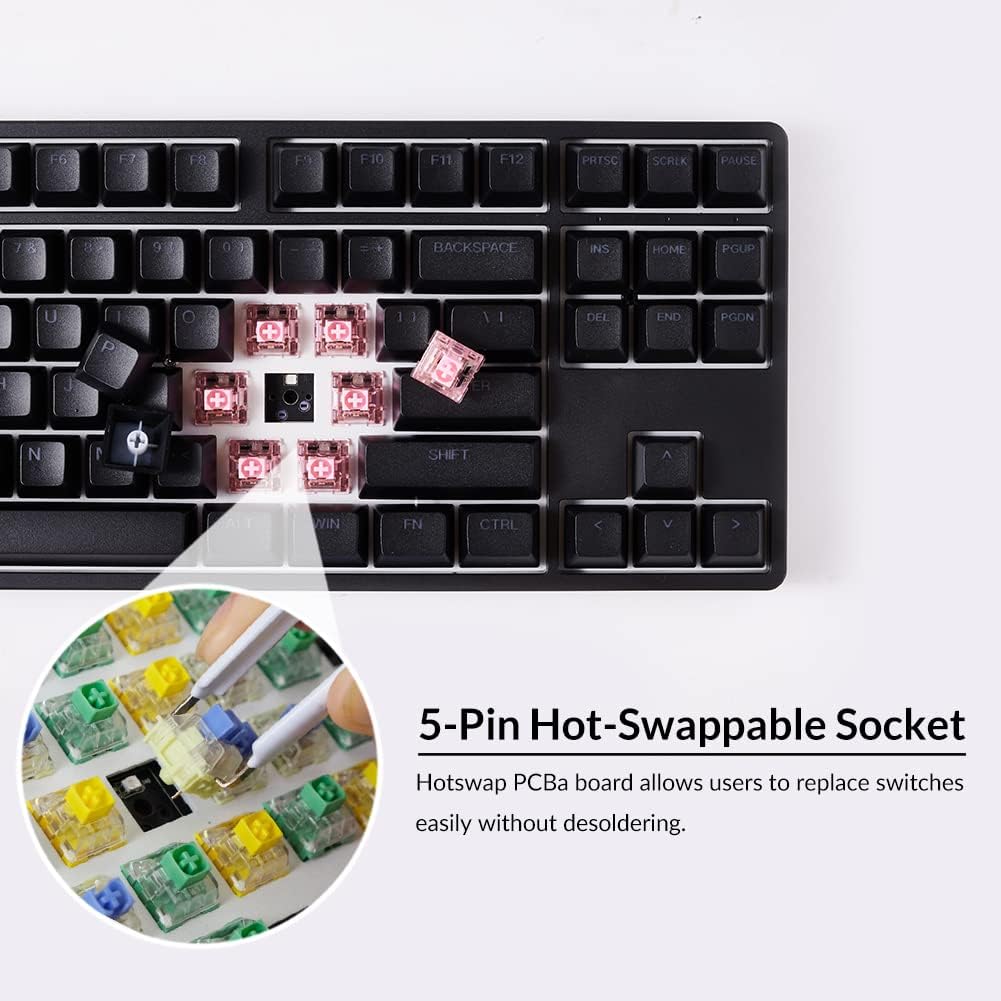
Whakaahua 5.1: He tata view illustrating the 5-pin hot-swappable sockets, allowing for easy switch replacement without soldering.
6. PBT Double-Shot Keycaps
The Akko 5087S features ASA profile, double-shot PBT keycaps. These keycaps are highly durable and resistant to wear, ensuring legends remain vibrant and sharp even after extensive use. PBT material is also resistant to oil and fingerprints, maintaining a consistent typing feel over time.

Image 6.1: PBT Double-shot Keycaps, highlighting their robust construction and the included keycap puller.
7. Waewae Whakarereke
The keyboard is equipped with two adjustable feet, offering three levels of height to customize your typing angle for improved ergonomics and comfort.

Image 7.1: Illustration of the two adjustable feet providing multiple height options, alongside a diagram of the ASA keycap profile.
8. Tiaki
8.1 Te horoi i te papapātuhi
- Momotuhia te papapātuhi mai i to rorohiko i mua i te horoi.
- Kia ngawari te whakamahi i te kakahu ngohengohe, karekau he ngongo dampka whakakiia ki te wai, ki te otinga horoi ngawari ranei hei muru i nga kapene me te tahuhu.
- Mo te puehu me te para i waenga i nga kapene matua, whakamahia te hau kapi, te paraihe iti ranei.
- Avoid using harsh chemicals or abrasive materials, as these can damage the keycaps or finish.
8.2 Keycap and Switch Care
- When removing keycaps or switches, use the provided tools to prevent damage.
- Store spare keycaps and switches in a clean, dry place.
9. Te Raru
9.1 Papapātuhi Kaore i te Whakautu
- Me mohio kei te hono pai te taura USB ki te papapātuhi me te rorohiko.
- Ngana ki te hono i te papapātuhi ki tetahi tauranga USB rereke i runga i to rorohiko.
- Whakamatauhia te papapātuhi ki tetahi atu rorohiko hei whakakore i nga take e pa ana ki te punaha.
- Mena kei te whakamahi i te puku USB, ngana ki te hono tika ki te rorohiko.
9.2 RGB Backlighting Issues
- Verify that the keyboard is properly connected and powered.
- Use the keyboard shortcuts to cycle through RGB modes or adjust brightness.
- Install or update the Akko Cloud Driver software to customize RGB settings.
9.3 Kāore ngā Kī e Rēhita ana
- Carefully remove the keycap and switch for the affected key.
- Inspect the switch pins for any bends or damage. Straighten bent pins gently if possible.
- Re-insert the switch firmly into the hot-swappable socket.
- If the issue persists, consider replacing the switch with a spare or a new one.
10. Whakatakotoranga
| Waitohu | Akko |
| Ingoa Tauira | 5087S |
| Whakaahuatanga Papapātuhi | 87-Key TKL Wired Mechanical Gaming Keyboard |
| Hangarau Hononga | Waea Momo-C USB |
| Pūrere Hototahi | PC, laptop, tablet, computer (Windows, Mac) |
| Nga waahanga motuhake | RGB Backlit, Hot-swappable Switches |
| Momo Rawa | Polybutylene Terephthalate (PBT) Keycaps |
| Hunga Hua | 36.4 x 13.5 x 3 cm |
| Taumaha | 1.5 kg |
11. Pūtāhui me te Tautoko
For warranty information, technical support, or further assistance, please refer to the official Akko website or contact Akko customer service directly. Keep your purchase receipt for warranty claims.
Official Akko Webpae: www.akkogear.com


