Kupu Whakataki
Thank you for choosing the FANTECH MAXFIT61 Frost Wireless Mechanical Keyboard. This compact 61-key keyboard offers versatile connectivity options, customizable RGB lighting, and hot-swappable switches for a personalized typing and gaming experience. This manual provides detailed instructions for setup, operation, maintenance, and troubleshooting to ensure optimal performance.

Image: The FANTECH MAXFIT61 Frost Wireless Mechanical Keyboard, showcasing its 5-pin hot-swappable design, 3 connection modes (Bluetooth, 2.4GHz, USB-C), RGB lighting, and switch options (Red and Blue).
Tatūnga
He aha kei roto i te Pouaka
- FANTECH MAXFIT61 Frost Wireless Mechanical Keyboard
- Paetukutuku Puller
- Whakawhiti Puller
- USB Momo-C Taura Whakapae
- Pūmanawa USB (mō te hononga ahokore 2.4GHz)
- Pukapuka Tohutohu

Image: A visual representation of the items included in the product packaging, such as the keyboard, cables, and tools.
Aratau Hononga
The MAXFIT61 Frost Wireless keyboard supports three connection modes:
- Nihokikorangi 5.0 (BT5.0): For wireless connection to up to three devices.
- 2.4GHz Ahokore: Utilizes the included USB receiver for a stable, low-latency wireless connection.
- Waea Momo-C USB: Connect directly via the USB-C cable for a wired connection and charging.
To switch between modes, use the dedicated switch on the keyboard or specific key combinations as detailed in the operating instructions.
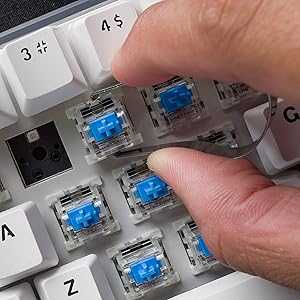
Image: A visual comparison showing the keyboard operating in wireless (Bluetooth/2.4GHz) mode and wired mode, highlighting the flexibility of connection options.

Whakaahua: He tata view of the detachable USB Type-C cable connected to the keyboard, emphasizing its portability and ease of management.
Nga Tohutohu Whakahaere
Nga Mahi Taketake
- Hiko Whakaka/Weto: Use the switch located on the keyboard's side or bottom.
- Whakawhiti Aratau: Refer to the specific key combinations or physical switch for changing between Bluetooth, 2.4GHz, and wired modes.
- Pairing (Bluetooth): Activate Bluetooth mode, then search for 'MAXFIT61' on your device and pair.
- 2.4GHz Hononga: Insert the USB receiver into your computer. The keyboard should connect automatically.
Magic FN Key
The 'Fn' key provides access to various multimedia functions, lighting controls, and custom macros. Pressing Fn + CAPS allows quick access to multimedia keys, home key, and custom functions.

Image: A close-up of the 'Caps' and 'Shift' keys, indicating the functionality of the 'Magic FN Key' for accessing additional commands.
Whakaritea Rarama RGB
The keyboard features 15 built-in brilliant backlight effects. You can cycle through these effects using specific Fn key combinations. For advanced customization, including per-key RGB lighting, macros, and function key remapping, download and install the FANTECH MAXFIT61 software from the official FANTECH webpae.

Image: A screenshot of the FANTECH MAXFIT61 software, demonstrating the interface for adjusting RGB lighting modes and creating custom key assignments.
Te tiaki
Te horoi
To clean your keyboard, disconnect it from your computer. Use a soft, dry cloth to wipe the surface. For deeper cleaning, you may carefully remove keycaps using the provided keycap puller and use compressed air to clear debris from underneath.
Whakawhiti Hot-Swappable
The MAXFIT61 features hot-swappable sockets, allowing you to change switches without soldering. It supports most 5-pin/3-pin mechanical switches from brands like Gateron, Cherry, and Kailh.
- Tango Kuputuhi: Whakamahia te kaikawe potae ki te hiki marie i nga potae ki runga.
- Tango Whakawhiti: Use the switch puller to grip the top and bottom clips of the switch and pull it straight out.
- Tāuta Whakawhiti: Align the pins of the new switch with the holes on the PCB. Press firmly until the switch clicks into place. Ensure pins are not bent.
- E Tāuta ana i ngā pūmatua: Align the keycap with the switch stem and press down gently.
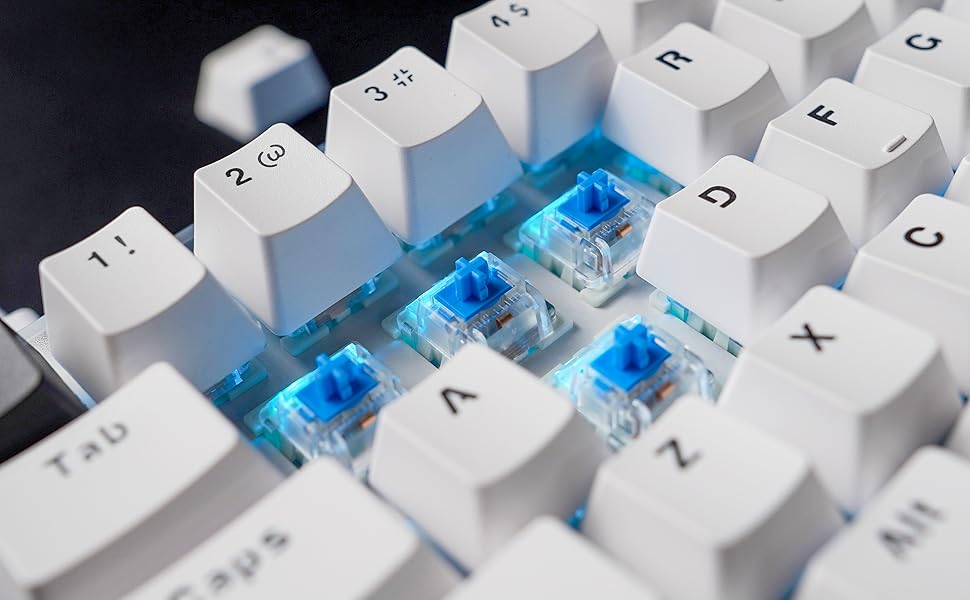
Image: A close-up showing mechanical switches being removed from the keyboard's PCB using a switch puller, demonstrating the hot-swappable feature.

Image: An exploded diagram illustrating the internal components of the keyboard, including keycaps, plate, switches, sound-proofing foam, PCB, and bottom case.
Raparongoā
- Papapātuhi Kaore i te whakautu:
- Me whakarite kua utua te papapātuhi, kua honoa rānei mā te USB-C.
- Check the connection mode (Bluetooth, 2.4GHz, Wired) and ensure it matches your device.
- For 2.4GHz, ensure the USB receiver is properly inserted.
- For Bluetooth, ensure it's paired correctly and your device's Bluetooth is enabled.
- Rarama RGB Kaore i te Mahi/Heke:
- Me mohio kei te kaha te papapātuhi.
- Cycle through built-in effects using Fn key combinations.
- If using custom settings, verify them in the FANTECH software.
- Kī Kāore i te Rēhita:
- If a specific key is not working, carefully remove the keycap and switch to check for debris or bent pins. Reinstall or replace the switch if necessary.
- Ensure the keyboard firmware is up to date (check FANTECH webpae).
- Connectivity Issues (Lag/Disconnections):
- Whakaitihia te tawhiti i waenga i te papapātuhi me te kaiwhiwhi / taputapu.
- A ape i te pokanoa mai i etahi atu taputapu ahokore.
- Me whakarite kua whakakiia te papapātuhi.
- Try a wired connection to rule out wireless issues.
Whakatakotoranga
| Āhuahira | Taipitopito |
|---|---|
| Ingoa Hua | MAXFIT61 FROST WIRELESS MK857 |
| Te maha o nga Kī | 61 taviri |
| Momo Whakawhiti | Mechanical (Hot-swappable) |
| Hangarau Hononga | BT5.0, 2.4GHz Wireless, USB Type-C Wired |
| Anti-Ghosting | Kī katoa |
| Papapātuhi Whakamurirama | RGB |
| Ahu (L x W x H) | 294mm x 103mm x 42mm (13.5 x 5.63 x 1.85 inihi) |
| Taumaha | 566g (1.37 pauna) |
| Pūhiko | 1 pākahiko Lithium Polymer (kei roto) |
| Pūrere Hototahi | PC (Matapihi) |

Image: A table outlining the characteristics of Outemu Red and Blue switches, including actuation force, pre-travel, travel distance, behavior, and sound level.
Pūtāhui me te Tautoko
FANTECH products come with a limited warranty. For detailed warranty information, technical support, or service inquiries, please visit the official FANTECH webpaetukutuku, whakapā atu ranei ki ta raatau tautoko kaihoko. Puritia to tohu hoko mo nga kereme whakamana.


