1. Kupu Whakataki
The AeroCool Blade is an ATX semi-tower PC case designed for optimal airflow and aesthetic appeal. It features an RGB front panel with preset lighting modes, a full tempered glass side window, and ample space for component installation. This manual provides essential information for the proper setup, operation, and maintenance of your PC case.
Mōhiohio Haumaru: Always disconnect power from your system before performing any installation or maintenance. Handle components with care to avoid damage. Refer to individual component manuals for specific installation instructions.
2. Ihirangi mokete
- AeroCool Blade ATX Semi-Tower PC Case
- 1 x 120mm RGB Rear Fan (pre-installed)
- 3 x 120mm Front Fans (pre-installed)
- Kete Taputapu (ngā tīwiri, ngā tūnga, ngā here taura)
3. Tatūnga me te Tāuta
3.1 Te Whakarite i te Take
Carefully remove the case from its packaging. Place it on a stable, flat surface. Remove the tempered glass side panel by unscrewing the thumb screws at the rear of the case and gently pulling the panel away.

Whakaahua 3.1: Roto view of the AeroCool Blade PC case, illustrating the layout for component installation.
3.2 Whakaaturanga Papa Pouaka
- Install the necessary motherboard standoffs into the motherboard tray according to your motherboard's form factor (ATX, Micro-ATX, Mini-ITX).
- Tāutahia te whakangungu I/O ki roto i te pūaha o muri o te pouaka.
- Āta whakanohoia tō papahoahoa ki runga i ngā tūāpapa, me te whakarite i ngā kōhao tīwiri.
- Whakaorangia te papahoahoa me nga wiri kua whakaratohia.
3.3 Whakaaturanga Whakaaturanga Hiko (PSU) Whakauru
The AeroCool Blade supports bottom-mounted PSUs. Slide your PSU into the dedicated compartment at the bottom rear of the case. Secure it with screws from the rear of the case.
3.4 Te Whakanoho Puku Rokiroki
- Ngā HDD 3.5": Install 3.5" hard drives into the drive cage located beneath the PSU shroud.
- Ngā SSD/HDD 2.5": Install 2.5" drives onto the dedicated mounting points on the motherboard tray or behind it.

Pikitia 3.2: Ā-roto o muri view, highlighting cable management routes and 2.5-inch drive mounting locations.
3.5 Expansion Card (GPU) Installation
Remove the necessary expansion slot covers from the rear of the case. Insert your graphics card or other expansion cards into the PCIe slots on your motherboard and secure them with screws.
3.6 Tāutanga o te Pā me te Whakamatao
The case comes with one 120mm RGB fan pre-installed at the rear and three 120mm fans pre-installed at the front. Ensure all fan cables are connected to appropriate headers on your motherboard or fan controller.

Figure 3.3: A 120mm RGB fan, similar to those pre-installed in the AeroCool Blade case.
3.7 Front Panel I/O Connections
Connect the front panel cables (USB 3.0, USB 2.0, HD Audio, Power Switch, Reset Switch, LED Switch, Power LED, HDD LED) to the corresponding headers on your motherboard. Refer to your motherboard manual for exact pin configurations.
4. Nga Tohutohu Whakahaere
4.1 Te Whakakaha
Once all components are installed and connected, replace the side panel. Connect your monitor, keyboard, mouse, and power cable to the PSU. Press the Power button located on the top panel of the case to turn on your system.

Whakaahua 4.1: Runga-mua view of the case, indicating the location of the power button and front I/O ports.
4.2 Mana Rarama RGB
The AeroCool Blade features an RGB front panel. Use the dedicated LED button on the top panel to cycle through various preset lighting modes and effects. Pressing the button will change the lighting pattern or color.

Whakaahua 4.2: Mua view of the AeroCool Blade case with its distinctive RGB lighting.
4.3 Tauranga Paewhiri Mua
The top panel provides convenient access to:
- 1 x USB 3.0 tauranga
- 2 x USB 2.0 tauranga
- HD Audio output
- Whakauru hopuoro
Connect your USB devices, headphones, and microphone to these ports as needed.
5. Tiaki
5.1 Puehu Tātari Whakapai
Regularly check and clean the dust filters to maintain optimal airflow and prevent dust buildup inside the case. Dust filters are typically located at the top, front, and bottom (under the PSU). Gently remove them and clean with compressed air or rinse with water (ensure they are completely dry before re-installation).
5.2 Te horoi o waho
Horoia ngā mata o waho o te pouaka ki te wai ngohengohe,amp kakahu. Āta karohia te whakamahi i ngā matū kaha, i ngā mea whakakoi rānei ka kino pea te whakaotinga, te karāhe kua whakapakeketia rānei.
6. Te Raru
- Kāore te Pūnaha e Whakakā:
Ensure the PSU is switched on and properly connected to the wall outlet. Verify all power cables from the PSU are correctly connected to the motherboard and components. Check the front panel power switch connection to the motherboard. - Rarama RGB Kaore e Mahi:
Ensure the RGB controller (if applicable) and fan RGB cables are securely connected. Press the LED button on the top panel to cycle through modes. If connected to a motherboard header, check motherboard software settings. - Ngā Pā Kāore e Hurihuri:
Verify that all fan power cables are securely connected to the motherboard fan headers or a fan controller. Check BIOS/UEFI settings for fan speed control. - Kāore te USB/Ororongo o te Papa o Mua e Mahi Ana:
Ensure the USB and HD Audio cables from the front panel are correctly connected to the corresponding headers on your motherboard.
7. Whakatakotoranga
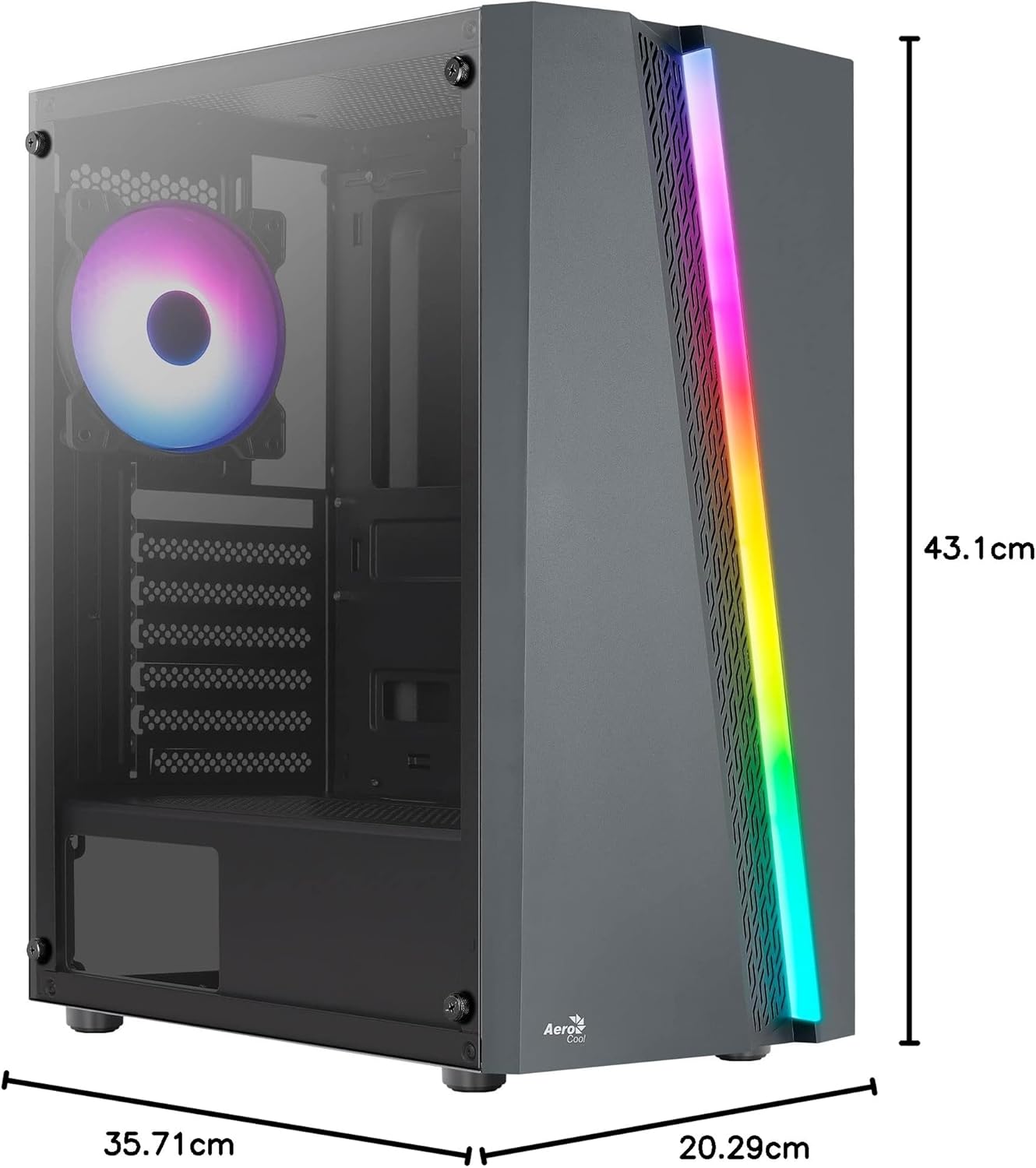
Figure 7.1: Dimensions of the AeroCool Blade PC Case.
| Āhuahira | Whakatakotoranga |
|---|---|
| Waitohu | AeroCool |
| Ingoa Tauira | BLADEBK |
| Momo Take | Semi-Tower |
| Papamatua Hototahi | ATX, Micro ATX, Mini ITX |
| Rauemi | Tempered Glass (Side Panel) |
| Rahi Hua (L x W x H) | 43.1 x 20.3 x 35.7 cm |
| Taumaha Tūemi | 4 kg |
| Peia Bays | 2 x 3.5", 2 x 2.5" |
| Whakakore GPU | Tae atu ki te 307mm |
| Teitei whakamatao CPU | Tae atu ki te 155mm |
| Tuhinga o mua | 1 x USB 3.0, 2 x USB 2.0, HD Audio, Mic, LED Control, Power |
| Paanui kua whakauruhia i mua | 1 x 120mm RGB Rear, 3 x 120mm Front |
| Tikanga whakamatao | Te hau |
8. Pūtāhui me te Tautoko
Mō ngā mōhiohio pūtāhui me te tautoko hangarau, tirohia te paetukutuku mana o AeroCool webpaetukutuku, whakapā atu ranei ki to kaihokohoko o to rohe. Puritia to tohu hoko mo nga kereme whakamana.
Mōhiohio Whakapā: Mo etahi atu awhina, tirohia www.aerocool.io.


