1. Kupu Whakataki me Nekeview
This manual provides essential information for the setup, operation, and maintenance of your Apple Watch SE (2nd Gen) GPS 40mm. The device offers functionalities for fitness monitoring, connectivity, health tracking, and safety. It features up to 20 percent faster performance, Crash Detection, and enhanced workout metrics.
The device offers customization options including various sizes, colors, interchangeable bands, and customizable watch faces with complications. Health and safety features include Crash Detection, Fall Detection, and Emergency SOS. The watch also provides health insights such as notifications for irregular heart rhythms or unusually high or low heart rates.
The Apple Watch SE integrates with Apple devices and services. Functions include automatic Mac unlocking, device location, and Apple Pay. An iPhone 8 or later with the latest iOS version is required for operation. The watch is water resistant to 50 meters. It is available in three finishes and features a redesigned, color-matched back case. Access to a wide range of applications is available through the App Store directly on the watch.
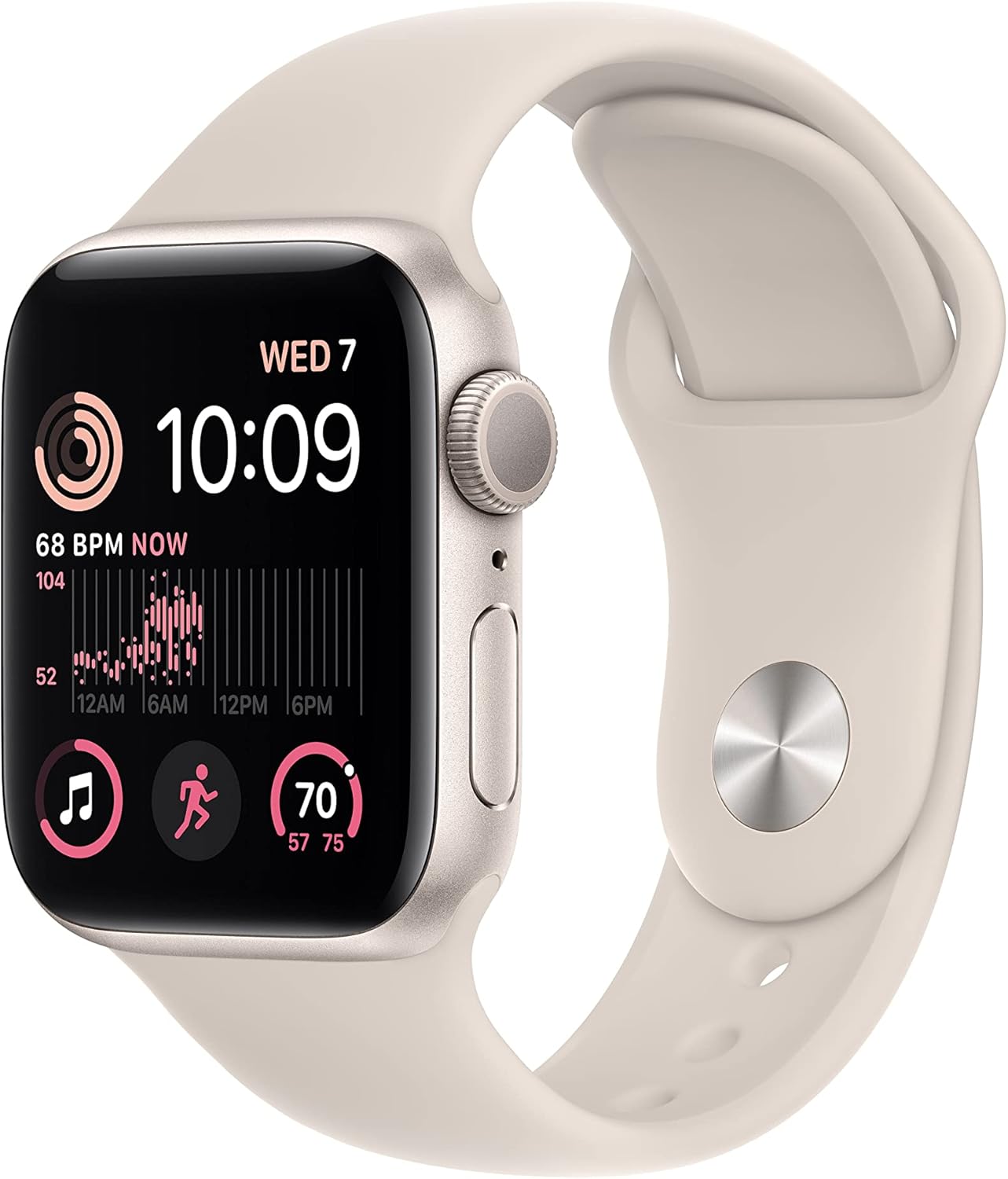
This image shows the Apple Watch SE (2nd Gen) in Starlight, highlighting its sleek design and the vibrant Retina display. The watch face displays the current time, activity rings, and heart rate data.
2. He aha kei roto i te Pouaka
Ina wetewetehia to Apple Watch SE, me kitea e koe nga waahanga e whai ake nei:
- Apple Watch SE Case
- Peehe hakinakina (S/M)
- 1m Utaure Ukume Whakatau

This composite image illustrates the contents typically found in the Apple Watch SE packaging, alongside icons representing key features like sleep stage tracking, Crash Detection, Fall Detection, Emergency SOS, and the device's enhanced performance.
3. Tatūnga
To begin using your Apple Watch SE, follow these initial setup steps:
- Utuhia to Apple Watch: Connect the magnetic charging cable to the back of your Apple Watch and plug the USB-C end into a compatible power adapter (not included).
- Whakahiko: Patohia me te pupuri i te paatene taha kia kite ra ano koe i te tohu Apple.
- Tauhoa ki te iPhone: Open the Apple Watch app on your iPhone. Hold your iPhone over the Apple Watch when prompted to begin the pairing process. Follow the on-screen instructions on both devices. An iPhone 8 or later with the latest iOS version is required.
- Whakaritea nga Tautuhinga: During setup, you can choose your preferred settings for features like activity tracking, notifications, and Apple Pay.

He taipitopito view of the Apple Watch SE's Retina display, illustrating the clarity of the screen and the information presented, including time, activity progress, and heart rate monitoring.
4. Operating the Apple Watch SE
4.1 Controls and Navigation
The Apple Watch SE is operated using the Digital Crown, Side Button, and the touchscreen display.
- Karauna Mamati: Rotate to scroll, zoom, or adjust values. Press once to go to the watch face or open the App View. Double-press to switch between recently used apps. Press and hold to activate Siri.
- Pātene taha: Press once to open the Dock (recently used apps). Double-press to use Apple Pay. Press and hold to access Emergency SOS, Medical ID, and power options.
- Mata pa: Tap to select, swipe to navigate between screens, and force touch (press firmly) for additional options in some apps.

Ko tenei whakaahua e whakaatu ana i te taha tahafile of the Apple Watch SE, emphasizing the Digital Crown and Side Button, which are primary controls for navigating the watch interface and accessing features.
4.2 Aroturuki tinana
The enhanced Workout app provides advanced metrics for tracking workout performance. The watch tracks daily activity, including movement, exercise, and standing hours, displayed as Activity Rings. It features a built-in GPS for accurate outdoor workout tracking and a heart rate monitor for real-time heart rate data.

The Apple Watch SE screen shows real-time workout data, such as elapsed time, active calories burned, and lap count, demonstrating its capability as a fitness tracking device.
4.3 Te Hauora me te Haumaru
The Apple Watch SE includes several features designed to enhance user safety and health monitoring:
- Rapunga Tutuki: Automatically detects severe car crashes and can connect you with emergency services.
- Te Rapu Taonga: Ka kitea te hinga kaha ka taea te waea ohorere ki te kore koe e aro.
- SOS ohorere: Allows you to quickly call emergency services by pressing and holding the side button.
- Te Arotake i te Ngakau: Provides notifications for irregular heart rhythms or unusually high or low heart rates.
- Aroturuki Moe: Ka aroturuki i tō moetages and duration to help you understand and improve your sleep patterns.
4.4 Hononga
Connectivity features include sending texts, making calls, listening to music and podcasts, using Siri, and Emergency SOS. The Apple Watch SE (GPS) connects via an iPhone or Wi-Fi to keep you connected.
4.5 Atete Wai
The Apple Watch SE is water resistant to 50 meters. This means it can be used for shallow-water activities like swimming in a pool or ocean. It should not be used for scuba diving, waterskiing, or other activities involving high-velocity water or submersion below shallow depths.

An image of the Apple Watch SE with water droplets on and around it, visually representing its water resistance feature, suitable for swimming and other water-based activities.
5. Tiaki
5.1 Te horoi i tō Apple Watch
To maintain the performance and appearance of your Apple Watch SE:
- Wipe the watch and band with a non-abrasive, lint-free cloth.
- Ki te tika, kia ngawari dampen te kakahu ki te wai hou.
- Do not use soaps, cleaning products, abrasive materials, compressed air, ultrasonic cleaning, or external heat sources.
- Ensure the watch is dry before charging or using.
5.2 Te utu
Use the included 1m Magnetic Charging Cable. Ensure the charging cable is clean and free of debris. Charge your Apple Watch regularly to ensure continuous operation of its features.
6. Te Raru
If you encounter issues with your Apple Watch SE, consider the following general troubleshooting steps:
- Tīmataria anō tō Matakite: Press and hold the side button until the power off slider appears, then drag the slider. After the watch turns off, press and hold the side button again until the Apple logo appears.
- Check iPhone Connection: Ensure your iPhone is nearby and Bluetooth is enabled. Verify that the Apple Watch app on your iPhone is functioning correctly.
- Whakahōu Pūmanawa: Me mohio kei te whakahaere to Apple Watch me to iPhone i nga putanga rorohiko hou. He maha nga wa kei roto i nga whakahoutanga nga whakatika iro me nga whakapainga mahi.
- Tautuhi Tautuhinga: Mena kei te haere tonu nga take, me tautuhi ano i o tautuhinga Apple Watch ma te Apple Watch taupānga i runga i to iPhone.
7. Whakatakotoranga
| Āhuahira | Taipitopito |
|---|---|
| Hunga Hua | 11.65 x 2.99 x 1.35 inihi |
| Taumaha Tūemi | 11.5 hekere |
| Kaihanga | Aporo |
| Tauira Tuemi | MNT33LL/A |
| Pūhiko | 1 te pākahiko Lithium Ion e hiahiatia ana (kei roto) |
| Pūnaha Mahi | WatchOS |
| Te Rokiroki Mahara | 32 GB |
| Nga waahanga motuhake | Activity Tracker, Heart Rate Monitor, Sleep Monitor, GPS, Fall Detection, SOS Button, Phone Call, Notification, Elevation Tracker, Cycle Tracking, Accelerometer |
| Hangarau Hononga | USB, Wi-Fi |
| Paerewa Whakawhitinga Korerokore | 802.11n |
| Hanganga Pūtau Pūhiko | Lithium Ion |
| GPS | GPS kua whakaurua |
| Hanga | Tapawhā |
| Rahi Mata | 40 Mirimita |
8. Pūtāhui me te Tautoko
Each Apple Watch includes one year of hardware repair coverage under its limited warranty and up to 90 days of complimentary technical support. AppleCare+ is available for extended coverage, which can reduce the stress and cost of unexpected repairs.
For detailed warranty information, technical support, or to purchase AppleCare+, please visit the official Apple Support webpae: support.apple.com/watch


