1. Kupu Whakataki
This manual provides essential information for the proper setup, operation, and maintenance of your Sharp 32FG6EA 32-inch HD Android TV. The Sharp 32FG6EA offers a wide range of connection options and features the Android TV operating system, providing a modern and intuitive television experience. It functions as an all-in-one entertainment hub, integrating Google Assistant for a smarter viewing experience. Users can quickly access entertainment, control smart devices, and obtain on-screen information using voice commands.
2. Nga korero haumaru
Please read all safety instructions carefully before using the television. Keep this manual for future reference.
- Tuku Hiko: Me mohio kei te hono te pouaka whakaata ki tetahi puna hiko me te voli tikatage. Kaua e utaina nga putanga hiko.
- Whakahau: Kaua e ārai i ngā pūaha hau. Me waiho he wāhi tika mō te pouaka whakaata kia pai ai te rere o te hau hei ārai i te wera nui.
- Te wai me te makuku: Do not expose the TV to rain, moisture, or excessive humidity. Avoid placing objects filled with liquids on or near the TV.
- Te horoi: Wewetehia te pouaka whakaata i mua i te horoi. Whakamahia he kakahu ngohengohe, maroke. Kaua e whakamahi i nga kai horoi wai, i nga rehu aerosol ranei.
- Turanga: Place the TV on a stable, level surface. If wall-mounting, ensure the mount is securely installed and can support the TV's weight.
- Ratonga: Kaua e ngana ki te mahi i te pouaka whakaata i a koe ano. Tukuna nga ratonga katoa ki nga kaimahi ratonga whai tohu.
3. Ihirangi mokete
Manatokona kei roto katoa nga taonga kei roto i te kete:
- Sharp 32FG6EA 32-inch HD Android TV
- Mana Mamao (e rua nga pākahiko AAA)
- Stand Type Base
- Pukapuka Tohutohu
- Waea Hiko
4. Tatūnga
4.1 Te Wetewete
Carefully remove the TV and all accessories from the packaging. Retain the packaging materials for future transport or servicing.
4.2 Te Whakapiri i te Tu
If you are not wall-mounting the TV, attach the included stand base:
- Tuhia te mata-whakararo pouaka whakaata ki runga i te mata ngawari, papatahi kia kore ai e pakaru.
- Tiarohia te turanga tu me nga kohao whakapuru kei raro o te pouaka whakaata.
- Whakapaia te turanga ma te whakamahi i nga wiri kua whakaratohia. Me whakarite kia mau te turanga.
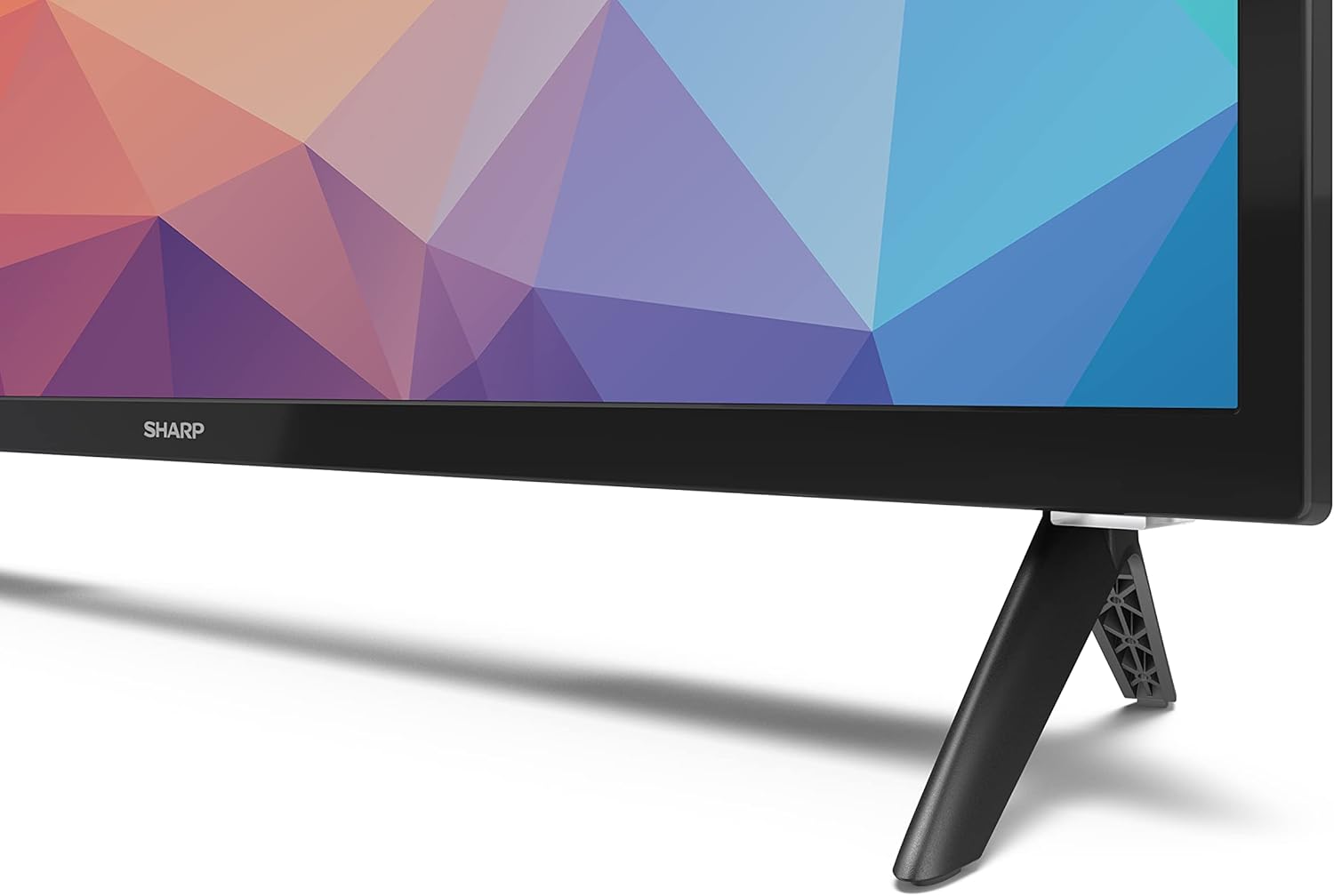
Image: Close-up of the TV stand attachment.
4.3 Whakapuru Taiepa
The Sharp 32FG6EA supports VESA wall mounts with dimensions of 75 x 75 mm. Wall mount hardware is not included. Follow the instructions provided with your wall mount kit.
4.4 Te hono i nga taputapu o waho
He maha ngā tauranga o tō pouaka whakaata hei hono i ngā momo taputapu:
- HDMI: Connect Blu-ray players, game consoles, or set-top boxes to the 2 HDMI ports.
- USB: Connect USB storage devices for media playback to the 2 USB ports.
- Antenna/Cable: Honoa he antenna, he puna TV taura ranei mo nga hongere haapurororaa.
- Itarangi: Mo te hononga ipurangi waea.
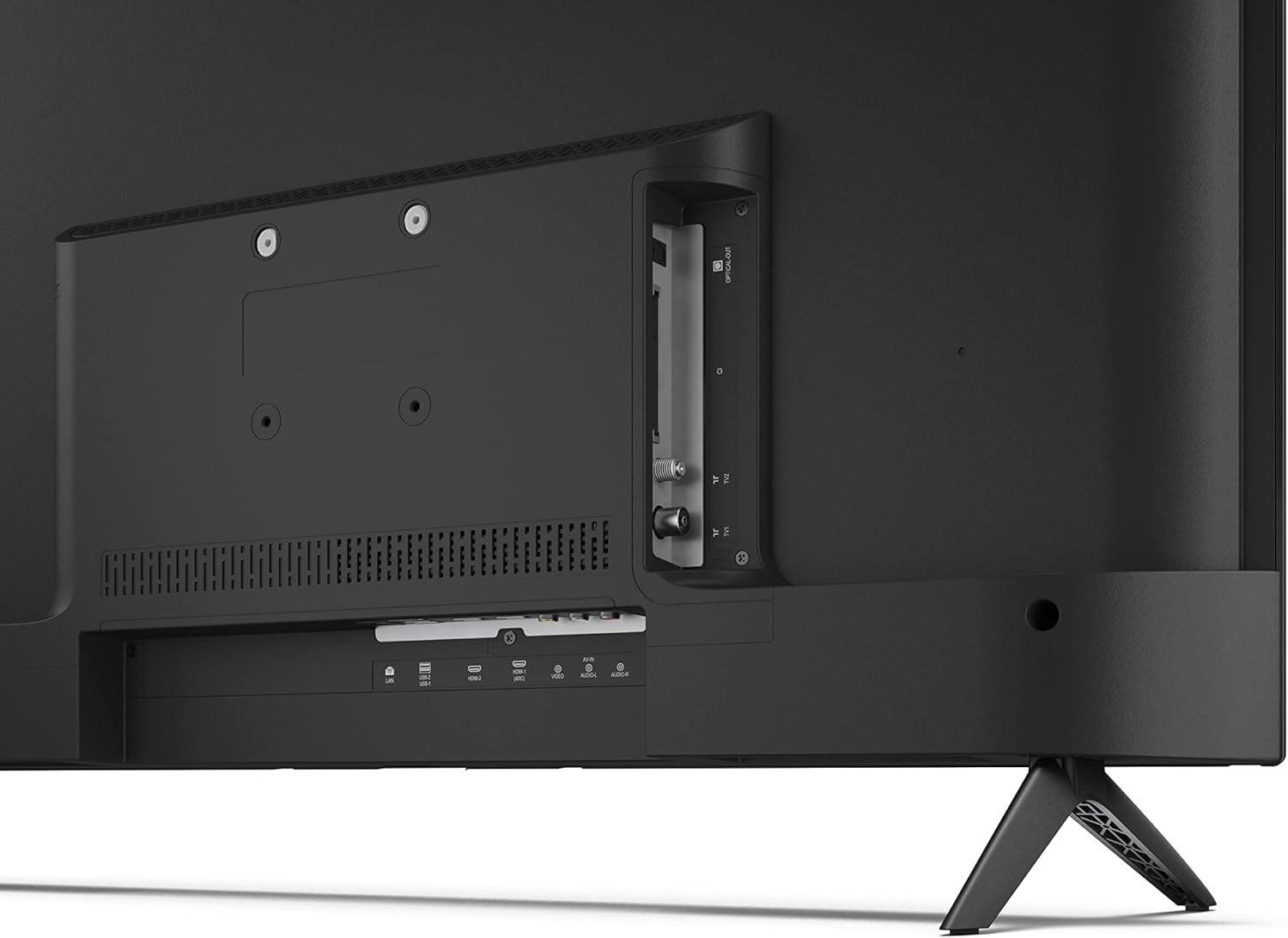
Whakaahua: Rear view of the TV with connection ports.
4.5 Hononga Hiko
After connecting all necessary devices, plug the power cable into the TV and then into a wall outlet.
4.6 Ruānuku Tatūnga Tuatahi
I runga i te hiko tuatahi, ma te pouaka whakaata koe e arahi i roto i te tukanga tatūnga tuatahi. Kei roto i tenei ko:
- He kowhiringa reo.
- Hononga whatunga (Wi-Fi, Ethernet ranei).
- Google account sign-in (required for full Android TV features).
- Matawai hongere.
5. Mahi
5.1 Mana Mamao Nekeview
The included remote control allows you to navigate the TV's features. Insert the 2 AAA batteries into the remote control before use.
- Pātene Hiko: Ka whakakā, whakaweto rānei i te pouaka whakaata.
- Directional Pad (D-Pad) & OK Button: Whakaterehia nga tahua me te whakaū i nga whiringa.
- Pātene Whakamuri: Ka hoki ki te mata o mua.
- Pātene Kāinga: Ka uru atu ki te mata kaainga Android TV.
- Rōrahi Whakarunga/Whakararo: Whakaritea te ororongo.
- Hongere Whakarunga/Whakararo: Hurihia nga hongere pouaka whakaata.
- Patene Kaiawhina a Google: Ka whakahohe i te mana reo.
- Patene Pokatata Taupānga: Dedicated buttons for popular streaming services like Netflix, Prime Video, and YouTube.
5.2 Android TV Interface Navigation
The Android TV home screen provides access to your installed apps, recommended content, and settings. Use the directional pad on your remote to navigate through the interface.
5.3 Kaiawhina a Google
Press the Google Assistant button on your remote and speak into the microphone to:
- Rapua movies, shows, or information.
- Control smart home devices.
- Tuwhera nga tono.
- Whakatikatikahia ngā tautuhinga pouaka whakaata.
5.4 Chromecast Hanga-i roto
The TV includes Chromecast built-in, allowing you to cast content from compatible apps on your smartphone, tablet, or computer directly to the TV screen.
5.5 Hononga Nihokikorangi
Connect Bluetooth devices such as headphones or speakers to your TV for a personalized audio experience. Navigate to the TV's settings menu to pair new Bluetooth devices.
5.6 Tautuhinga Ororongo
The TV supports Dolby Audio with 2 x 6 W RMS speakers. You can adjust audio settings, including sound modes and equalizer, through the TV's settings menu.
6. Tiaki
6.1 Te horoi i te pouaka whakaata
To clean the TV screen and cabinet:
- Wewetehia te taura hiko mai i te putanga o te pakitara.
- Use a soft, lint-free cloth to gently wipe the screen and surfaces.
- Mo nga tohu pakeke, paku dampen te kakahu ki te wai, ki te horoi mata motuhake ranei (whakaahua ki te kakahu, kaua ki te mata).
- Kaua e whakamahia nga kai horoi, te wax, te whakarewa ranei.
6.2 Whakahōu Pūmanawa
Ka whiwhi pea to pouaka whakaata Android i nga whakahoutanga raupaparorohiko hei whakapai ake i te mahinga me te taapiri i nga ahuatanga hou. Me mohio kei te hono to pouaka whakaata ki te ipurangi kia whiwhi ai koe i enei whakahou. Ka taea e koe te tirotiro mo nga whakahōutanga ā-ringa i te tahua tautuhinga o te TV.
7. Te Raru
Mena ka raru koe ki to pouaka whakaata, tirohia nga raru me nga otinga e whai ake nei:
- Kore Mana: Kia mau te hono o te taura hiko ki roto i te pouaka whakaata me te putanga pakitara mahi. Whakamātauria he putanga kē.
- Kore Pikitia/Oro: Check that the correct input source is selected. Verify all cables (HDMI, antenna) are properly connected.
- Mana Mamao Kaore i te Mahi: Check the batteries and ensure they are inserted correctly. Point the remote directly at the TV's IR sensor.
- Kounga Pikitia Kino: Check antenna/cable connections. Adjust picture settings in the TV menu. For streaming content, ensure a stable internet connection.
- Kaore he Hononga Ipurangi: Verify Wi-Fi password or Ethernet cable connection. Restart your router and the TV.
- Apps Not Working: Ensure the TV's software is up to date. Try clearing the app's cache or reinstalling the app.
If problems persist, consult the Sharp support webpae, whakapā atu ranei ki te ratonga kiritaki.
8. Whakatakotoranga
| Āhuahira | Whakatakotoranga |
|---|---|
| Tau tauira | 32FG6EA |
| Waitohu | koi |
| Rahi Mata | 32 Inihi (81 cm hauroki) |
| Hangarau Whakaatu | LED |
| Whakatau | 720p (1366 x 768 pika) |
| Aspect Ratio | 16:9 |
| Rere tāmata | 50 Hz |
| Pūnaha Mahi | TV Android 11 |
| Nga waahanga motuhake | Android TV, Google Assistant, Chromecast built-in |
| Putanga Ororongo | 2 x 6 W RMS, Dolby Audio |
| Tauranga HDMI | 2 |
| Tauranga USB | 2 |
| Hononga | Wi-Fi, Nihokikorangi, Itarangi |
| VESA Maunga Taiepa | 75 x 75 mm |
| Ahu me te Tu (W x H x D) | 731 x 486 x 177 mm |
| Ahu kore Tu (W x H x D) | 731 x 433 x 68 mm |
| Rahi Hua (D x W x H) | 16 x 73 x 46.4 cm (approximate, with stand) |
| Taumaha | 3.9 kg |
| Karaehe Pungao Pungao | E |

Image: TV dimensions diagram.

Image: Energy Label. For more details, visit EPREL Database.
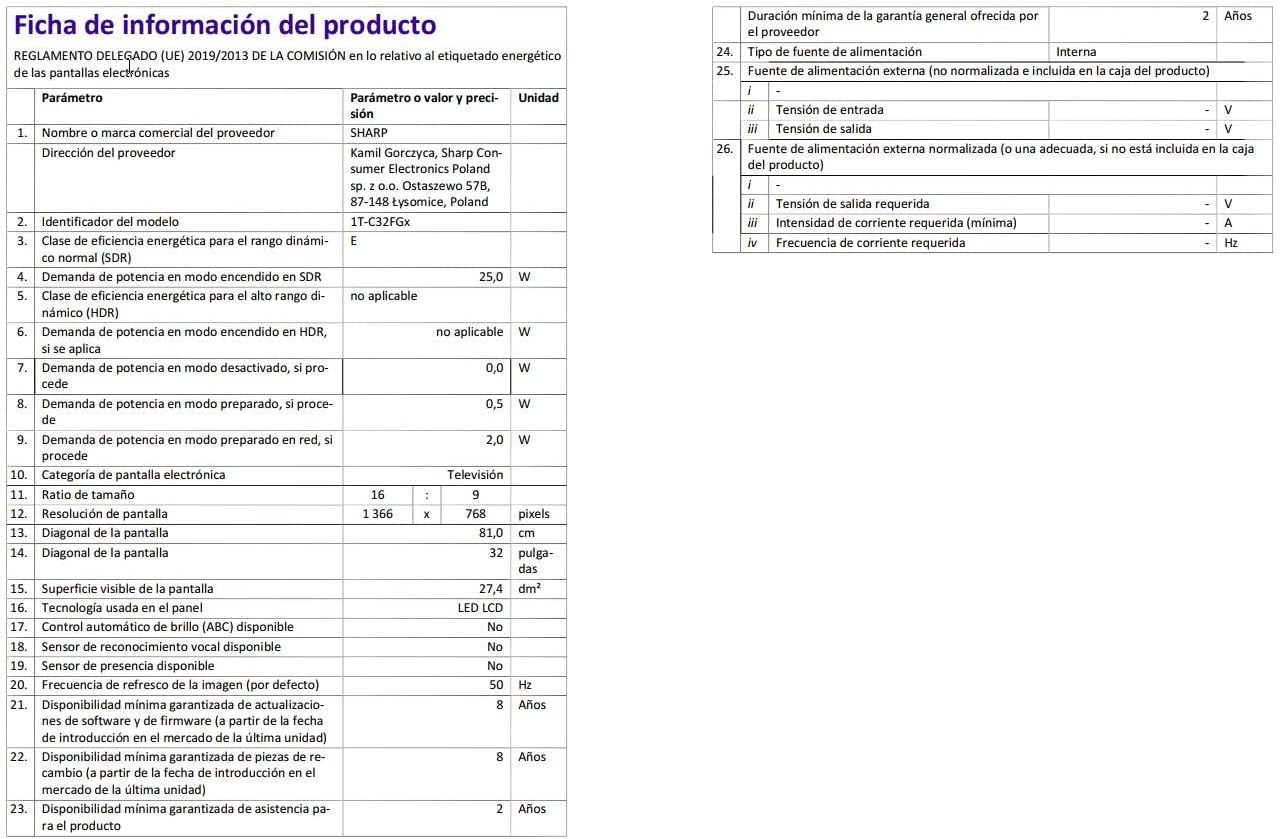
Image: Detailed product information sheet.
9. Pūtāhui me te Tautoko
The Sharp 32FG6EA television comes with a minimum general warranty duration of 2 years from the provider.
For technical support, warranty claims, or further assistance, please refer to the contact information provided with your purchase documentation or visit the official Sharp support webpae mo to rohe.


