1. Kupu Whakataki
The Weiser SmartCode Keyless Entry Door Lock provides a secure and convenient way to manage access to your home. This electronic deadbolt features a backlit keypad for easy code entry, a motorized locking mechanism, and the ability to store multiple user codes. With SmartKey re-key technology, you can easily re-key your lock without replacing the entire unit. This manual will guide you through the installation, setup, operation, and maintenance of your new SmartCode lock.
2. Nga korero haumaru
Please read all instructions completely before installing and operating the lock. Failure to follow these instructions could result in damage to the product, property damage, or personal injury.
- Do not use abrasive cleaners or chemicals on the lock.
- Me whakarite kia mau nga waahanga katoa i mua i te whakamahi.
- Puritia nga pākahiko kei taea e nga tamariki.
- Whakakorehia nga pākahiko kia rite ki nga ture o te rohe.
3. He aha kei roto i te Pouaka
Manatokohia ko nga waahanga katoa e whai ake nei kei roto i to kete:
- Electronic Deadbolt (Interior/Exterior)
- hiri
- Pahi Wharahi
- Pereti Maunga
- kara
- Hardware (Screws)
- 2 Kī
- Utauta SmartKey
- Pukapuka Whakauru (tenei tuhinga)

Image: All components included in the Weiser SmartCode Keyless Entry Door Lock package.
4. Nga ahuatanga
The Weiser SmartCode Keyless Entry Door Lock offers a range of features designed for security and convenience:
- Modern Electronic Door Lock: Features a fast and quiet motorized deadbolt with one-touch motorized locking. ANSI Grade 2 certified for residential security.
- Keypad Operation: Gain entry by simply entering your personalized access code. The keypad is backlit for increased visibility at night and stays lit for 30 seconds after inactivity.
- Multiple User Access Codes: Supports up to 50 user codes and 1 master code option for flexible access management.
- Haumarutanga SmartKey: Re-key your lock in seconds with SmartKey technology. This allows you to maintain key control and protect against lost, stolen, or unauthorized keys without removing the lock from your door.
- Mahi Maukati-Aunoa: Automatically locks the deadbolt after a set period of inactivity, providing peace of mind.
- Ātete Huarere: I hoahoatia ki te tu ki nga ahuatanga huarere mo te whakamahi pono o waho.

Image: The Weiser SmartCode Keyless Entry Door Lock, showing both the exterior keypad and interior deadbolt unit.

Image: The keypad of the SmartCode lock, highlighting its capacity for multiple user access codes.
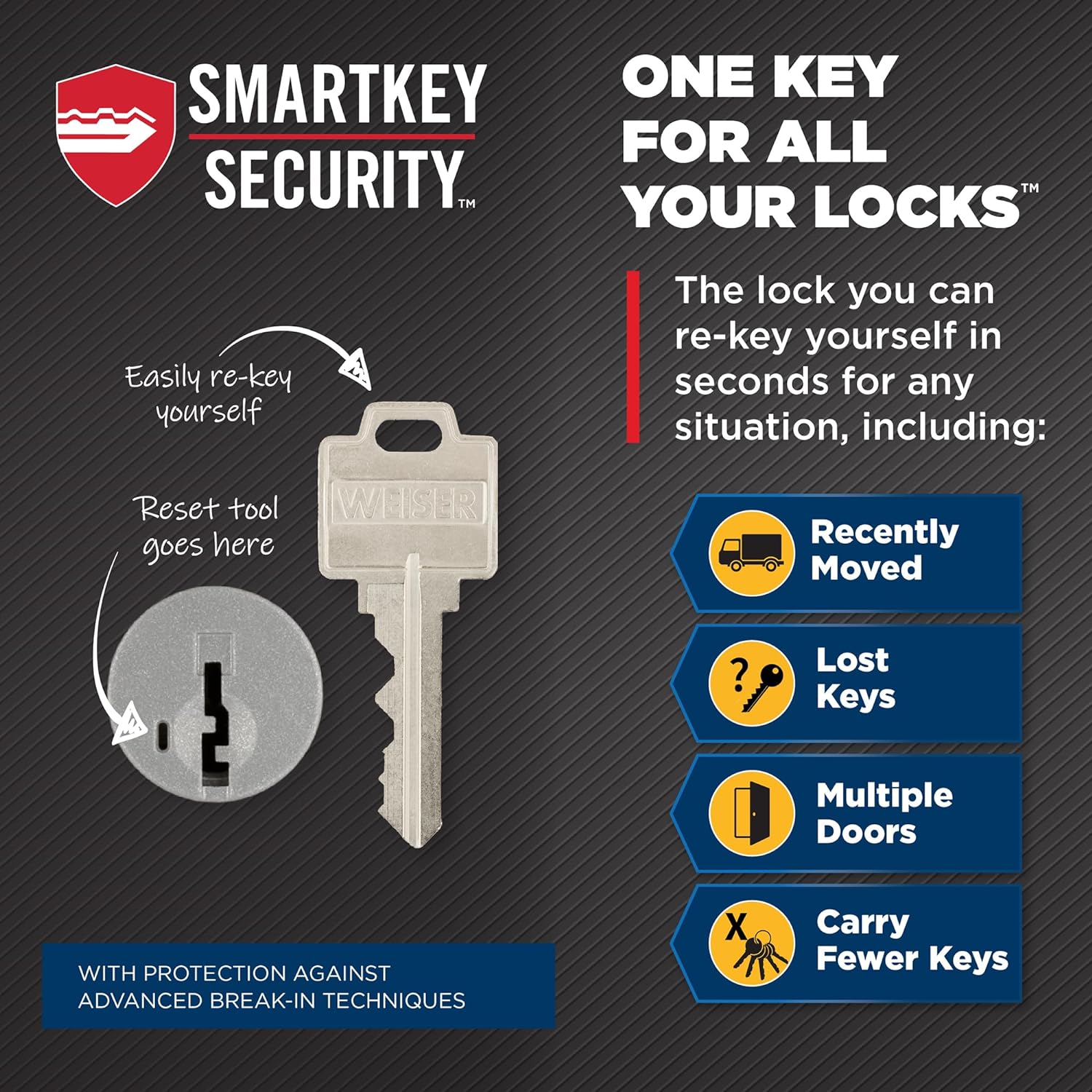
Image: Illustration of the SmartKey Security feature, demonstrating how to re-key the lock.

Image: The auto-lock feature in action, providing convenience and security.
5. Tāutanga
The Weiser SmartCode lock is designed for easy installation. It fits standard doors 1-3/8" to 1-3/4" thick with an adjustable backset (2-3/8" or 2-3/4").
5.1 Tirohanga i mua i te whakaurunga
- Verify your door's thickness and backset measurement.
- Ensure the door frame is properly aligned and the existing strike plate is suitable.
5.2 Nga Waahi Whakataunga
- Prepare the door: If replacing an existing lock, remove it. Ensure the bore hole and backset are correct.
- Install the latch: Insert the latch into the door edge, ensuring the correct backset is selected.
- Install the exterior keypad assembly: Feed the cable through the door and secure the keypad.
- Install the interior assembly: Connect the cable and secure the interior unit to the mounting plate.
- Install batteries: Insert 4 AA batteries (not included) into the battery pack.
- Perform door handing process: This calibrates the lock to your door. Follow the specific instructions in the included installation guide.
For detailed, step-by-step interactive 3D instructions with voice and video guidance, download the free BILT app on your smartphone or tablet.

Image: Dimensions of the SmartCode lock components and adjustable latch backset.
6. Tatūnga me te Papatonotanga
After installation, you will need to program your master code and user codes.
6.1 Programming the Master Code
The master code is used to add or delete user codes and to configure lock settings. It does not unlock the door.
- Whakatuwheratia te uhi pākahiko i runga i te waahanga o roto.
- Patohia te paatene Papatono kia kotahi.
- Tāuruhia he waehere matua hou, e 4-8 ngā mati.
- Press the Lock button.
6.2 Waehere Kaiwhakamahi Papatono
User codes are used to unlock the door. You can program up to 50 unique user codes.
- Enter your master code.
- Press the Lock button.
- Patohia te paatene Papatono kia kotahi.
- Tāuruhia he waehere kaiwhakamahi hou, he 4-8 mati te roa.
- Press the Lock button.
6.3 Te whakakore i nga Waehere Kaiwhakamahi
- Enter your master code.
- Press the Lock button.
- Press the Program button twice.
- Enter the user code you wish to delete.
- Press the Lock button.
6.4 Using SmartKey Re-key Technology
SmartKey allows you to re-key your lock to work with any other Weiser SmartKey key. This is useful if you move, lose a key, or want all your Weiser locks to use the same key.
- Insert your currently working key fully into the cylinder.
- Rotate the key 90 degrees clockwise to the horizontal position.
- Insert the SmartKey tool firmly and fully into the SmartKey hole.
- Remove the SmartKey tool.
- Remove the original key.
- Insert your new key fully into the cylinder.
- Rotate the new key 90 degrees counter-clockwise to the vertical position.
- Remove the new key. Your lock is now re-keyed.
Image: Detailed steps for using the SmartKey re-keying feature.
7. Whakahaere i te Maukati
7.1 Maukati i te Kuwaha
- Mai i waho: Press the Lock button once. The deadbolt will extend automatically.
- Mai i roto: Rotate the turn piece to the vertical position.
7.2 Te iriti i te Kuwaha
- Ma te Waehere Kaiwhakamahi: Enter your 4-8 digit user code on the keypad. The deadbolt will retract.
- Whakamahi Kī: Insert the key into the cylinder and turn it to unlock.
- Mai i roto: Rotate the turn piece to the horizontal position.
7.3 Āhuahira Maukati-Aunoa
The lock can be set to automatically re-lock after a short delay (typically 30 seconds) once it has been unlocked. Refer to your specific installation guide for instructions on enabling or disabling this feature.

Image: Demonstrating the keyless entry function of the SmartCode lock.

Image: The backlit keypad provides easy code entry even in low light conditions.
8. Tiaki
8.1 Whakakapinga Pūhiko
The lock operates on 4 AA batteries (not included). When the batteries are low, the lock will provide an audible and/or visual indicator. Replace all four batteries simultaneously with new, high-quality alkaline batteries.
8.2 Te horoi
Horoia te raka ki te wai ngohengohe,amp kakahu. Kaua e whakamahi i ngā kaihoroi whakakoi, ngā whakarewa, ngā matū kino rānei, nā te mea ka kino pea te whakaotinga me ngā wāhanga hiko.
9. Te Raru
If you encounter issues with your Weiser SmartCode lock, try the following steps:
- Maukati kaore e whakautu: Check battery levels and replace if necessary. Ensure batteries are inserted with correct polarity.
- Kāore te papapātuhi e mura ana: Verify battery power. The keypad backlight activates upon touch.
- Lock not locking/unlocking: Ensure the door is properly closed and aligned. Check for any obstructions in the door frame or deadbolt path. Re-perform the door handing process if the lock was recently installed or moved.
- Kāore ngā waehere e mahi ana: Double-check that the correct master code and user codes are being entered. Try reprogramming the codes.
- Motor sounds weak: This is an indication of low batteries. Replace them immediately.
If problems persist after attempting these solutions, please contact Weiser customer support.
10. Whakatakotoranga
| Āhuahira | Whakatakotoranga |
|---|---|
| Tau tauira | 9GED92600-005 |
| Hunga Hua | 6.99 x 2.86 x 13.97 cm |
| Taumaha Tūemi | 454 g |
| Tae | Satin Chrome |
| Kāhua | Nō nāianei |
| Whakaoti | Kua paraitia |
| Rauemi | Te whakarewa |
| Momo Maukati | Deadbolt, Electronic |
| Waehere Kaiwhakamahi | Tae atu ki te 50 |
| Waehere Matua | 1 |
| Kuaha Hototahi | 1-3/8" to 1-3/4" thick |
| Taporo | Adjustable (2-3/8" or 2-3/4") |
| Puna Mana | 4 Pahiko AA (kaore i uru) |
| Nga waahanga motuhake | Anti-Bump, Auto-Lock, Back-Lit Keypad, One-Touch Lock, Weather Resistant |
11. Pūtāhui me te Tautoko
11.1 Nga Korero Whakaputanga
The Weiser SmartCode Keyless Entry Door Lock comes with a 1-year warranty from the date of purchase. Please retain your proof of purchase for warranty claims. The warranty covers manufacturing defects and malfunctions under normal use. It does not cover damage caused by misuse, improper installation, or unauthorized modifications.
11.2 Tautoko Kiritaki
For further assistance, technical support, or warranty inquiries, please visit the official Weiser brand store or contact their customer service department.


