1. Neke atu i teview
The BEITONG Asura 2 PC Gaming Controller (Model BTP-2185T2) is a versatile wireless gamepad designed for an enhanced gaming experience across multiple platforms. It features 2.4GHz wireless connectivity, dual vibration motors, linear triggers, and a programmable Turbo function. This controller is compatible with PC (Windows 7/8/10/11), Steam, Android TV, and various emulators. It does not support Bluetooth, Xbox One, Xbox 360, iOS, PS4, or PS5 platforms.
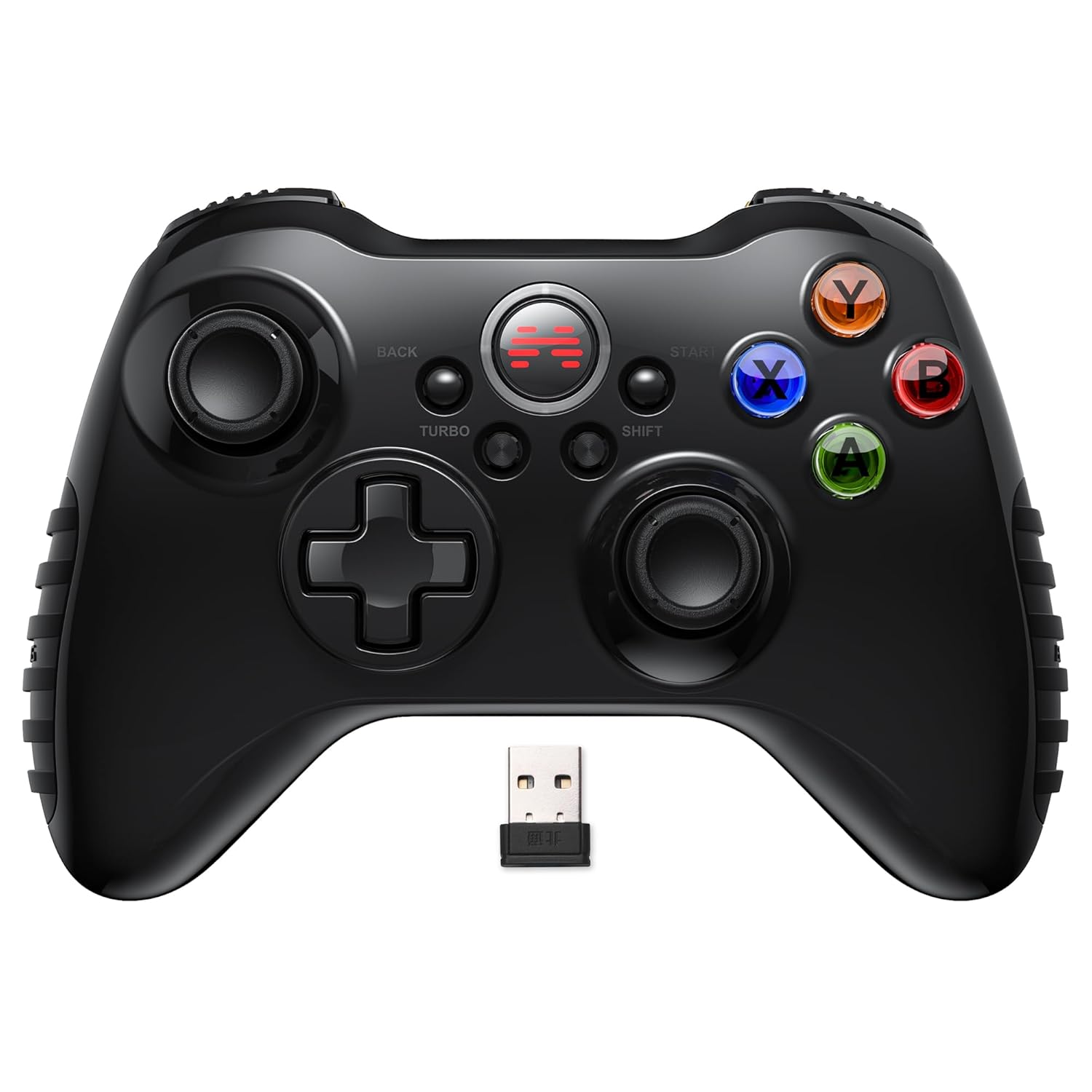
Whakaahua 1.1: Mua view of the BEITONG Asura 2 PC Gaming Controller, showcasing tona hoahoa ergonomic me te whakatakotoranga paatene.
2. Ihirangi mokete
Tena koa tirohia kei roto nga taonga katoa kei roto i te kete:
- BEITONG Asura 2 Game Controller
- Dongle Ahokore USB-A 2.4GHz
- USB-He Uera Whakatau
- Pukapuka Kaiwhakamahi (tenei tuhinga)
3. Nga Hua o te Hua

Image 3.1: Detailed diagram highlighting key features of the BEITONG Asura 2 controller, including the charging port, dongle storage, linear triggers, and vibration motors.
3.1. Hononga
- 2.4GHz Ahokore: Utilizes a dedicated USB-A dongle for stable, low-latency wireless connection.
- Aratau Waea: Can be connected via the USB-A cable for charging and wired gameplay.
3.2. Control Layout & Functionality
- D-Pad & Joysticks Function Switchable: The [SHIFT] button allows users to swap the functions of the D-Pad and the left joystick, catering to different game types and player preferences.
- Sensitive Joysticks: High-precision analog joysticks provide accurate and responsive control.
- Linear Triggers: The LT/RT buttons offer precise, pressure-sensitive input, ideal for racing and action games.
- Pātene Turbo: Enables rapid-fire functionality for assigned action buttons, simplifying complex combos.
3.3. Haptic Feedback & Power
- Dual Vibrating Motors: Asymmetrical and linear vibration motors provide immersive feedback, enhancing realism in gameplay.
- 600mAh Pūhiko: Integrated rechargeable battery supports extended wireless play.
3.4. Design & Ergonomics
- Ngā Pupuri Ārai-Paheke: Textured rubber grips ensure comfortable and secure handling during long gaming sessions.
- Gloss Ceramic Craft Shell: He pakari, he ātaahua hokiasing waho.
4. Aratohu Tatūnga
4.1. Whakataki Tuatahi
Before first use, it is recommended to fully charge the controller. Connect the supplied USB-A charging cable to the controller's charging port and the other end to a USB power source (e.g., PC USB port, USB wall adapter). The indicator light on the controller will show charging status and turn off or change color when fully charged.

Image 4.1: The controller connected to a device via its wired USB cable, illustrating both charging and wired gameplay.
4.2. Te Hononga Ahokore (Tangle 2.4GHz)
- Insert the 2.4GHz USB-A wireless dongle into an available USB port on your PC, Android TV, or Steam Deck.
- Power on the BEITONG Asura 2 controller. The controller will automatically attempt to connect to the dongle.
- Once connected, the indicator light on the controller will stabilize, indicating a successful connection.
- If the connection is not established, ensure the dongle is properly inserted and the controller is powered on. You may need to press the home button on the controller to initiate pairing.
4.3. Connecting via Wired Mode
To use the controller in wired mode, simply connect the USB-A charging cable from the controller to a USB port on your PC or compatible device. The controller will automatically switch to wired mode and be ready for use.
5. Nga Tohutohu Whakahaere
5.1. Te Hiko / Whakaweto
- Whakahiko: Press the central Home button to turn on the controller.
- Weto Whakakore: Press and hold the central Home button for approximately 5 seconds until the indicator lights turn off. The controller will also automatically power off after a period of inactivity to conserve battery.
5.2. D-Pad and Joystick Function Switching
The [SHIFT] button allows you to interchange the functions of the D-Pad and the left analog joystick. This is particularly useful for games that benefit from specific input methods, such as fighting games or sports simulations.
- During gameplay, press the [SHIFT] button located near the center of the controller.
- The controller's indicator light may change or flash briefly to confirm the switch.
- Test the D-Pad and left joystick to confirm the function swap.
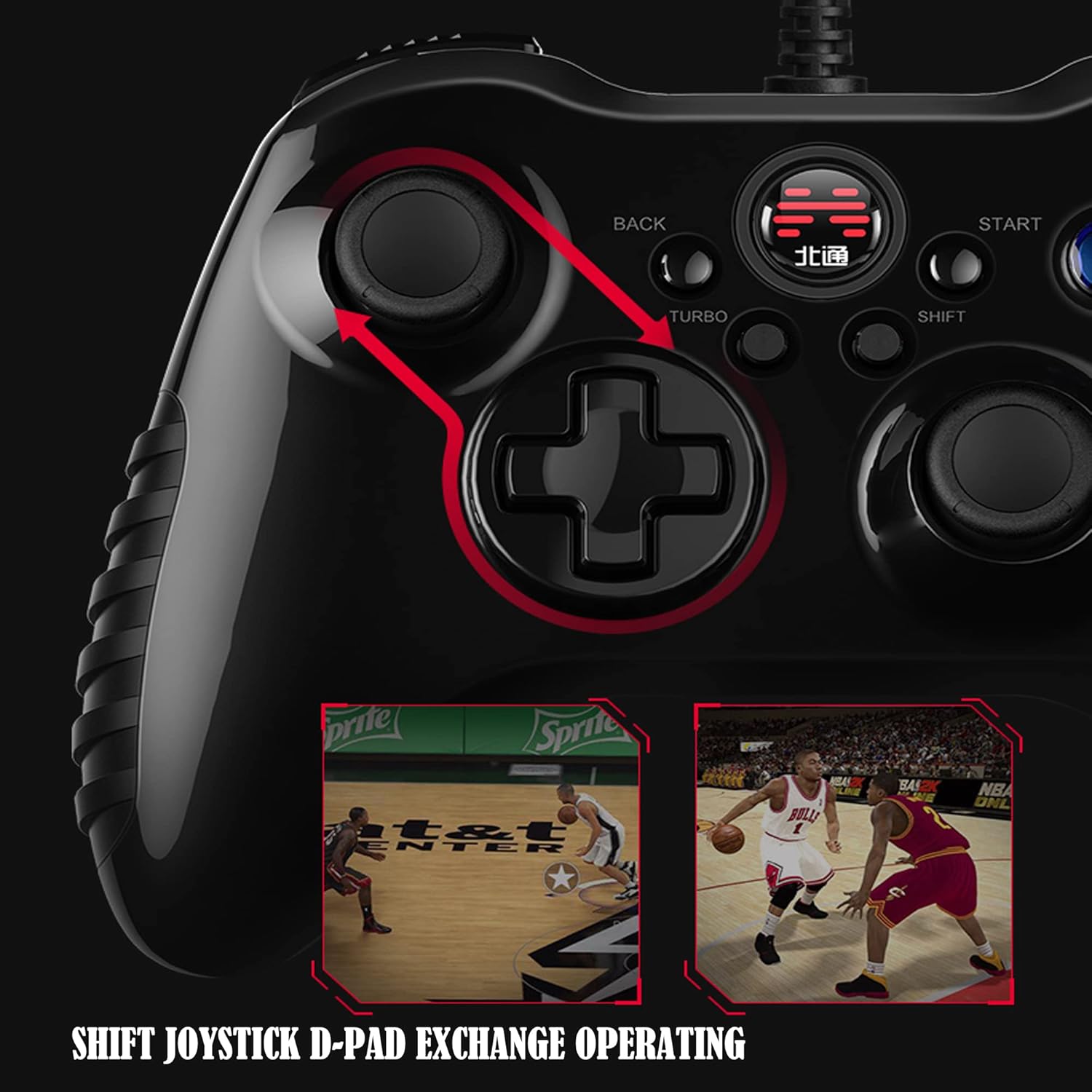
Image 5.1: Visual representation of the D-Pad and Joystick function exchange using the SHIFT button.
5.3. Mahi Turbo
The Turbo function enables rapid, repeated input of a button press by holding down the assigned button. This can be advantageous in games requiring quick, successive button presses.
- Patohia me te pupuri i te [TURBO] pātene.
- While holding [TURBO], press the action button (e.g., A, B, X, Y, LB, RB, LT, RT) you wish to assign the Turbo function to.
- Release both buttons. The assigned action button will now activate Turbo mode when pressed.
- To disable Turbo for a specific button, repeat the process: press and hold [TURBO], then press the previously assigned action button.

Image 5.2: Close-up of the Turbo button and its interaction with action keys for rapid input.
5.4. Dual Vibration Feedback
The controller's dual vibration motors provide tactile feedback that corresponds to in-game events, such as impacts, explosions, or engine rumble. This feature is automatically active when supported by the game and the controller is connected.
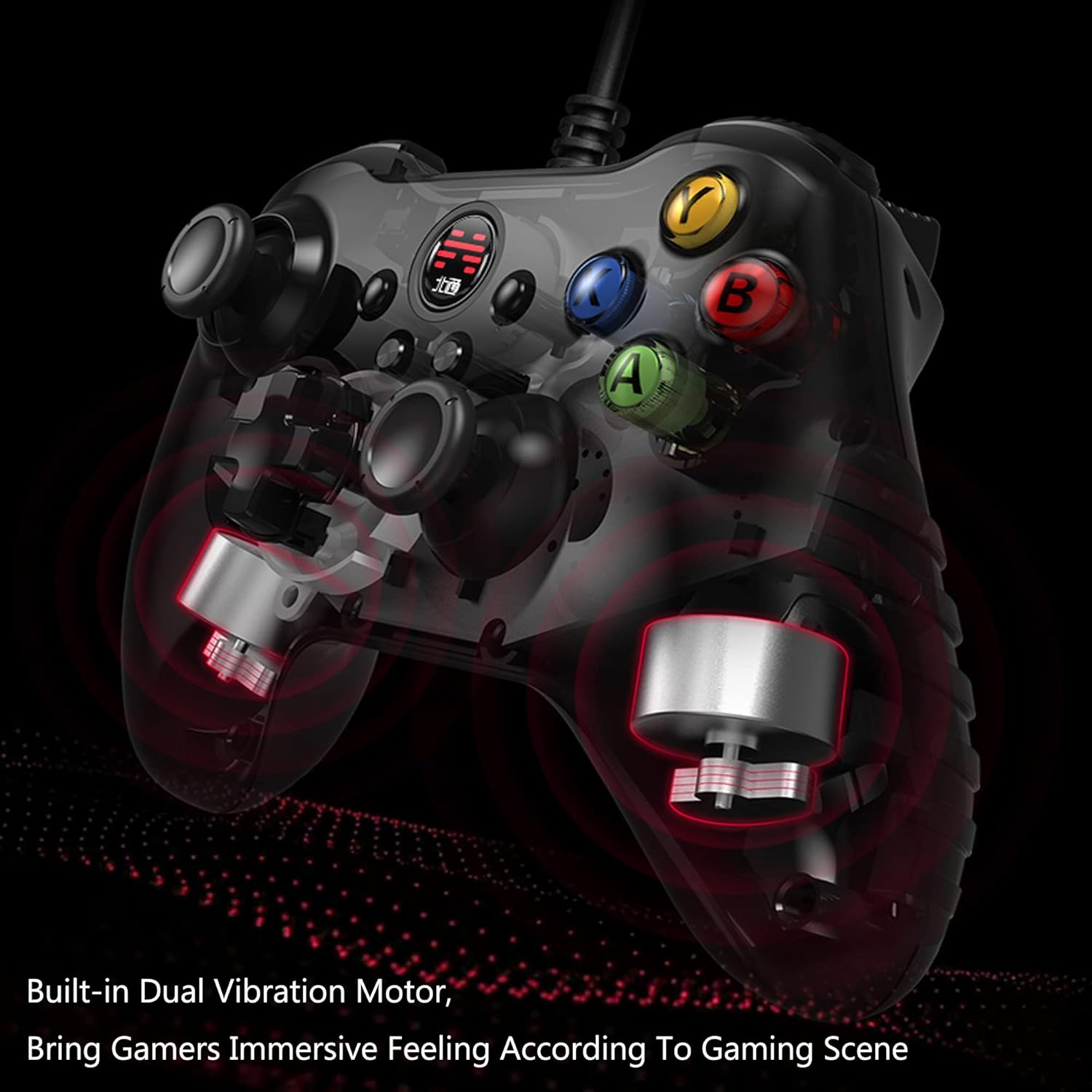
Image 5.3: An X-ray view of the controller highlighting the placement and function of the built-in dual vibration motors.
5.5. Linear Trigger Operation
The LT and RT triggers are designed to provide a linear response, meaning the amount of pressure applied directly correlates to the input value. This allows for nuanced control in games where precise acceleration or braking is required.

Image 5.4: An illustration demonstrating the internal mechanism and linear travel of the triggers.
6. Tiaki
- Te horoi: Whakamahia he kakahu ngohengohe, maroke hei horoi i te pūmana. Kaua e whakamahi i ngā matū kaha, i ngā rauemi whakakoi rānei.
- Rokiroki: Whakaorangia te pūmana ki te wahi matao, maroke atu i te ra tika me te wera nui.
- Tiaki Pūhiko: Hei whakaroa i te ora o te pākahiko, karohia te whakakore i nga wa katoa o te mana. Me utu tonu, ahakoa kaore i te whakamahia tonu.
7. Te Raru
7.1. Controller Not Connecting/Disconnecting Frequently
- Ensure the 2.4GHz USB-A dongle is securely inserted into a working USB port on your device.
- Verify the controller is powered on and fully charged.
- Try inserting the dongle into a different USB port.
- Move the controller closer to the dongle to rule out interference or range issues.
- Restart your PC or device and attempt to reconnect.
- If using on PC, ensure necessary drivers are installed. Windows typically installs generic gamepad drivers automatically.
7.2. Buttons or Joysticks Not Responding Correctly
- Test the controller in wired mode to determine if the issue is related to wireless connectivity.
- Kia tino mohio kāore he para e arai ana i ngā pātene, i ngā rakau whakahaere rānei.
- Calibrate the controller through your operating system's game controller settings (e.g., Windows Game Controllers).
7.3. Kāore e Mahi te Wiri
- Check if the game you are playing supports vibration feedback.
- Ensure vibration is enabled in the game's settings or your device's controller settings.
- Verify the controller is fully charged.
8. Whakatakotoranga
| Āhuahira | Taipitopito |
|---|---|
| Tau tauira | BTP-2185T2 |
| Hononga | 2.4GHz Wireless (USB-A Dongle), Wired (USB-A Cable) |
| Hototahi | PC (Windows 7/8/10/11), Steam, Android TV, Emulators |
| Pūhiko | 1 pākahiko Lithium Polymer (kei roto), 600mAh |
| Ahu | 6.3 x 4.3 x 1.97 inihi |
| Taumaha | 8.8 hekere |
| Nga waahanga motuhake | D-Pad/Joystick Function Switch, Dual Vibration, Linear Triggers, Turbo Function |
9. Pūtāhui me te Tautoko
BEITONG provides technical support for its products. For any issues or inquiries regarding your BEITONG Asura 2 controller, please refer to the official BEITONG support channels or visit the BEITONG Store on Amazon mo etahi atu awhina.
Tena koa pupurihia to tohu mo te hoko mo nga kereme whakamana.


