1. Kupu Whakataki
This manual provides detailed instructions for the proper use and maintenance of your New Bee BH58 Wireless Headset. Please read this manual thoroughly before using the product to ensure optimal performance and longevity. The BH58 headset features Bluetooth V5.0 connectivity, a noise-canceling microphone, and multiple connection options for various devices.

Figure 1: New Bee BH58 Wireless Headset with included USB dongle.
2. Ihirangi mokete
Me mohio kei roto katoa nga mea kei roto i te kete:
- New Bee BH58 Wireless Headset
- USB Dongle
- USB-C Uira Whakatau
- 3.5mm Waea Ororongo
- Pukapuka Kaiwhakamahi (tenei tuhinga)
3. Hua Neke Atuview
Kia mōhio koe ki ngā wāhanga me ngā mana whakahaere o te pane whakarongo.

Figure 2: Headset controls layout.
- Patene Wahangu Mic: Wahangu/whakatangihia te hopuoro i te wa e waea ana.
- Rōrahi + / -: Whakaritehia te reo ororongo.
- Power On/Off / Multifunctional Button: Power on/off, play/pause music, answer/end calls.
- Atanga Ororongo 3.5mm: Mo te hononga waea.
- Tauranga Whakatau (USB-C): Mo te utu i te pane.
- hopuoro: Rotatable for optimal positioning.

Figure 3: The microphone can rotate 270 degrees for use on either ear.
4. Tatūnga
4.1 Te Whakataki i te Paneoro
Before first use, fully charge the headset. Connect the USB-C charging cable to the headset's charging port and the other end to a USB power source. The LED indicator will show charging status. A full charge takes approximately 1.5 hours.
4.2 Hiko / Whakaweto
- Whakahiko: Push the power button to the middle position and hold for 3 seconds until the LED indicator flashes red and green alternately (for computer pairing mode) or red and blue alternately (for cellphone pairing mode).
- Weto Whakakore: Push the power button to the bottom position to turn off the headset.
4.3 Tauhoa ki nga Pūrere
The BH58 headset supports three connection methods: Bluetooth, USB Dongle, and Wired.
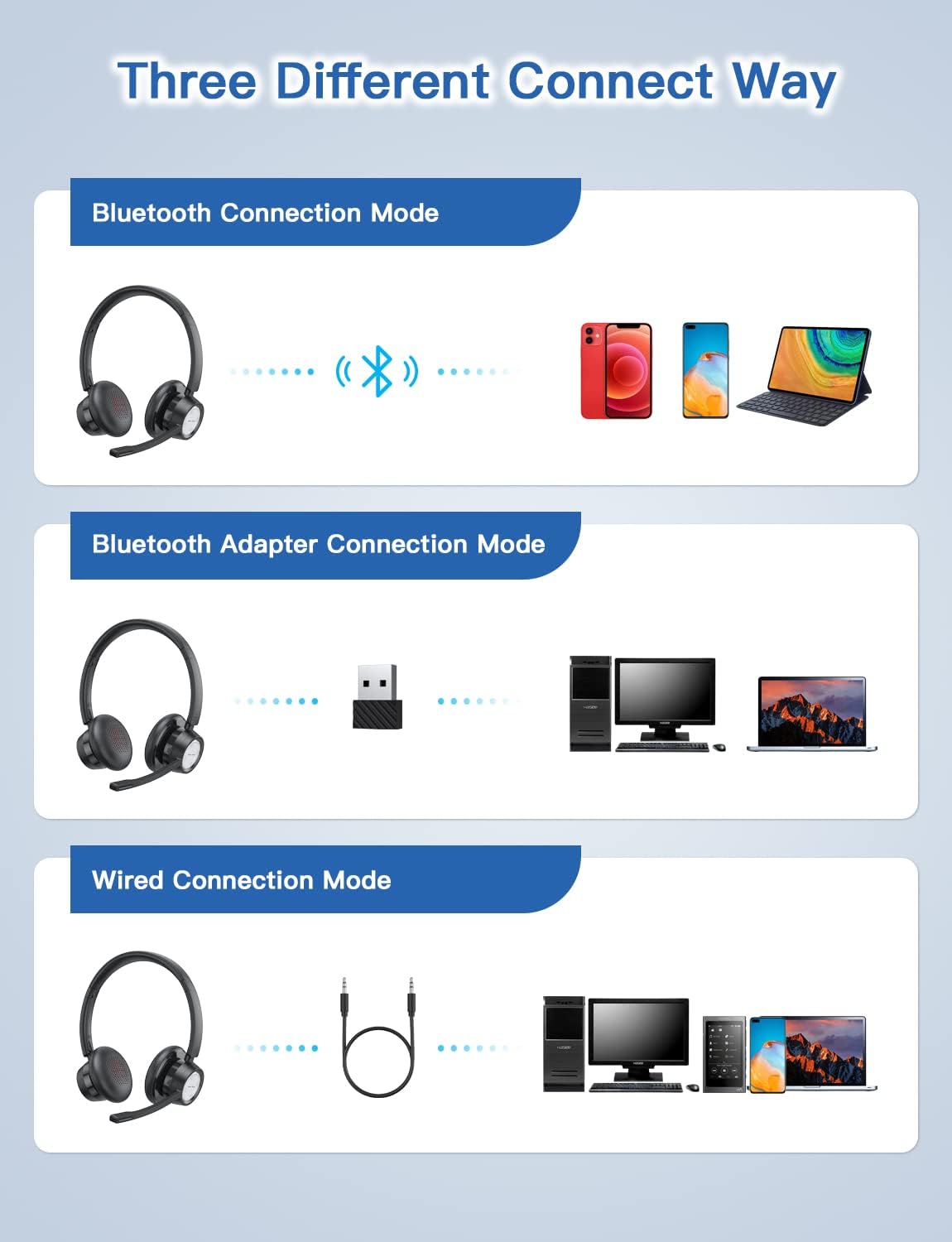
Figure 4: Multiple connection options for the BH58 headset.
4.3.1 Bluetooth Connection (for Cellphones/Tablets)
- Push the power button to the top and hold for 10 seconds until the headset LED indicator keeps flashing red and blue alternately. This indicates cellphone pairing mode.
- On your cellphone or tablet, go to 'Settings' > 'Bluetooth' and turn on Bluetooth.
- Rapua new devices and select 'BH58' from the list to connect.
- Once connected, you will hear a 'connected' voice prompt, and the LED indicator will flash blue every 30 seconds.
Video 1: Demonstrates the process of connecting the BH58 headset to a cellphone via Bluetooth.
4.3.2 USB Dongle Connection (for Computers without Bluetooth)
- Push the power button to the middle position to turn on the headset. The headset LED indicator keeps flashing red and green alternately, indicating computer pairing mode.
- Plug the Bluetooth transmitter (USB dongle) into your computer's USB port. It will automatically enter pairing mode. The Bluetooth transmitter LED indicator keeps flashing blue for about 3 seconds, then turns into red and blue flashing alternately.
- When hearing the 'connected' voice prompt, the connection is successful. The headset LED indicator flashes blue every 30 seconds, and the Bluetooth transmitter LED indicator is solid blue.
- On your computer, navigate to Sound Settings. Choose 'BH58' (or 'BTD-Q2' if listed) as the audio input and output device. Adjust sound settings as preferred.
Video 2: Illustrates how to connect the BH58 headset to a computer using the USB dongle and configure sound settings.
4.3.3 Hononga Waea
Connect the 3.5mm audio cable to the headset's 3.5mm audio interface and the other end to your device's audio jack. In wired mode, only the speaker has sound; the buttons and microphone on the headset do not function.
5. Mahi
5.1 Whakahaere Waea
- Whakautu/Whakamutu Waea: Press the Multifunctional Button once.
- Whakakore Waea: Press and hold the Multifunctional Button for 2 seconds.
- Wahangu/Whanguorooro: Press the Mic Mute Button during an active call.
5.2 Mana Ororongo
- Runga Runga: Patohia te paatene Rahi +
- Raro Raro: Pēhia te Volume - pātene.
- Purei/Tatari Puoro: Press the Multifunctional Button once.
5.3 Te mau i te Paneoro
Adjust the headband for a comfortable fit. The microphone boom can be rotated 270 degrees to be worn on either the left or right ear. Position the microphone approximately 1-2 inches from your mouth for optimal voice clarity.

Figure 5: The headset can be adjusted for left or right ear wearing.
6. Pūhiko Ora
The BH58 wireless headset offers extended battery performance:
- Wā Korero: Tae atu ki te 20 haora
- Wā Purei Waiata: Tae atu ki te 28 haora
- Wā tūtatari: Neke atu i te 400 haora
- Wā Whakataki: Tata ki te 1.5 haora

Whakaatu 6: Neke Atuview of BH58 headset battery performance.
7. Tiaki
- Horoia te pane i nga wa katoa ki te kakahu ngohengohe, maroke.
- Avoid exposing the headset to extreme temperatures, moisture, or corrosive substances.
- Whakaorangia te pane i te waahi makariri, maroke ina kore e whakamahia.
- Kaua e ngana ki te wetewete, ki te whakatika rānei i te pane whakarongo māu ake, nā te mea ka whakakorea te pūtāhui.
8. Te Raru
| Raruraru | Rongoā |
|---|---|
| Karekau te paneoro i te hiko. | Me whakarite kua whakakiia te pane. |
| Kaore e taea te hono ma te Nihokikorangi. | Ensure the headset is in pairing mode (LED flashing red/blue or red/green). Turn off and on Bluetooth on your device. Clear previous Bluetooth connections. |
| Karekau he oro, he kino te kounga oro. | Check volume levels on both the headset and your device. Ensure 'BH58' is selected as the audio output device in your system settings. For wired mode, ensure the cable is fully inserted. |
| Kaore e mahi ana te hopuoro. | Ensure the microphone is not muted. Check that 'BH58' is selected as the audio input device in your system settings. Microphone does not work in wired mode. |
| He maha nga momo momo pane pane. | Ensure the headset is within the effective Bluetooth range (10-45 meters depending on mode and environment). Avoid obstacles that may interfere with the signal. |
9. Whakatakotoranga
| Āhuahira | Taipitopito |
|---|---|
| Ingoa Tauira | BH58 |
| Hangarau Hononga | Ahokore (Nihokikorangi), Waea (3.5mm) |
| Hangarau Whakawhitiwhiti Ahokore | Nihokikorangi V5.0 |
| Mana Haruru | Adaptive Noise Cancellation (ENC) |
| hopuoro | Omnidirectional, 270° Rotatable |
| Te Wa Korero | Tae atu ki te 20 haora |
| Wā Purei Waiata | Tae atu ki te 28 haora |
| Wā tūtatari | Neke atu i te 400 haora |
| Waa Whakatau | 1.5 haora |
| Tauranga Whakatau | USB-C |
| Awhe Nihokikorangi | 10-45 meters (depending on mode/environment) |
| Rauemi | Fabric, Memory Foam |
| Taumaha Tūemi | 230 Karamu (8.1 hekere) |
| Pūrere Hototahi | Computers, Laptops, Smartphones, Tablets, VoIP systems, Webinar systems, Skype, Zoom, Avaya, Call Centers, Online meeting systems, Home devices, Office devices |
10. Pūtāhui me te Tautoko
New Bee provides excellent after-sales service, including a 12-month warranty from the date of purchase. A professional technical team and customer service center are available to assist you with any inquiries or issues.
For support, please refer to the contact information provided on the product packaging or the official New Bee webpae.


