Kupu Whakataki
This manual provides comprehensive instructions for the iFLYTEK Translator 2.0 easytrans 800. It covers device setup, operation, maintenance, and troubleshooting to ensure optimal performance and user experience. The iFLYTEK Translator 2.0 is designed for seamless communication across language barriers, offering advanced voice and camera translation capabilities.
Ihirangi mokete
Manatokona kei roto katoa nga mea kei roto i te kete:
- iFLYTEK Translator 2.0 easytrans 800 Device
- Tauira Whakatau USB
- Aratohu Tere
- Pukapuka Tohutohu (tenei tuhinga)
- Taura/Whiri

Image: The iFLYTEK Translator 2.0 easytrans 800 device, its charging cable, and documentation laid out next to the product box.
Ka mutu te huaview
The iFLYTEK Translator 2.0 easytrans 800 features a compact design with a user-friendly interface.

Whakaahua: Mua view of the iFLYTEK Translator 2.0 easytrans 800 showing the screen, navigation buttons, and speaker. Rear view shows the camera lens and SOS button.
Wae Pūrere:
- Paewhiri Mua: Touchscreen display, navigation buttons (ABC, O, 中文), speaker.
- Paewhunga Rear: Camera lens, SOS button.
- Patene taha: Power button, volume controls.
- Tauranga: USB charging port, 3.5mm headphone jack.
Tatūnga
1. Ka tohatohahia te Pūrere
Before first use, fully charge the translator. Connect the provided USB cable to the device's charging port and a compatible USB power adapter (not included).
- He 2-3 haora pea te utu katoa.
- Ko te tohu o te pākahiko kei runga i te mata ka whakaatu te mana utu.
2. Te Whakakaha/Weto
- Hei Whakahiko: Press and hold the Power button (usually on the side) until the screen illuminates.
- Hei Whakaweto: Press and hold the Power button, then select "Power Off" on the screen.
3. Initial Language Selection
Upon first power-on, you will be prompted to select the device's interface language. Follow the on-screen instructions.
4. Hononga Whatunga
The iFLYTEK Translator requires an internet connection for optimal translation accuracy. Connect to a Wi-Fi network or utilize the built-in global communication feature.
- Wi-Fi: Navigate to Settings > Wi-Fi, select your network, and enter the password.
- Global Communication: The device includes 2 years of global communication coverage in 98 countries. This feature activates automatically when a Wi-Fi connection is not available.
Nga Tohutohu Whakahaere
The iFLYTEK Translator 2.0 easytrans 800 offers two primary translation modes: Voice Translation and Camera Translation.
1. Voice Translation (59 Languages)
Mā tēnei aratau ka taea te whakamāori i te reo kōrero i te wā tūturu.
- Select the source and target languages on the device screen.
- Press and hold the designated voice input button (e.g., "ABC" for language A, "中文" for language B).
- Kōrero mārama ki te hopuoro o te pūrere.
- Release the button. The device will process your speech and provide the translation audibly and on-screen.
The device features advanced noise reduction technology and four microphones for high accuracy even in noisy environments, with a response time of approximately 0.5 seconds.

Image: The iFLYTEK Translator 2.0 device screen showing a Japanese phrase and its translation, demonstrating voice translation functionality.
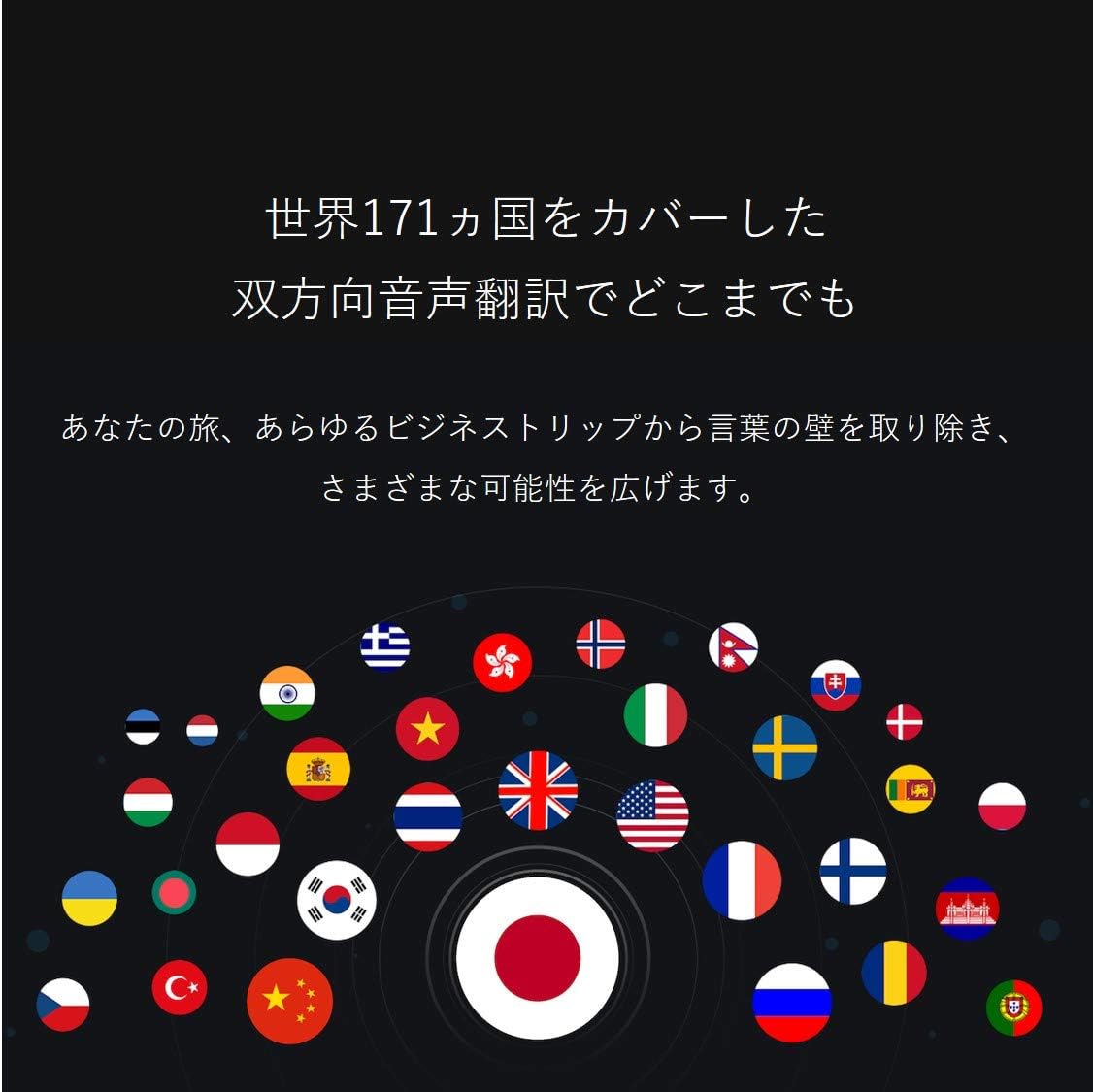
Image: A collection of national flags, symbolizing the extensive language support of the iFLYTEK Translator 2.0 across 171 countries.
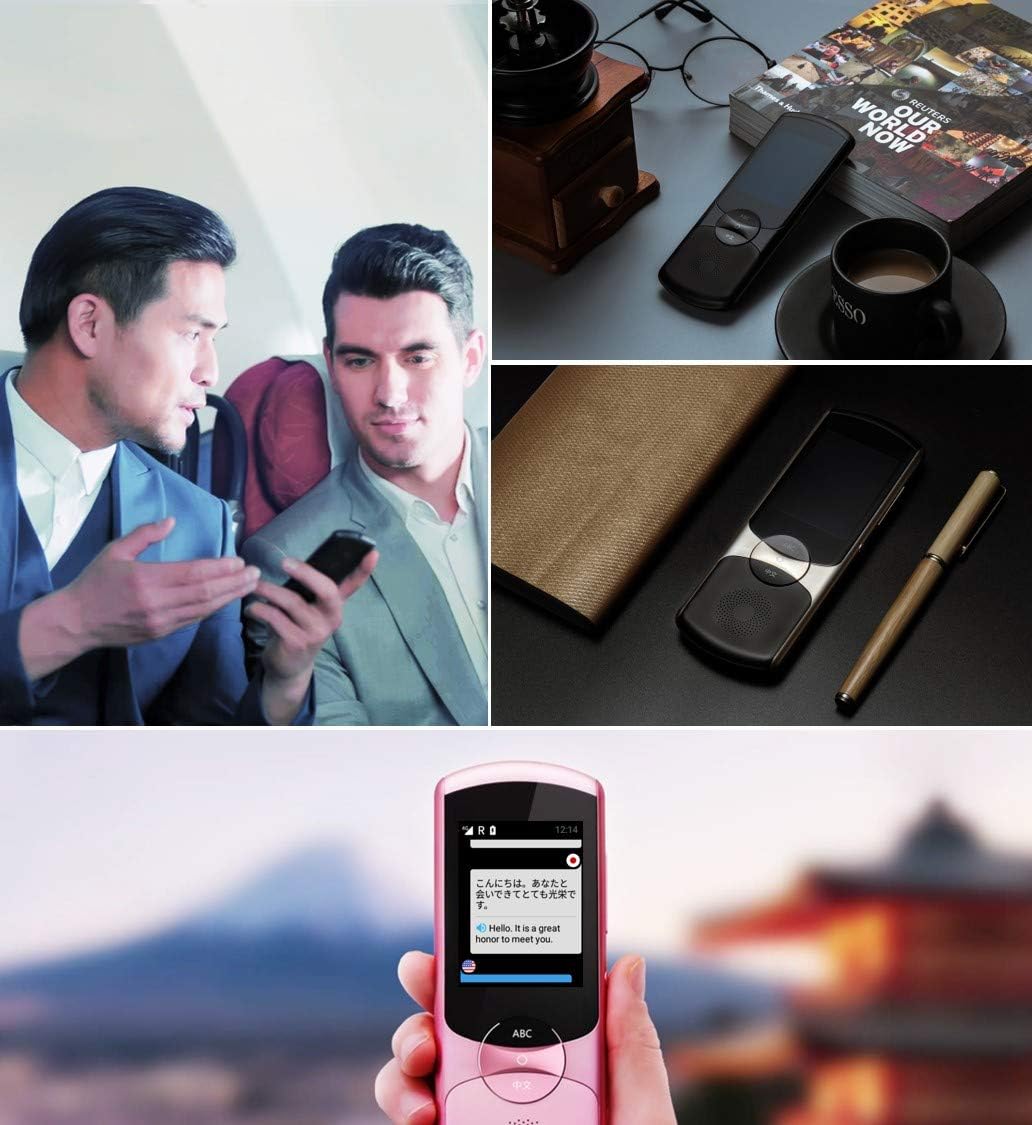
Image: A collage showing the iFLYTEK Translator 2.0 being used in different scenarios, including a business meeting and a travel setting, highlighting its versatility.
2. Camera Translation (11 Languages)
This mode translates text captured by the device's camera.
- Select Camera Translation mode from the main menu.
- Point the device's camera at the text you wish to translate (e.g., signs, menus, documents).
- Ensure the text is well-lit and within the camera's frame.
- Tap the capture button on the screen. The device will process the image and display the translated text.

Image: A user holding the iFLYTEK Translator 2.0 to translate text on a map, demonstrating the camera translation feature.
3. Pronunciation Scoring and Accent Check
The device includes an AI-powered feature to help users improve their pronunciation and check accents.
- Access the Pronunciation Scoring feature from the menu.
- Select the language for practice.
- Speak the displayed phrases or words into the microphone.
- The device will provide feedback on your pronunciation and accent.

Image: An adult and a child interacting with the iFLYTEK Translator 2.0, illustrating its use for pronunciation scoring and language learning.
Te tiaki
- Te horoi: Whakamahia he kakahu maeneene, maroke hei horoi i te taputapu. Kaua e whakamahia nga kai horoi wai, aerosol ranei.
- Rokiroki: Whakaorangia te taputapu ki te waahi makariri, maroke atu i te ra tika me te wera nui.
- Tiaki Pūhiko: Hei whakaroa i te ora o te pākahiko, karohia te tuku katoa i te pākahiko. Me utu te taputapu i nga wa katoa, ahakoa kaore i te whakamahia mo nga wa roa.
- Whakahōu Pūmanawa: Tirohia me te tāuta i ngā whakahōutanga pūmanawa i ia wā, i ia wā, kia pai ai te mahi me te uru atu ki ngā āhuatanga hou.
Raparongoā
| Raruraru | Take pea | Rongoā |
|---|---|---|
| Kaore te taputapu i te hiko. | He iti te pākahiko; kua tio te taputapu. | Me utu te taputapu mo te iti rawa 30 meneti. Mahia he whakaoho kaha ma te pupuri i te paatene hiko mo te 10-15 hēkona. |
| Kāore i te tika, he puhoi rānei te whakamāoritanga. | Poor internet connection; unclear speech; incorrect language selection. | Ensure a stable Wi-Fi or cellular connection. Speak clearly and directly into the microphone. Verify that the correct source and target languages are selected. |
| Camera translation not working. | Insufficient lighting; blurry image; text too small. | Ensure adequate lighting. Hold the device steady to avoid blur. Position the device closer to the text if it's too small. |
| Karekau he oro mai i te kaikorero. | He iti rawa te oro; kua āraia te kaikorero. | Increase the volume using the side buttons. Check if the speaker is blocked by debris. |
Whakatakotoranga
| Āhuahira | Taipitopito |
|---|---|
| Waitohu | iFLYTEK |
| Tau tauira | EASYTRANS 800 |
| Voice Translation Support | 59 Reo |
| Camera Translation Support | 11 Reo |
| Hangarau Whakaiti Haruru | Yes, with 4 microphones |
| Whakawhitiwhitinga Ao | 2 years coverage in 98 countries |
| Wā Whakautu | Tata ki te 0.5 hēkona |
| Pūrere Hototahi | Laptop, Personal Computer (for data transfer/updates) |
| Atanga Pūmārō | 802.11 b/g/n (Wi-Fi) |
| Hōputu Ororongo | WAV |
| Tiki Waeoro | 3.5 mitamano |
| Momo Pūhiko | 1 pākahiko Lithium Ion (kei roto) |
| Taumaha Tūemi | 120 Karamu |
| Rahi Mata | 5.8 Inihi |
| Ora Pūhiko | Tae atu ki te 6 haora |
| Wā Hopu Mamati | meneti 120 |
Pūtāhui me te Tautoko
For warranty information and technical support, please refer to the official iFLYTEK webpaetukutuku, whakapā atu ranei ki ta raatau ratonga kaihoko. Puritia to riirii hoko hei tohu mo te hoko mo nga kereme whakamana.
The device includes 2 years of global communication, which is a service feature rather than a warranty.


