1. Kupu Whakataki
The Phomemo 241BT Thermal Label Printer is designed for efficient and high-quality label printing for various applications, including shipping, small business, and personal use. This printer utilizes advanced thermal direct technology, eliminating the need for ink or toner. It supports both wireless (Bluetooth) and wired (USB) connections, offering versatility across multiple devices and operating systems.

Image: The Phomemo 241BT printer actively printing a shipping label, surrounded by various label types and a smartphone connected via Bluetooth.

Image: The Phomemo 241BT printer demonstrating connectivity with both a laptop via USB and a smartphone via Bluetooth, highlighting its multi-system compatibility.
Ko nga ahuatanga matua ko:
- Tā Waituhi: Advanced thermal direct technology removes the need for expensive toner or ink.
- Putanga Tere-Teitei: Prints up to 72 sheets of 4x6 labels per minute.
- Taumira teitei: 203 DPI ensures clear and precise printing.
- Hononga maha: Supports Bluetooth for mobile devices (iOS/Android) and USB for PC (Windows, Mac OS, Chrome OS, Linux).
- Hototahi Whānui: Works with major shipping and sales platforms like eBay, Shopify, Amazon, Etsy, UPS, USPS, FedEx, and DHL.
- Adaptable Label Width: Accommodates labels from 1 to 4.6 inches (25.4-117mm).
2. He aha kei roto i te Pouaka
Tena koa tirohia kei roto nga waahanga katoa i roto i te kete:
- 1 x Phomemo 241BT Label Printer
- 10 sheets of 4x6 thermal label paper
- 1 x Pūurutau Hiko me te taura
- 1 x Type C Adapter and USB Cable
- 1 x Aratohu Kaiwhakamahi

Image: An illustration showing all items included in the Phomemo 241BT printer package.
3. Aratohu Tatūnga
3.1. Hononga Taapapa
- Hono Hono: Monohia te urutau hiko ki te tauranga hiko o te pūreretā, kātahi ki te putanga pakitara.
- Tūhono USB (Kōwhiringa): For wired printing, connect one end of the USB cable to the printer and the other end to your computer. Use the Type C adapter if your computer requires it.
3.2. Tāuta Pūmanawa
For Mobile Devices (iOS & Android - Wireless Bluetooth)
- Download "Labelife" App: Rapua "Labelife" in the Apple App Store (for iOS) or Google Play Store (for Android) and download the application.
- Whakahohe Nihokikorangi: Turn on Bluetooth on your mobile phone or tablet.
- Hono atu i roto i te Taupānga: Open the "Labelife" app and follow the in-app instructions to connect to your Phomemo 241BT printer via Bluetooth.

Image: Visual instructions for downloading the Labelife app, enabling Bluetooth, and connecting to the printer for wireless printing.
For Computers (Windows, Mac OS, Chrome OS, Linux - USB Wired)
- Tikiake Atekōkiri: Haerenga labelife.net/pm241 to download the appropriate driver for your operating system (Windows, Mac OS, Linux).
- Tāuta Atekōkiri: Follow the on-screen instructions to install the downloaded driver.
- For Chrome OS: Enter "Labelife" in the Chrome Web Store and add the extension to your Google Chrome browser.

Image: The Phomemo 241BT printer connected via USB to a laptop, illustrating compatibility with various desktop operating systems and the need for driver installation.
3.3. Uta Tapanga
The Phomemo 241BT supports thermal labels with widths ranging from 1 inch (25.4mm) to 4.6 inches (117mm). Ensure labels are loaded correctly for optimal printing.
- Whakatūwherahia te uhi pūreretā.
- Insert the label roll or fan-fold labels into the label compartment, ensuring the printable side faces up.
- Adjust the label guides to fit the width of your labels snugly, without being too tight.
- Close the printer cover. The printer will automatically detect the label size and calibrate.

Image: A visual representation of the printer's capability to handle different label widths and types, from small circular labels to standard 4x6 shipping labels.
4. Nga Tohutohu Whakahaere
4.1. Printing via USB Cable (PC)
- Ensure the printer is connected to your PC via USB and the driver is installed.
- Open the document or label file you wish to print on your computer.
- Tīpakohia "Tā" mai i te tahua o tō taupānga.
- Choose the Phomemo 241BT printer from the list of available printers.
- Adjust print settings (e.g., label size, orientation) as needed in the print dialogue box.
- Click "Print" to start printing.
4.2. Printing Wirelessly (Mobile App)
- Ensure your mobile device is connected to the Phomemo 241BT via Bluetooth through the "Labelife" app.
- Within the "Labelife" app, import the file (PDF, image) you want to print.
- Select the desired label size or crop the content as necessary.
- Preview the label to ensure correct formatting.
- Tap "Print" to send the job to the printer.
4.3. Supported Platforms and Applications
The Phomemo 241BT printer is compatible with a wide range of e-commerce and shipping platforms, facilitating label creation for various services.
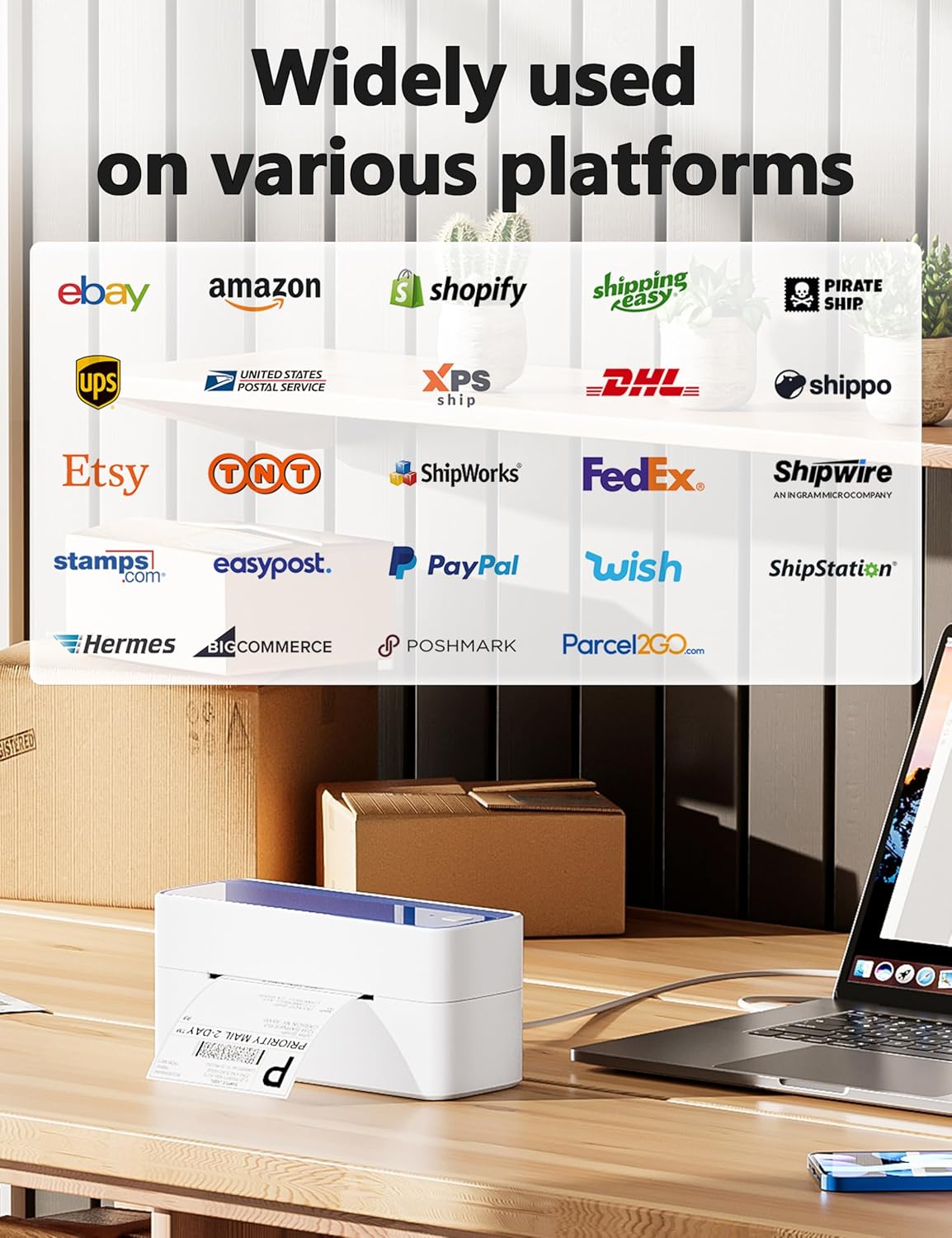
Image: A display of logos from numerous online platforms and shipping carriers that are compatible with the Phomemo 241BT label printer.
Ko nga tono noa ko:
- Shipping labels for major carriers (UPS, USPS, FedEx, DHL).
- Labels for e-commerce platforms (Amazon, eBay, Shopify, Etsy, Poshmark, Temu).
- Barcode labels for inventory management.
- Product labels and notes for various business needs.

Image: Various applications of the Phomemo 241BT printer, showing labels used for shopping, logos, barcodes, and notes in different settings.
5. Tiaki
Regular maintenance ensures the longevity and optimal performance of your Phomemo 241BT printer.
- Te horoi i te Upoko Tā: Use an alcohol wipe or a specialized print head cleaning pen to gently clean the thermal print head. Ensure the printer is off and cooled down before cleaning.
- Te horoi i waho: Ūkuia te waho o te pūreretā ki te ngohengohe, damp kakahu. A ape i te whakamahi matū kino.
- Tango Puehu: Keep the label compartment free of dust and debris to prevent paper jams and maintain print quality.
- Rokiroki: Penapenahia te pūreretā ki te wāhi hauhautanga, maroke, kia matara atu i te rā tika me ngā pāmahana tino kino ina kore e whakamahia.
6. Te Raru
This section addresses common issues you might encounter with your Phomemo 241BT printer.
| Raruraru | Take pea | Rongoā |
|---|---|---|
| Karekau he Mana | Ko te taura hiko kaore i te hono; take putanga hiko. | Me whakarite kei te hono tika te taura hiko ki te pūreretā me te putanga hiko. |
| He Rawe te Kounga o te Ta | Dirty print head; incorrect label type; low resolution setting. | Clean the print head. Ensure you are using thermal labels. Check print settings for 203 DPI resolution. |
| Kāore ngā Tapanga e Whāngai Tika ana | Labels loaded incorrectly; label guides not adjusted; label jam. | Reload labels, ensuring they are straight and guides are snug. Clear any jammed labels. |
| Kaore e taea te hono ma te Nihokikorangi | Bluetooth not enabled; app not open; printer not discoverable. | Ensure Bluetooth is on your device. Open the "Labelife" app and follow connection steps. Restart printer and device. |
| Cannot Print via USB | Driver not installed; incorrect USB port; cable issue. | Install the correct driver from labelife.net/pm241. Try a different USB port or cable. |
7. Whakatakotoranga
| Āhuahira | Taipitopito |
|---|---|
| Ingoa Tauira | 241BT |
| Hangarau Tā | Ngawha |
| Hangarau Hononga | Nihokikorangi, USB |
| Morahi Rahi Media | 4 x 6 inch (117mm width) |
| Whakataunga Tā mōrahi | 203 DPI |
| Tere Tā Max (Monochrome) | 66 ppm (72 sheets of 4x6 labels per minute) |
| Pūrere Hototahi | PC (Windows, Mac OS, Chrome OS, Linux), Smartphones (iOS, Android) |
| Hunga Hua | 8.66 x 6.3 x 4.41 inihi (22 x 16 x 11.2 cm) |
| Taumaha Tūemi | 2.84 pauna (1.29 kg) |
| Tikanga Mana | App (Labelife) |
| Nga Waahanga kei roto | Printer, 10 sheets 4x6 thermal label paper, Power Adapter and Cord, Type C Adapter and USB Cable, User Guide |
8. Pūtāhui me te Tautoko
Phomemo provides a limited warranty for the 241BT Thermal Label Printer. For specific warranty terms and conditions, please refer to the official Phomemo webpae, nga tuhinga ranei kei roto i to hua.
For technical support, inquiries, or assistance with your Phomemo product, please contact the professional support team:
- Waea Waea: (9:00-17:00 Mon-Fri EST)
- Īmēra: (5x24 Hours Mon-Fri EST)
- Support includes live chat, phone calls, emails, and remote desktop operation.

Image: A customer service representative, representing the available support channels for the product.


