1. Kupu Whakataki
The Eve MotionBlinds Upgrade Kit allows you to transform your existing roller blinds into smart, automated window coverings. This kit integrates seamlessly with Apple HomeKit, enabling control via the Eve app, Siri voice commands, and custom schedules. It supports Thread technology for a robust and responsive smart home network.

Image 1.1: The Eve MotionBlinds motor and the Eve Home app interface on an iPhone.
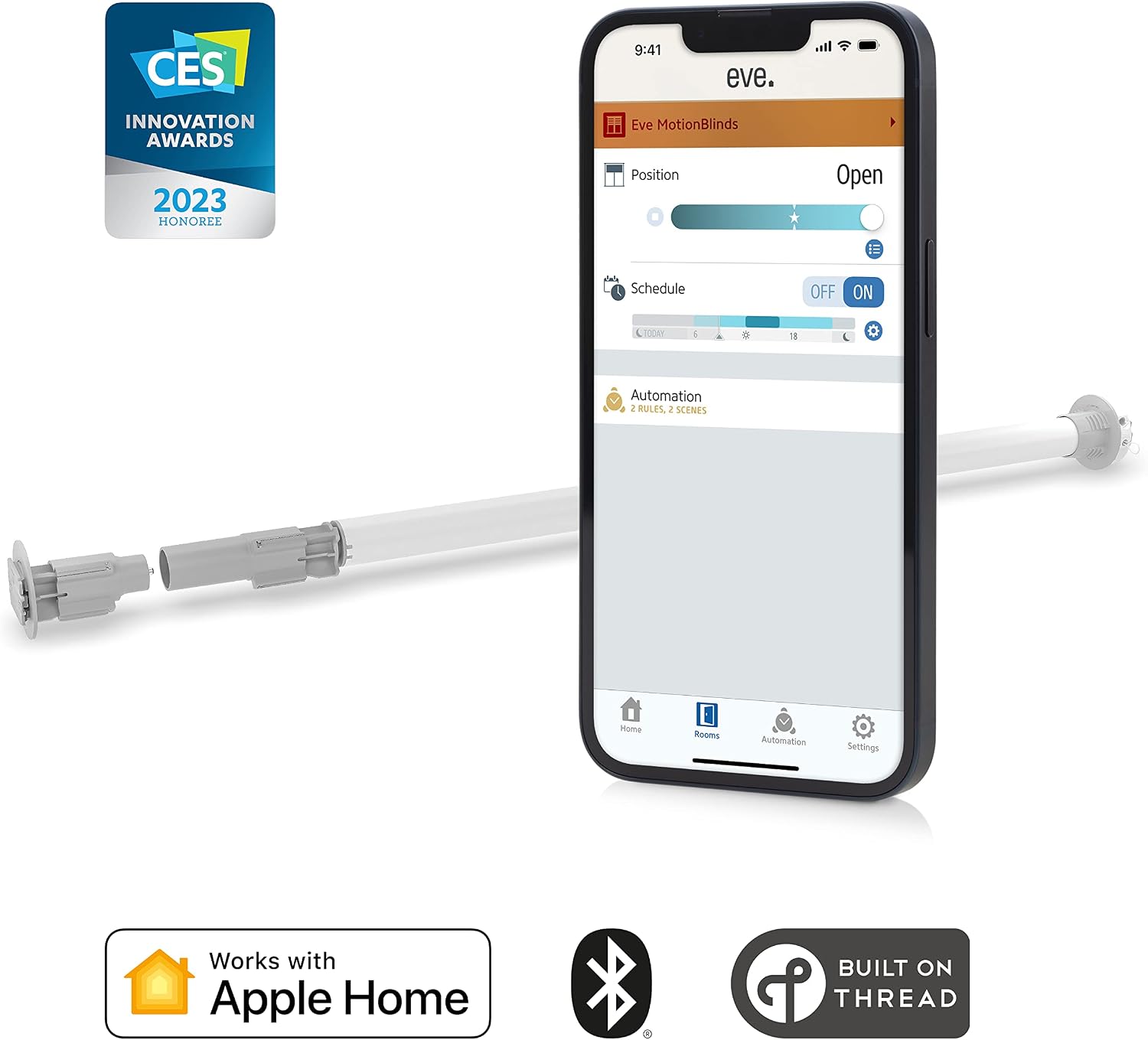
Image 1.2: Eve MotionBlinds highlighting Apple Home, Bluetooth, and Thread compatibility.
2. Ihirangi mokete
Verify that all components are present in your Eve MotionBlinds Upgrade Kit:
- Eve MotionBlinds Motor
- Te Kaha Raimana
- Retrofit Crown
- Drive/End Plug
- Brackets/Covers
- Aratohu Tāuta

Image 2.1: All components included in the Eve MotionBlinds Upgrade Kit.
3. Whakaritenga Hototahi
Before installation, ensure your existing roller blinds meet the following specifications:
- Tube Outer Diameter (without fabric): 1.5 - 2 inihi (38 - 51 mm)
- Minimum Blind Width: 26.75 inihi (680 mm)
- Smart Home System: Apple HomeKit (requires HomePod mini, HomePod (2nd gen.), or Apple TV (2nd gen. / 3rd gen. 128 GB) as a home hub for remote access and Thread functionality).
Note: IKEA and Hunter Douglas blinds cannot be retrofitted with the Eve MotionBlinds Upgrade Kit due to their tube diameters.

Image 3.1: Dimensional requirements for roller blind compatibility.
4. Tāutanga
The Eve MotionBlinds Upgrade Kit is designed for simple, wireless installation.
- Remove your existing roller blind from its mounting brackets.
- Carefully remove the existing chain mechanism from the roller blind tube.
- Slide the Eve MotionBlinds motor into the tube of your existing blind. Ensure it fits securely.
- Attach the appropriate retrofit crown and drive/end plug to the motor and blind tube ends.
- Mount the blind back into position using the provided brackets/covers, ensuring stable wall mounting.

Image 4.1: Hands inserting the Eve MotionBlinds motor into a roller blind tube.
5. Tatūnga me te Tauhoa
After physical installation, set up your Eve MotionBlinds with Apple HomeKit.
- Tikiake te taupānga Eva from the Apple App Store on your iPhone or iPad.
- Open the Eve app and follow the on-screen instructions to add a new accessory.
- Scan the HomeKit setup code located on the Eve MotionBlinds motor or in the included guide.
- Assign the blind to a room and give it a descriptive name within the Eve app or Apple Home app.
- The Eve MotionBlinds will automatically join your Thread network if a compatible home hub (HomePod mini, HomePod (2nd gen.), or Apple TV (2nd gen. / 3rd gen. 128 GB)) is present.
6. Mahi
Control your Eve MotionBlinds using various methods:
6.1. Mana Taupānga
Use the Eve app or Apple Home app to precisely adjust the position of your blinds. You can open, close, or set them to any desired percentage.

Image 6.1: Controlling blind position via the Eve MotionBlinds app.
6.2. Siri Voice Control
With Apple HomeKit integration, you can use Siri to control your blinds with voice commands. For example, say, "Hey Siri, open the living room blinds" or "Hey Siri, set the bedroom blinds to 50 percent."
6.3. Autonomous Schedules
Set up schedules within the Eve app to automate your blinds. Blinds can open and close at specific times, independently of your iPhone or home network, once schedules are configured.

Image 6.2: Setting up autonomous schedules in the Eve MotionBlinds app.
6.4. Remote Control (On the Go)
If you have a HomePod mini, HomePod (2nd gen.), or Apple TV (2nd gen. / 3rd gen. 128 GB) set up as a home hub, you can control your blinds remotely when you are away from home.

Image 6.3: Remote control of blinds using the Apple Home app.
7. Thread Network Integration
Eve MotionBlinds support Thread technology, which enhances your smart home network by making it more responsive, robust, and extending its range. Thread creates a self-healing mesh network, where devices can communicate directly with each other.

Image 7.1: Illustration of a Thread mesh network in a smart home.
8. Privacy and Security
Eve MotionBlinds are designed with privacy in mind. Eve does not collect your personal data, and there is no Eve cloud service. All processing is done locally, and Eve accessories communicate directly with your iPhone, iPad, or home hub without cloud dependency or a bridge, ensuring your data remains private.

Image 8.1: Eve's commitment to user privacy.
9. Tiaki
To maintain your Eve MotionBlinds Upgrade Kit, follow these guidelines:
- Te horoi: Spot clean only. Do not immerse the motor in water or use harsh chemicals.
- Pūhiko: The motor contains a rechargeable Lithium Polymer battery. Recharge as needed using the provided cord.
10. Te Raru
If you encounter issues with your Eve MotionBlinds, consider the following:
- Kaore i te whakautu: Ensure the motor is charged. Check the connection in the Eve app or Apple Home app.
- Nga take hono: Verify your Apple Home hub (HomePod mini, HomePod, or Apple TV) is online and within range. For Thread devices, ensure your Thread network is active.
- Raruraru Tāuta: Double-check that your blind's tube diameter and width meet the compatibility requirements (refer to Section 3).
- Tautuhi: If problems persist, consult the Eve app for device-specific reset instructions or contact Eve support.
11. Whakatakotoranga
| Āhuahira | Taipitopito |
|---|---|
| Tau tauira | N003460 |
| Rauemi | Te whakarewa, te Kirihou |
| Hunga Hua | 2.95"L x 30.51"W |
| Taumaha Tūemi | 1.37 pauna (620 Karamu) |
| Tae | Mā |
| Aratau Mahi | Aunoa |
| Momo Mana | App control, Siri voice control, Autonomous schedules |
| Pūrere Hototahi | Devices that support Apple HomeKit |
| Momo Whakaeke | Maunga Taiepa |
| Momo Pūhiko | Lithium Polymer (1 whakauru) |
| Voltage | 10.8 Volts |
| Hononga | Nihokikorangi, Miro |
12. Pūtāhui me te Tautoko
For warranty information or technical assistance, please refer to the official Eve website or contact Eve customer support directly. Keep your purchase receipt for warranty claims.


