Kupu Whakataki
This manual provides detailed instructions for setting up, operating, and maintaining your Mytrix Gold Wireless Switch Controller. Please read this manual thoroughly before use to ensure proper functionality and to maximize your gaming experience.

Whakaahua: Mua view of the Mytrix Gold Wireless Switch Controller, showcasing its gold glitter finish and illuminated joysticks.
Ihirangi mokete
Me whakarite kei te noho nga mea katoa i mua i te haere ki te tatūnga:
- 1 x Mytrix Gold Wireless Switch Controller
- 1 x USB C to A charging cable
- 1 x Manual Kaiwhakamahi (tenei tuhinga)
Aratohu Tatūnga
1. Te Whakataki i te Kaiwhakahaere
The controller comes with a built-in 600mAh rechargeable battery. Before first use, or when the battery is low, charge the controller using the provided USB C to A cable.
- Connect the USB-C end of the cable to the controller's charging port.
- Connect the USB-A end of the cable to a compatible USB power source (e.g., Nintendo Switch dock, PC USB port, USB wall adapter).
- The charging indicator lights on the controller will show charging progress. A full charge typically takes approximately 2 hours.

Image: Close-up of the controller's charging port and an illustration of battery charging progress.
2. Te hono i te Kaiwhakahaere
The Mytrix Gold Wireless Switch Controller supports both wireless (Bluetooth) and wired connections across multiple platforms.
Hononga Ahokore (Nihokikorangi)
This controller is compatible with Nintendo Switch/Lite/OLED, iOS devices (iOS 13.4 and above), and Android devices (Android 10.0 and above).
- For Nintendo Switch/Lite/OLED:
- Mai i te Tahua KĀINGA, tīpako Kaiwhakahaere, katahi Hurihia te Pumau/Whakaraupapa.
- While the screen is displaying "Press L + R on the controller", press and hold the Pātene Kāinga on the Mytrix controller for 3-5 seconds until the indicator lights flash rapidly.
- Once connected, the player indicator light(s) on the controller will remain solid.
- For iOS/Android Devices:
- Whakahohehia te Nihokikorangi i runga i to taputapu iOS, Android ranei.
- On the Mytrix controller, press and hold the Pātene Kāinga for 3-5 seconds to enter pairing mode.
- Rapua "Mytrix Controller" or similar in your device's Bluetooth settings and select it to pair.

Image: The controller shown with various compatible devices including Nintendo Switch, Windows PC, Steam Deck, iOS, and Android.
He hononga Whiriwhiria
This controller supports wired connection for Nintendo Switch, Windows PC, Steam, and Steam Deck.
- Connect the USB-C end of the charging cable to the controller.
- Connect the USB-A end to a USB port on your Nintendo Switch dock, Windows PC, Steam, or Steam Deck.
- The controller should be automatically recognized and ready for use.
Nga Tohutohu Whakahaere
1. Tahora Pātene
The Mytrix Gold Wireless Switch Controller features a standard layout with all necessary buttons for gaming. This includes two analog sticks, a D-pad, A/B/X/Y face buttons, L/R shoulder buttons, ZL/ZR triggers, Home, Capture, Plus (+), Minus (-), and programmable back buttons (MR/ML).
Whakaahua: Mua view of the Mytrix Gold Wireless Switch Controller, showing the arrangement of its buttons and joysticks.
2. Dynamic Joystick RGB Lighting
The controller features dynamic RGB lighting around the joysticks with 7 different colors and 4 lighting modes to enhance your gaming atmosphere.
- Aratau Rama: Mixed-Color Wave, Color Breathing Mode, Single Color Mode, OFF Mode.
- Refer to the quick start guide or the controller's specific button combinations for cycling through modes and adjusting brightness.

Image: The controller with its joysticks illuminated by dynamic RGB lighting, highlighting the 7 colors, adjustable brightness, and lighting modes.
3. Mahi Turbo
The Turbo function allows for rapid, automatic pressing of buttons, reducing finger fatigue during repetitive actions.
- Tere Whakaritea: 5, 15, or 25 shots per second.
- Compatible Buttons: A, B, X, Y, L, ZL, R, ZR.
- To activate/deactivate Turbo, press the Turbo button (often indicated by a fan icon or 'T') simultaneously with the desired action button. Repeat to cycle through speeds or turn off.

Image: A user's hands holding the controller, with an overlay demonstrating the auto-fire turbo function and its adjustable speeds (5, 15, 25 shots/s).
4. Motion Control (6-Axis Gyro)
The integrated 6-Axis Gyro motion sensors provide precise movement controls, enhancing aiming and turning performance in compatible games.
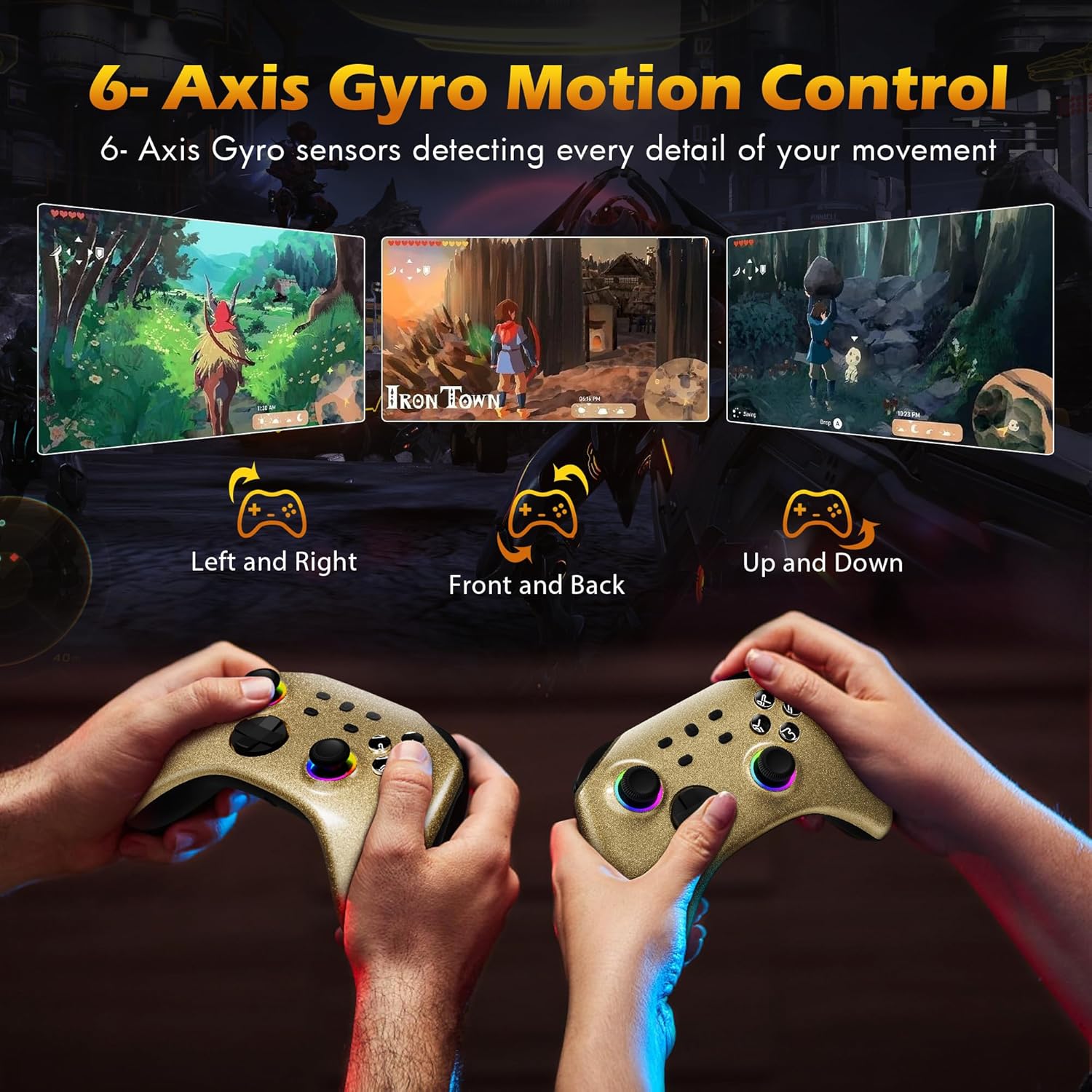
Image: Two controllers being held, illustrating how 6-Axis Gyro sensors detect left/right, front/back, and up/down movements for in-game control.
5. Te wiri whakarerekētanga
Dual motors provide immersive vibration feedback. The intensity can be adjusted to your preference.
- Taumata Wiri: 4 adjustable levels.
- Consult the controller's specific button combinations for adjusting vibration intensity.

Image: The controller with visual effects indicating vibration, showing four adjustable intensity levels (0%, 30%, 70%, 100%).
6. Home Button Remote Wake-Up
When the controller is paired with your Nintendo Switch console, you can press the Home button on the controller to automatically connect and wake up the console from sleep mode.
7. Potae Potae
A 3.5mm stereo headphone port is included, supporting wired headset audio and chat functionality when connected to the console via wired communication.

Image: Diagram showing the controller connected to a Nintendo Switch console via wired communication, with headphones plugged into the controller's 3.5mm jack for audio.
8. Ataata Hua Whaimana
Watch the official product video for a visual guide on the controller's features and functions.
Video: An official Mytrix video showcasing the Gold Wireless Pro Controller's features, including multi-platform compatibility, RGB lighting, Turbo function, motion sensors, vibration, battery life, and headphone jack.
Te tiaki
- Te horoi: Whakamahia he kakahu ngohengohe, maroke hei horoi i te pūmana. Kaua e whakamahi i ngā matū kaha, i ngā rauemi whakakoi rānei.
- Rokiroki: Whakaorangia te pūmana ki te wahi matao, maroke atu i te ra tika me te wera nui.
- Tiaki Pūhiko: Hei whakaroa i te ora o te pākahiko, karohia te whakakore i nga wa katoa o te mana. Me utu tonu, ahakoa kaore i te whakamahia tonu.
Raparongoā
| Raruraru | Rongoa pea |
|---|---|
| Kāore te kaiwhakahaere e hono ahokore. |
|
| Ko nga patene me nga rakau harikoa kaore e aro. |
|
| Vibration is too strong/weak or absent. |
|
| Headphone jack not working. |
|
Whakatakotoranga
- Tau tauira: ns-gold
- Hononga: Ahokore (Nihokikorangi), Waea (USB-C)
- Hototahi: Nintendo Switch/Lite/OLED, Windows PC, Steam, Steam Deck, iOS (13.4+), Android (10.0+)
- Pūhiko: 600mAh Rechargeable (15-18 hours playtime, 2 hours charging time)
- Āhuatanga: 7-Color RGB Dynamic Joystick Lighting (4 modes), 3-Speed Adjustable Turbo Function, 6-Axis Gyro Motion Control, 4-Level Adjustable Vibration, Home Button Remote Wake-Up, 3.5mm Headphone Jack
- Ahu: 6.06 x 4.37 x 2.32 inihi
- Taumaha: 13.05 hekere
- Kaihanga: Mytrix
Pūtāhui me te Tautoko
Mytrix provides a 1-Tau Pūtāhui for this controller. If you encounter any issues or have questions regarding your product, please do not hesitate to contact Mytrix customer support.
For further assistance, please visit the official Mytrix store or contact their customer service channels. You can find more information at: Mytrix Amazon Store


