1. Kupu Whakataki
This manual provides detailed instructions for the Loutoc Voice Remote Control, Model 1385a. This remote is designed as a replacement and upgrade for specific Samsung Smart TVs from 2021 and 2022, offering voice control and quick access to popular streaming services. It features a fast response time of 0.5 seconds and durable silicone buttons tested for over 15,000 clicks. Please read this manual carefully to ensure proper use and optimal performance.

Image 1: Loutoc Voice Remote Control, front view.
2. Hototahi
The Loutoc Voice Remote Control (Model 1385a) is specifically compatible with 2021/2022 Samsung Neo QLED / Crystal UHD 4K Smart TVs that have Alexa Built-in. It is designed to replace or function similarly to the following Samsung TV remote models with voice function:
- TM2180A (BN68-11642A, BN68-11929A, BN68-11929B, BN68-11929D)
- TM2180E (BN68-11645A, BN68-11645G)
- TM2280E (BN68-13842D, BN68-13842H, BN68-13842J)
- BN68-11645D
Tuhipoka: This remote control may not be fully compatible with Samsung TVs from other years or models that do not support voice control or the listed remote models.

Image 2: The remote is compatible with 2021/2022 Samsung Neo QLED and Crystal UHD 4K Smart TVs with Alexa Built-in.

Image 3: Visual representation of compatible Samsung TV remote models.
3. Tatūnga
3.1. Tāuta Pūhiko
The Loutoc Voice Remote Control requires e rua nga pākahiko AAA for operation. To install the batteries:
- Kimihia te uhi o te wahanga pākahiko kei muri o te mana mamao.
- Slide the cover downwards or press the latch (if present) to open it.
- Whakauruhia kia rua nga pākahiko AAA, kia tika te hono o nga pito pai (+) me te kino (-) ki nga tohu kei roto i te waahanga.
- Katia kia mau te uhi o te wahanga pākahiko.
3.2. Tohutohu Takirua
For full functionality, including voice control and advanced features, the remote control must be paired with your Samsung Smart TV. If the remote does not automatically pair upon battery installation, follow these steps:
- Ensure your Samsung Smart TV is powered on.
- Point the Loutoc remote control directly at the front of your TV.
- I te wa kotahi ka pehi me te pupuri i te "Return" pātene (pere piko) me te "Play/Pause" button (triangle and two vertical lines) for at least 3 to 5 seconds.
- Release the buttons when a pairing message appears on your TV screen, indicating that the pairing process has begun or is complete.
- The TV screen should display a confirmation message once pairing is successful.
If pairing fails, ensure the batteries are correctly inserted and try again. Maintain a clear line of sight to the TV during the pairing process.
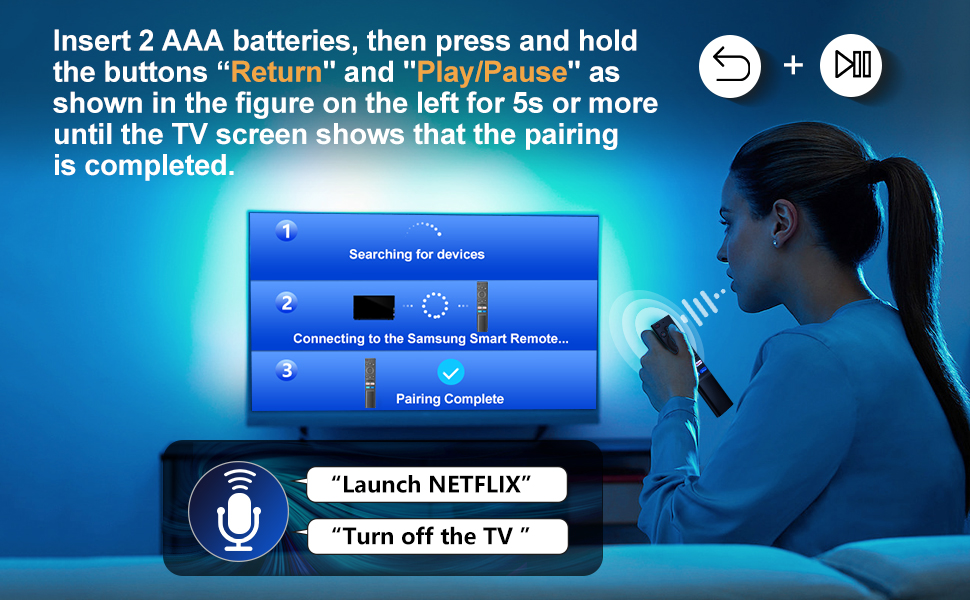
Image 4: Visual guide for pairing the remote control with your Samsung Smart TV by holding the Return and Play/Pause buttons.
4. Nga Tohutohu Whakahaere
The Loutoc Voice Remote Control offers intuitive navigation and quick access to various TV functions and streaming services.
4.1. Ka Mahi te Pateneview
Refer to the diagram below for a detailed overview of each button's function:

Image 5: Labeled diagram of the Loutoc Voice Remote Control buttons and their functions.
| Patene/Ahuatanga | Whakaahuatanga |
|---|---|
| Mana | Patohia hei whakaweto, hei whakaweto ranei i te pouaka whakaata. |
| MIC / LED | Used as MIC when using voice recognition with the remote control. The LED indicates remote activity. |
| Kaiāwhina reo | Press and hold this button to speak commands to the voice assistant (e.g., Alexa). Supported languages and features may vary by geographical region. |
| Color / Number button (123) | Press once to display the virtual numeric pad and color buttons. Use these to access additional options or enter numbers/text. Press and hold for 1 second or more to access the TTX menu. |
| Maha View | Press this button directly to enter the Multi View function. Press and hold for 1 second or more to access the Shortcuts menu screen. |
| Directional buttons (Up, Down, Left, Right) | Moves the focus and changes values on the TV's menu. |
| Tīpakohia | Selects or runs a focused item. When pressed while watching a broadcast program, detailed program information appears. |
| Hoki mai | Returns to the previous menu. When pressed for 1 second or more, the running function is terminated. When pressed while watching a program, the previous channel appears. |
| Smart Hub (Home) | Ka hoki ki te Mata Kainga. |
| Purei/Tatari | Controls media playback. Use to pause/play content. When pressed, the playback controls appear. Using these controls, you can control the media content that is playing. To use Game Bar, press and hold the button in Game Mode. Game Bar may not be supported depending on the model or geographical area. |
| Rōrahi (+/-) | Moves the button up or down to adjust the volume. To mute the sound, press the button. When pressed for 1 second or more, the Accessibility Shortcuts menu appears. |
| Channel (Runga/Whakararo) | Moves the button up or down to change the channel. To see the Guide screen, press the button. When pressed for 1 second or more, the Channel List screen appears. |
| Launch App buttons (NFLX, Rakuten TV, Prime Video, Dis) | Press each button to launch its respective application directly. |
4.2. Voice Control Function
The remote features a dedicated voice control button, allowing you to interact with your Samsung Smart TV using voice commands. This function is particularly useful for searching content, changing settings, or controlling smart home devices connected to your TV's voice assistant.
- Patohia me te pupuri i te Kaiāwhina reo button (microphone icon).
- Speak your command clearly into the microphone located on the remote.
- Release the button once you have finished speaking.
Examples of commands include: "Launch Netflix", "Turn off the TV", "Rapua action movies".

Image 6: The remote control highlighting the voice function button.

Image 7: A user demonstrating the voice control feature to launch applications or control the TV.
4.3. Quick Access Shortcut Buttons
The remote includes four dedicated shortcut buttons for instant access to popular streaming applications:
- NFLX: Launches Netflix.
- Rakuten TV: Launches Rakuten TV.
- Ataata Pirimia: Launches Amazon Prime Video.
- Dis: Launches Disney+.

Image 8: Close-up of the dedicated shortcut buttons for streaming services.
5. Tiaki
To ensure the longevity and proper functioning of your Loutoc Voice Remote Control, follow these maintenance guidelines:
- Te horoi: Whakamahia he kakahu ngohengohe, maroke hei horoi i te mana mamao. Mō te paru uaua, me horoi paku.ampHoroia te kakahu ki te wai, ki tētahi atu mea horoi ngāwari, kāore e whakakoi. Āta karohia te whakamahi i ngā matū kaha, i ngā mea whakakoi rānei.
- Whakakapinga Pūhiko: Whakakapia ngā pākahiko ina puhoi te urupare a te mana mamao, ina mutu rānei te mahi. Whakakapia ngā pākahiko e rua i te wā kotahi ki ngā pākahiko hou o te momo kotahi (AAA).
- Rokiroki: Whakaorangia te mamao ki te waahi makariri, maroke atu i te ra tika, te wera nui, me te makuku nui.
- Aukati i nga Whakataka: Tiakina te mamao mai i te paheketanga tinana, na te mea ka taea e nga pata te pakaru nga waahanga o roto.
6. Te Raru
If you encounter issues with your Loutoc Voice Remote Control, refer to the following common problems and solutions:
- Mamao kaore i te whakautu:
- Tirohia mehemea kei te tika te whakaurunga o nga pākahiko me te nui o te utu. Whakakapihia mehemea e tika ana.
- Me whakarite karekau he arai i waenga i te mamao me te pouaka whakaata.
- Re-pair the remote control with your TV by following the "Pairing Instructions" in Section 3.2.
- Kāore te mana reo e mahi ana:
- Ensure the remote is properly paired via Bluetooth/RF (not just infrared).
- Make sure you are pressing and holding the Voice Assistant button while speaking.
- Speak clearly and close to the microphone on the remote.
- Check your TV's settings to ensure the voice assistant feature is enabled and configured correctly.
- Delayed response or intermittent functionality:
- This can sometimes occur if the remote is not fully paired or if there's interference. Try re-pairing the remote.
- Ensure you are within the effective operating range (up to 8 meters / 26 feet).
- Whakakapia ngā pākahiko mēnā he iti.
- Specific shortcut buttons not working:
- Ensure your TV has the corresponding application installed and updated.
- Verify that the remote is correctly paired.
Mena kei te haere tonu te raru i muri i te whakamatau i enei otinga, tena koa whakapā atu ki te tautoko a te kaihoko.
7. Whakatakotoranga
| Āhuahira | Taipitopito |
|---|---|
| Waitohu | Loutoc |
| Tau tauira | 1385a |
| Puna Mana | 2 x AAA Battery (kaore i uru) |
| Hangarau Hononga | Bluetooth/RF (for pairing and voice control), Infrared (for basic functions) |
| Awhe Morahi | Tae atu ki te 8 mita (26 putu) |
| Momo Kaiwhakahaere | Voice Control, Button Control |
| Te maha o nga Patene | Approx. 20 (including directional pad) |
| Nga waahanga motuhake | Ergonomic design, No programming required (after pairing), Lightweight, Universal (for compatible Samsung models) |
| Tae | Pango |
| Ahu (L x W x H) | Tata ki te 19.7 x 4.8 x 1.5 cm (7.76 x 1.89 x 0.59 inihi) |
| Taumaha | Tata ki te 40 karamu (1.41 hekere) |
| Whenua Taketake | Haina |

Image 9: Dimensions of the Loutoc Voice Remote Control.
8. Pūtāhui me te Tautoko
Loutoc is committed to providing quality products and customer satisfaction. If you have any questions regarding your Loutoc Voice Remote Control or encounter any issues, please do not hesitate to contact our customer support team.
- Ratonga Kiritaki: For inquiries about your order or product, please contact us directly. We aim to respond within 12 hours on business days.
- Pūtāhui: Specific warranty details may vary. Please refer to your purchase documentation or contact customer support for more information.
