1. Kupu Whakataki
Thank you for choosing the Delton Ergonomic Vertical Rechargeable Wireless Mouse S12. This manual provides detailed instructions for setting up, operating, and maintaining your new mouse. Designed for comfort and efficiency, this vertical mouse promotes a more natural hand and wrist posture, reducing strain during extended computer use.
Please read this manual thoroughly before use to ensure optimal performance and longevity of your device.
2. Ihirangi mokete
Manatokona kei roto katoa nga mea kei roto i to kete:
- Delton Ergonomic Vertical Wireless Mouse
- USB Dongle (2.4GHz receiver)
- Tauira Whakatau USB
- Pukapuka Kaiwhakamahi (tenei tuhinga)
3. Hua Neke Atuview
The Delton S12 mouse features an ergonomic vertical design, six programmable buttons, and adjustable DPI settings for precise control. It connects wirelessly via a 2.4GHz USB dongle and is powered by a rechargeable battery.

Image: The Delton S12 Ergonomic Vertical Wireless Mouse, shown with its accompanying USB dongle.
3.1 Hoahoa Ergonomic
The vertical orientation of the mouse is designed to align your hand and wrist in a natural handshake position, which can help reduce muscle strain and discomfort often associated with traditional mice.

Image: A hand comfortably gripping the Delton vertical mouse, demonstrating the natural, ergonomic wrist position it promotes.
3.2 Hononga Ahokore
The mouse connects wirelessly to your device via a 2.4GHz USB dongle, offering a stable connection up to 30 feet (10 meters). This provides flexibility and reduces cable clutter.

Image: The Delton vertical mouse wirelessly connected to a laptop, with the USB dongle inserted into the laptop's port.
3.3 Pūhiko Rorohiko Paatatia
Equipped with a built-in rechargeable Lithium-Ion battery, the mouse offers up to 30 days of daily use and 12 months of standby time on a single charge. It can also be used while charging.

Image: The Delton vertical mouse being charged via a USB cable, illustrating its rechargeable feature.
3.4 Six Buttons Functionality
The mouse features six responsive buttons for enhanced productivity:
- Pāwhiri Mauī
- Pāwhiri Matau
- Scroll Wheel (with click function)
- Patene Whakawhiti DPI
- Patene Whakamua
- Pātene Whakamuri

Image: A detailed diagram highlighting the location and function of the six buttons on the Delton vertical mouse.
3.5 Customizable DPI Levels
Adjust the mouse sensitivity with three DPI settings: 800, 1200, and 2400. An indicator light changes color to show the current DPI level.
- Kahurangi: 800 DPI
- Whero: 1200 DPI
- Kākāriki: 2400 DPI
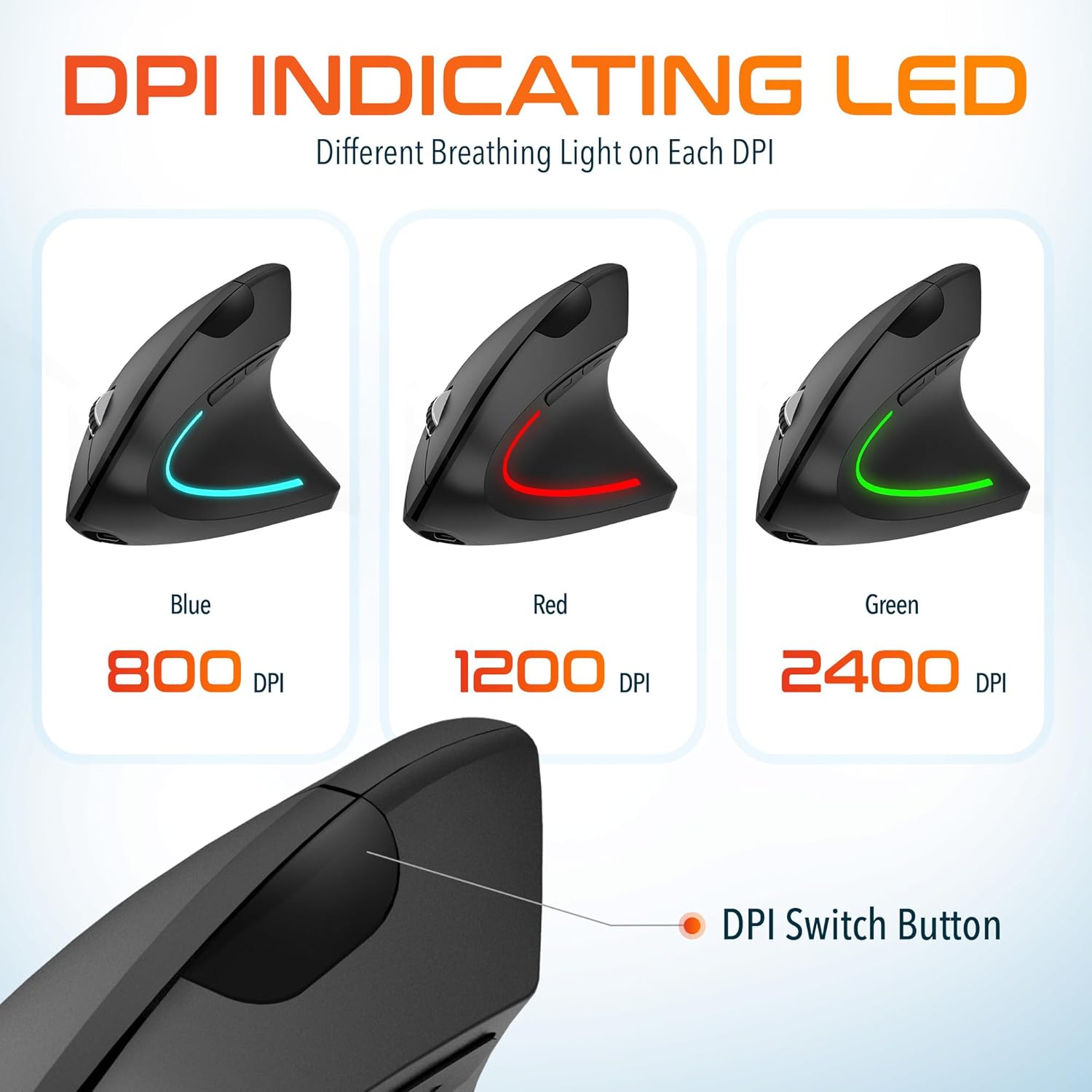
Image: The Delton vertical mouse displaying its LED indicator in blue (800 DPI), red (1200 DPI), and green (2400 DPI) to show current sensitivity settings.
4. Tohutohu Tatūnga
4.1 Te Whakataki i te Kiore
- Honoa te taura utu USB kua whakaratohia ki te tauranga utu kei mua o te kiore.
- Plug the other end of the USB cable into a USB power source (e.g., computer USB port, wall adapter, power bank).
- The LED indicator will illuminate during charging and turn off when fully charged. A full charge typically takes approximately 1 hour.
4.2 Connecting the USB Dongle
- Kimihia te dongle USB, e rongoatia ana i roto i tētahi wāhanga kei raro i te kiore.
- Insert the USB dongle into an available USB port on your computer (PC, Laptop, Mac, Chromebook).
- Ka kitea e te punaha me te whakauru aunoa i nga taraiwa e tika ana. He wa poto pea tenei tukanga.
4.3 Kei te Hiko / Weto
Locate the power switch on the underside of the mouse. Slide the switch to the 'ON' position to power on the mouse. Slide it to 'OFF' when not in use to conserve battery life.
5. Nga Tohutohu Whakahaere
5.1 Whakatikatika DPI
To change the mouse sensitivity (DPI), press the DPI switch button located on the top of the mouse, behind the scroll wheel. Each press cycles through the available DPI settings (800, 1200, 2400), indicated by the changing color of the LED light.
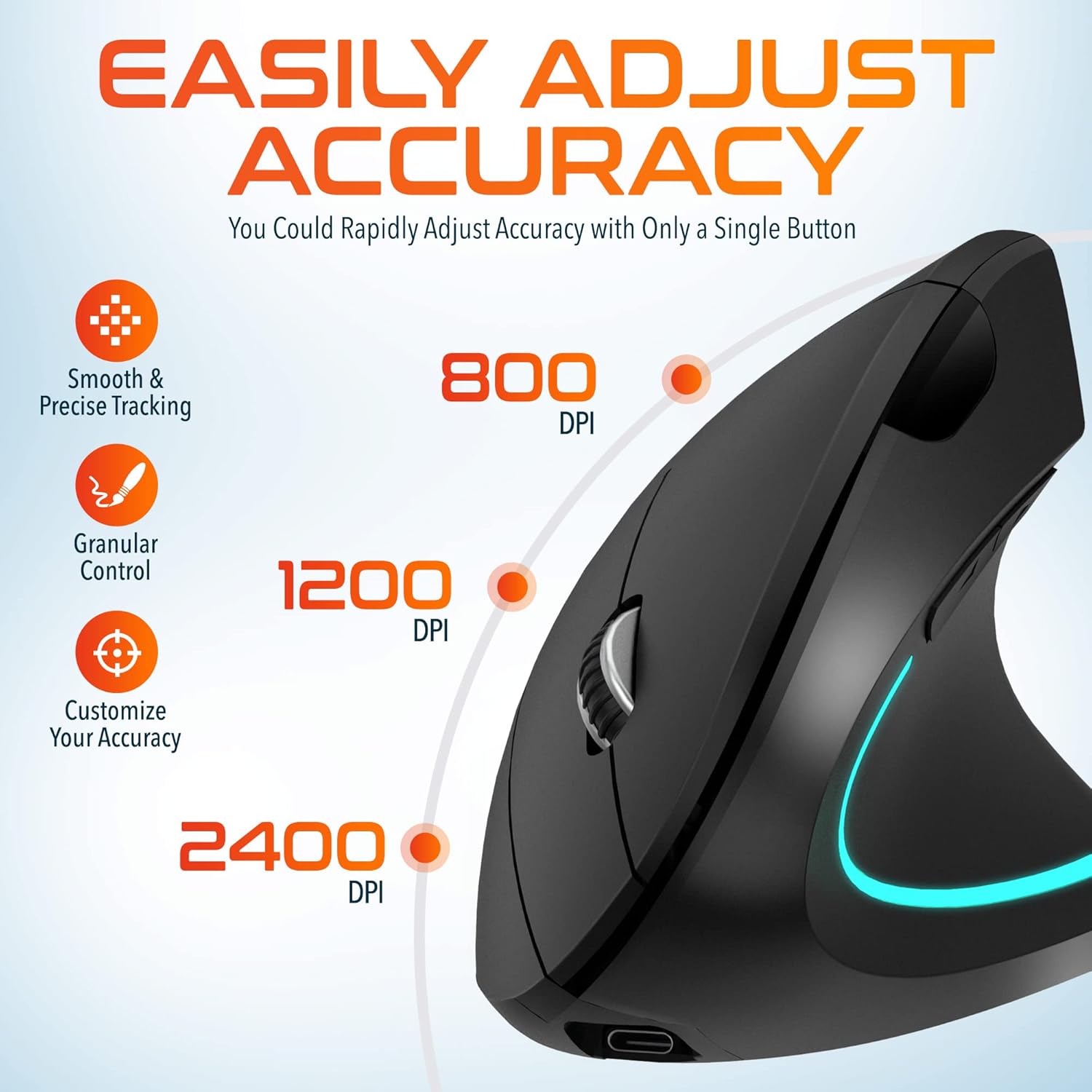
Image: A visual representation of the three adjustable DPI settings (800, 1200, 2400) and their corresponding cursor precision levels.
5.2 Nga Mahi Patene
- Pāwhiri Mauī: Paerewa mahi pāwhiri tuatahi.
- Pāwhiri Matau: Paerewa pawhiri tuarua mahi.
- Panuku Wira: Panuku ki runga, ki raro ranei i roto i nga tuhinga me te web pages. Pressing the scroll wheel acts as a middle click.
- Pātene Whakamua: Ka whakatere whakamua ki roto web kaitirotiro ranei file kaihōpara.
- Pātene Whakamuri: Ka whakatere whakamuri ki roto web kaitirotiro ranei file kaihōpara.

Whakaahua: He tata view of the mouse's scroll wheel and the conveniently placed forward and backward shortcut keys.
6. Tiaki
- Te horoi: Whakamahia he kakahu ngohengohe, maroke hei horoi i te kiore. Mo te paru maro, paku dampen te kakahu ki te wai. A ape i te whakamahi i nga matū kino, i nga taonga abrasive ranei.
- Rokiroki: When not in use for extended periods, store the mouse in a cool, dry place. Ensure the power switch is in the 'OFF' position to preserve battery life.
- Tiaki Pūhiko: Kaua e whakawetohia te pākahiko i ngā wā katoa. Whakautua te kiore i ia wā hei pupuri i te hauora o te pākahiko.
7. Te Raru
| Raruraru | Take pea | Rongoā |
|---|---|---|
| Kaore te kiore e whakautu | Low battery; USB dongle not connected; Mouse not powered on; Driver issue | Charge the mouse; Ensure dongle is securely plugged in; Turn on the mouse; Try a different USB port; Restart computer |
| Hononga mokowhiti | Interference; Dongle too far from mouse; Low battery | Move mouse closer to dongle; Remove obstacles; Charge the mouse; Avoid using near other 2.4GHz devices |
| Kāore te DPI e huri | DPI button not pressed correctly; Mouse unresponsive | Press the DPI button firmly; Check battery and connection |
| Pehu kiore pōturi | Dirty optical sensor; Uneven surface | Clean the optical sensor with a soft cloth; Use on a clean, flat mouse pad or surface |
8. Whakatakotoranga
| Āhuahira | Taipitopito |
|---|---|
| Tau tauira | S12 |
| Hononga | 2.4GHz Wireless (USB Dongle) |
| Nga taumata DPI | 800 / 1200 / 2400 |
| Patene | 6 (Mauī, Matau, Wīra Panuku, DPI, Whakamua, Whakamuri) |
| Momo Pūhiko | Rithium Ion ka taea te utu anō (kei roto) |
| Mokowoko Korekore | Tae atu ki te 30 ft (10 mita) |
| Hunga Hua | 5 x 2.6 x 3.25 inihi |
| Taumaha Tūemi | 4.9 hekere |
| Hototahi | PC, Laptop, Mac, Chromebook (Windows, macOS, iOS) |
9. Pūtāhui me te Tautoko
Delton products are designed for reliability and performance. For warranty information or technical support, please refer to the contact details provided with your purchase or visit the official Delton webpae. Puritia to riirii hoko hei tohu mo te hoko mo nga kereme whakamana.


